Add Application Scopes
As an application owner, you can add custom OAuth 2.0 scopes to Microsoft Entra applications directly in Resource Admin. These scopes define how users and services can interact with your application, allowing fine-grained control over consent and authorization behaviors.
This article walks you through the process of creating scopes in EmpowerID.
What You’ll Need
| Requirement | Description |
|---|---|
| Access to Resource Admin | You must have permission to manage Microsoft Entra applications. |
| Application Ownership | You must be the owner or delegated administrator of the application. |
Steps to Add Application Scopes
1. Open the Application Overview Page
- Log in to Resource Admin.
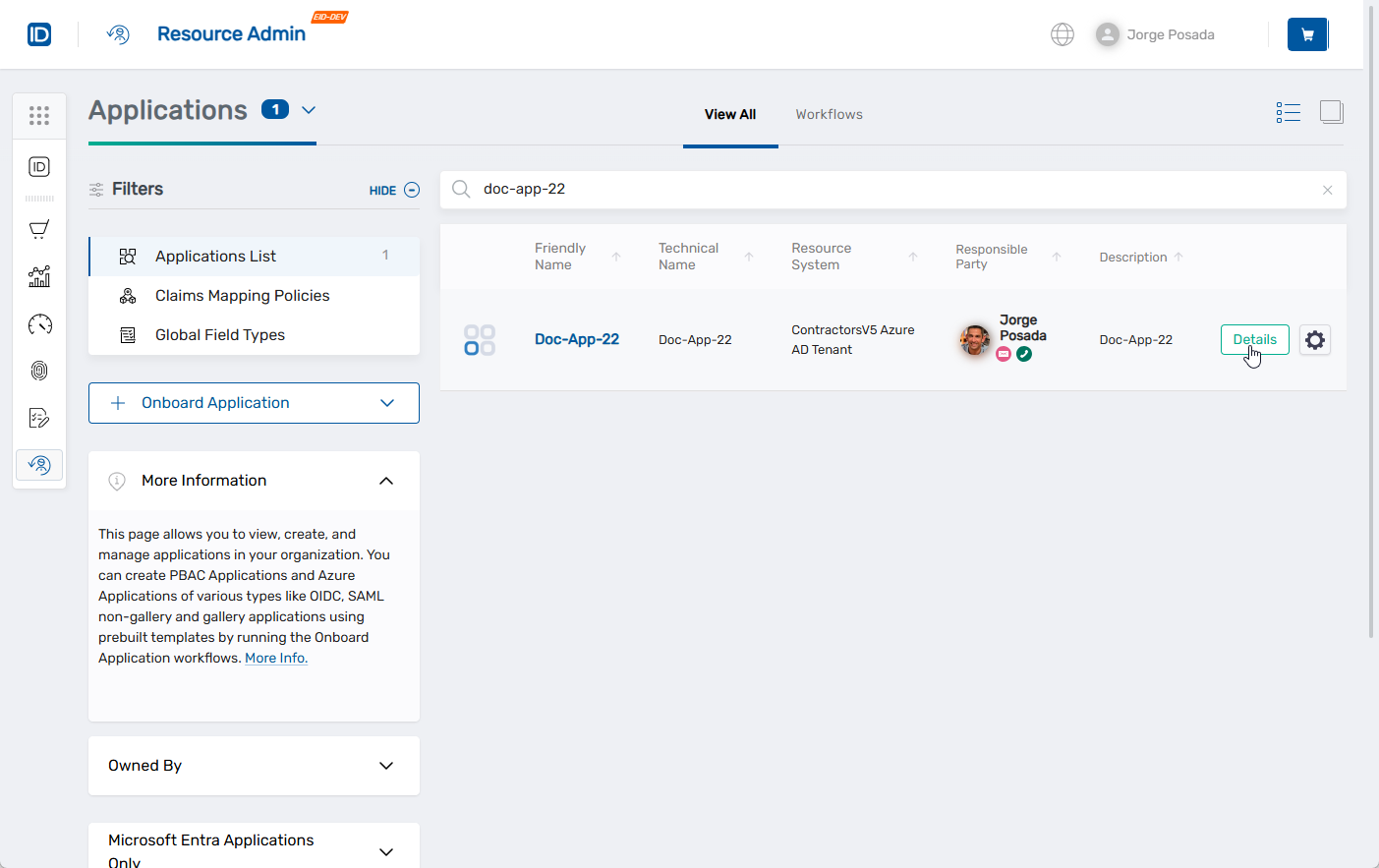
- In the Resource Type menu, select Applications.
- Search for and select the Microsoft Entra application you want to manage.
- Click the Details button for the application.
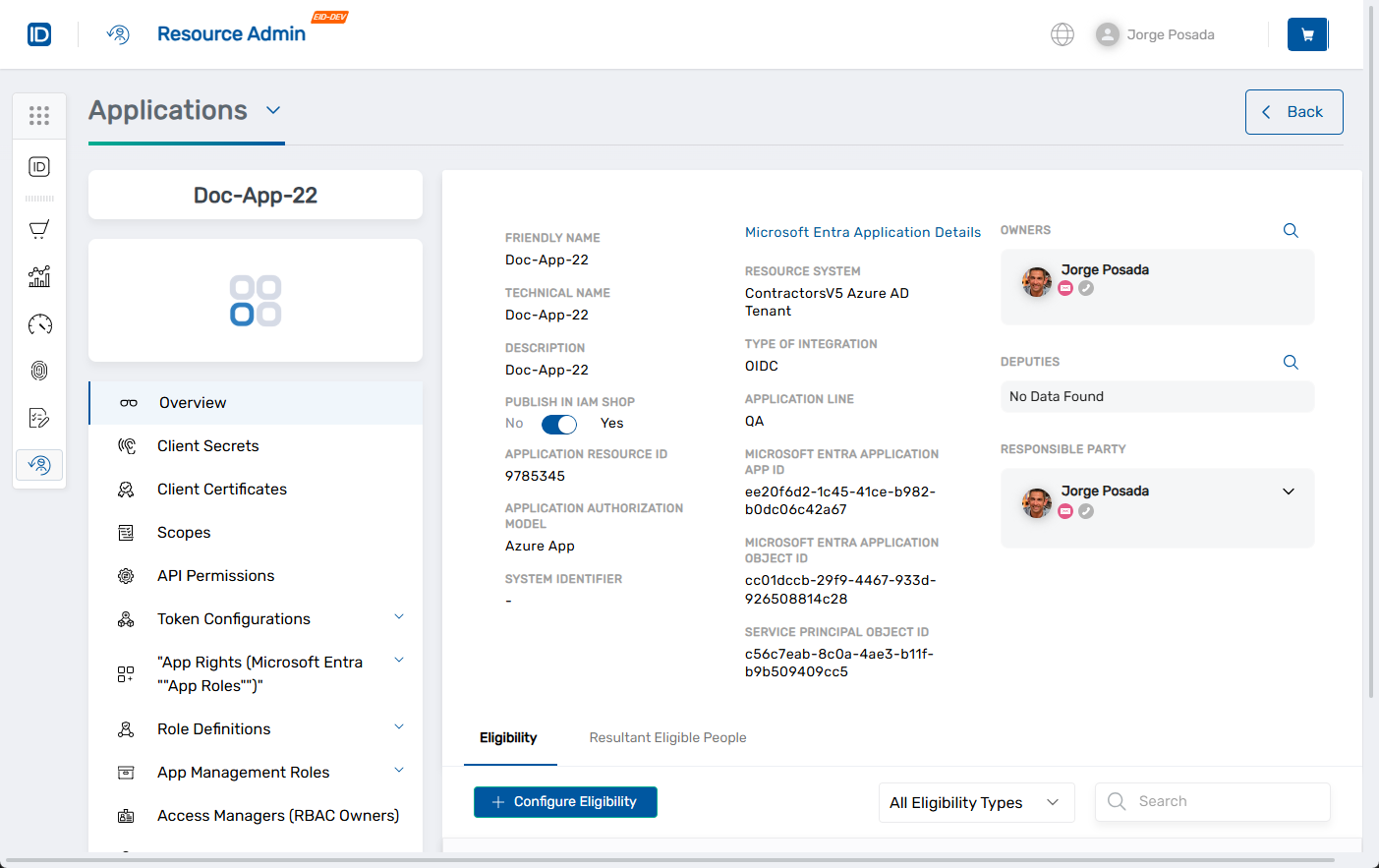
 This opens the application's Overview page.
2. Launch the Create Azure Application Scope Workflow
- In the left application menu, click Scopes.
- Click the Add Scope button at the top of the scopes grid.
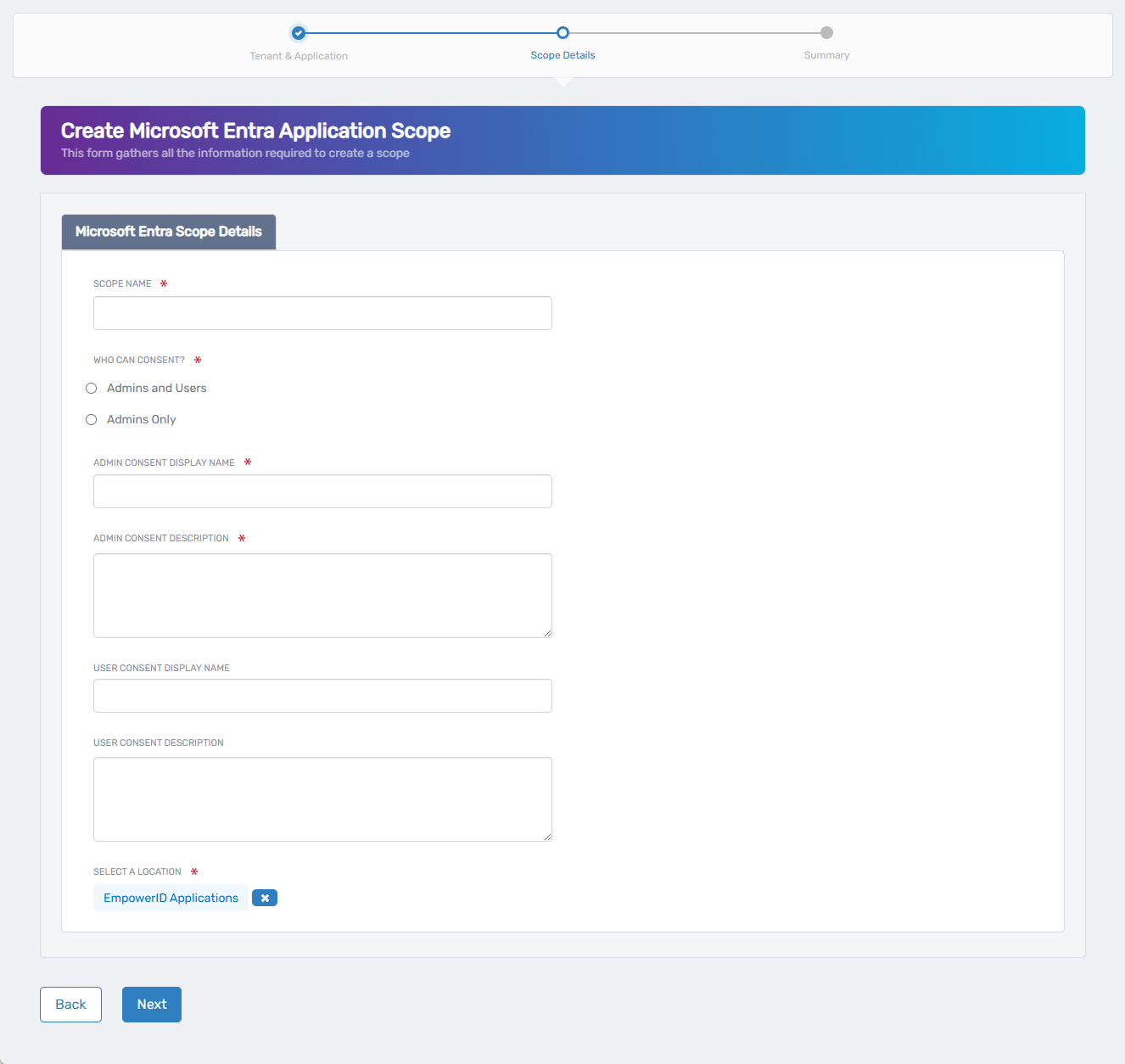
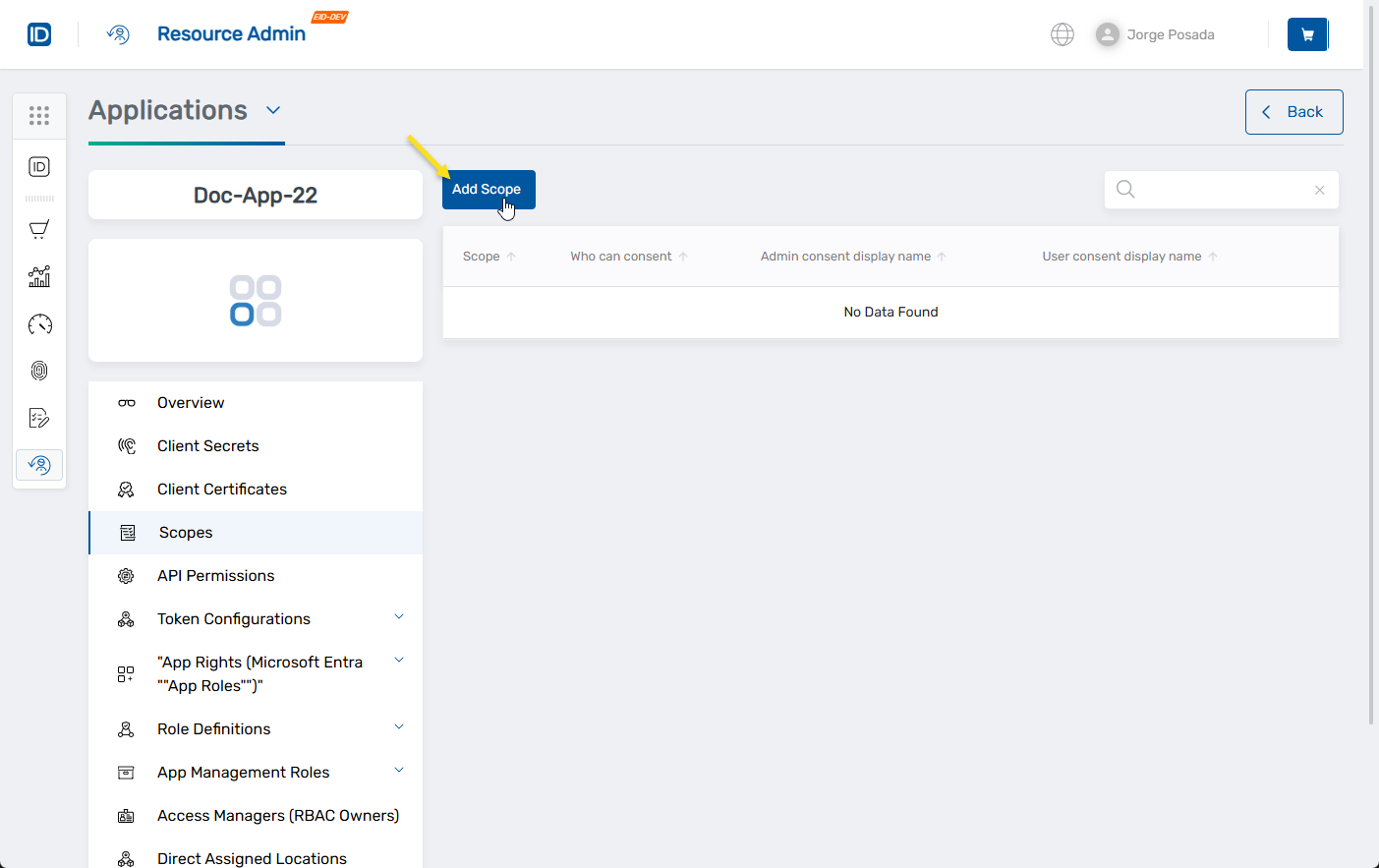 This launches the workflow, opening it to the Create Microsoft Entra Application Scope form.
3. Fill Out the Create Scope Form
Complete the required and any desired optional fields in the Scope Details form.
A. Define the Scope
- In Scope Name, enter a unique identifier for the scope (e.g.,
read.Calendar). - In Who Can Consent, choose one of the following:
- Admins and Users – Both users and administrators can consent.
- Admins Only – Only administrators can grant consent.
B. Set Consent Display Information
- In Admin Consent Display Name, enter the name shown to administrators (e.g.,
Read Email Calendar). - In Admin Consent Description, describe what the scope allows (e.g.,
Application can read your email calendar). - (Optional) In User Consent Display Name, enter a display name for end users.
- (Optional) In User Consent Description, provide a user-facing explanation of the permission.
C. Select the EmpowerID Location (RBAC Delegation)
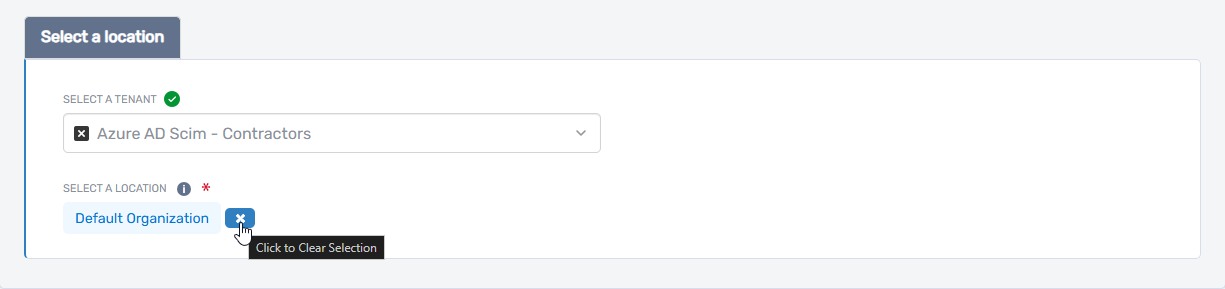
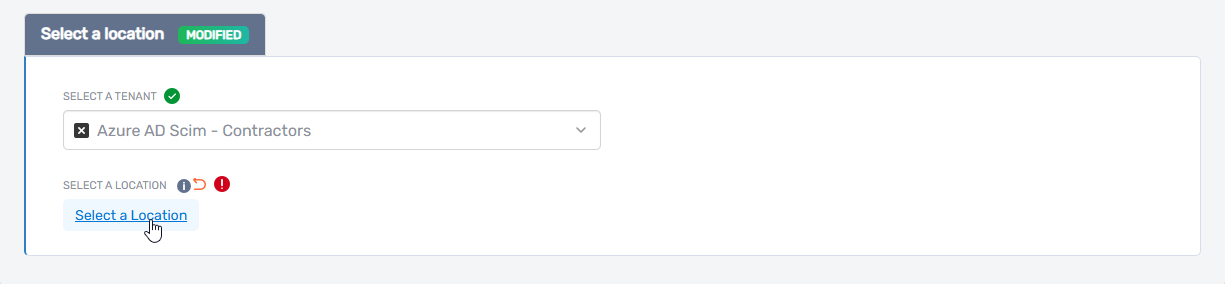
- Under Select a Location, choose the EmpowerID location for RBAC delegation.
- If a location is preselected and you want to change it:
- Click the × icon to clear the default
- Click Select a Location
- Browse or search for a location
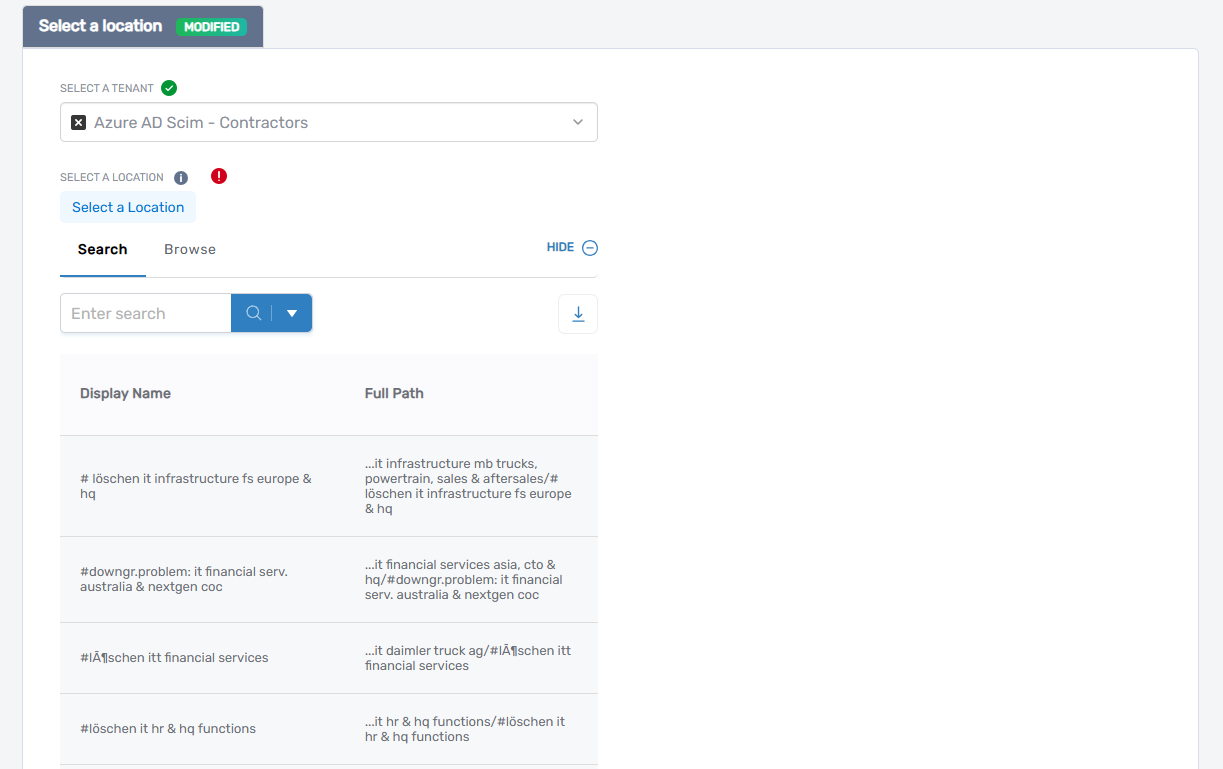
- Click the desired location to select it
- Click the × icon to clear the default
note
This location is for RBAC visibility and delegation only. It does not affect Microsoft Entra scope behavior.
4. Review and Submit
- Click Next to proceed to the Summary screen.
- Review all entered values.
- If needed, click Back to make changes.
- When ready, click Submit to complete the workflow.
What Happens Next
- The new scope is registered in Microsoft Entra ID and appears under the application’s Scopes tab.
- Display names and descriptions are shown to users and administrators during consent flows.
- The scope can now be included when configuring OAuth2 or API permissions.