Edit Application Attributes
As an application owner, you can update the general and extension attributes of applications you manage by using the Manage Application Wizard in the Resource Admin portal.
What You Can Configure
You can edit the following general attributes on the Edit Azure App Name and Features form:
| Attribute | Description |
|---|---|
| Display Name | The friendly name of the application shown in EmpowerID and Microsoft Entra. |
| Description | A short description of the application’s purpose or functionality. |
| Home Page URL | The main URL where the application is accessed. |
| Marketing Page URL | A public page describing the application for marketing purposes. |
| Privacy Statement URL | The application’s published privacy policy. |
| Support Page URL | A link to user support or help resources. |
| Terms of Service URL | The application’s terms of use or terms of service. |
| Publisher Domain | The verified domain used to identify the application publisher. |
You can also configure optional extension attributes used for classification or custom logic in EmpowerID.
Extension Attribute 8 is used to identify the application’s integration type (e.g., OIDC or SAML) and cannot be edited.
Steps to Edit application attributes
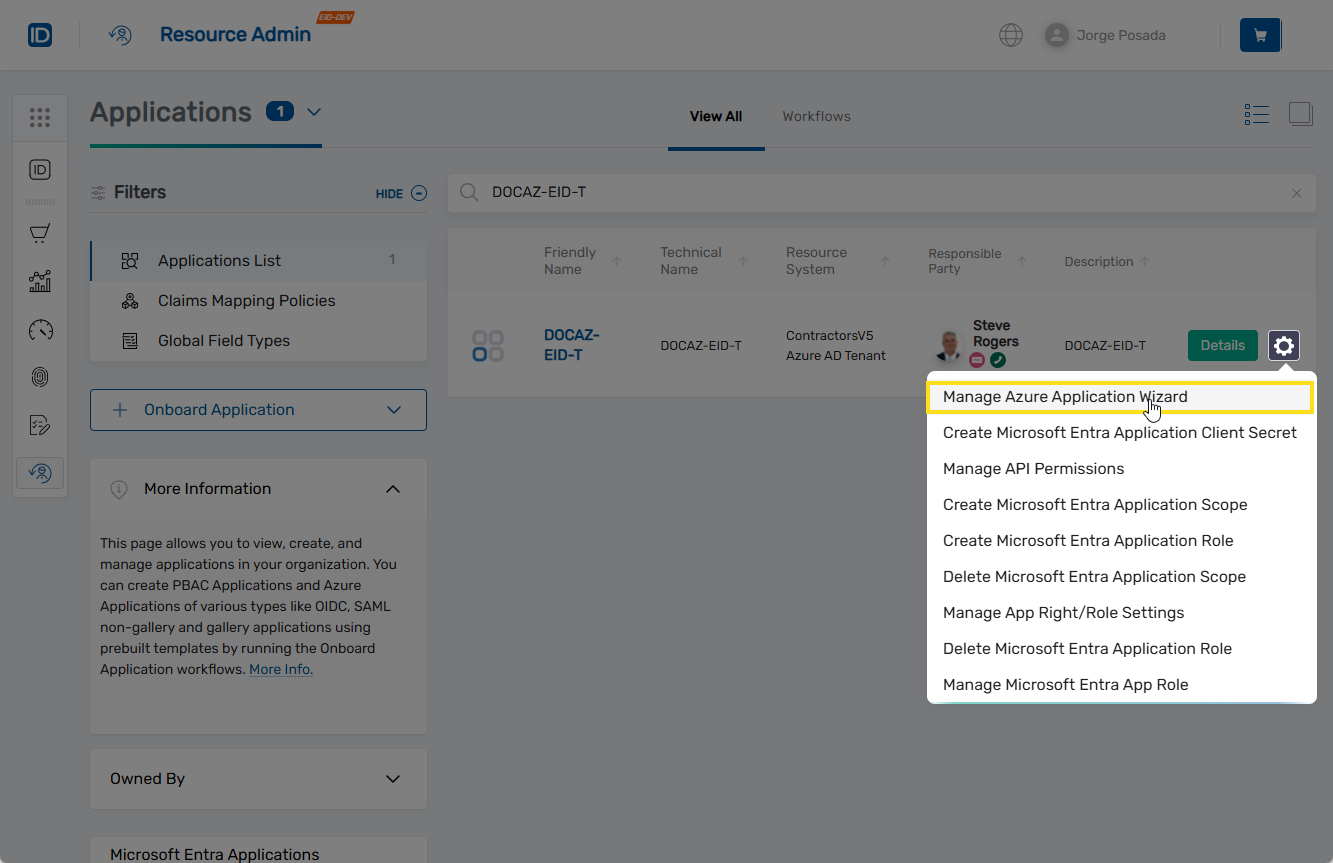
1. Open the Manage Application Wizard
- Log in to the Resource Admin portal.
- From the Resource Type dropdown, select Applications.
- Search for the application you want to update.
- Click the gear icon on the application record and select Manage Application Wizard.
2. Select the Edit Application Attributes Action
- Under Select Options, choose Edit Azure App Name and Features.
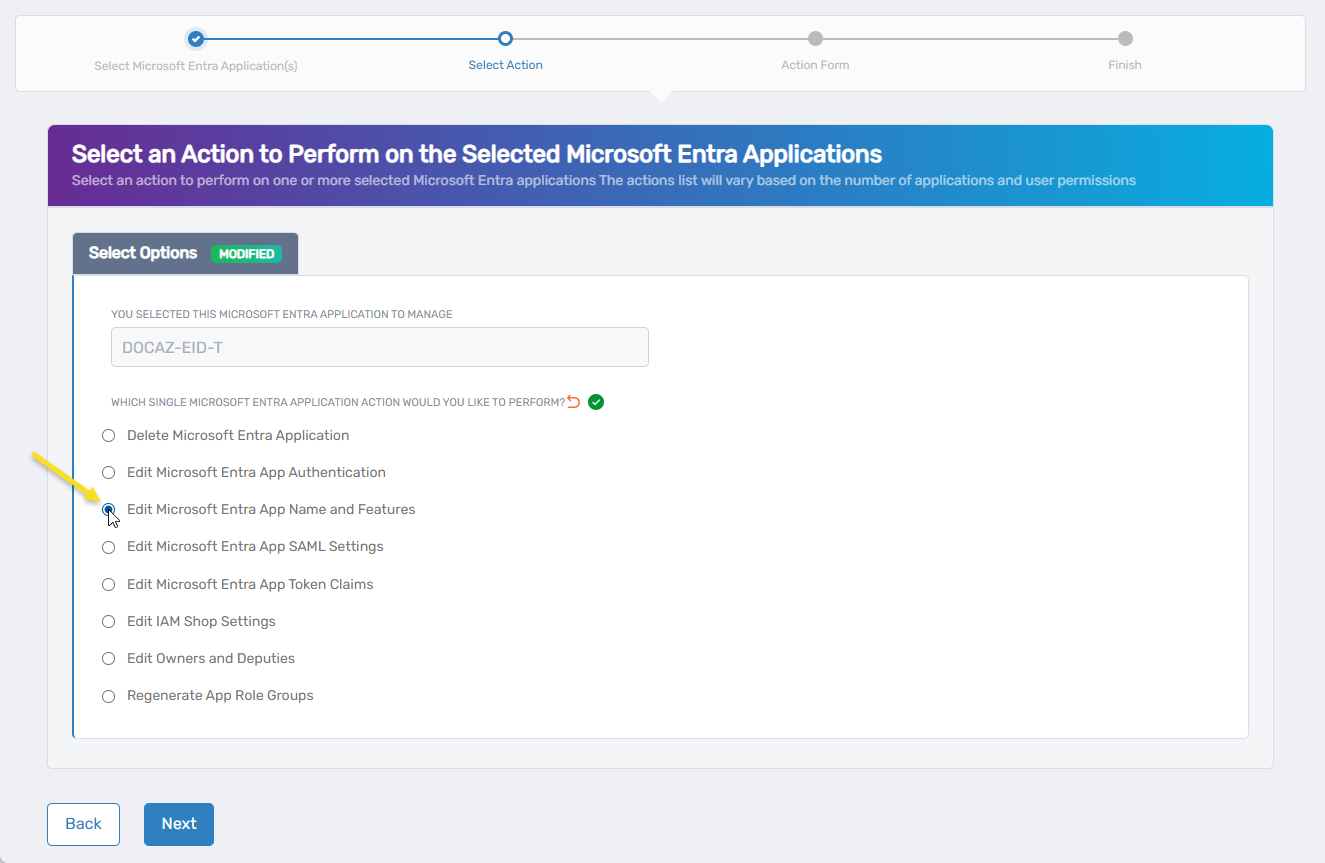
- Click Next.
You should now see the Edit Azure App Name and Features form.
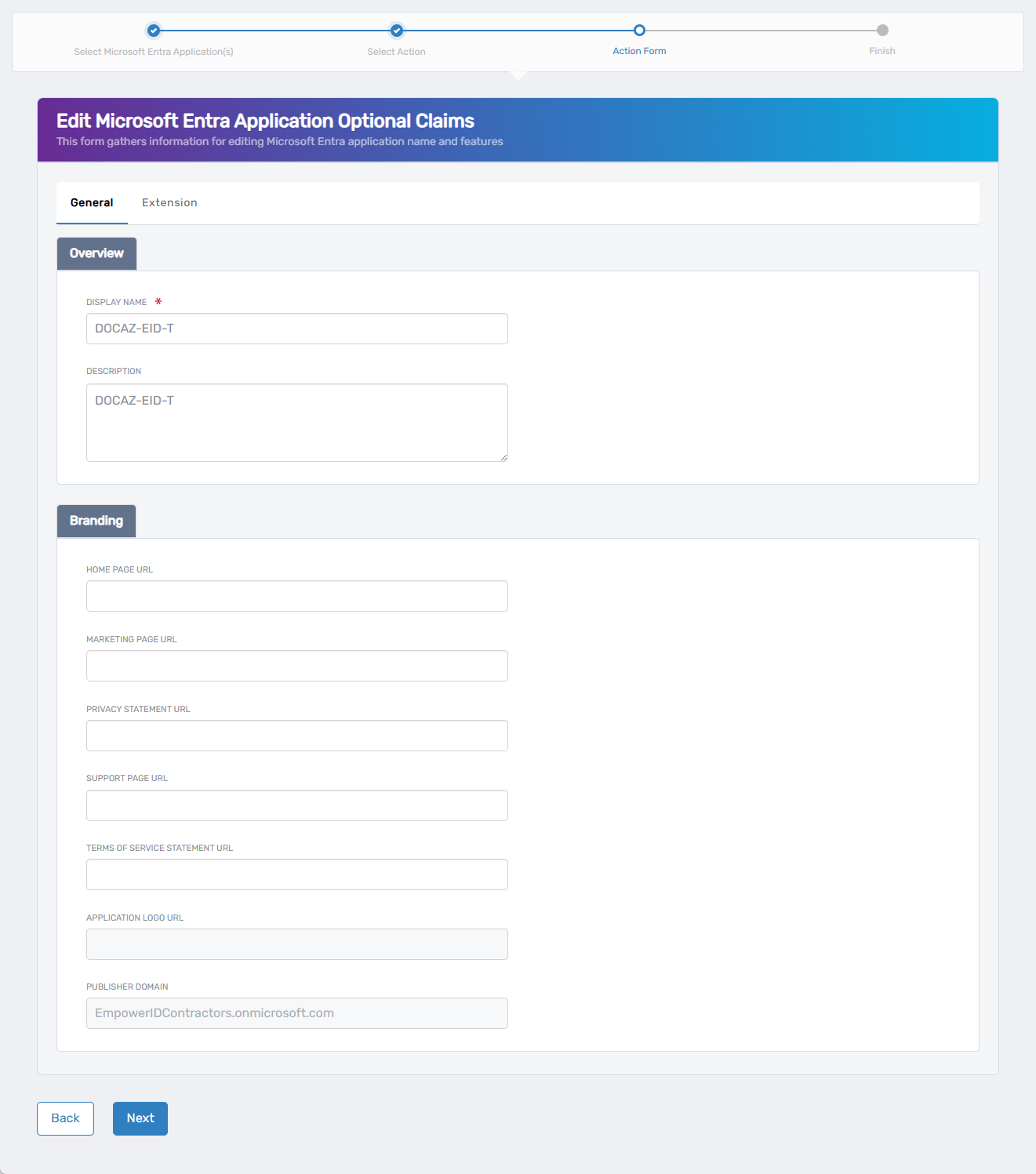
3. Edit Application Attributes
Use the Edit Azure App Name and Features form to update the application’s general and extension attributes.
-
On the General tab, update any editable fields such as Display Name, Description, or support URLs.
See the What You Can Configure section above for descriptions of each field. -
To edit extension attributes, click the Extension tab and update the desired values.
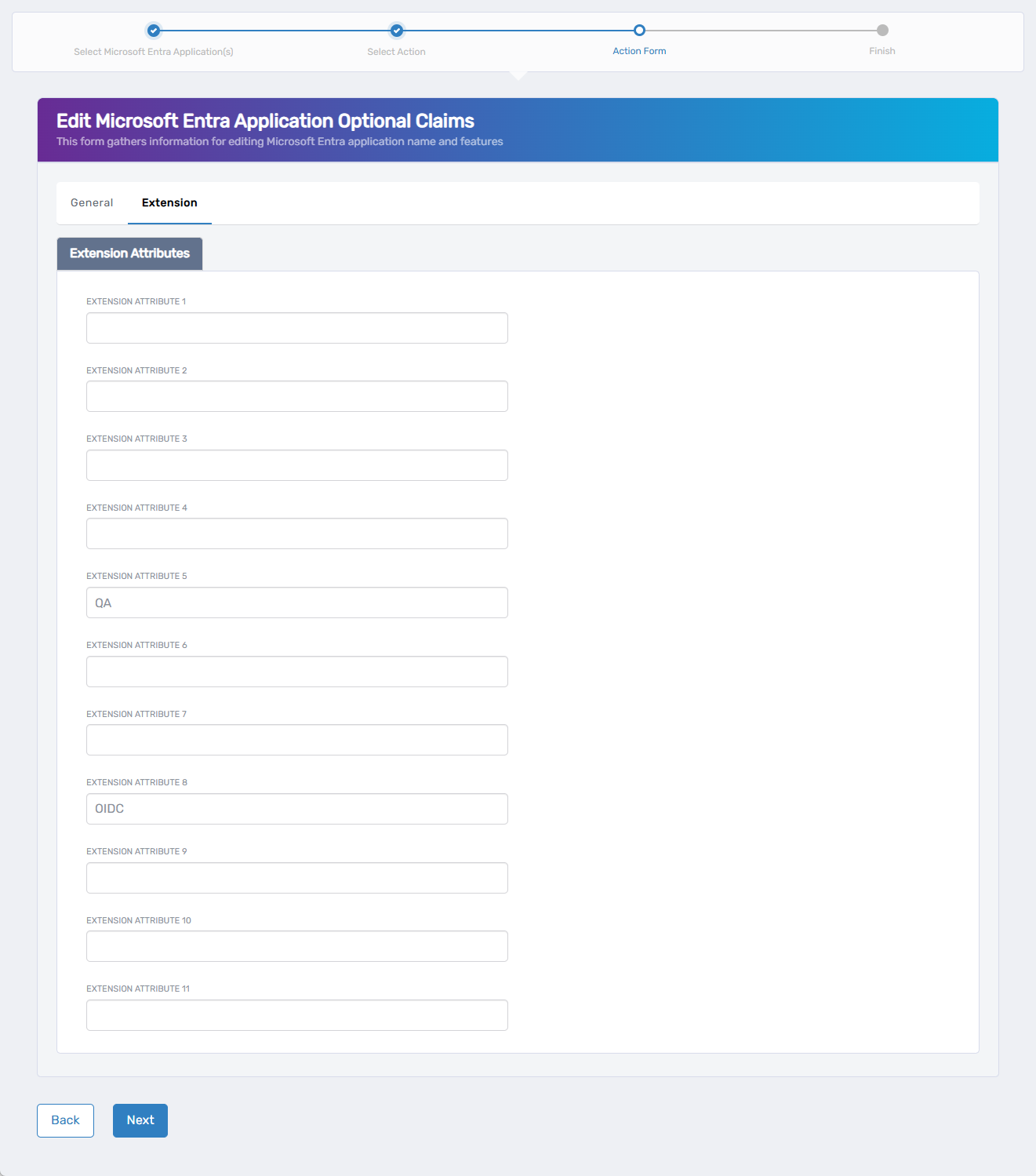 note
noteExtension Attribute 8 identifies the application’s integration type (e.g.,
OIDCorSAML) and is not editable. -
When you have completed all updates, click Next to proceed.
4. Complete the Process
- Review the Operation Execution Summary confirming the update completed successfully.
- Click Submit to continue.
- On the Finish or Start Over Workflow screen, choose one of the following:
- Manage the same Microsoft Entra application(s)
- Manage different Microsoft Entra application(s)
- Finish the workflow
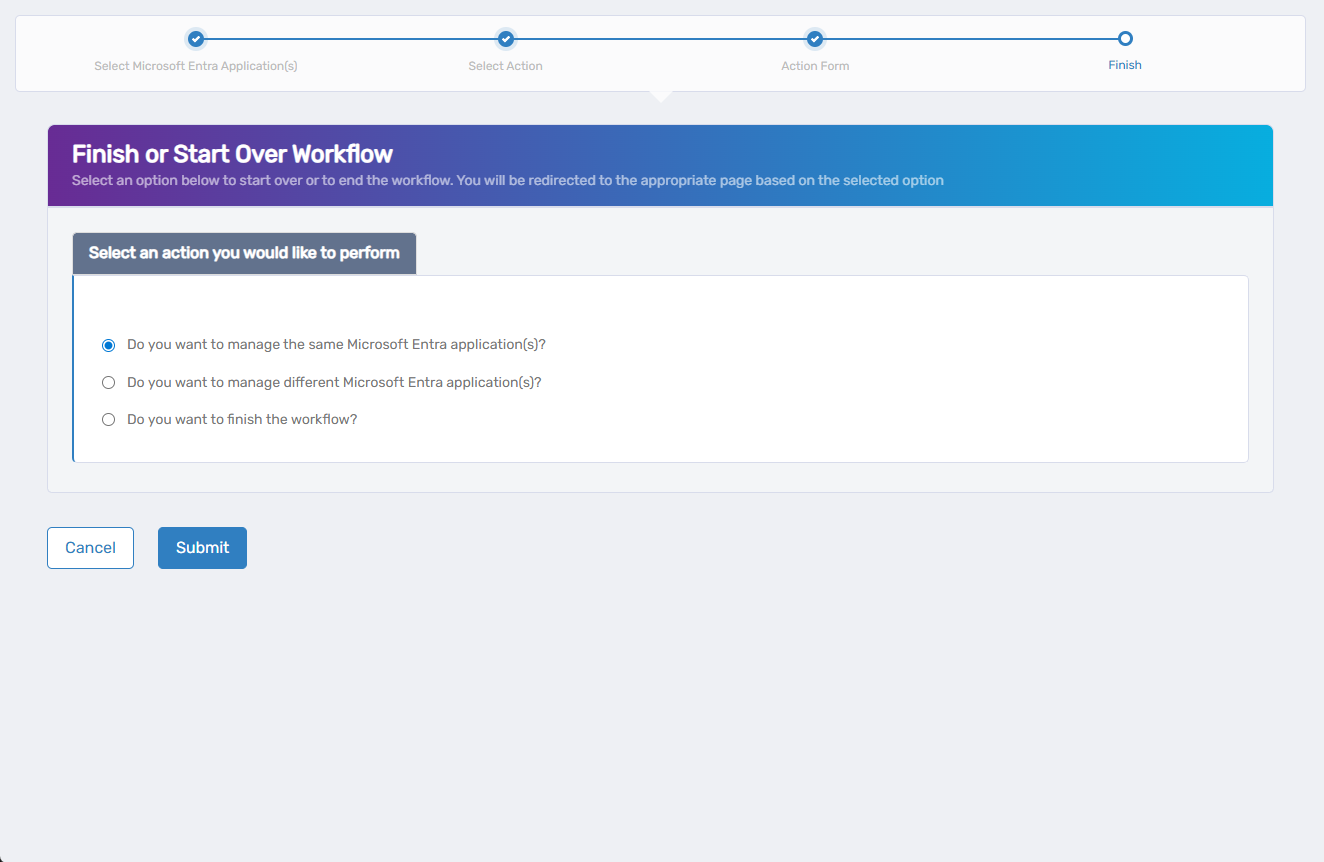
- Click Submit to confirm your choice.
You’ll be redirected based on your selection—either back into the wizard or out to the Workflows page.