Edit Mailbox Regional Configuration
This procedure configures time zone, language, and locale settings to control how dates, times, and regional formatting appear in email clients and affect calendar scheduling behavior.
Edit Mailbox Regional Configuration
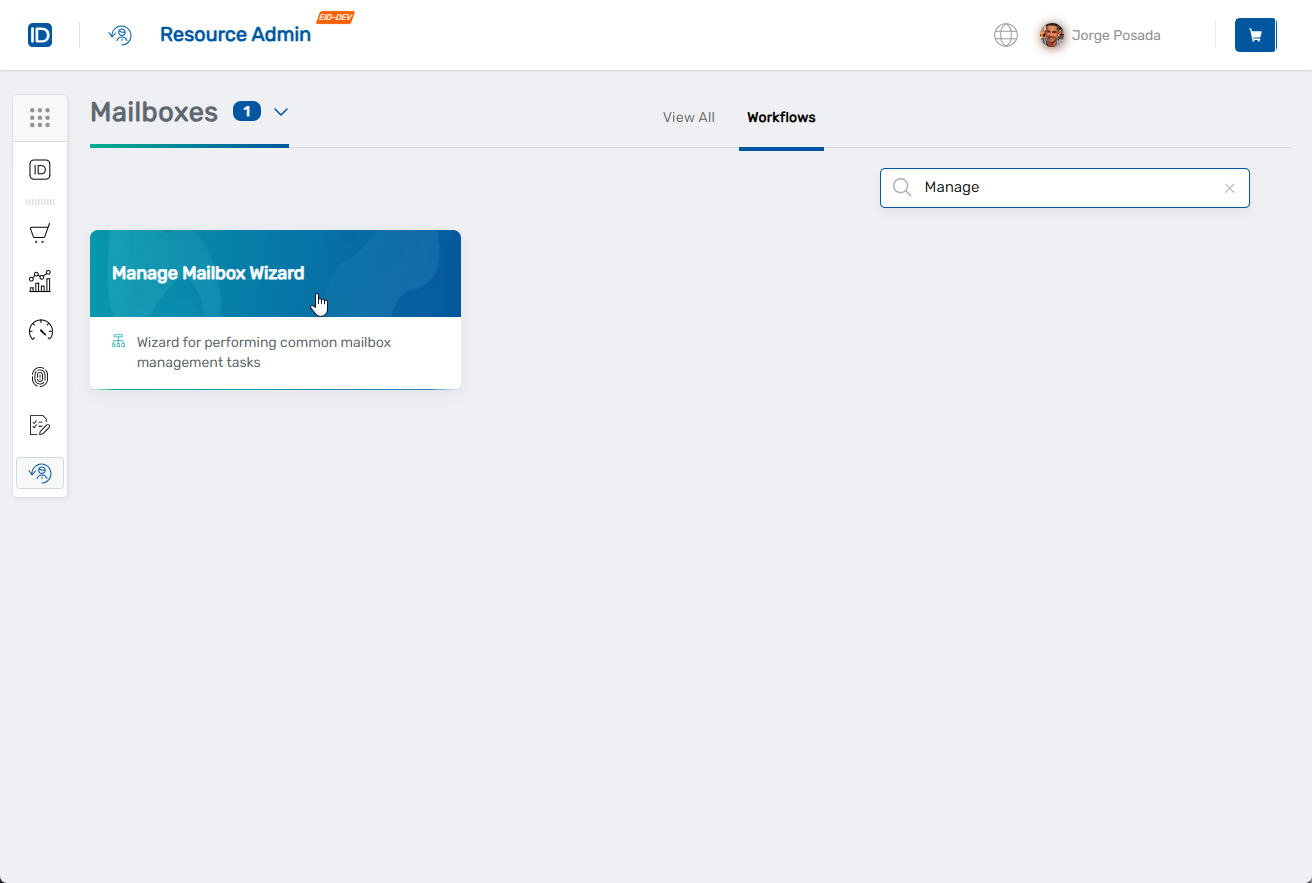
- Navigate to Resource Admin.
- Select Mailboxes from the resource type menu.
- Click the Workflows tab.
- Click Manage Mailbox Wizard.
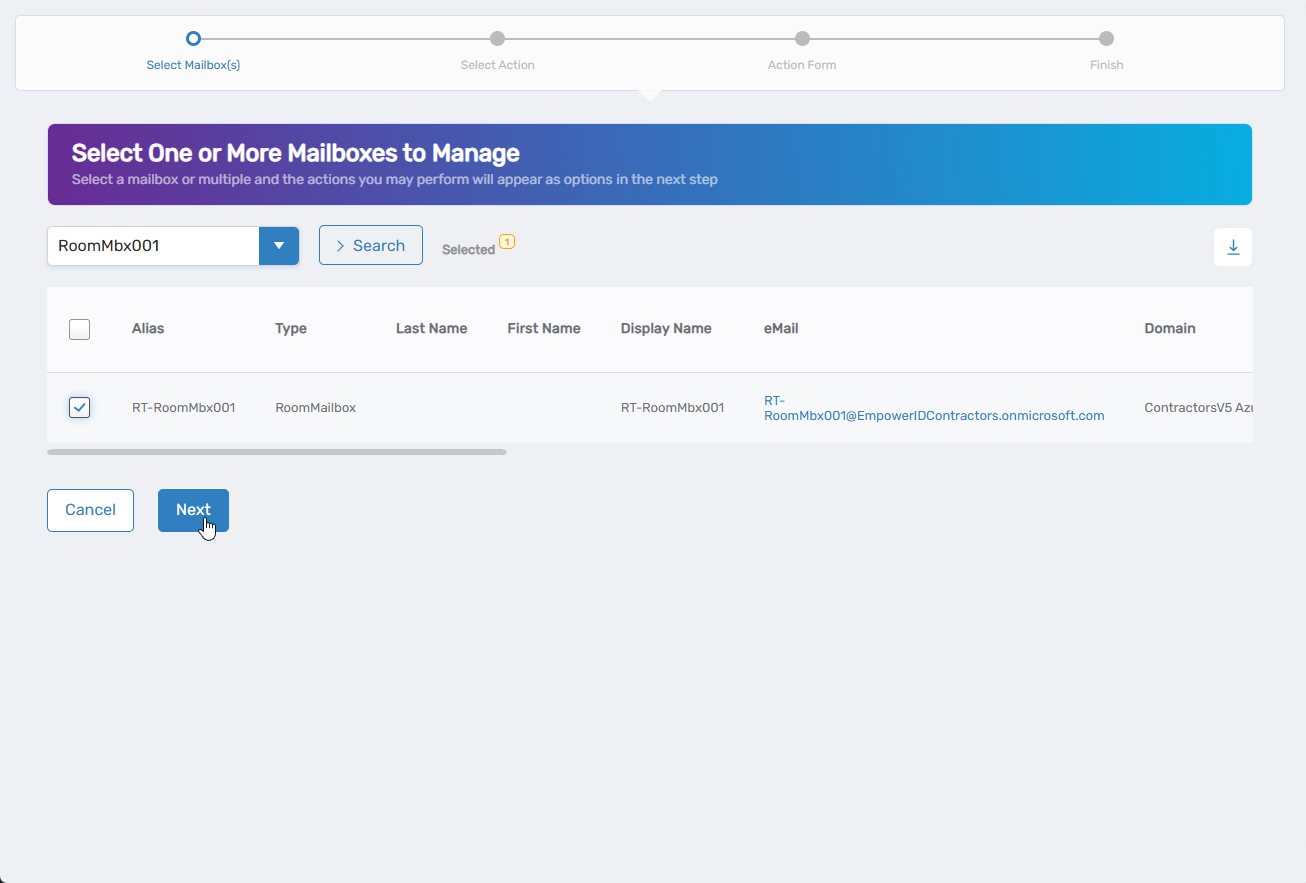
- Search for the mailbox to modify, check the box next to it, and click Next.
- Select Edit Mailbox Regional Configuration from the available actions.
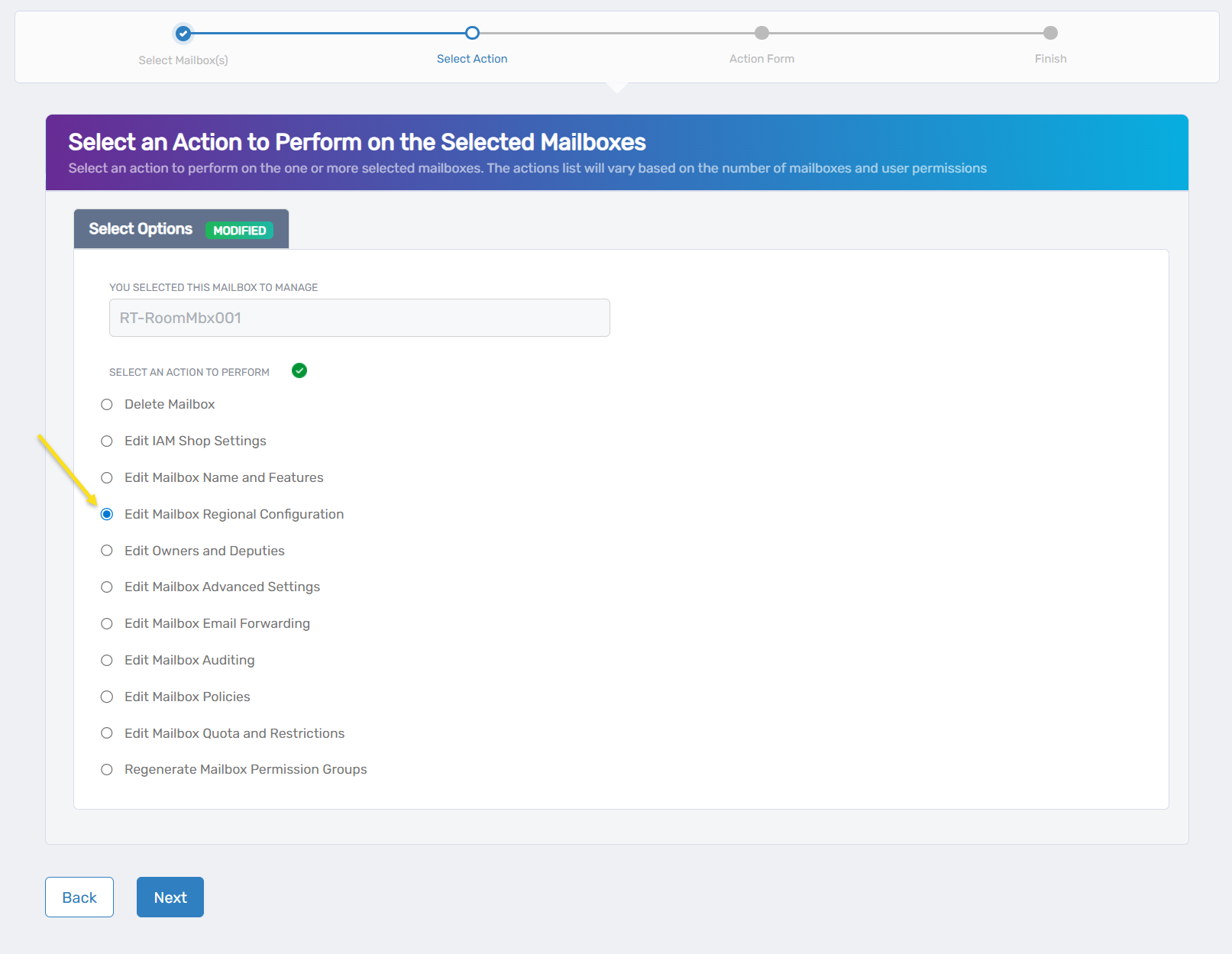
- Click Next.
- Configure regional settings:
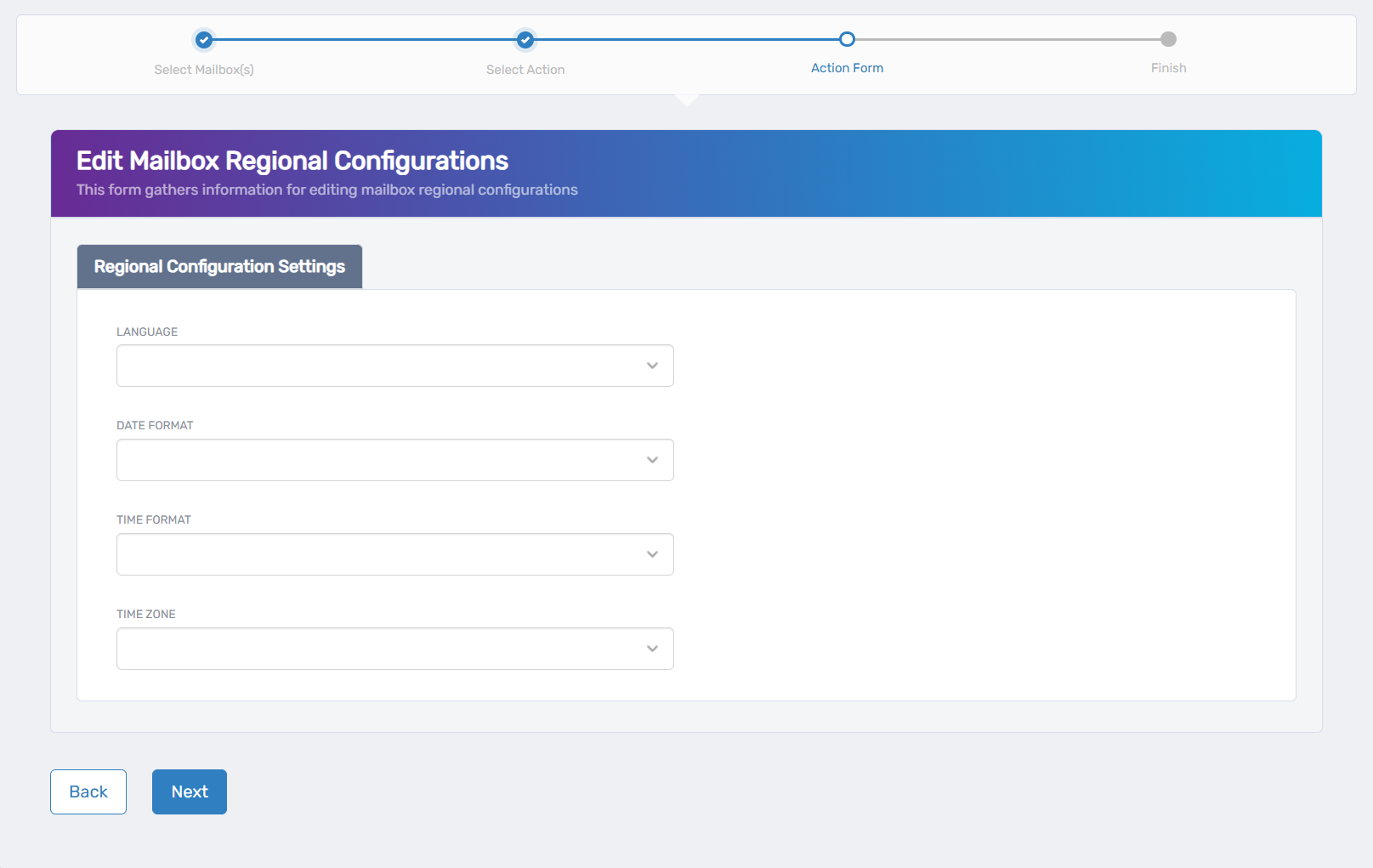
- Language: Select the primary language for mailbox interface elements
- Date Format: Choose how dates are displayed in the mailbox
- Time Format: Set the time display format (12-hour or 24-hour)
- Time Zone: Select the appropriate time zone for the mailbox location
- Localize Default Folder Name: Check to enable localization of default folder names
- Click Next.
- Review the Operation Execution Summary.
- Click Submit.
- Select your next action:
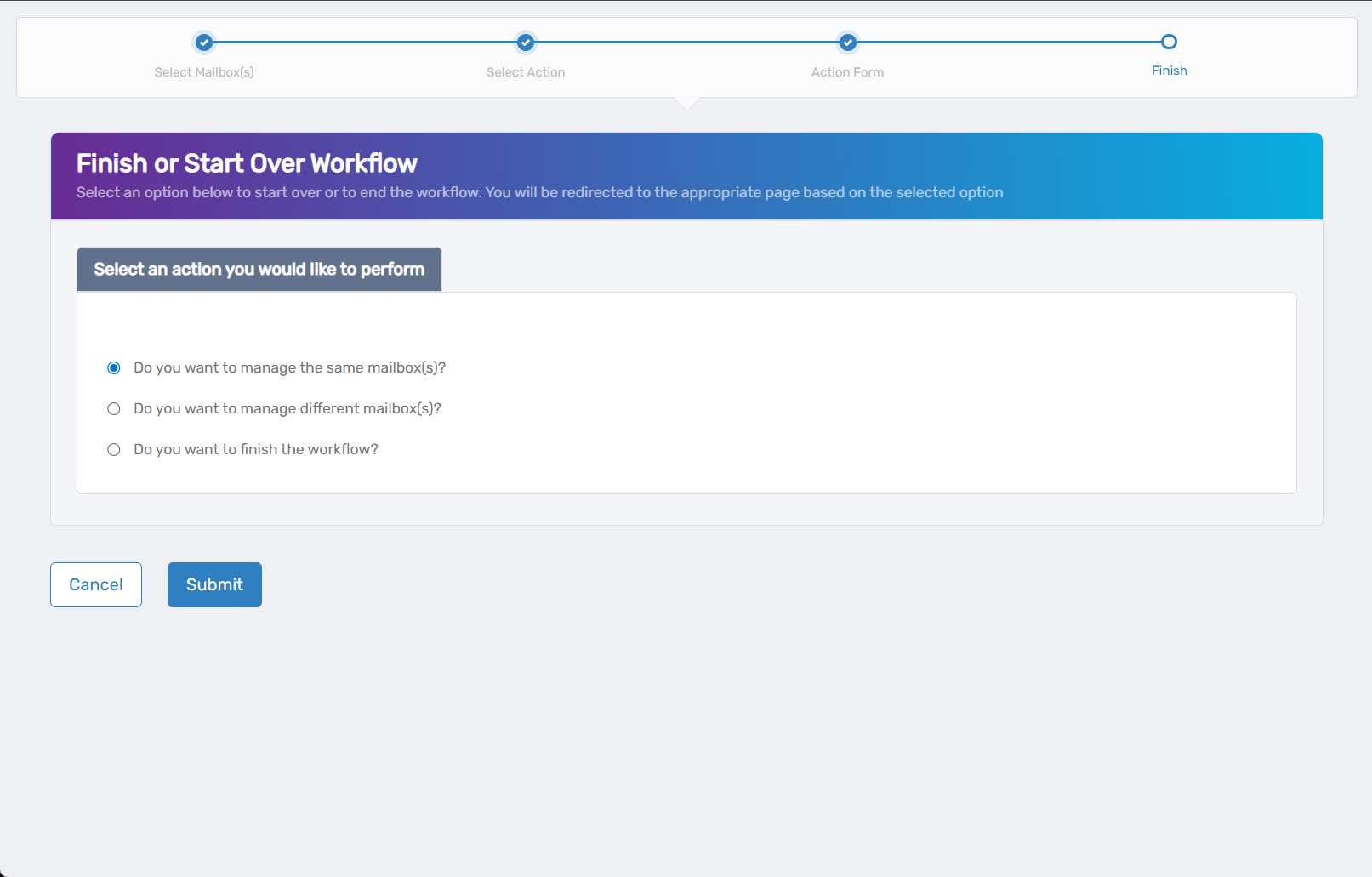
- Do you want to manage the same Mailbox? - Perform additional actions on this mailbox
- Do you want to manage different Mailbox(es)? - Work with other mailboxes
- Do you want to finish the workflow? - Complete and exit the wizard
- Click Submit.
Results
- Time zone changes affect calendar appointment display and scheduling
- Language settings update interface elements in supported email clients
- Regional formatting changes how dates, times, and numbers appear
- Calendar time zones ensure proper scheduling coordination across regions