Edit Mailbox Quota and Restrictions
This procedure configures mailbox quota and restriction settings to control storage usage, message size limits, and other email restrictions for server resource management.
Edit Mailbox Quota and Restrictions
-
Navigate to Resource Admin.
-
Select Mailboxes from the resource type menu.
-
Click the Workflows tab.
-
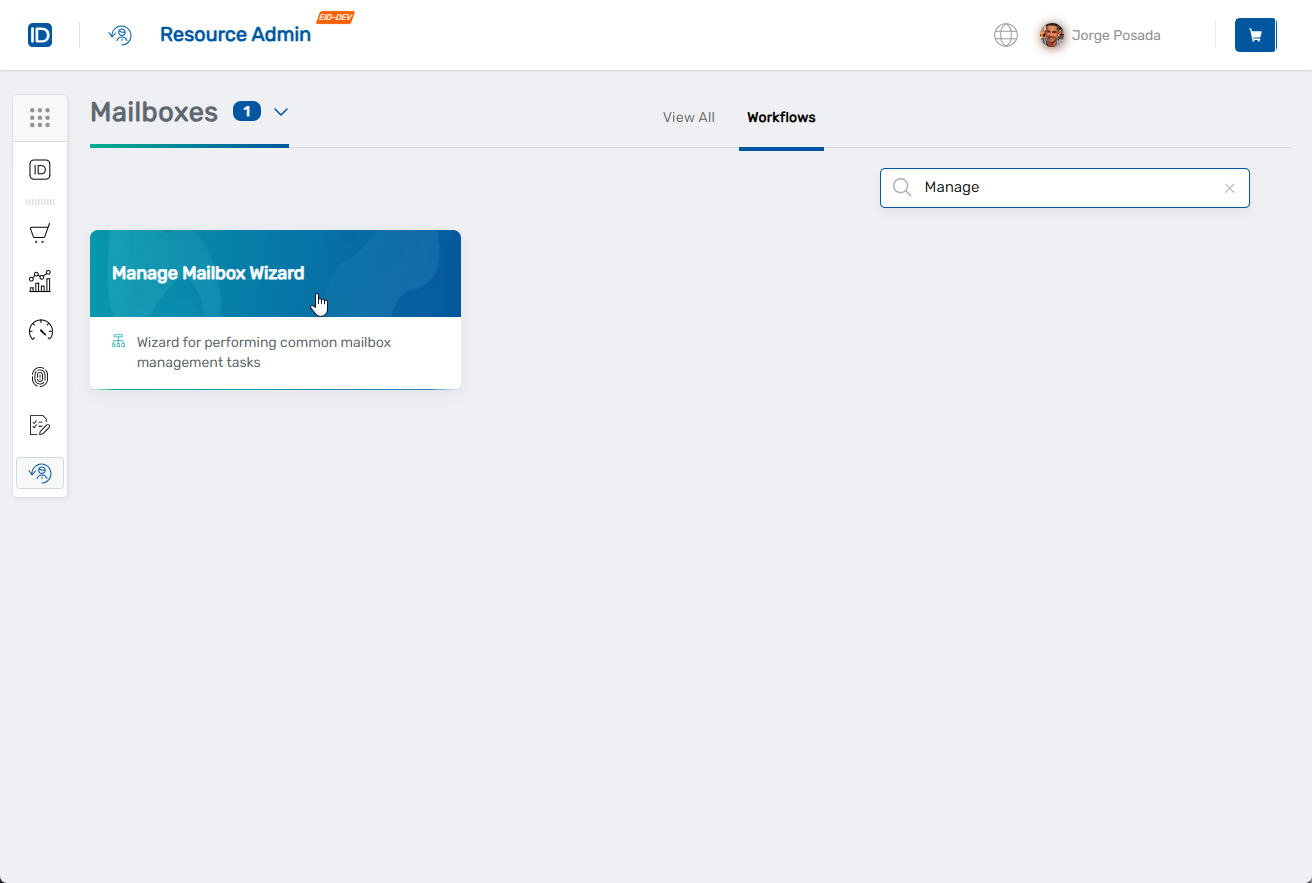
Click Manage Mailbox Wizard.
-
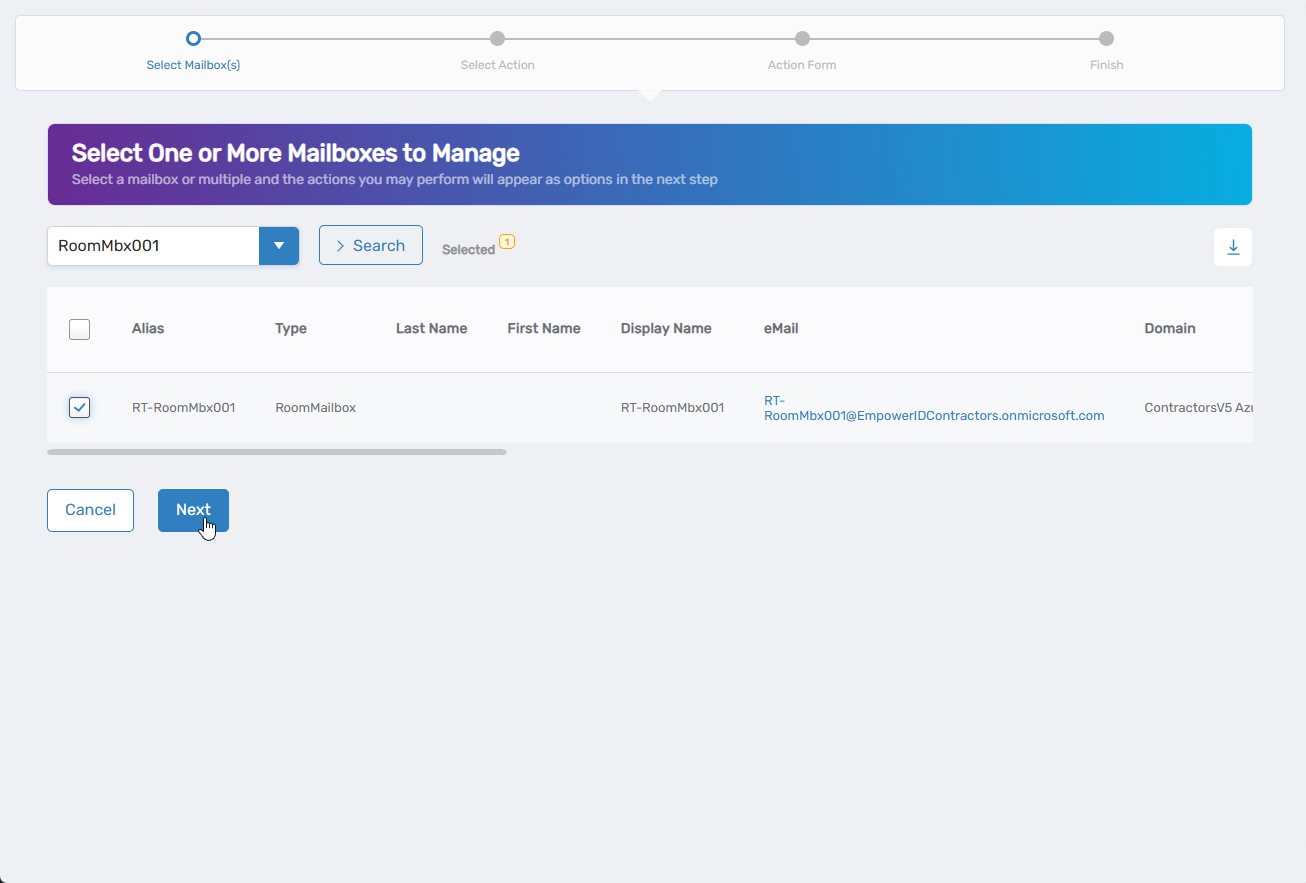
Search for the mailbox to modify, check the box next to it, and click Next.
-
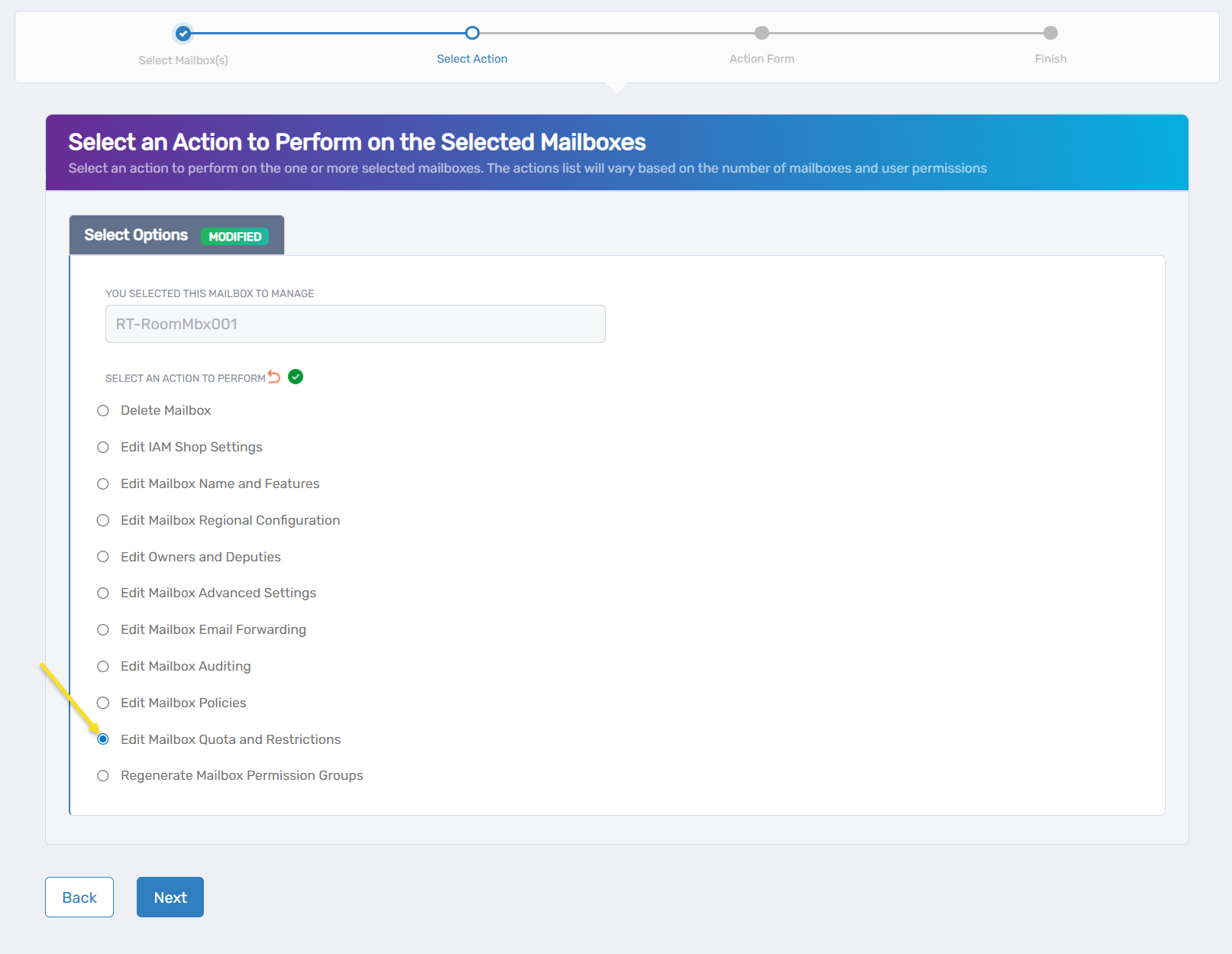
Select Edit Mailbox Quota and Restrictions from the available actions.
-
Click Next.
-
Configure quota settings and message size restrictions:
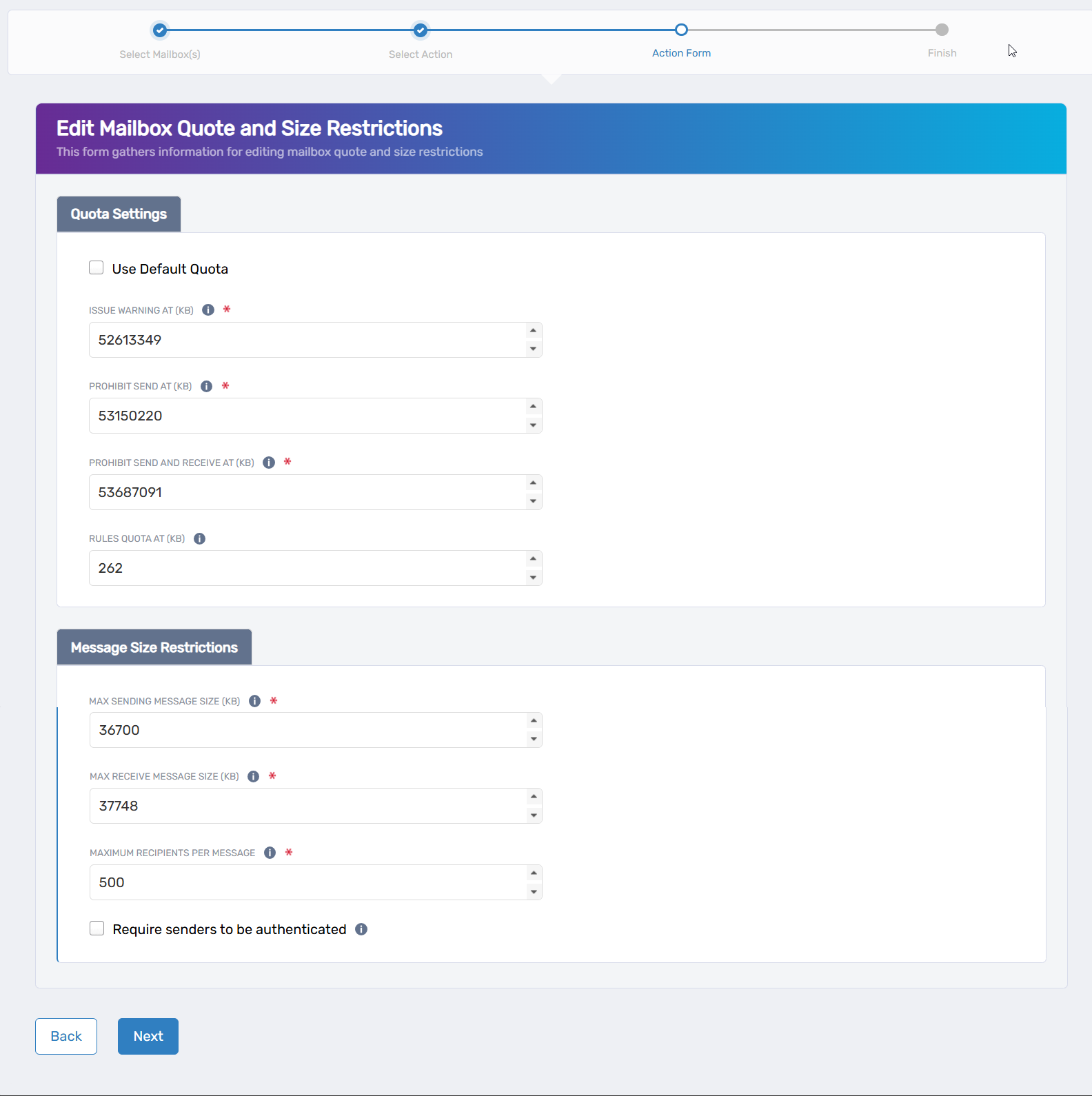
Quota Settings:
- Use Default Quota: Check to apply default quota settings from the mailbox database
- Issue Warning At (KB): Set storage limit where users receive a warning
- Prohibit Send At (KB): Set storage limit where users can receive but not send email
- Prohibit Send and Receive At (KB): Set maximum storage limit blocking all email activity
- Rules Quota At (KB): Configure storage limit for mailbox rules
Message Size Restrictions:
- Max Sending Message Size (KB): Specify largest message size users can send
- Max Receive Message Size (KB): Set largest message size this mailbox can receive
- Maximum Recipients Per Message: Limit number of recipients per email
- Require senders to be authenticated: Check to require authentication for incoming messages
-
Click Next.
-
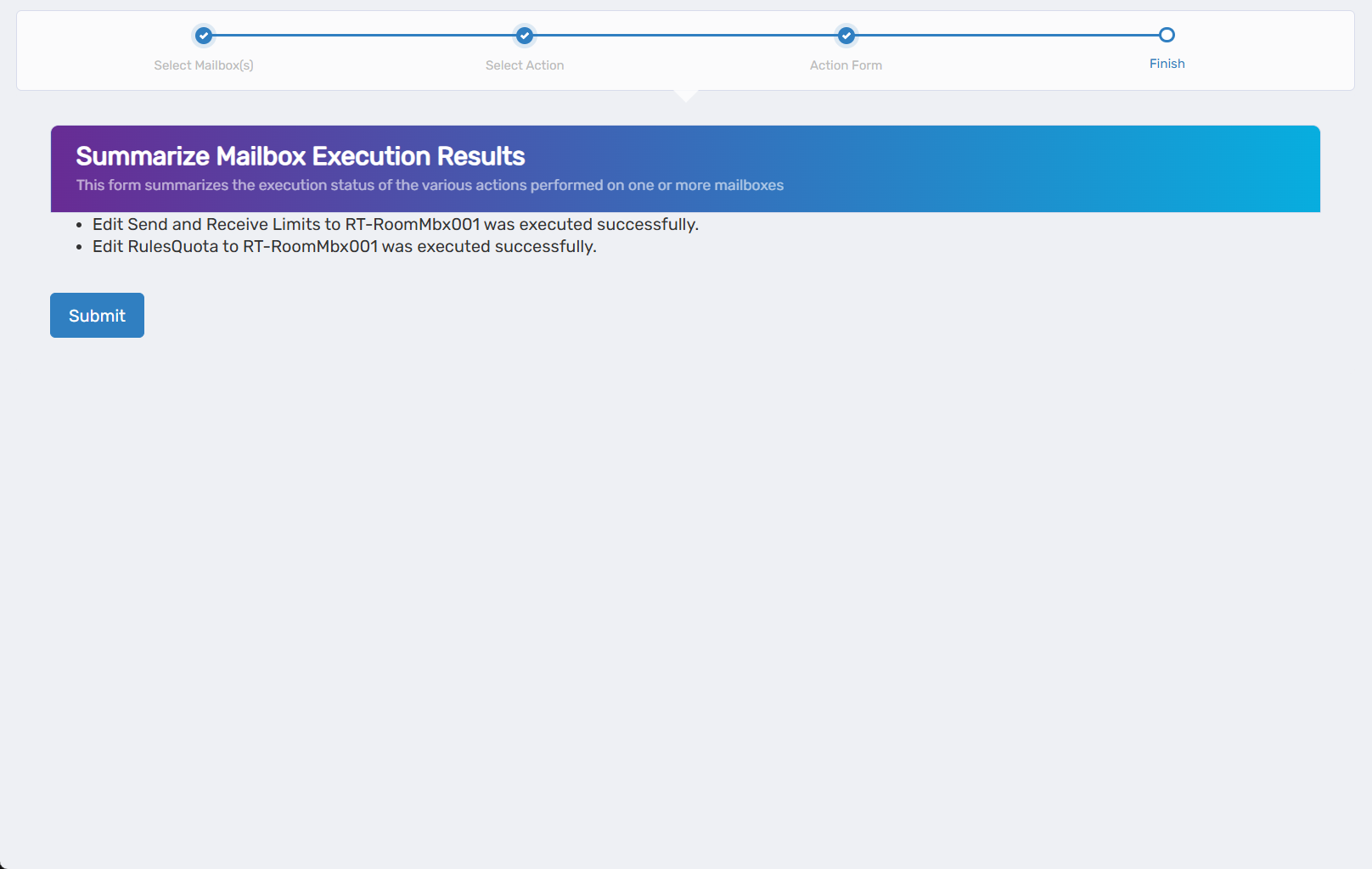
Review the Operation Execution Summary.
-
Click Submit.
-
Select your next action:
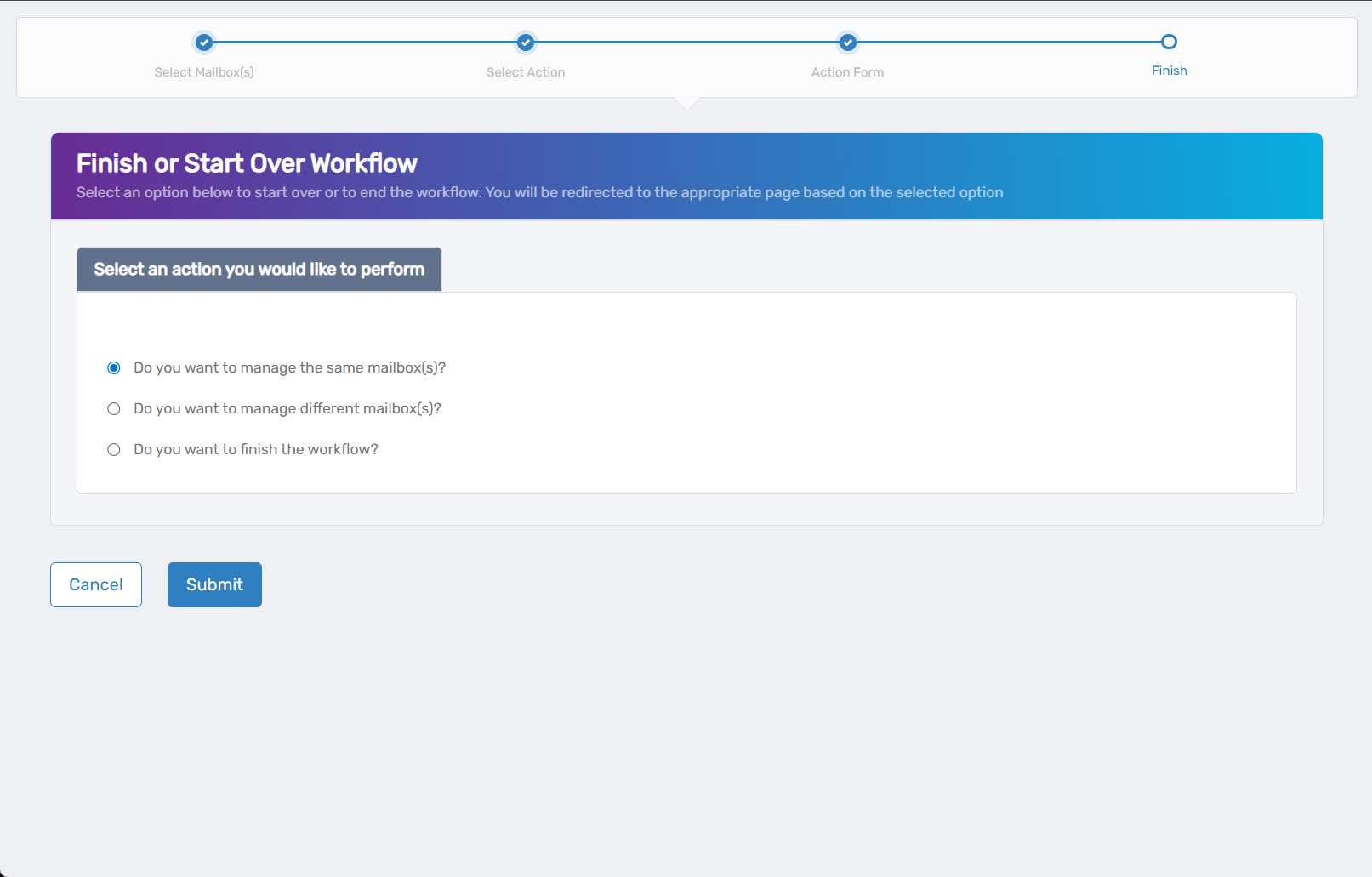
- Do you want to manage the same Mailbox? - Perform additional actions on this mailbox
- Do you want to manage different Mailbox(es)? - Work with other mailboxes
- Do you want to finish the workflow? - Complete and exit the wizard
-
Click Submit.
Results
- Storage quotas take effect and are enforced on email activity
- Warning messages are sent to users approaching storage limits
- Send restrictions apply when storage thresholds are exceeded
- Message size limits are enforced for all new messages