Set up Permanent Delegations
Use MyIdentity to route approval tasks to someone else — either full-time or when you're unavailable. Permanent delegations help you avoid bottlenecks and ensure approvals continue while you're away or when another person is better suited to review the request.
Overview
In EmpowerID, approval tasks are generated through Business Requests and routed according to approval flow policies. If you’re an approver, you can delegate tasks permanently or conditionally (e.g., only when you're out of office).
Delegations can be:
- Universal – forward all your approvals to someone else
- Targeted – only delegate certain approval types
- Scheduled – limited to a start/end date or active only when you're marked as out of office
Any user with approval responsibilities can create delegations, provided your organization allows it.
What You Can Do
With permanent delegations, you can:
- Automatically forward your approvals to someone else
- Choose whether to delegate everything or specific types
- Limit the delegation to certain dates or only when you're away
- Edit or remove existing delegations at any time
How to Set Up a Permanent Delegation
- Log In to My Tasks
Open the My Tasks application and sign in. - Access Permanent Delegations
Click your username in the top corner and select Permanent Delegations from the dropdown.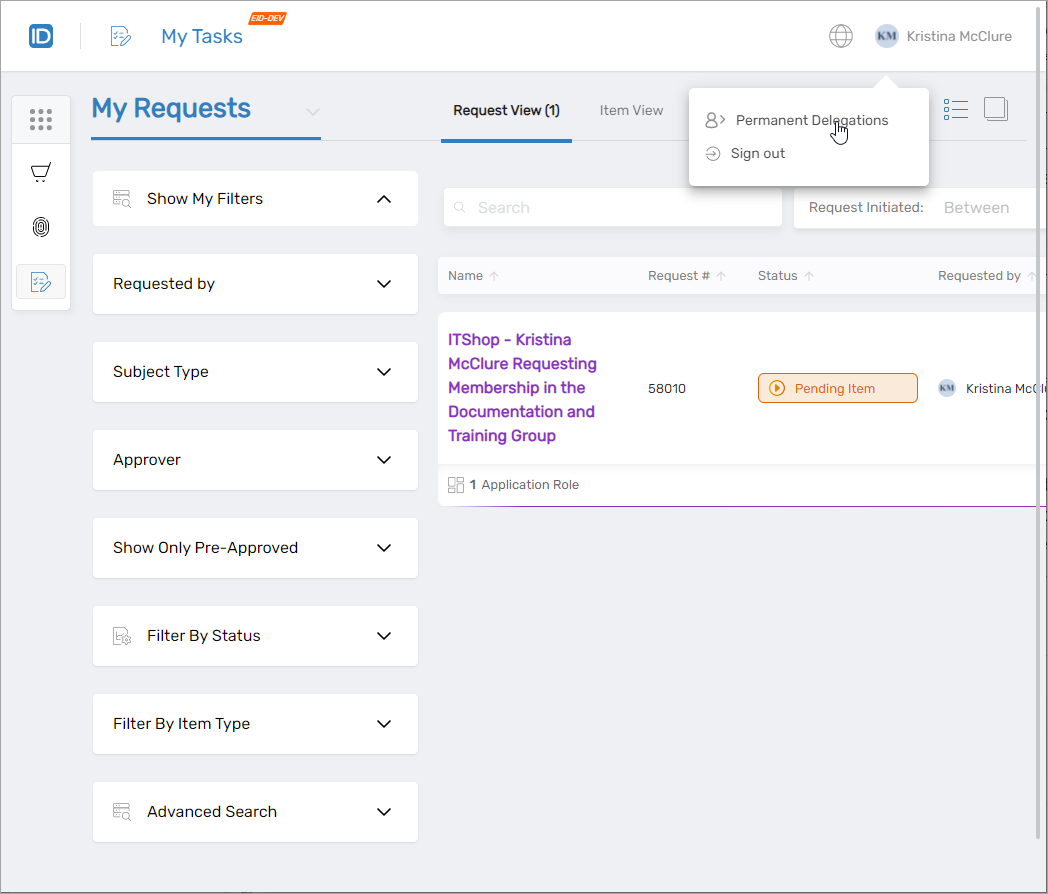
- Start a New Delegation
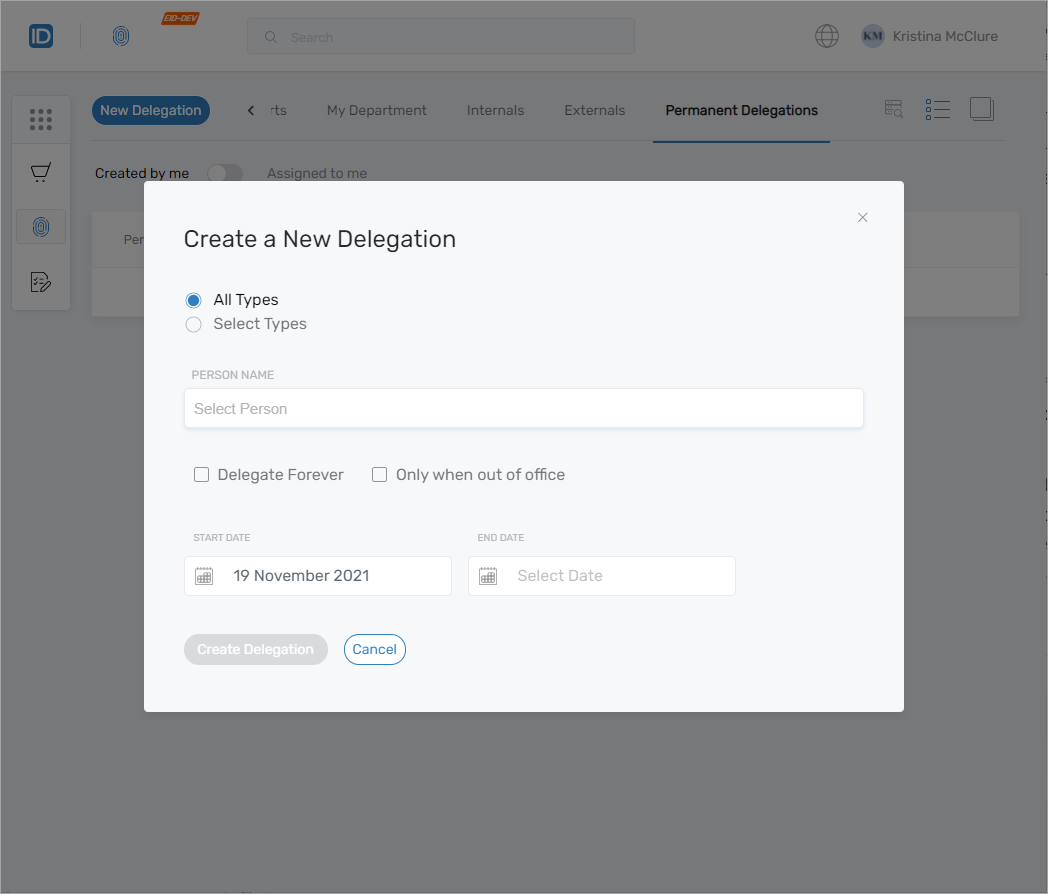
Click the New Delegation button.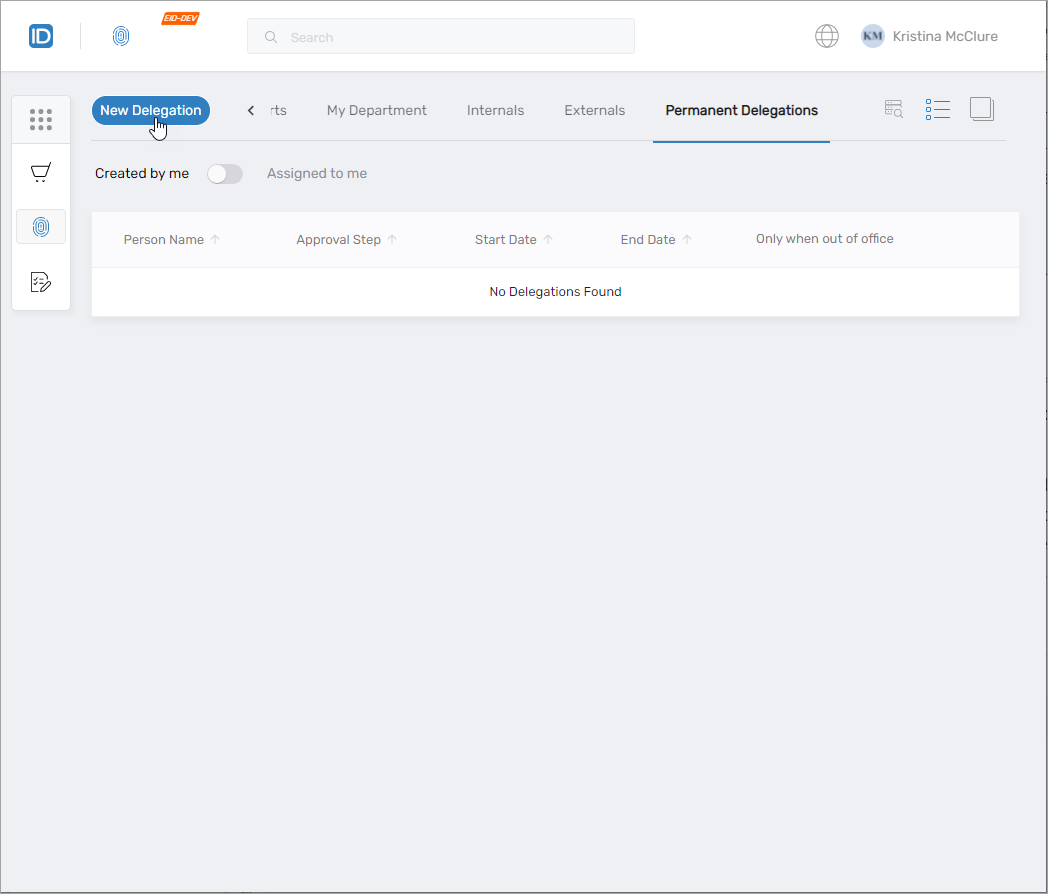 This opens the Create a New Delegation dialog.
- Choose Delegation Settings
Fill out the delegation form with the following options: What to delegate:- All Types – Delegate all your approval tasks
- Select Types – Choose specific approval policies Who to delegate to:
- Search and select one or more users When to delegate:
- Delegate Forever – Active until you remove it
- Only when out of office – Active only when your out-of-office status is set
- Start Date / End Date – Set custom schedule (if not delegating forever)
🏖️Out of Office Mode Only?If you just want approvals routed while you're away, choose Only when out of office instead of a fixed end date.
- Click Create Delegation
Submit the form by clicking Create Delegation.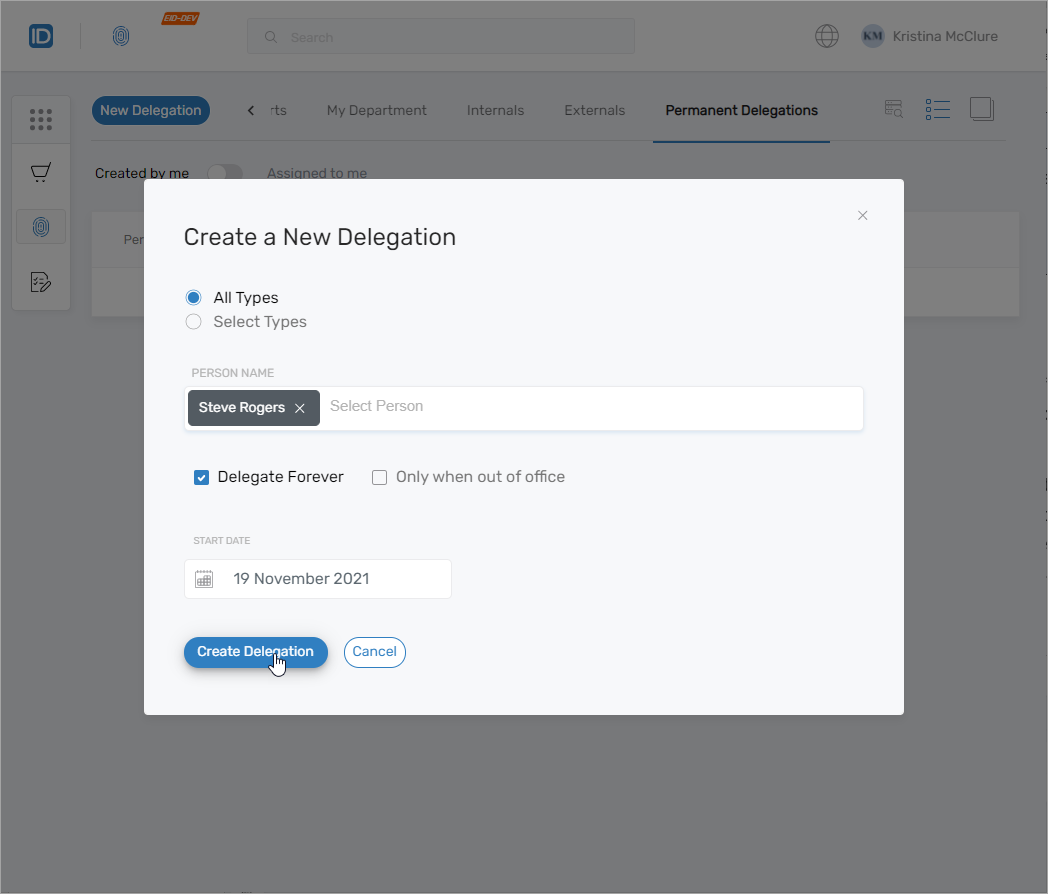
- View or Edit Existing Delegations
Your new delegation appears on the Permanent Delegations tab in MyIdentity.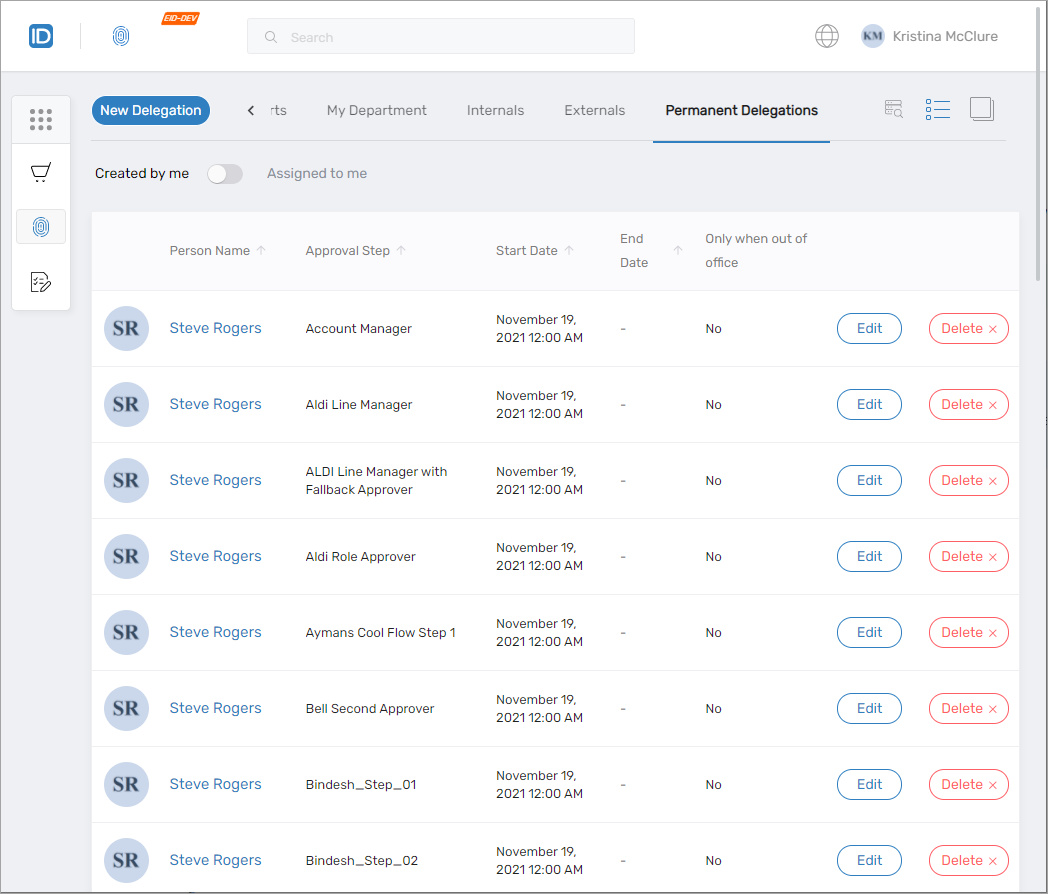 From here, you can update or delete any delegation.
What Happens Next
Your delegations are applied immediately based on the options you chose. You can return to this screen any time to adjust or remove them.
Just delete the delegation from your list in MyIdentity. The tasks will route back to you going forward.