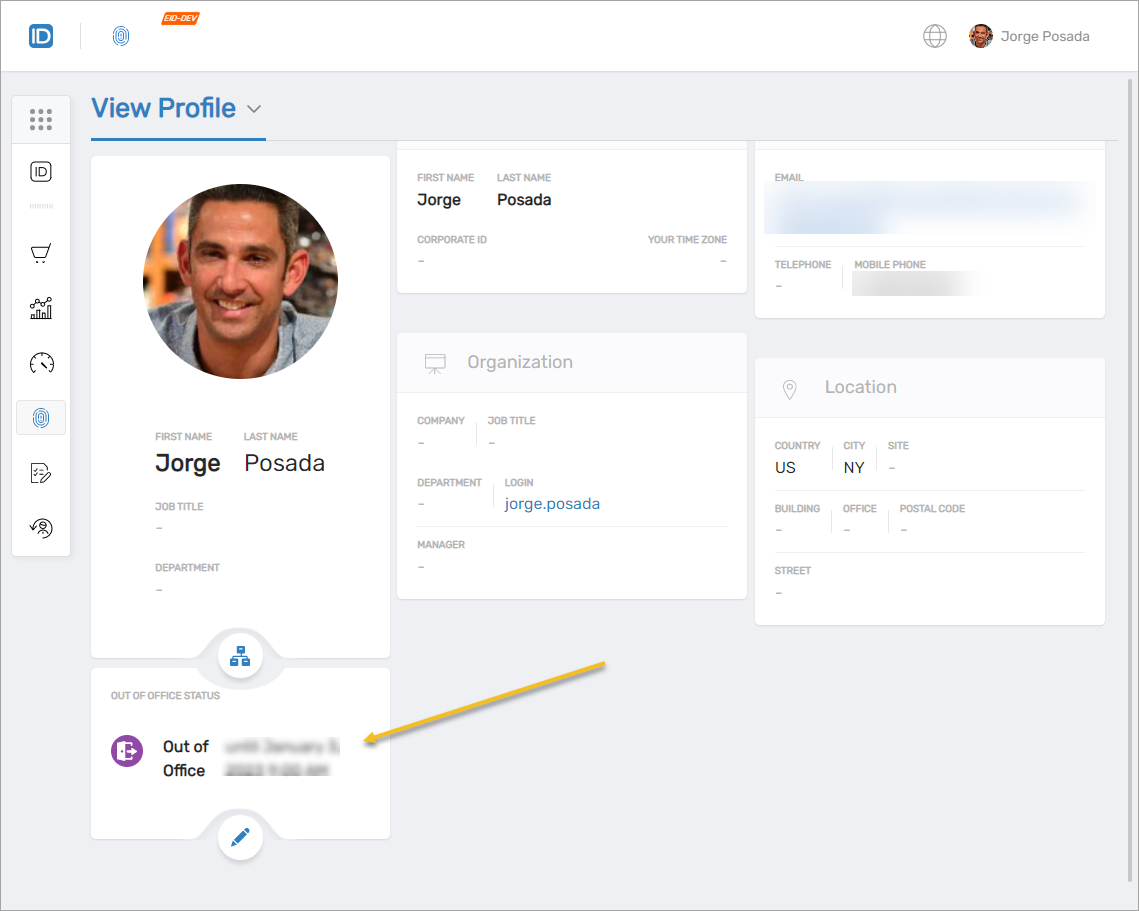
Set Your Out of Office Status
Use MyIdentity to quickly configure your out-of-office replies for your Office 365 mailbox — without needing to open Outlook or Exchange settings.
Overview
The Out of Office feature in MyIdentity helps you update your status and set auto-reply messages when you're away. This ensures that coworkers, approvers, or workflow participants know you're unavailable and can act accordingly.
📧Applies to Office 365 Mailboxes Only
The Out of Office feature is available if your organization uses Office 365 and has connected your mailbox to EmpowerID.
What You’ll Need
- Access to the MyIdentity application
- A connected Office 365 mailbox
Steps to Set Your Out of Office Status
- Open Your Profile Page
In MyIdentity, click the Page drop-down and choose View Profile.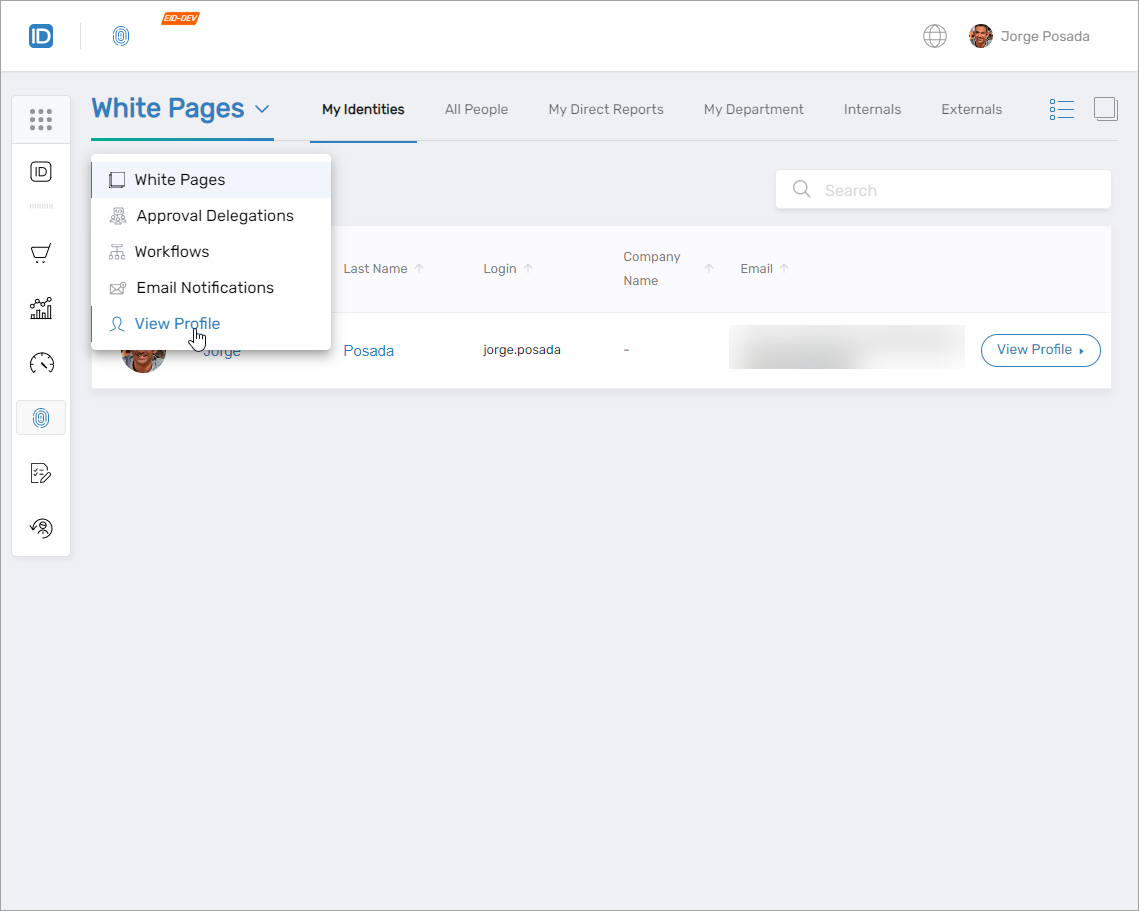 On the profile page, you'll see multiple editable panes — including Out Of Office Status.
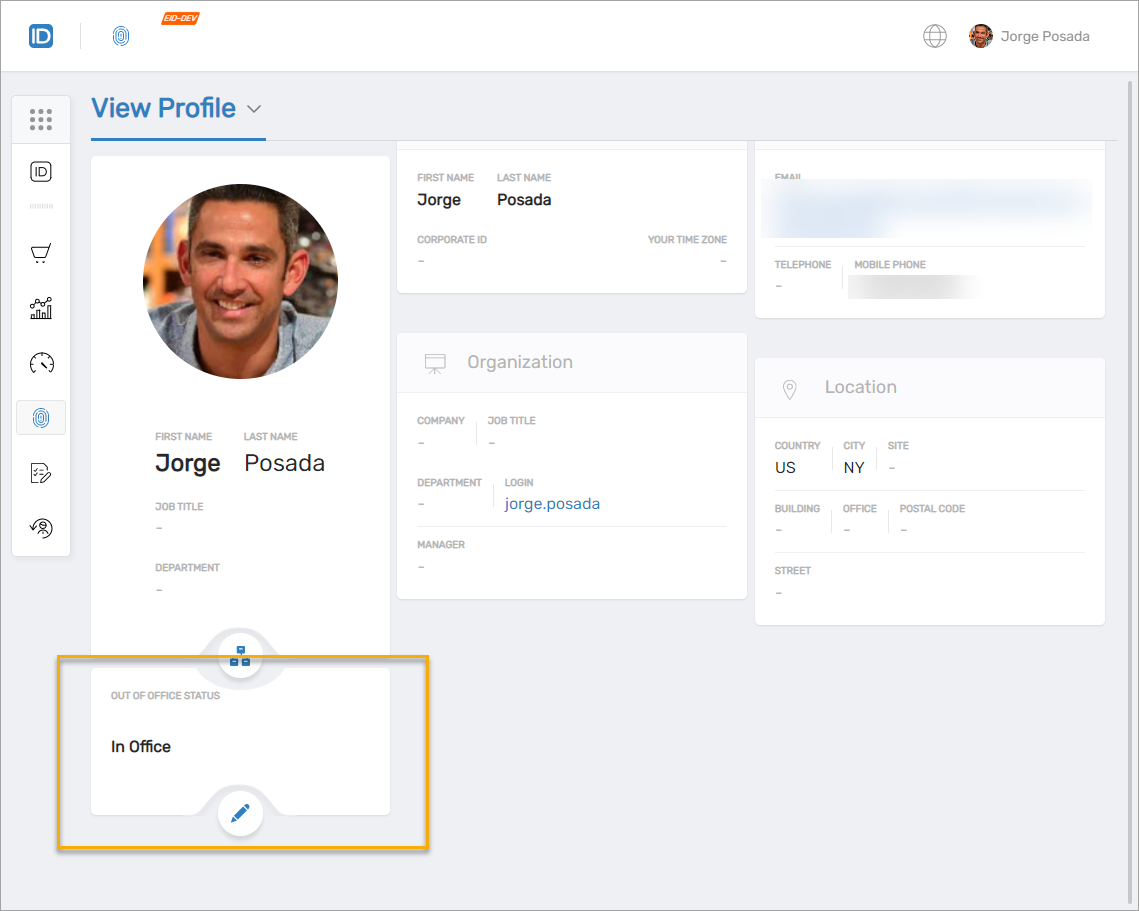
- Edit Your Out of Office Status
In the Out Of Office Status pane, click the Edit button.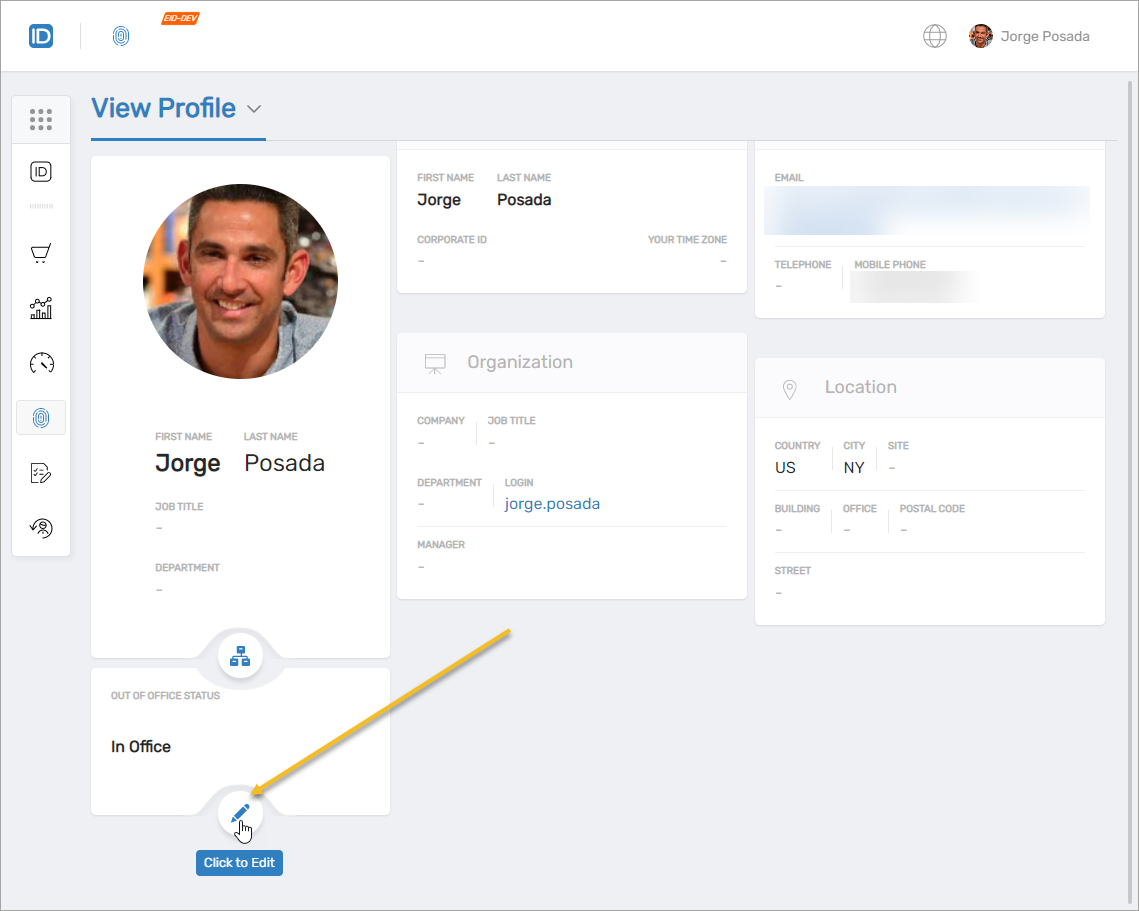 This opens the Set Out of Office Status dialog.
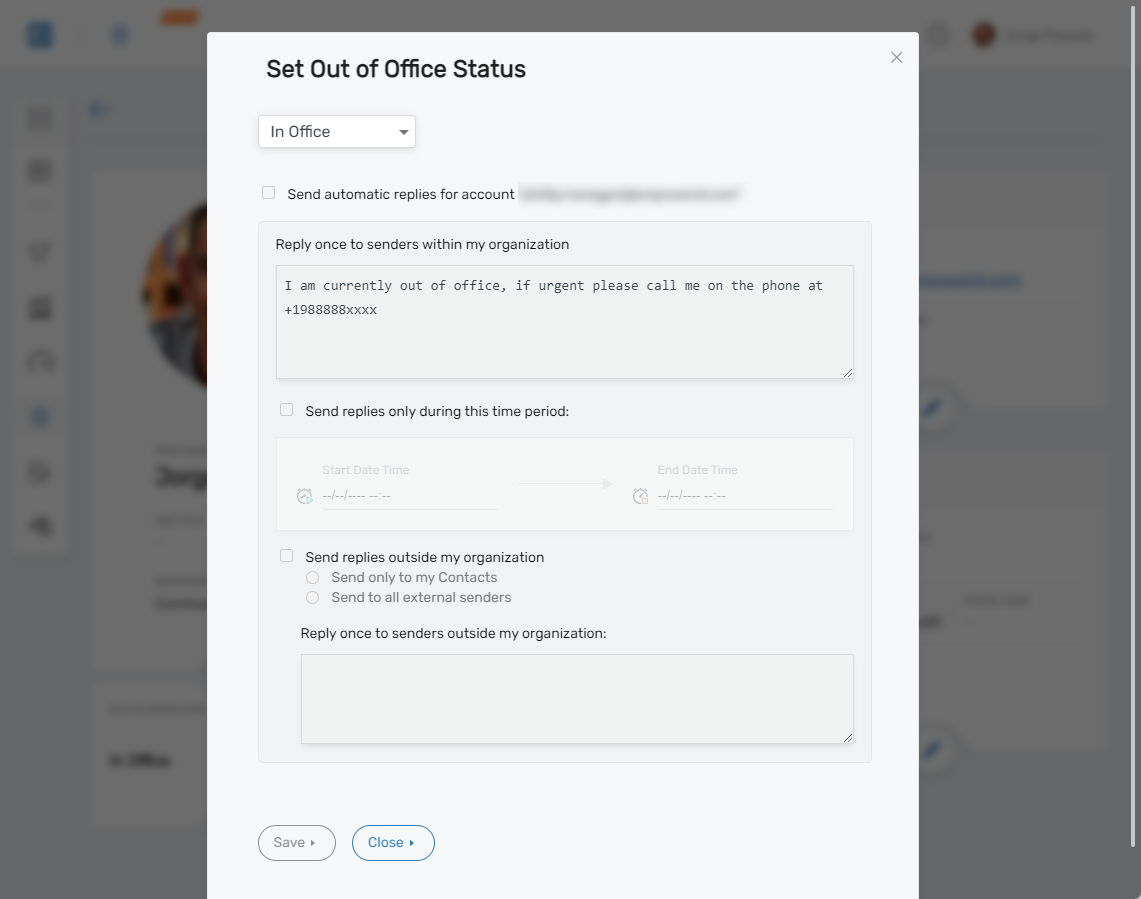
- Change Your Status
Click the In Office dropdown and select Out of Office.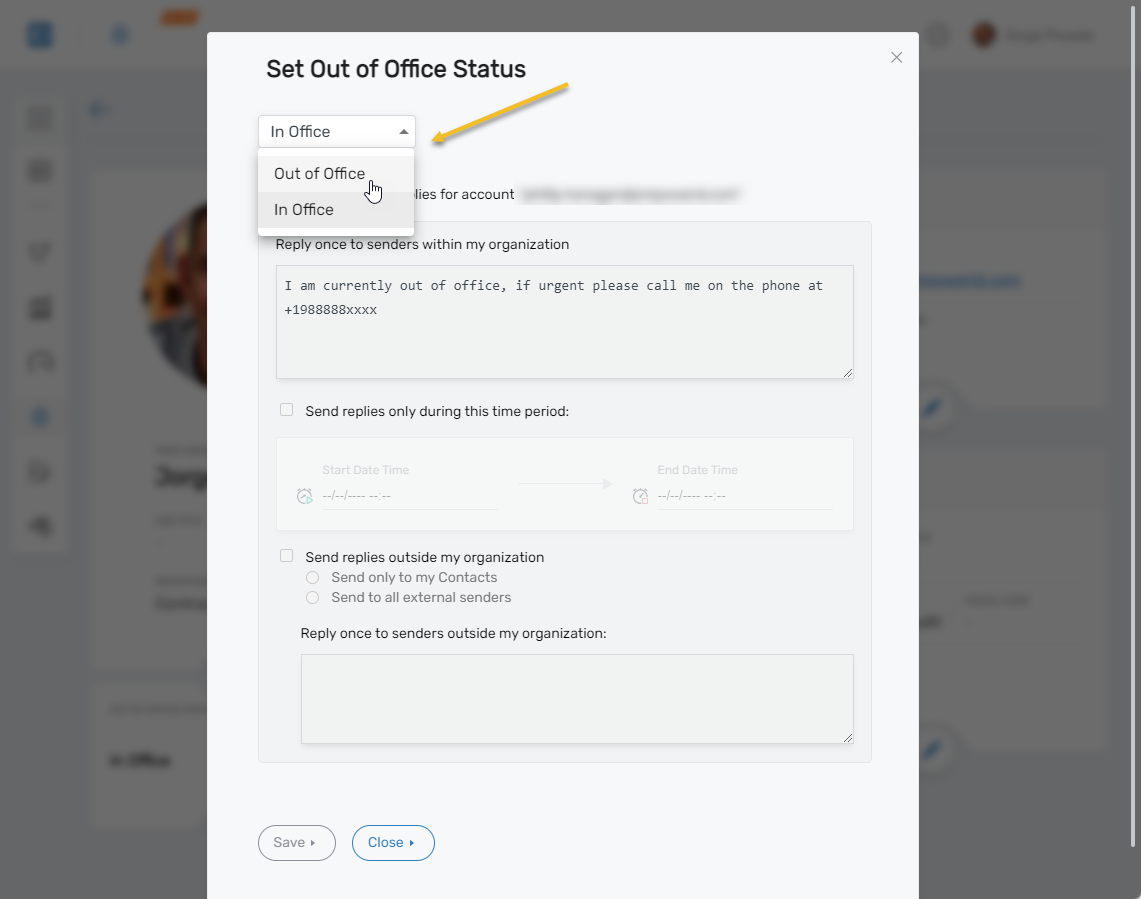
- Enter Your Out of Office Details
Fill in your start/end dates and message content as needed. - Save Your Changes
Click Save to apply your out-of-office settings.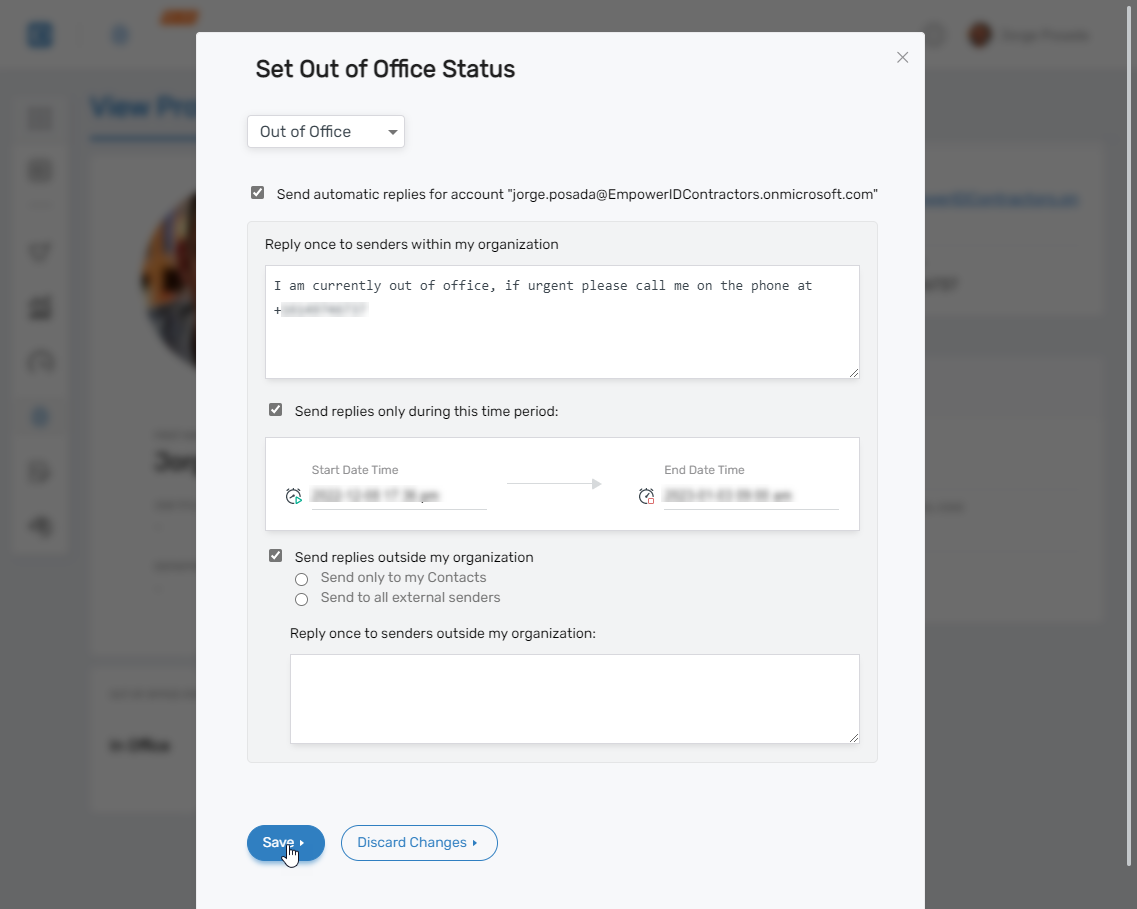 Once saved, your profile will display your updated status: