Edit Owners and Deputies for a Client Secret
AAs a delegated administrator or application owner, you can manage access to Microsoft Entra client secrets by editing the responsible party, owners, and deputies assigned to the credential using the Manage Credential Wizard.
This article guides you through the process in EmpowerID’s Resource Admin portal.
What You’ll Need
| Requirement | Description |
|---|---|
| Access to Resource Admin | You must have permission to access and manage application credentials in Resource Admin. |
| Ownership or Delegation | You must be the owner or delegated administrator of the application containing the client secret. |
Steps to Edit Owners and Deputies
1: Open the Application Overview Page
- Log in to Resource Admin.
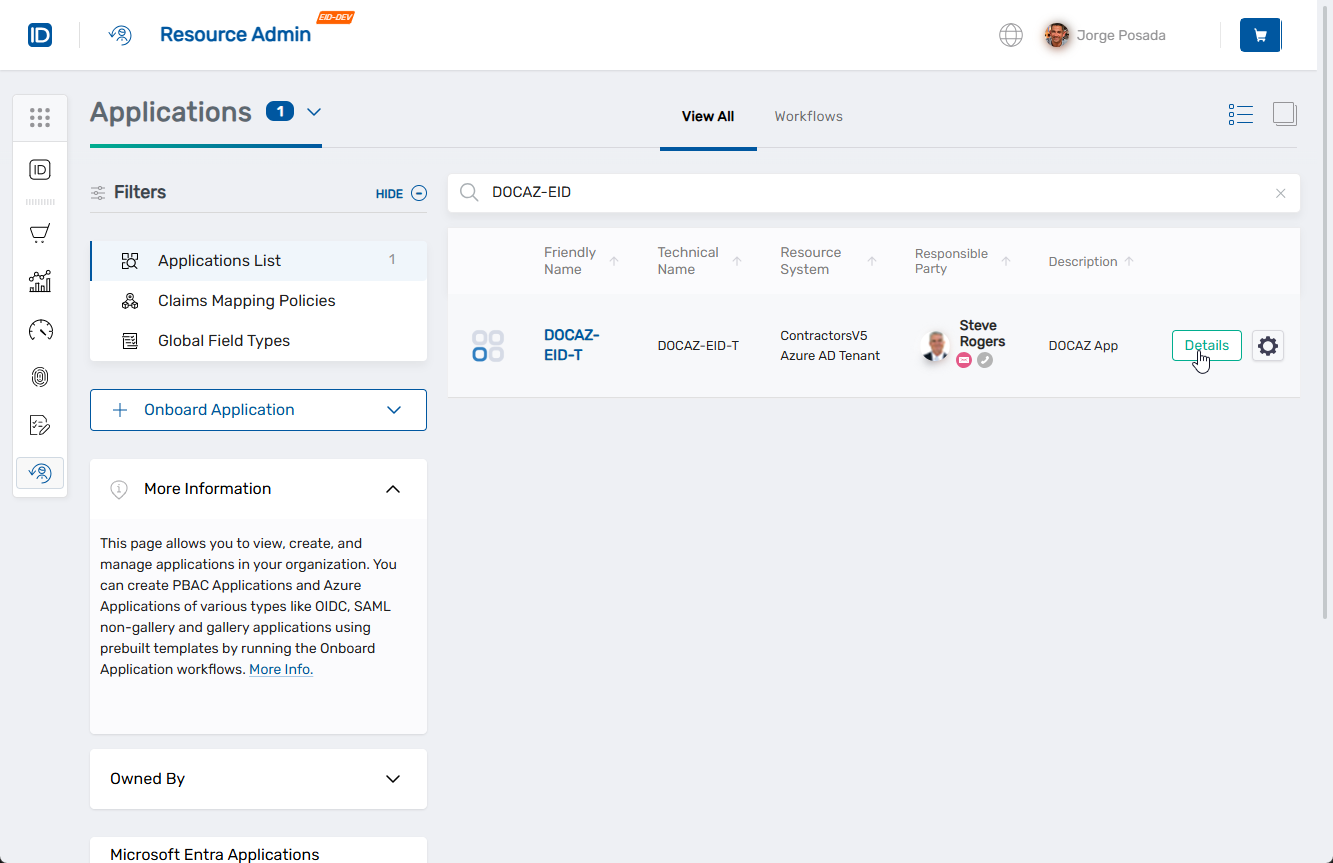
- Select Applications from the Resource Type menu and search for the Azure application with the client secret you want to delete.
- Click the Details button for the application.
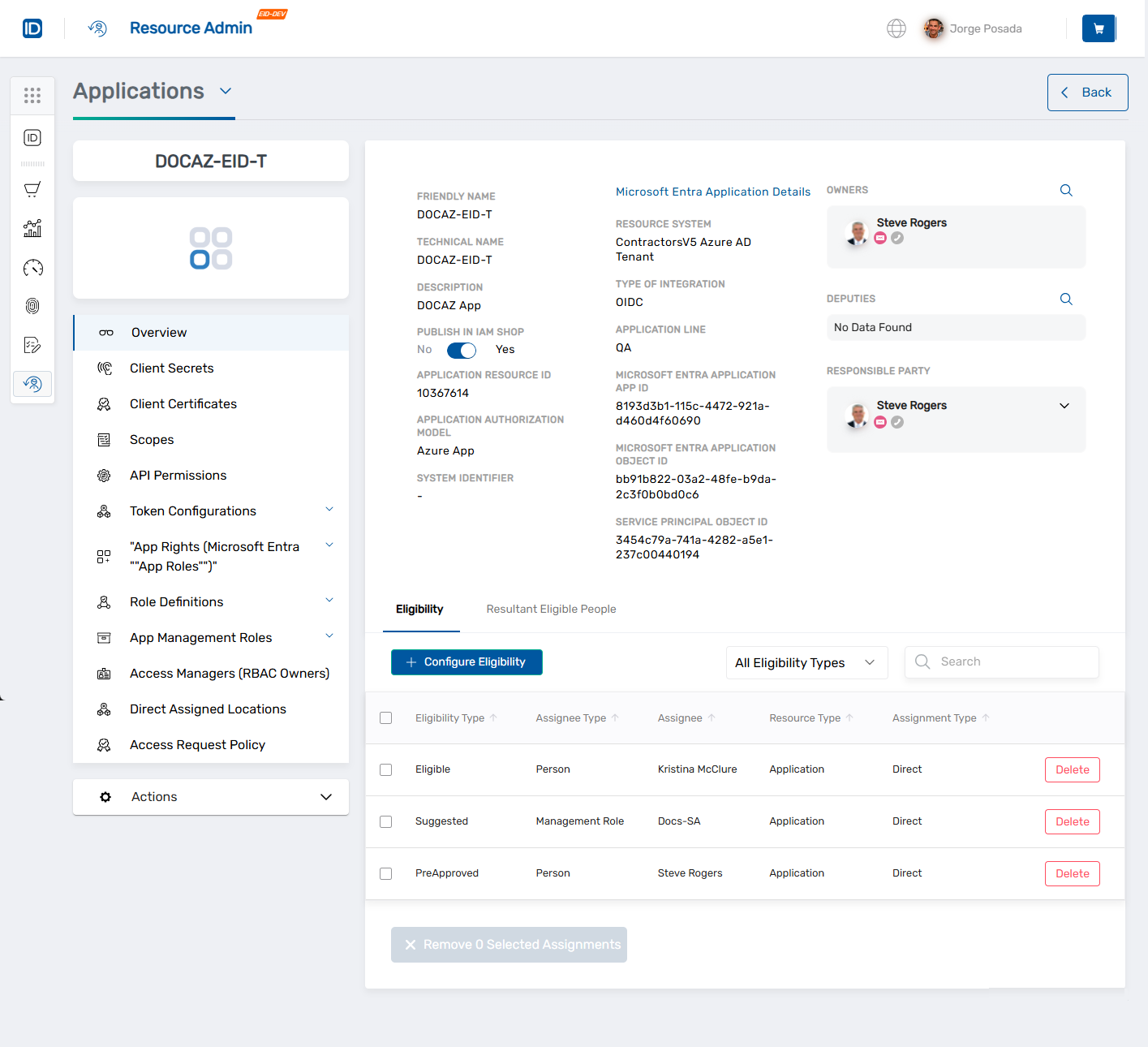
 This opens the Overview page for the selected Azure application.
2: Launch the Manage Credential Wizard
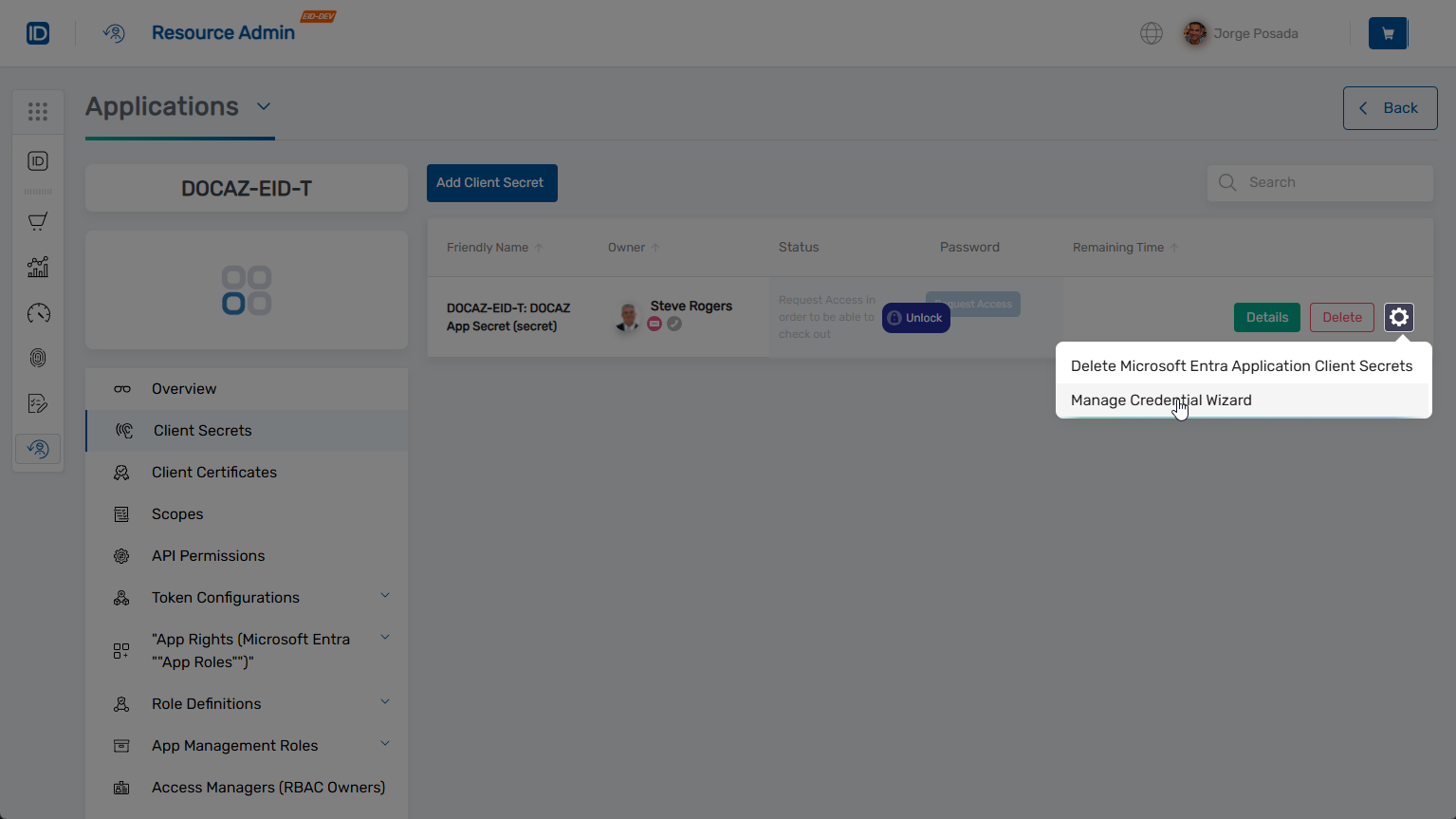
- In the left application menu, click Client Secrets.
- Locate the client secret you want to manage.
- Click the gear icon on the client secret record and select Manage Credential Wizard.
3: Select the Edit Owners and Deputies Action
- Under Select Options, select Edit Owners and Deputies.
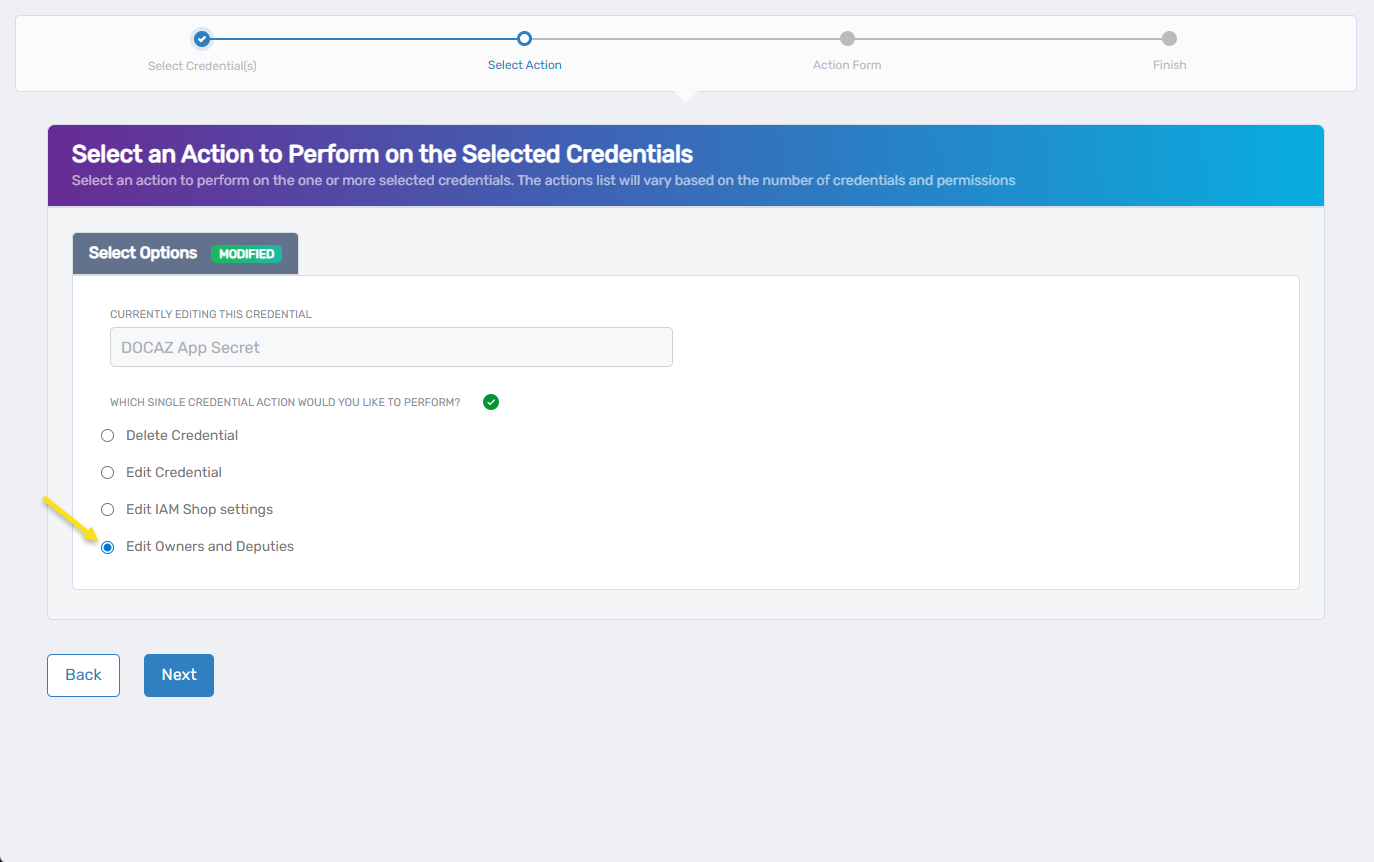
- Click Next.
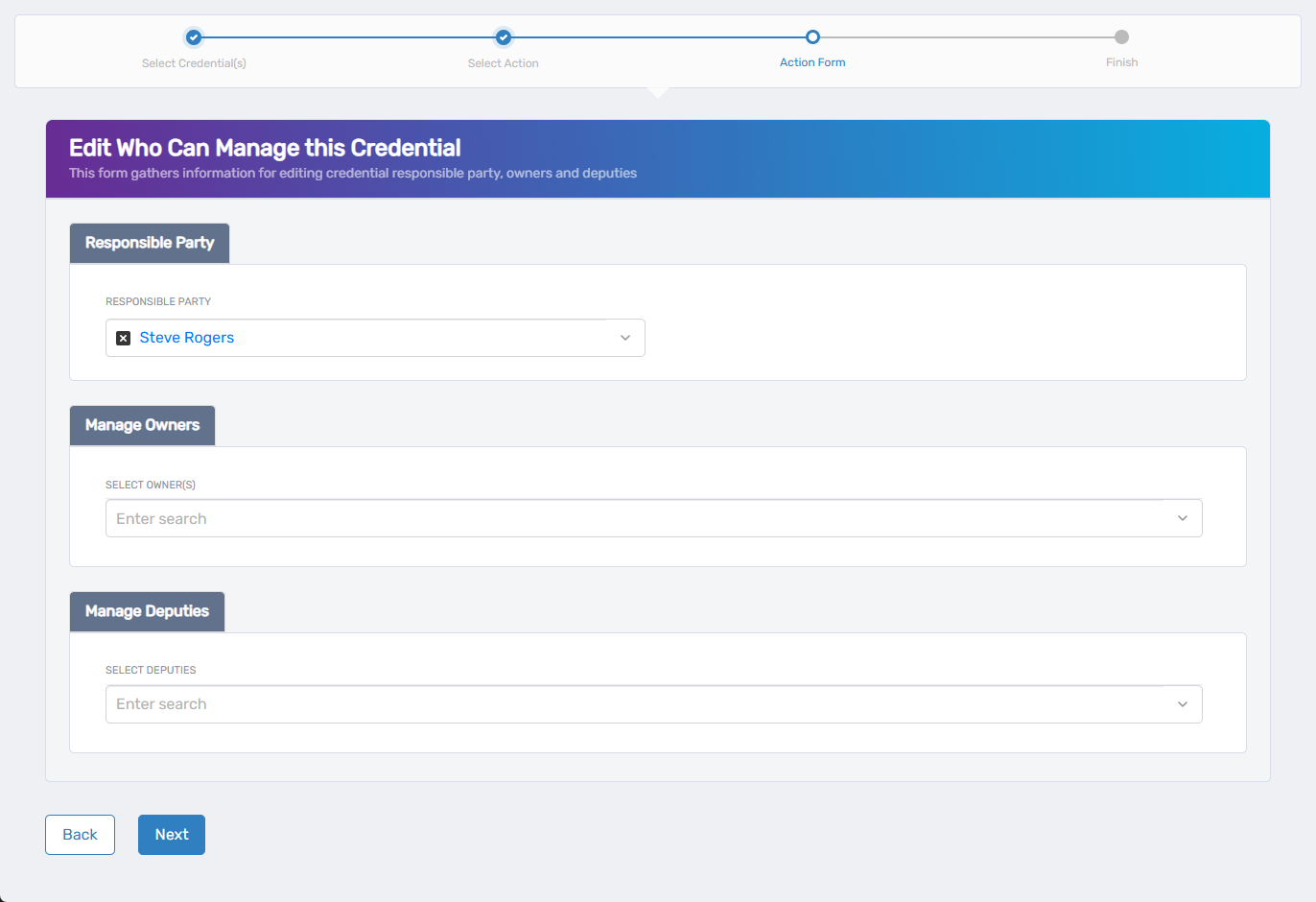
The Edit Who Can Manage this Credential form opens.
4: Edit the Credential Managers
- In the Responsible Party section, select the person ultimately accountable for the credential.
- To remove the current responsible party, click the X next to their name.
- Under Manage Owners, search for and select the user(s) you want to assign as owners.
- To remove an owner, click the X next to their name.
- Under Manage Deputies, search for and select the user(s) to act as deputies.
- To remove a deputy, click the X next to their name.
- Click Next to continue.
tip
Owners and deputies inherit access permissions to manage the credential, including vault and checkout actions if those options are enabled.
Step 5: Review the Summary and Finish
- Review the Operation Execution Summary confirming the update completed successfully.
- Click Submit to continue.
- On the Finish or Start Over Workflow screen, choose one of the following:
- Manage the same credential(s)
- Manage different credential(s)
- Finish the workflow
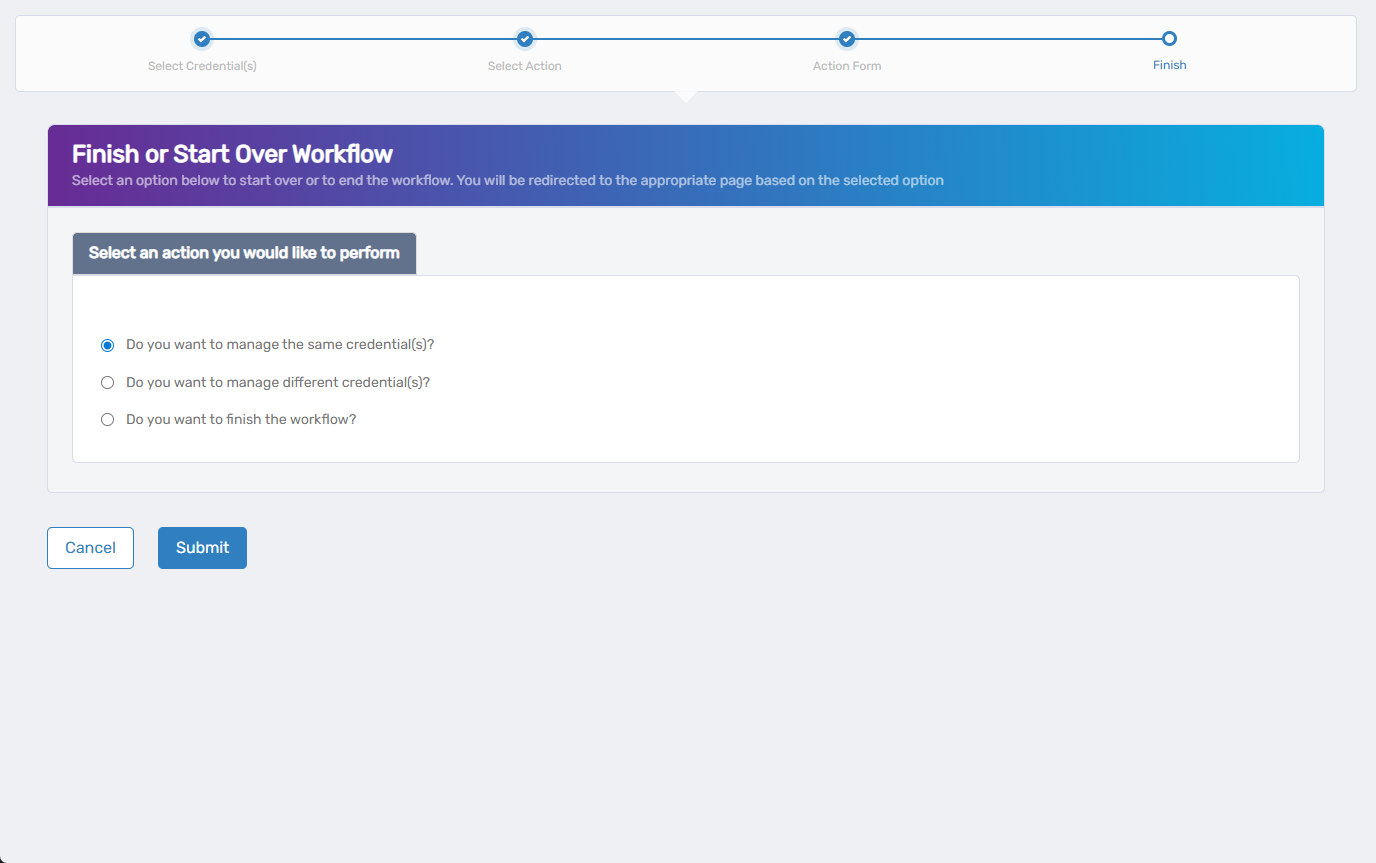
- Click Submit to confirm your choice.
You’ll be redirected based on your selection—either back into the wizard or out to the Workflows page.
What Happens Next
- The credential’s updated responsible party, owners, and deputies are applied immediately.
- Users assigned as owners or deputies can now manage the credential based on their access rights.
- You can return to the Client Secrets tab in the application overview to review or take further actions on the secret.