Delete Client Secrets
As an Azure application owner, you are responsible for maintaining the security and lifecycle of your application credentials. Deleting a client secret is a critical task when a secret is no longer needed, has been rotated, or is suspected to be compromised. This article walks you through securely removing client secrets in the Resource Admin portal.
warning
Deleting a client secret is permanent and cannot be undone. Be sure the secret is no longer in use before proceeding.
What You’ll Need
| Requirement | Description |
|---|---|
| Access to Resource Admin | You must have permission to access and manage applications in Resource Admin. |
| Application Ownership | You must be the owner or delegated administrator of the Azure application. |
Steps to Delete a Client Secret
1: Open the Application Overview Page
- Log in to Resource Admin.
- Select Applications from the Resource Type menu and search for the Azure application with the client secret you want to delete.
- Click the Details button for the application.
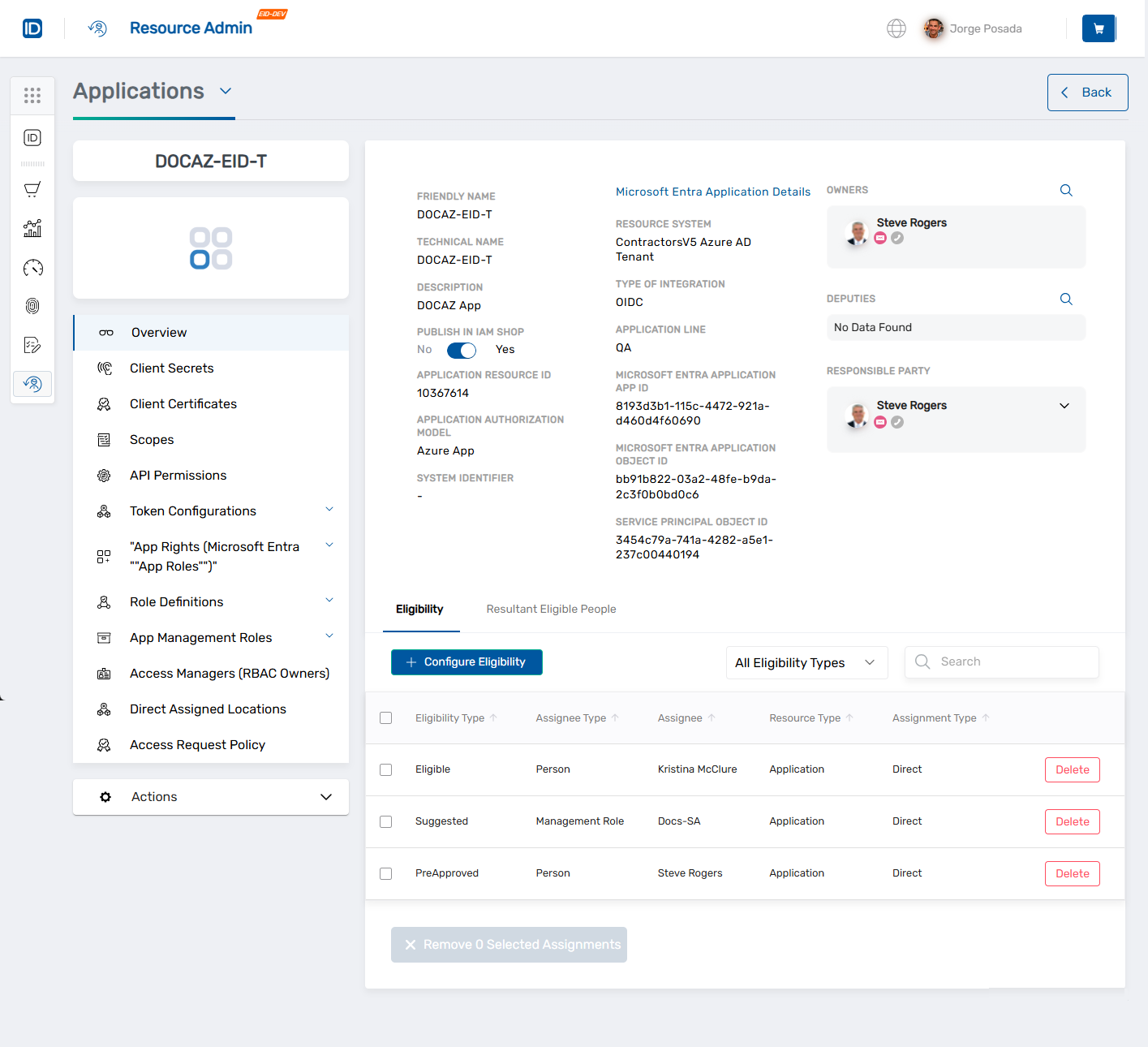
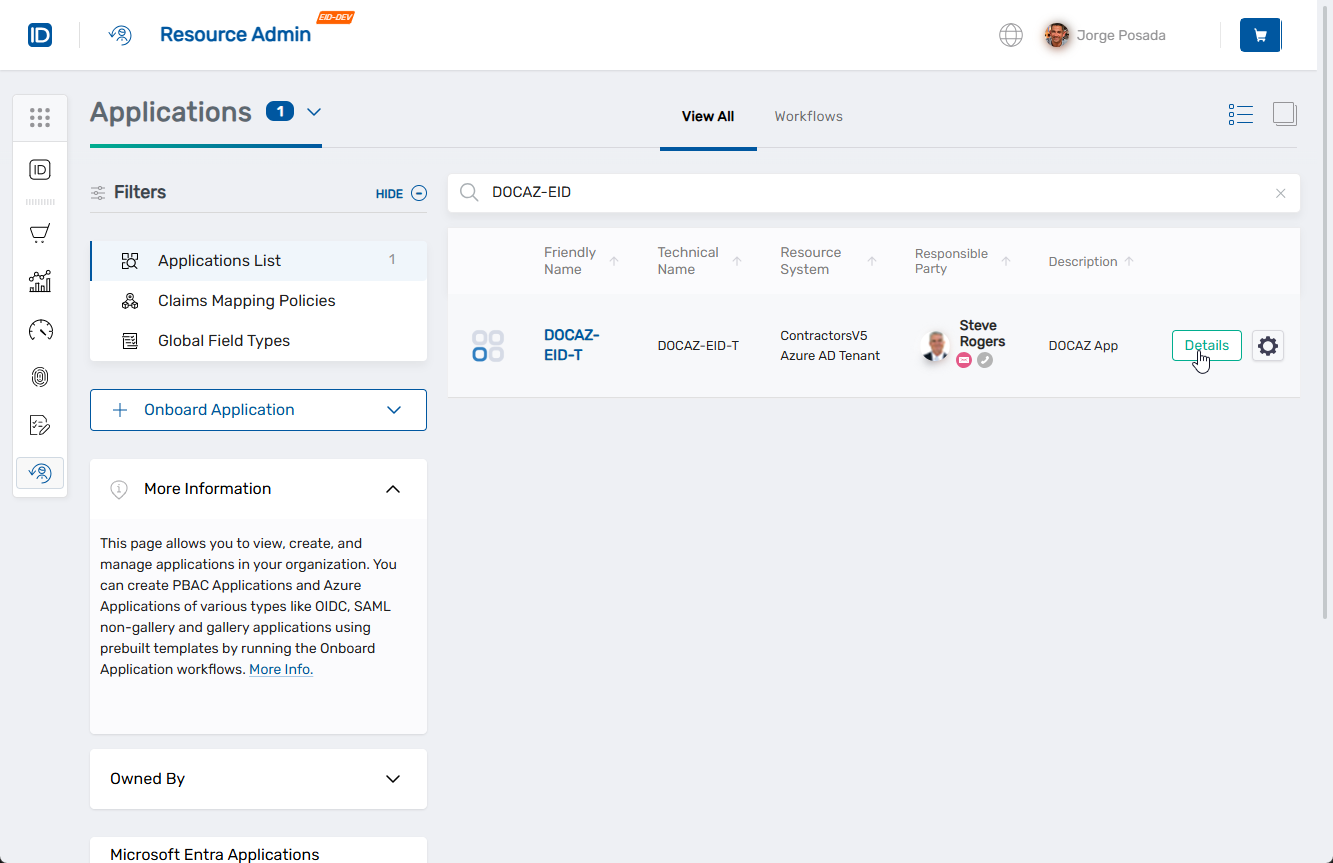 This opens the Overview page for the selected Azure application.
2: Delete the Secret
- In the left application menu, click Client Secrets.
- Locate the client secret you want to delete.
- Click the red Delete button next to that secret.
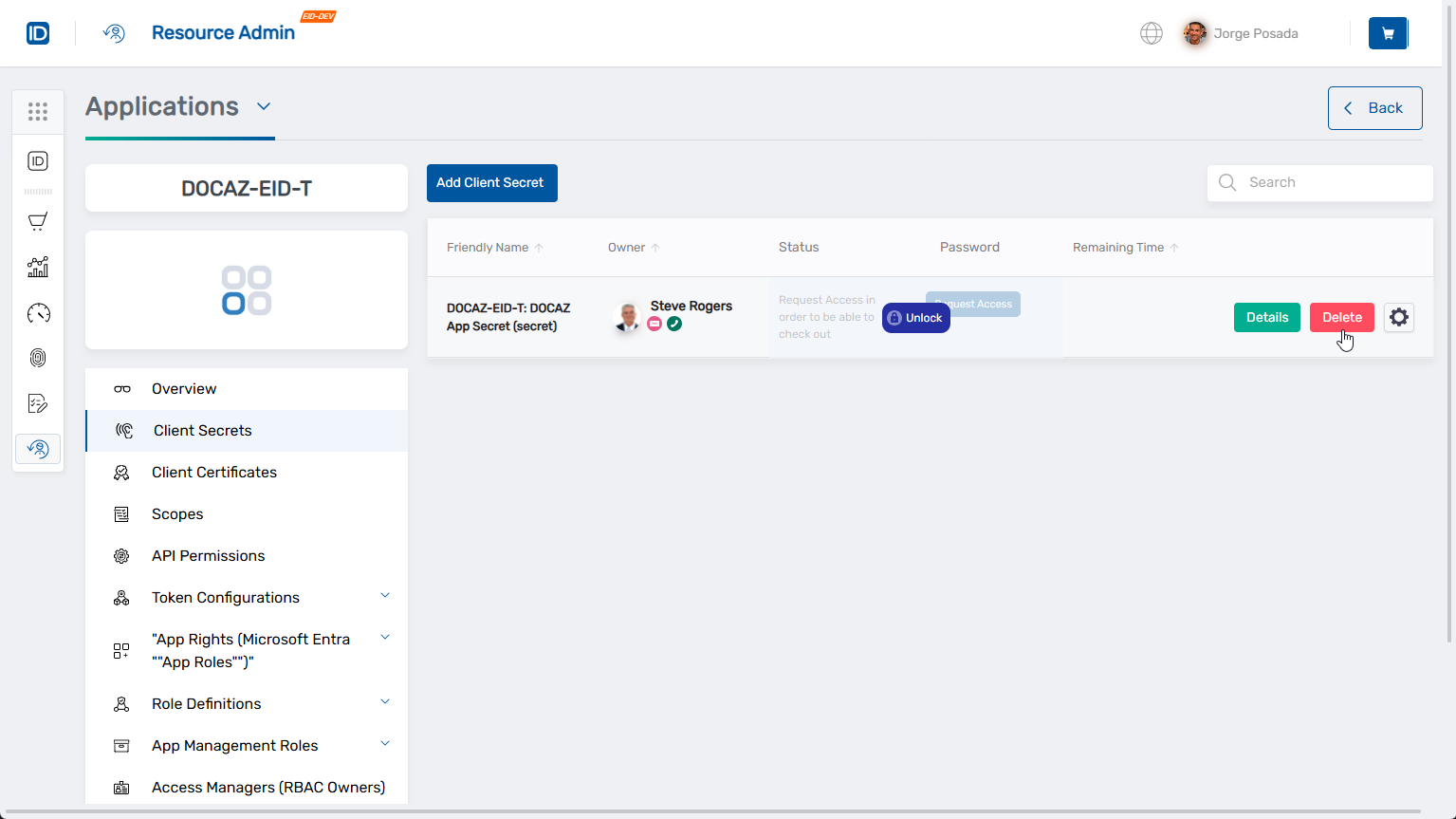
- In the confirmation dialog, click Delete to confirm.
note
Once deleted, the secret is immediately invalidated and removed from both EmpowerID and Microsoft Entra.
What Happens Next
- The secret is permanently removed from the application.
- Any services or users relying on the deleted secret will no longer be able to authenticate with it.
- You can return to the Client Secrets tab at any time to manage remaining credentials or create new ones.