Manually Disable User Accounts
Manually disable user accounts to temporarily suspend access without permanent deletion. This is useful for accounts that are stale, orphaned, or temporarily inactive when automated policies are not configured. The Manage Account Wizard supports disabling single or multiple accounts simultaneously.
Best Practice
Disable accounts rather than delete them when there is any possibility of future reactivation. Disabled accounts can be re-enabled without recreating account information.
Prerequisites
- Administrative access to disable user accounts in EmpowerID
- See Access to User Accounts and Groups for required permissions
Disable User Accounts
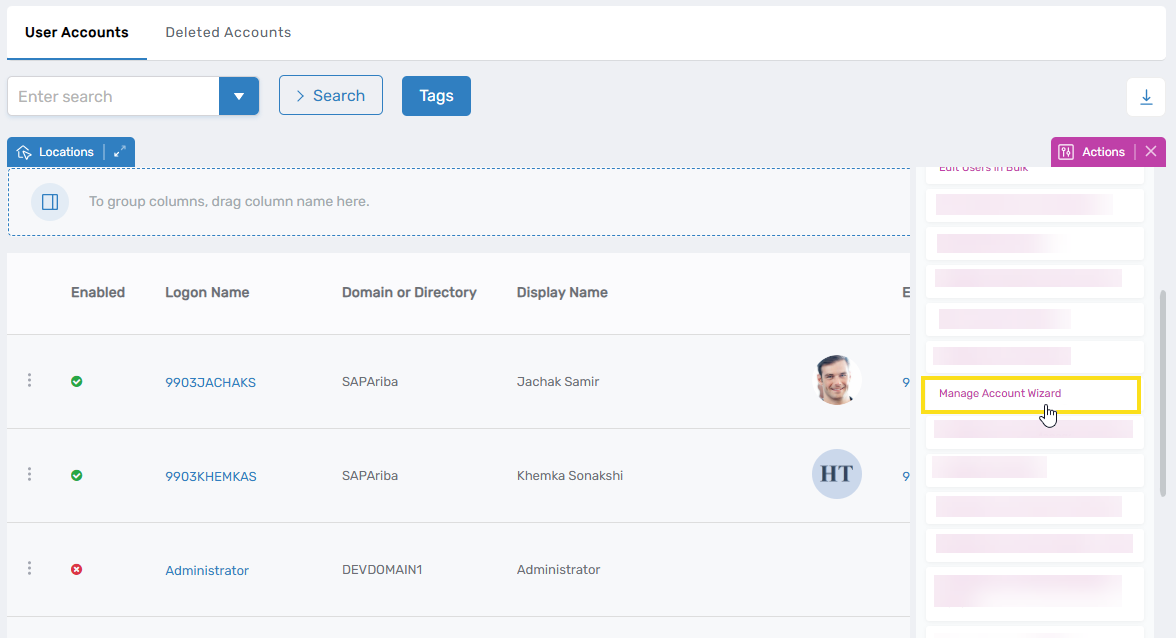
- On the navbar, expand Identity Administration and select User Accounts.
- Click Manage Account Wizard.
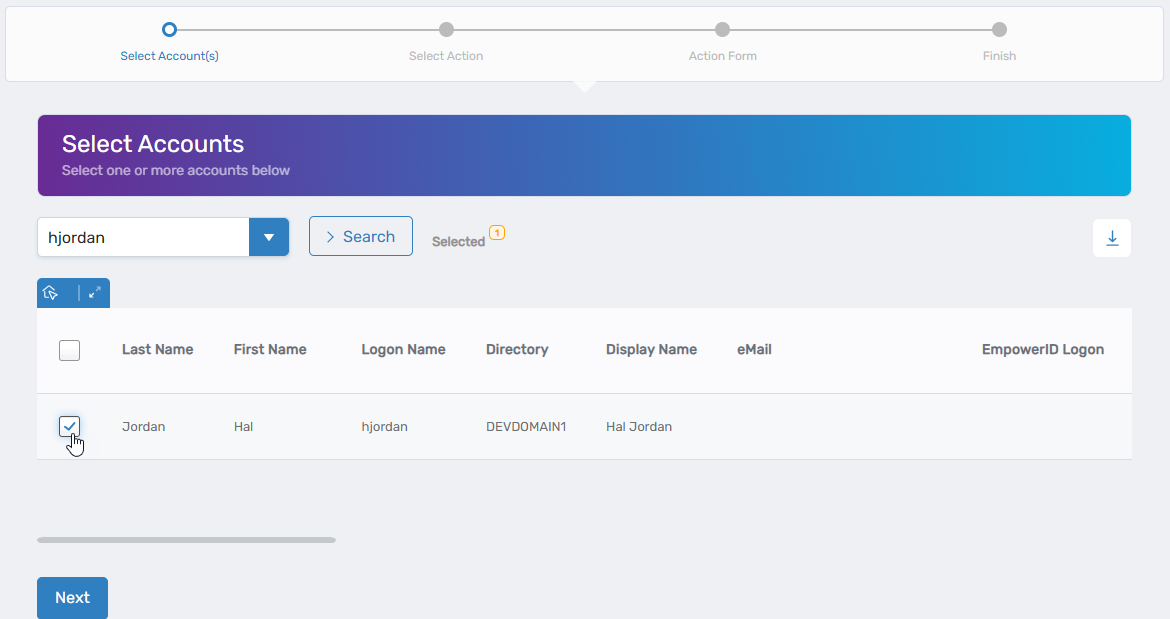
- Search for the user account to disable and check the box beside the account record.
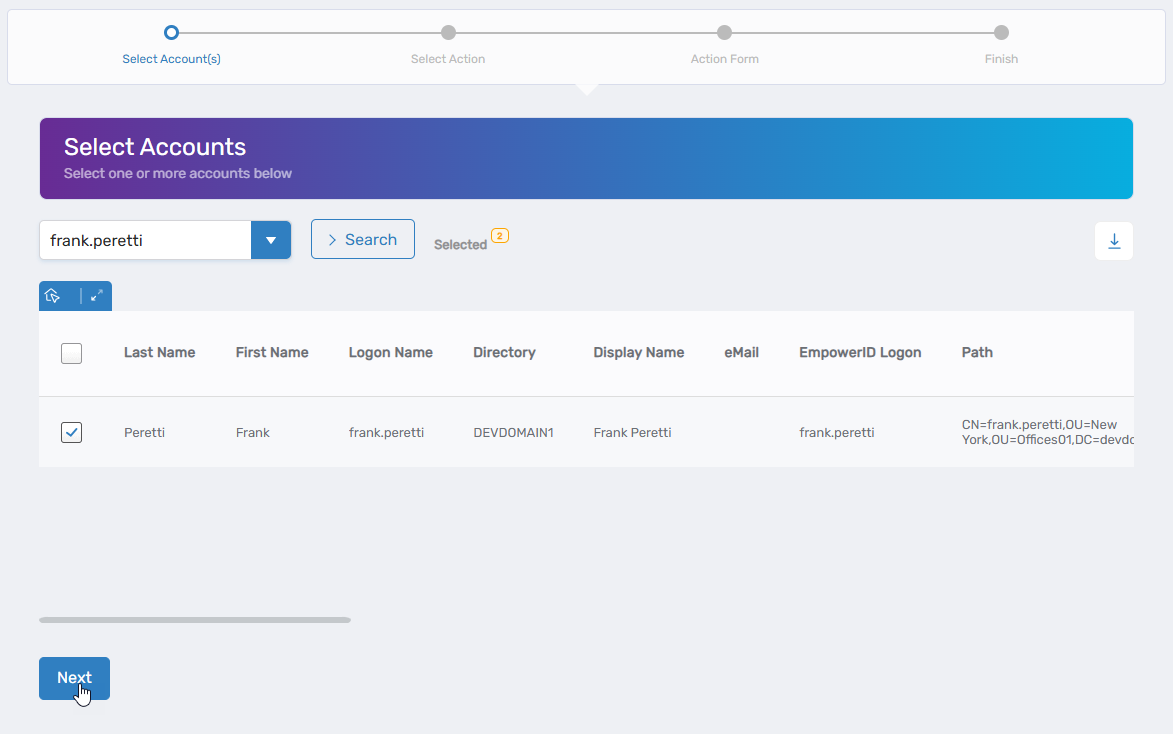
- Repeat step 3 for each additional user account to disable.
- Click Next.
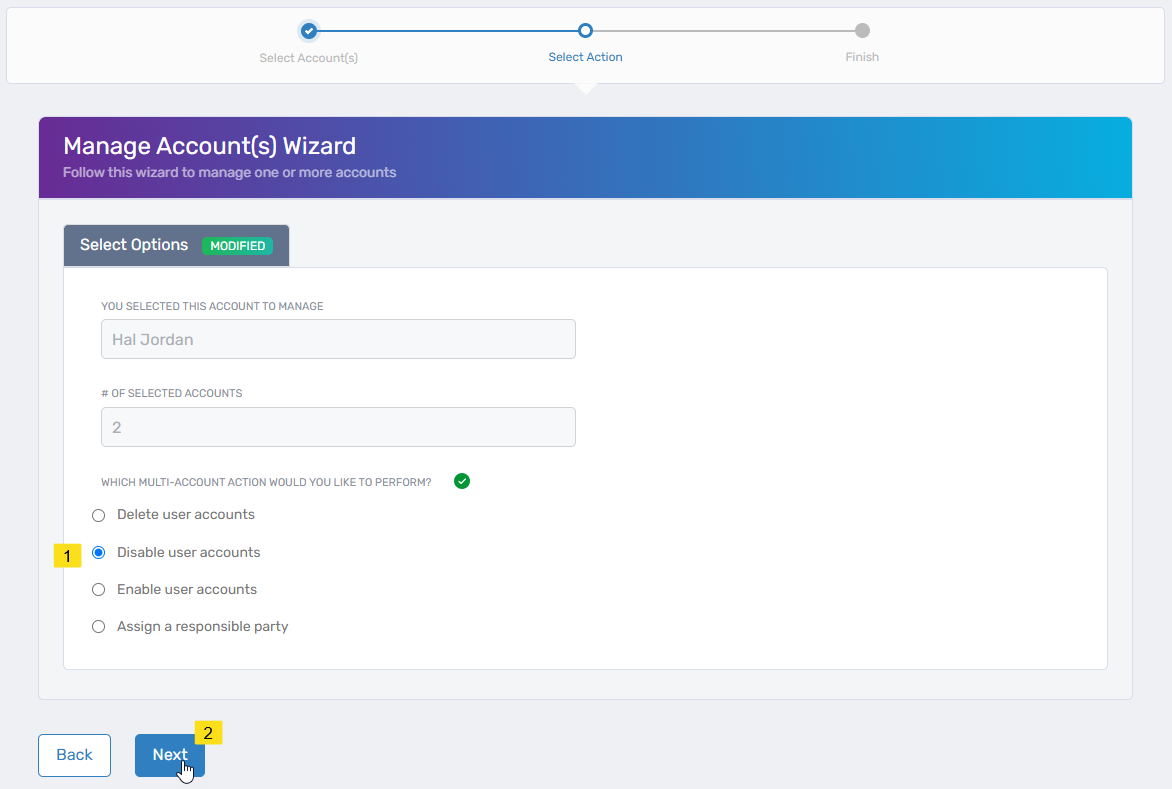
- Select Disable user accounts and click Next.
- Review the Operation Execution Summary and click Submit.
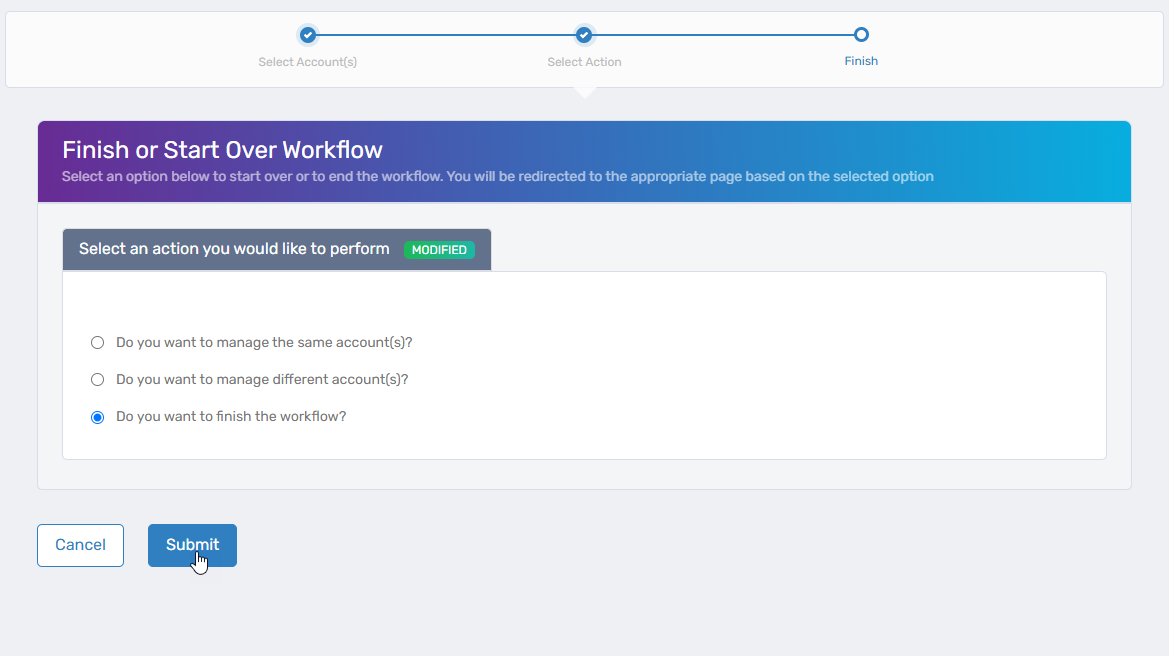
- Select your next action and click Submit:
- Do you want to manage the same account(s)? - Perform additional actions on the same accounts
- Do you want to manage different account(s)? - Work with other accounts
- Do you want to finish the workflow? - Complete and exit the wizard
Results
- Selected user accounts are disabled in EmpowerID
- Users cannot authenticate or access systems using disabled accounts
- Account status changes are synchronized to connected account stores
- Account information and history are preserved for future reactivation
- Disable actions are recorded in audit logs