Manually Delete User Accounts
Manually delete user accounts that are stale, orphaned, or no longer needed when automated deletion policies are not configured. The Manage Account Wizard provides a centralized method for removing single or multiple user accounts.
Important
Account deletion is permanent. Ensure you have verified that accounts are no longer needed before proceeding. Consider disabling accounts first if there is any possibility of future reactivation.
Prerequisites
- Administrative access to delete user accounts in EmpowerID
- See Access to User Accounts and Groups for required permissions
- Confirmation that accounts are no longer needed
Delete User Accounts
- On the navbar, expand Identity Administration and select User Accounts.
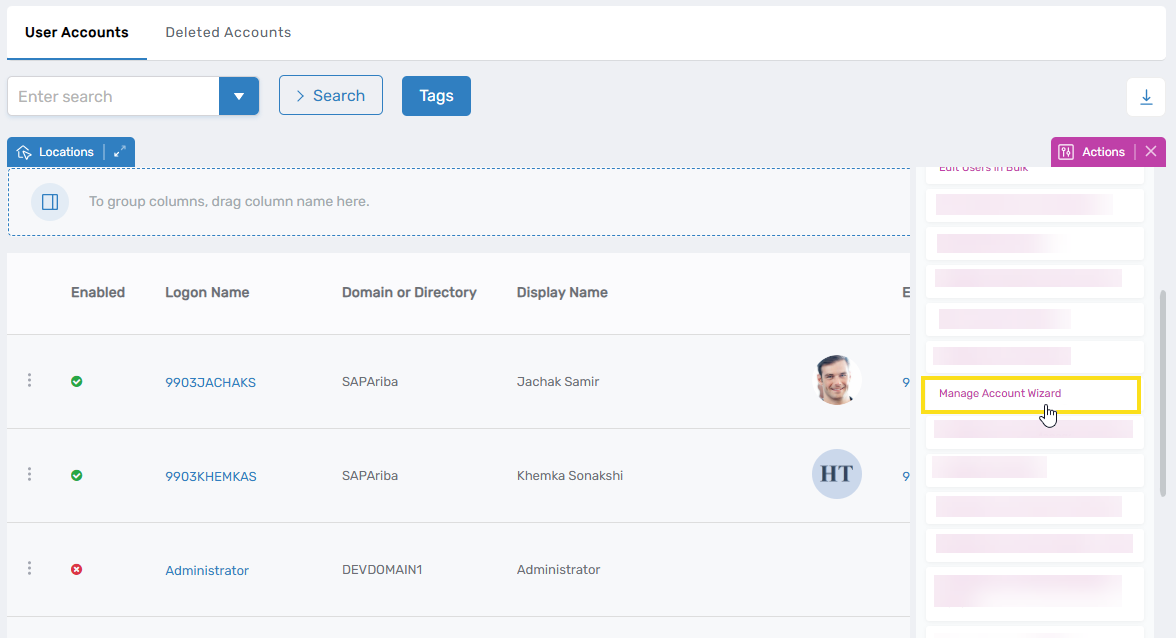
- Click Manage Account Wizard.
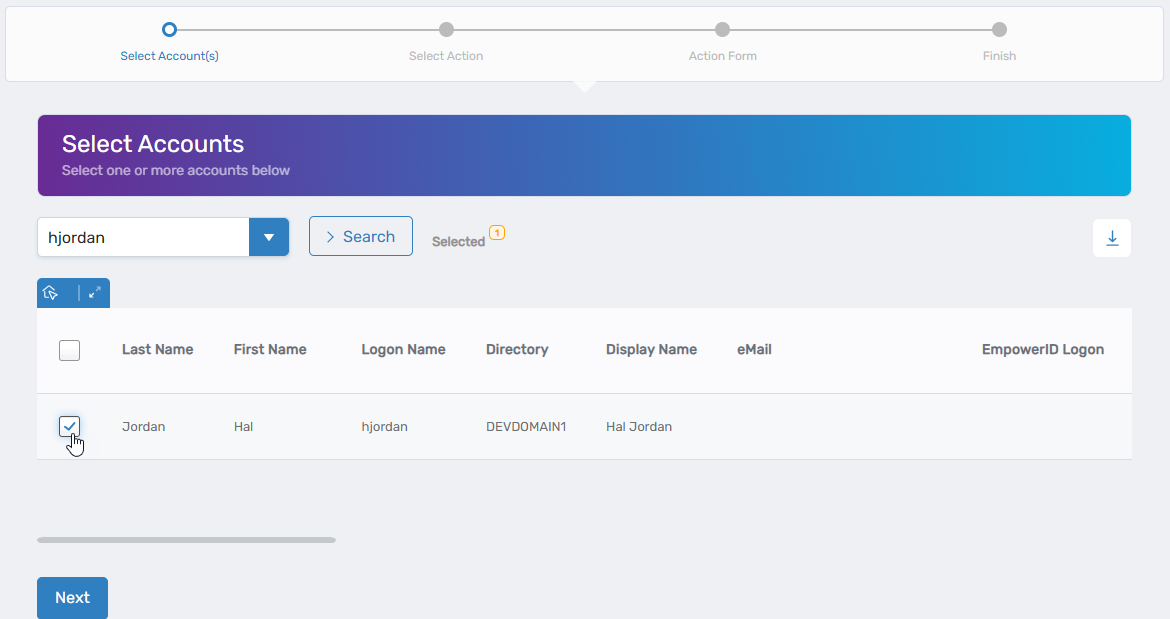
- Search for the user account to delete and check the box beside the account record.
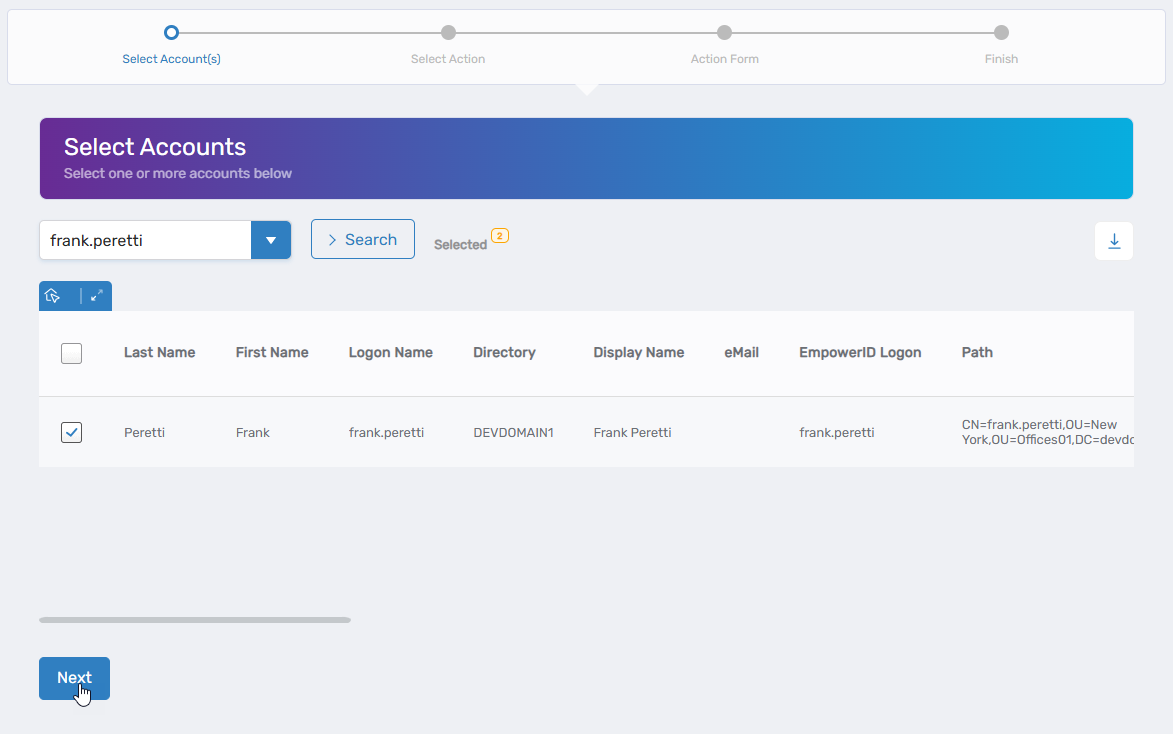
- Repeat step 3 for any additional user accounts to delete.
- Click Next.
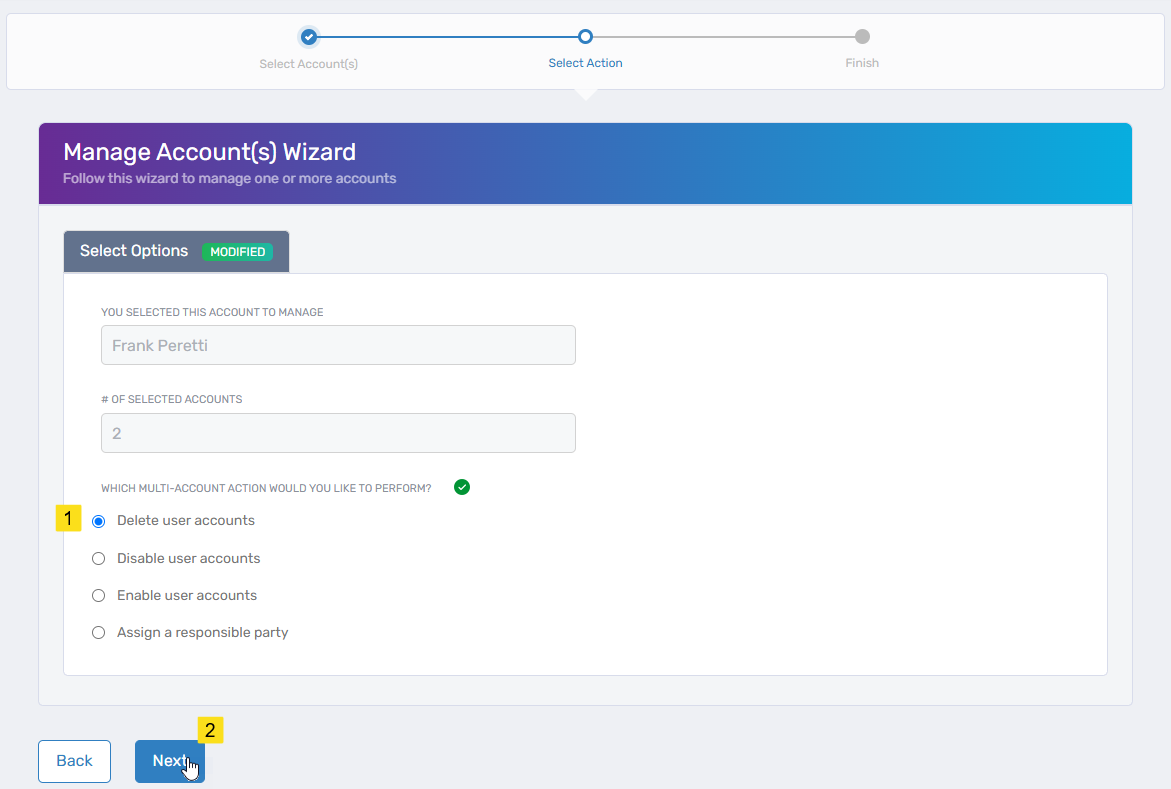
- Select Delete user accounts and click Next.
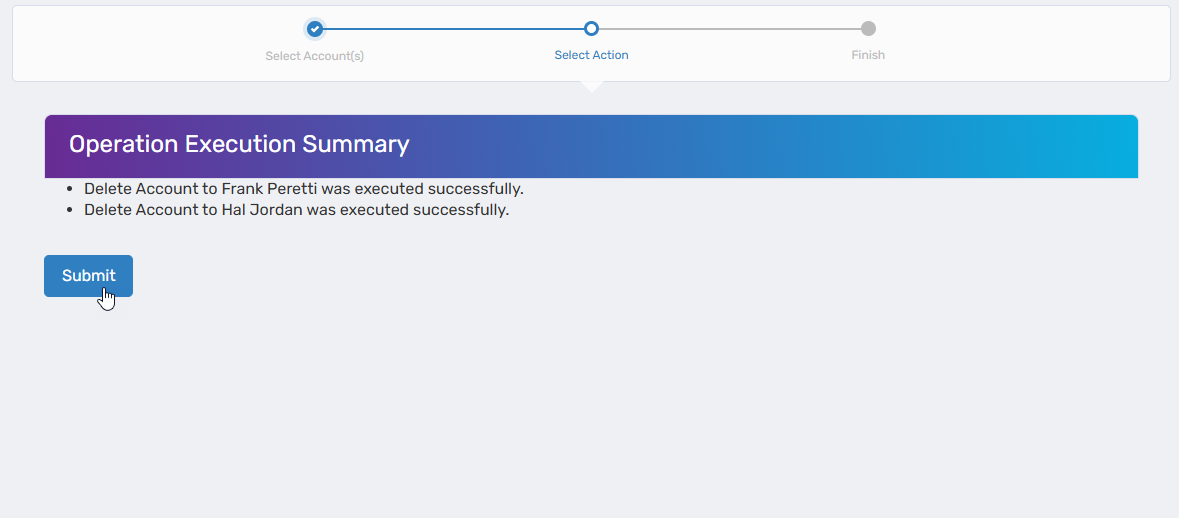
- Review the Operation Execution Summary and click Submit.
Results
- Selected user accounts are permanently deleted from EmpowerID
- Associated account records are removed from connected account stores
- User authentication is no longer possible with deleted accounts
- Deletion events are recorded in audit logs
- Deleted accounts can be restored within the retention period (see Restore Deleted User Accounts)