Transfer Responsibilities
When a person leaves the company, changes departments, or takes an extended leave of absence, you may need to transfer their resource ownership responsibilities to another person. Rather than transferring each resource individually, EmpowerID provides the Transfer Resource Responsibility workflow to transfer all resources for which a person is responsible in a single operation.
This article explains how to transfer responsibilities and how to configure automatic transfer to a person's manager.
Prerequisites
- Access to the Resource Admin application
- Appropriate delegation to run the Transfer Responsibility workflow
Configure Automatic Transfer to Manager (Optional)
If you want responsibilities to automatically transfer to a person's manager, configure the workflow parameter before running the transfer.
- On the navbar, expand Low Code / No Code Workflow and select Low Code Workflows.
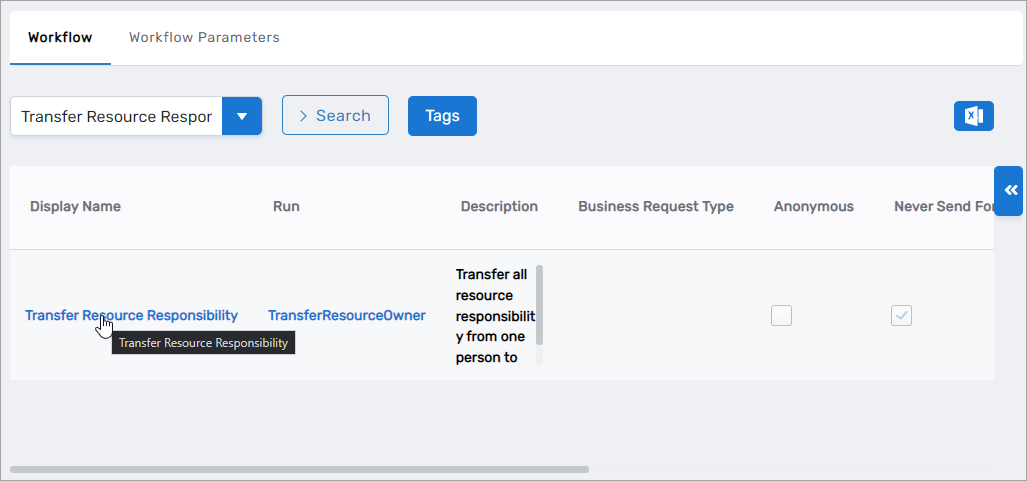
- Select the Workflow tab and search for Transfer Resource Responsibility.
- Click the Display Name link for the workflow.
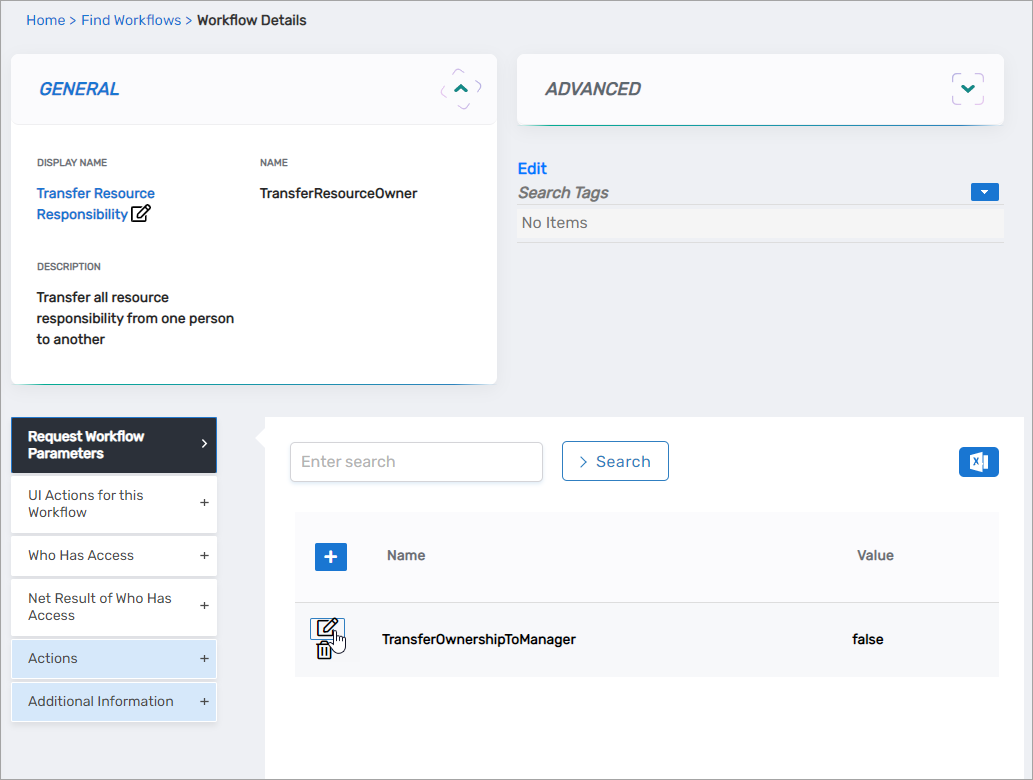
- Expand the Request Workflow Parameters accordion and click the Edit button for TransferOwnershipToManager.
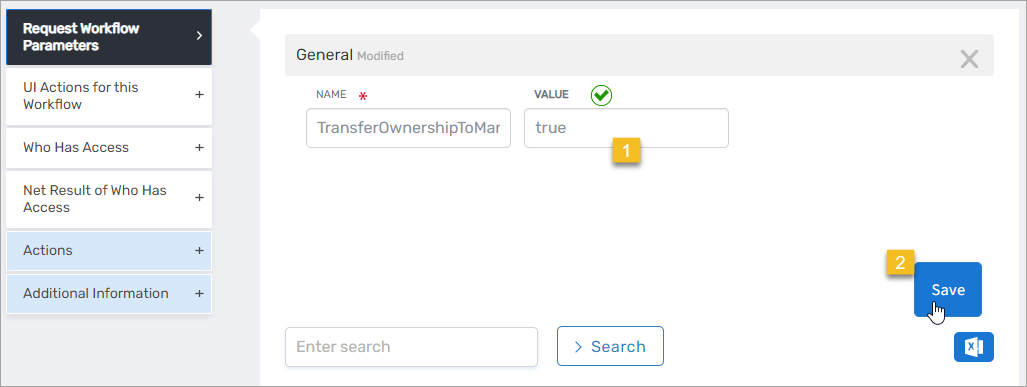
- Set the Value to true and click Save.
Transfer Responsibilities
- Navigate to the portal for the Resource Admin app in your environment.
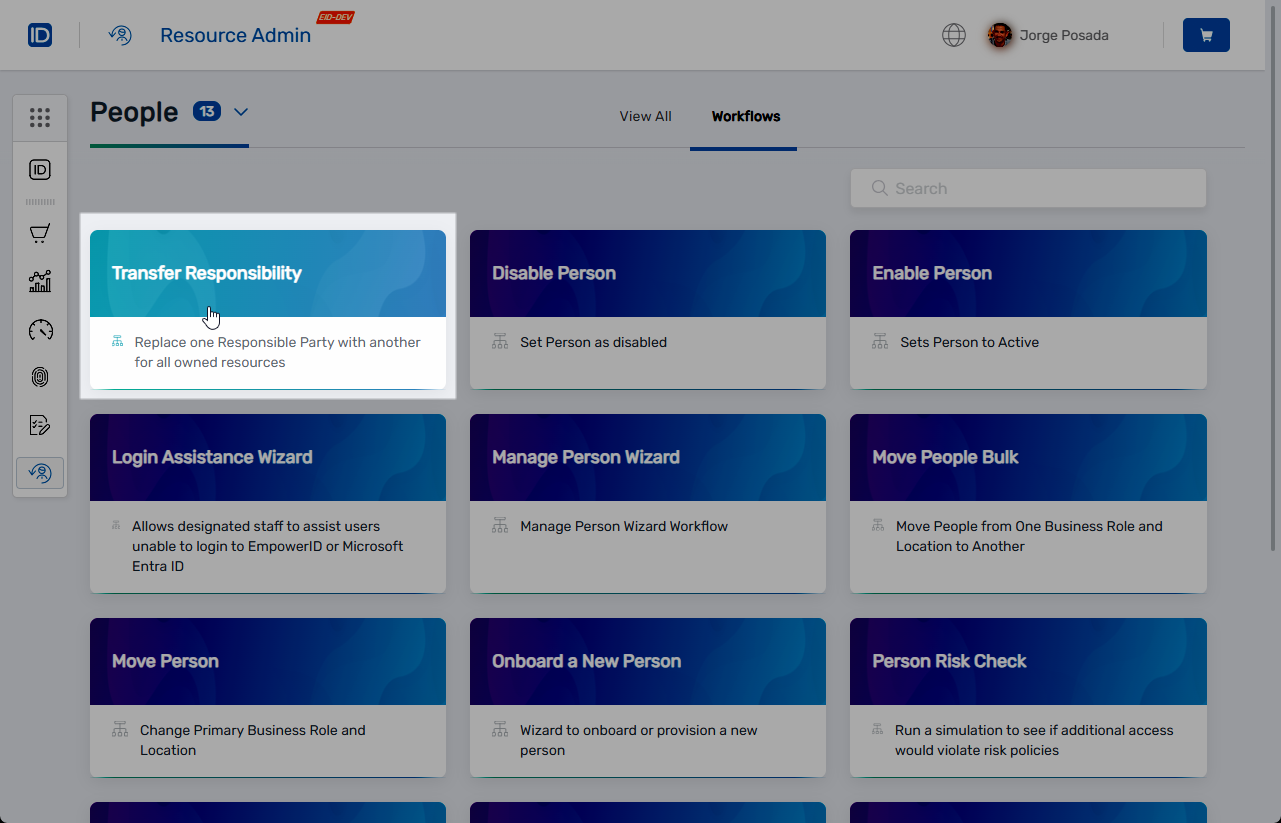
- In Resource Admin, select People and then select the Workflows tab.
- Click Transfer Responsibility.
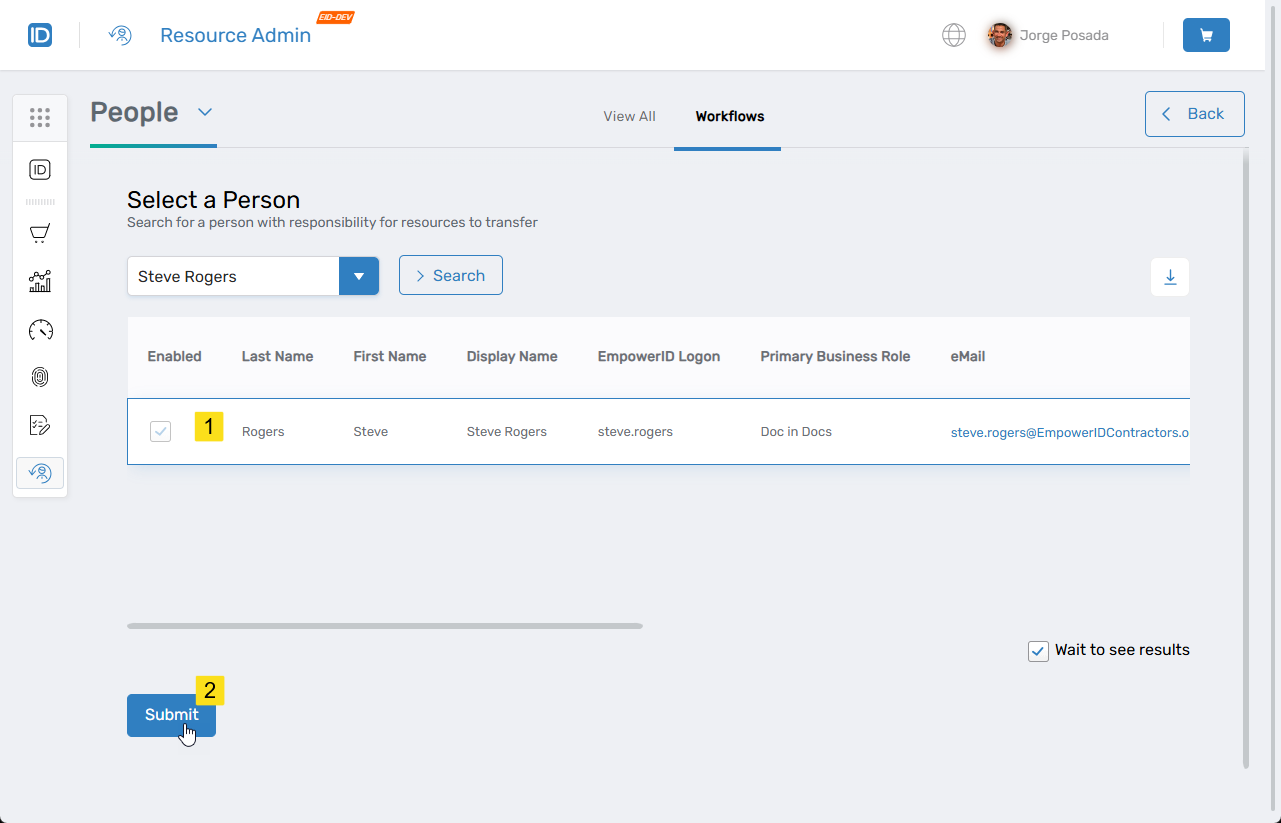
- Search for the person from whom you want to transfer responsibility for resources.
note
The search returns only people who are currently responsible parties for resources.
- Click the record for the person to select it and then click Submit.
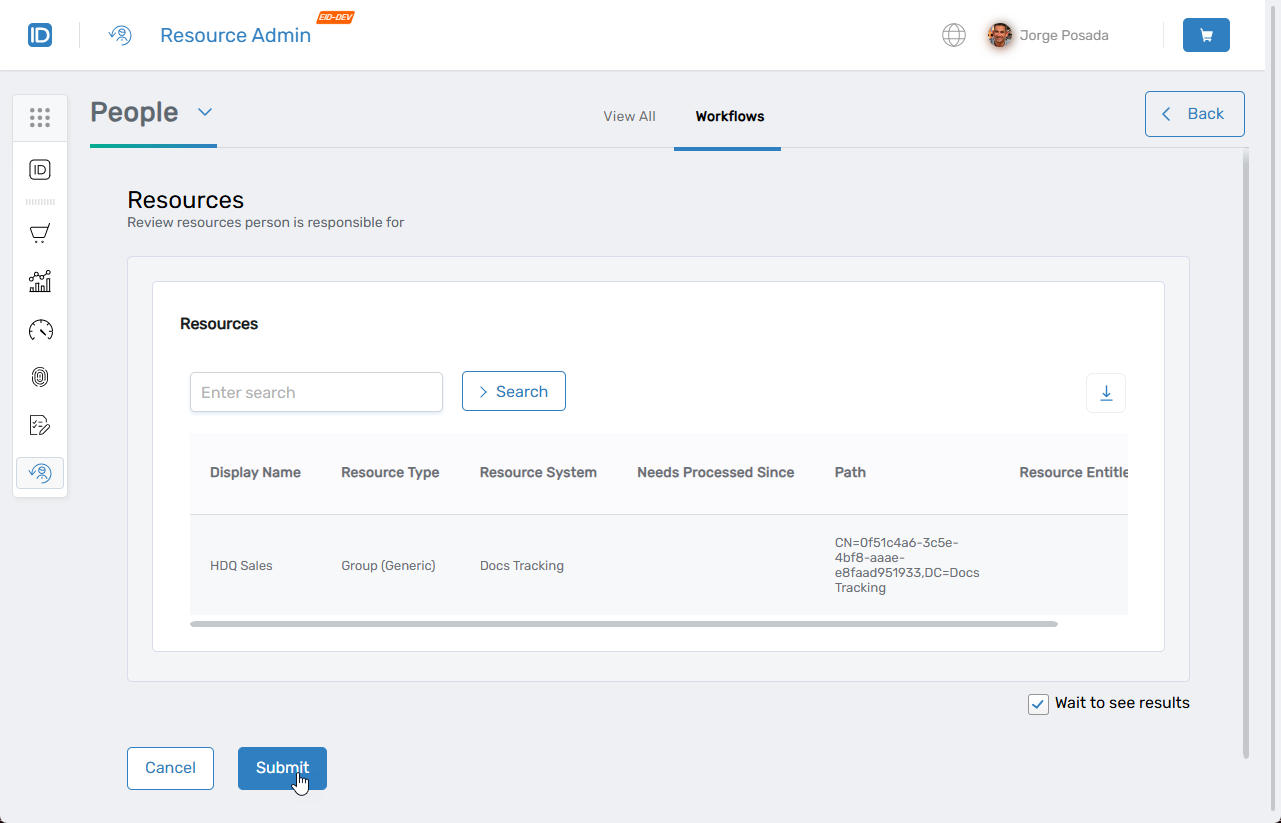
- Review the resources for which the person is responsible and click Submit.
Results
After completing this procedure:
- All resources for which the person was responsible are transferred to the designated recipient (either a specified person or their manager, depending on workflow configuration)
- The new responsible party appears on each transferred resource
- The transfer is recorded in the audit log