Move People to New Business Roles and Locations
When the Business Role or Location of people within your organization changes, you can move those people to a new Business Role and Location in EmpowerID. EmpowerID provides two methods: moving people individually (or in small groups) and moving people in bulk.
If Resource Entitlement or Default Attribute policies are applied to either the old or new Business Role and Location, EmpowerID automatically performs the actions associated with those policies. This includes adding and removing resource entitlements or default attributes as specified by the policies.
Prerequisites
- Access to the Resource Admin application
- Appropriate delegation to move people
Move Individual People
Use this method to move one or more selected people to a new Business Role and Location.
Procedure
- Navigate to the portal for the Resource Admin app in your environment.
- In Resource Admin, select People and then select the Workflows tab.
- Click Move Person.
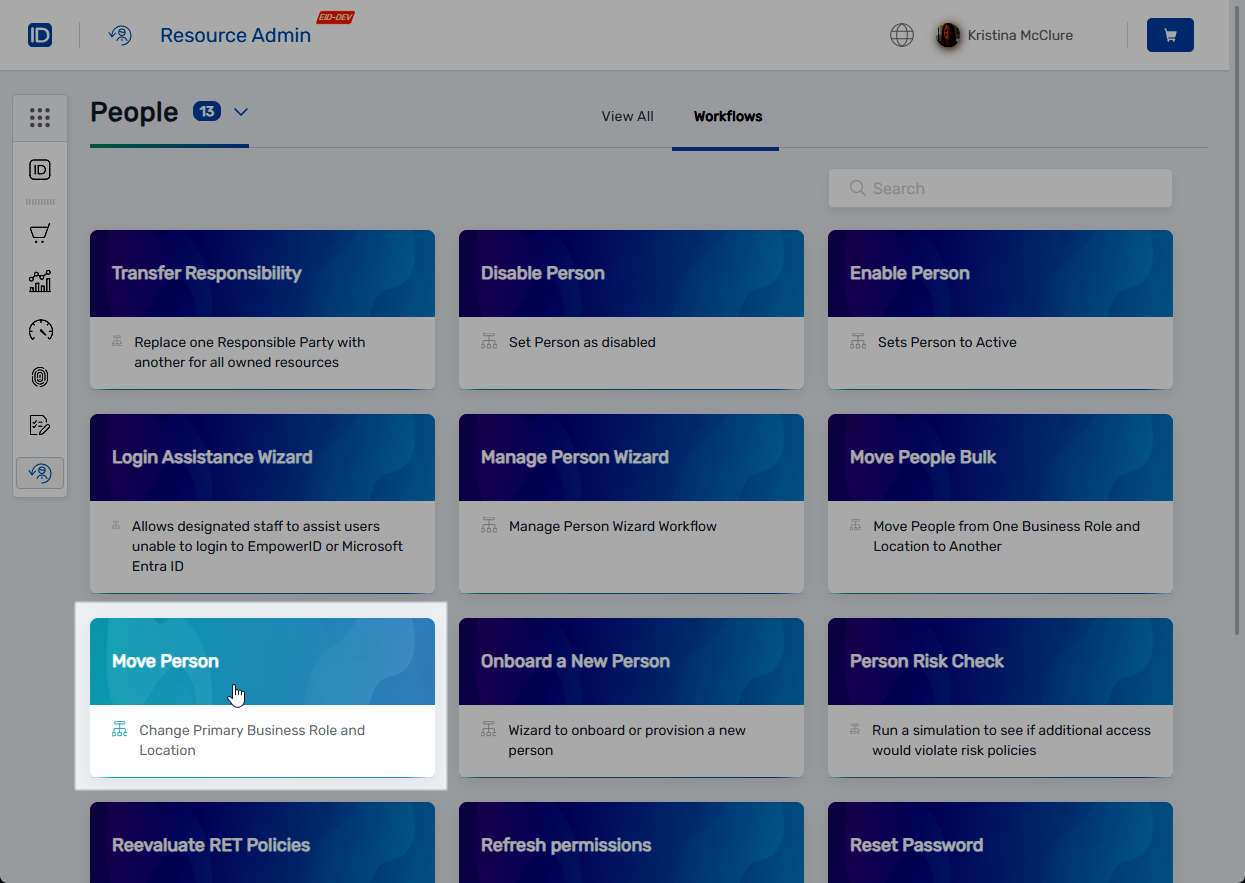
- Search for the person you want to move and select the checkbox next to their record.
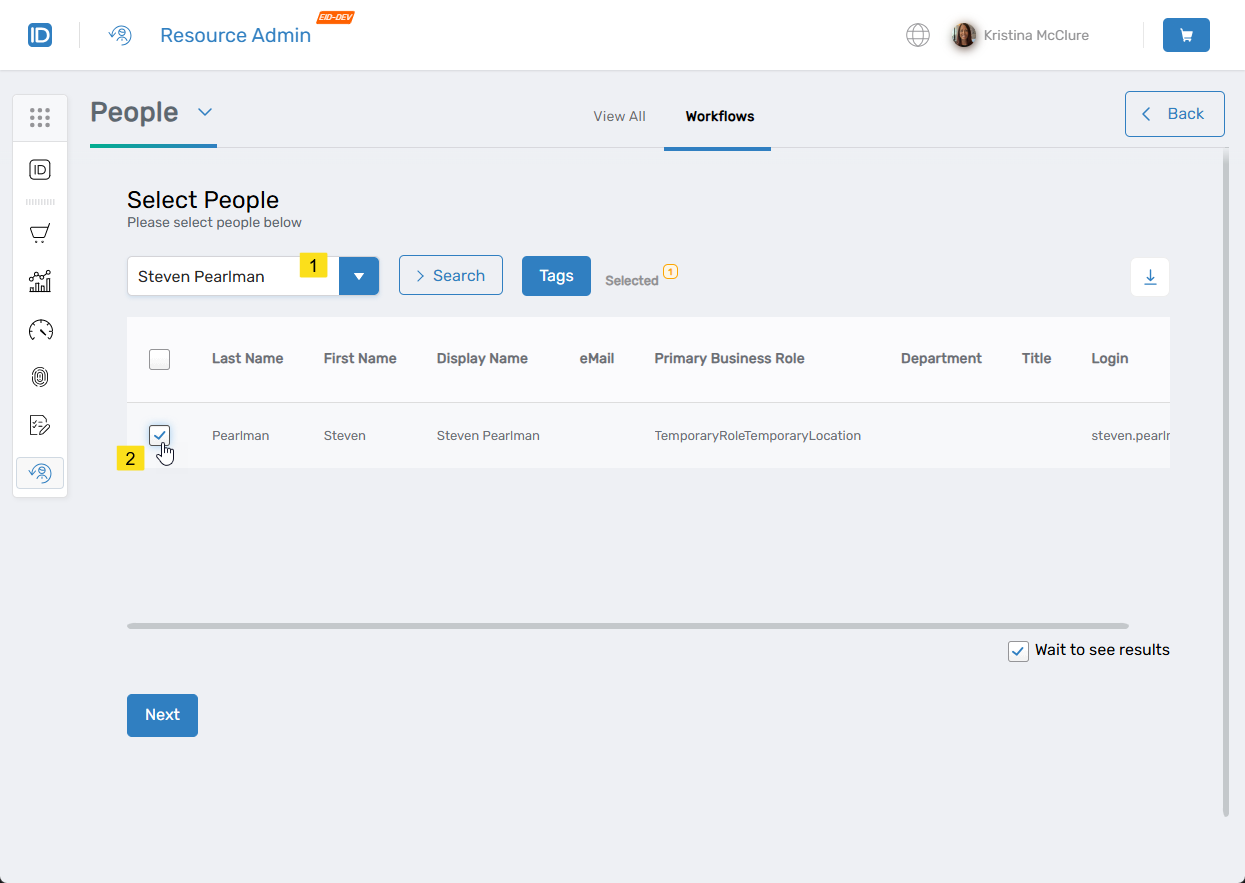
- Repeat step 4 to select additional people as needed.
note
All selected people are moved to the same Business Role and Location. To move people to different destinations, move them separately.
- When you have finished selecting people, click Next.
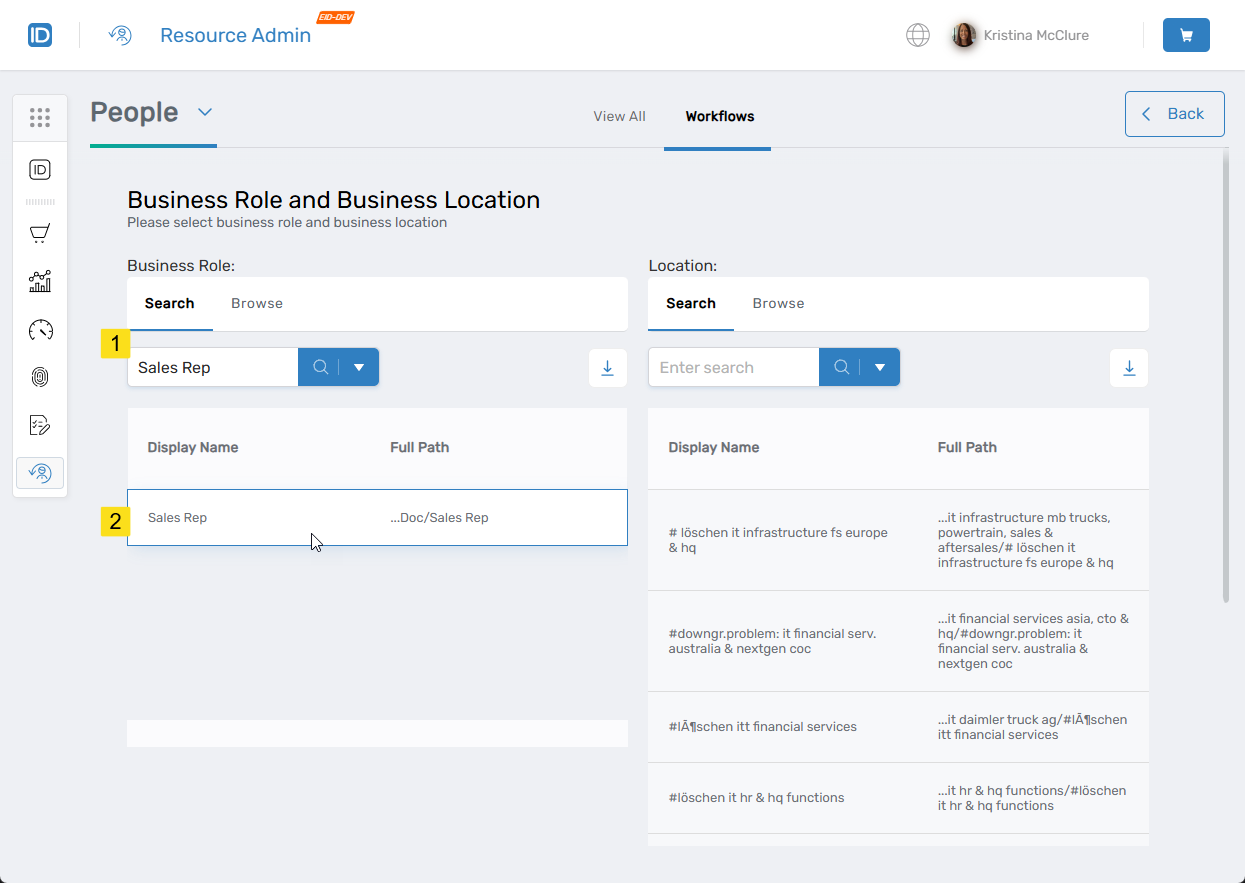
- Search for the target Business Role and click the record to select it. You can also browse for the role using the tree.
- Search for the target Location and click the record to select it. You can also browse for the location using the tree.
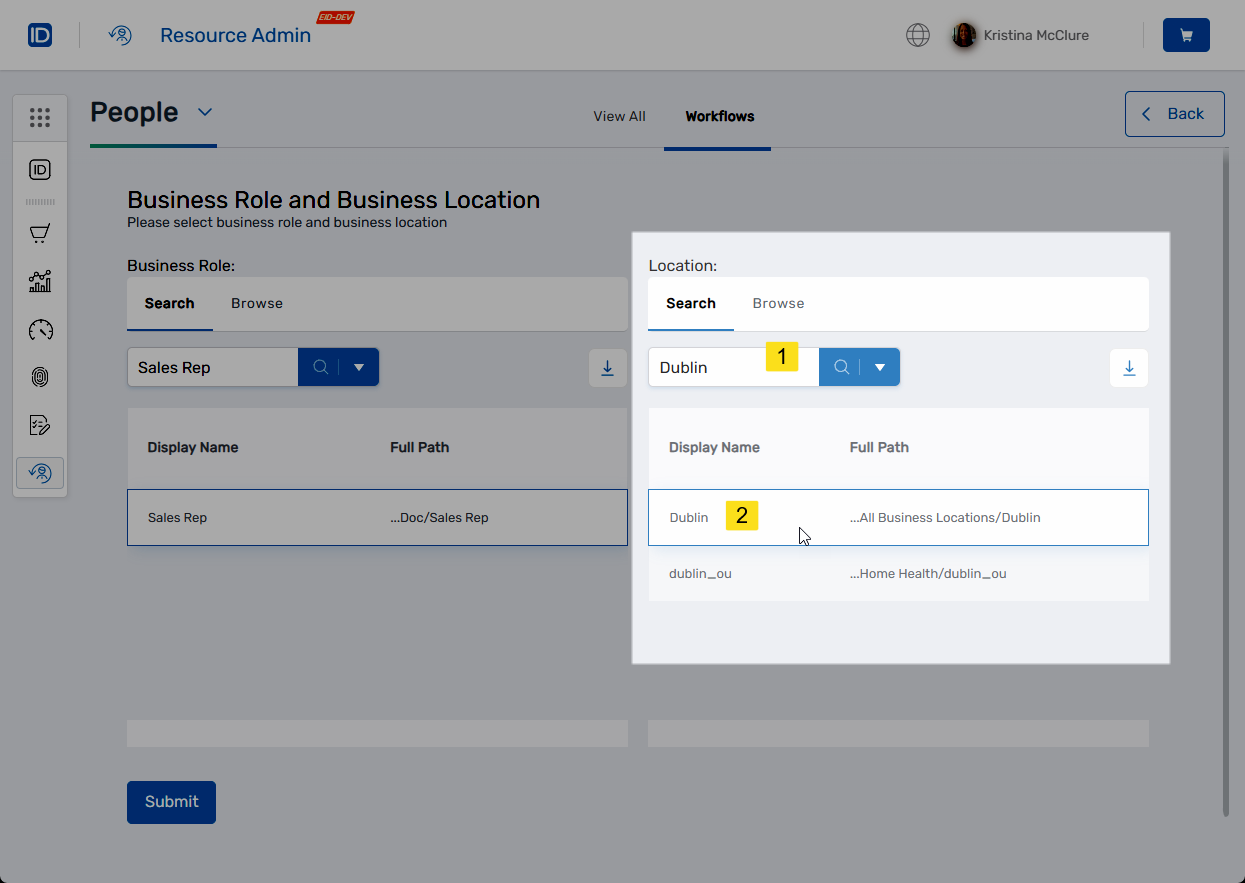
- Review the summary information and click Submit to complete the workflow.
- Click OK to close the Operation Execution Summary.
Bulk Move People
Use this method to move all people from one Business Role and Location to another.
Bulk moving transfers all people currently in the source Business Role and Location to the destination.
Procedure
- Navigate to the portal for the Resource Admin app in your environment.
- In Resource Admin, select People and then select the Workflows tab.
- Click Move People Bulk.
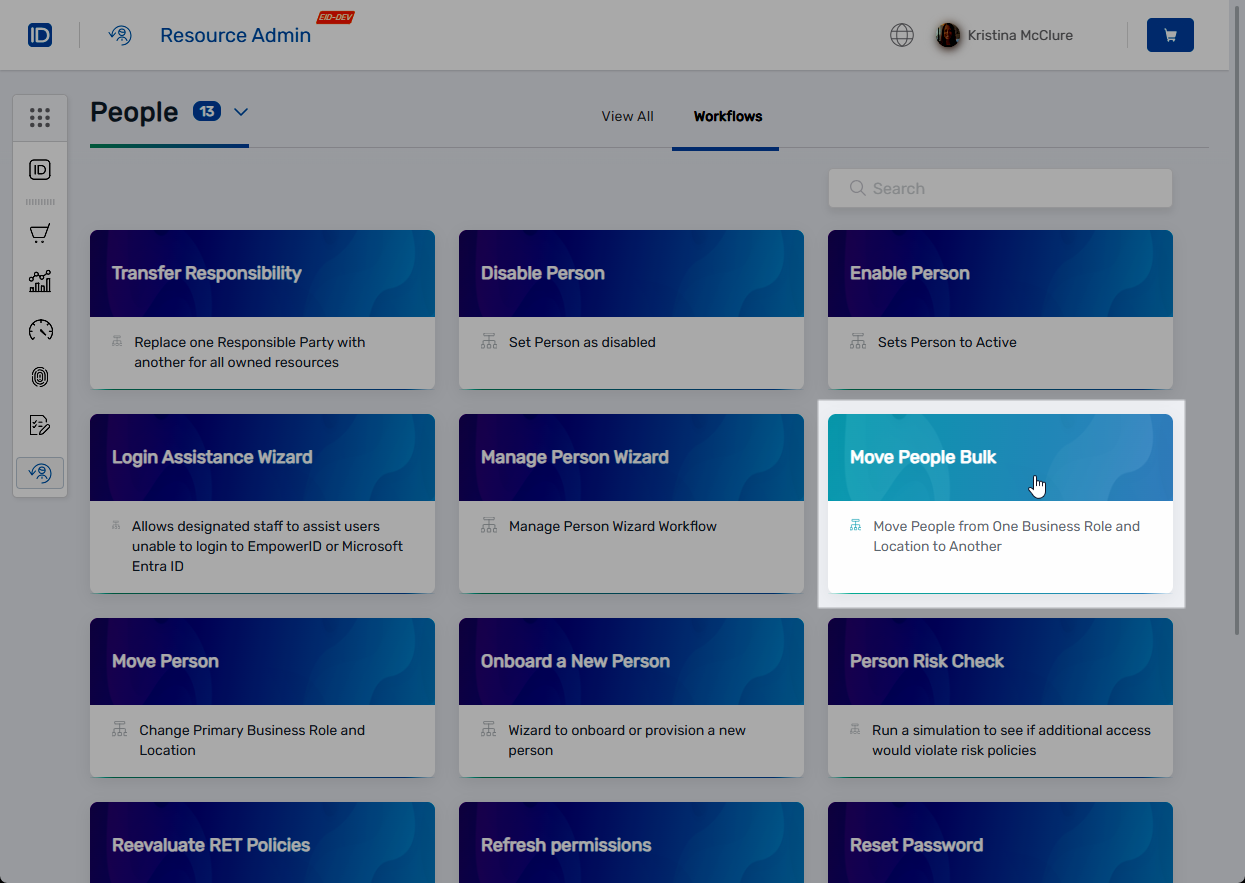
- Search for the source Business Role and click the record to select it. You can also browse for the role using the tree.
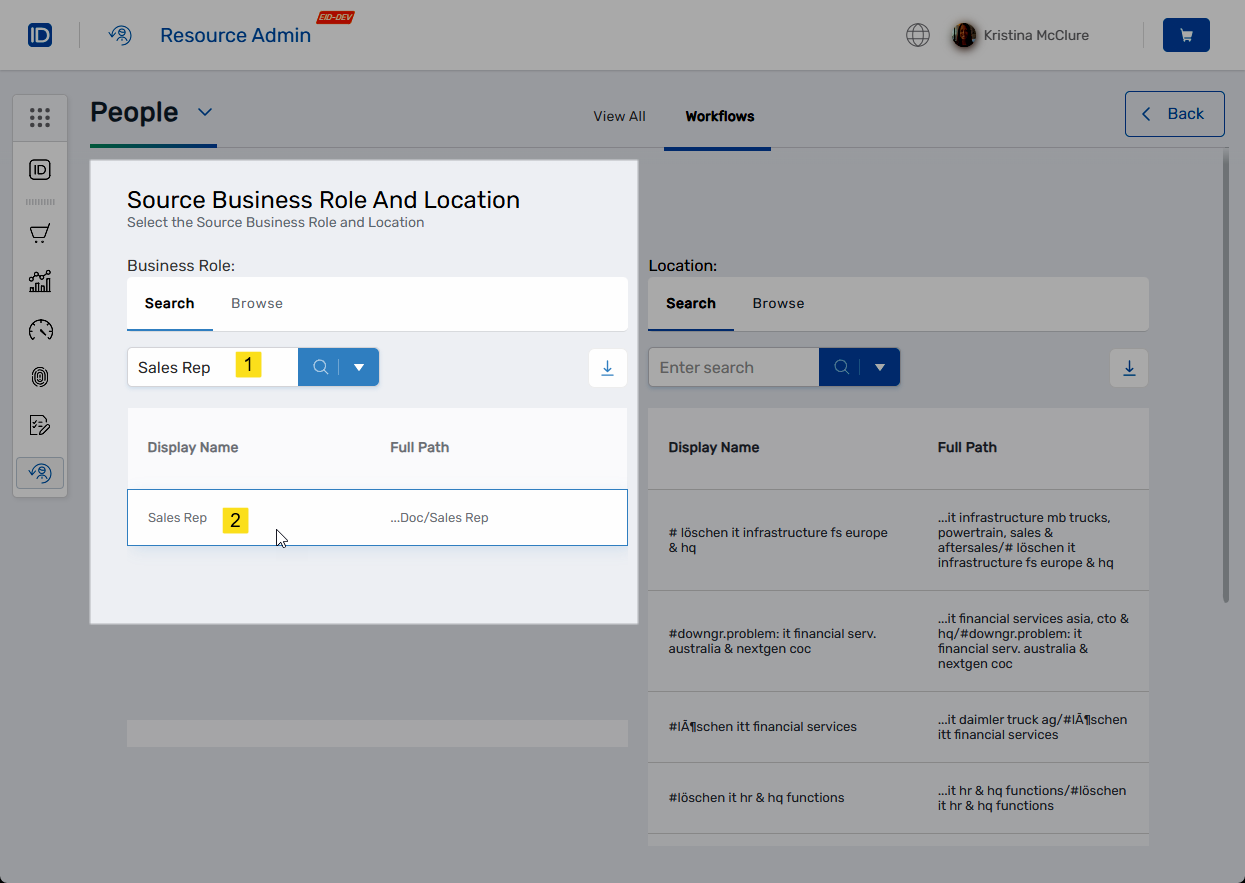
- Search for the source Location and click the record to select it. You can also browse for the location using the tree.
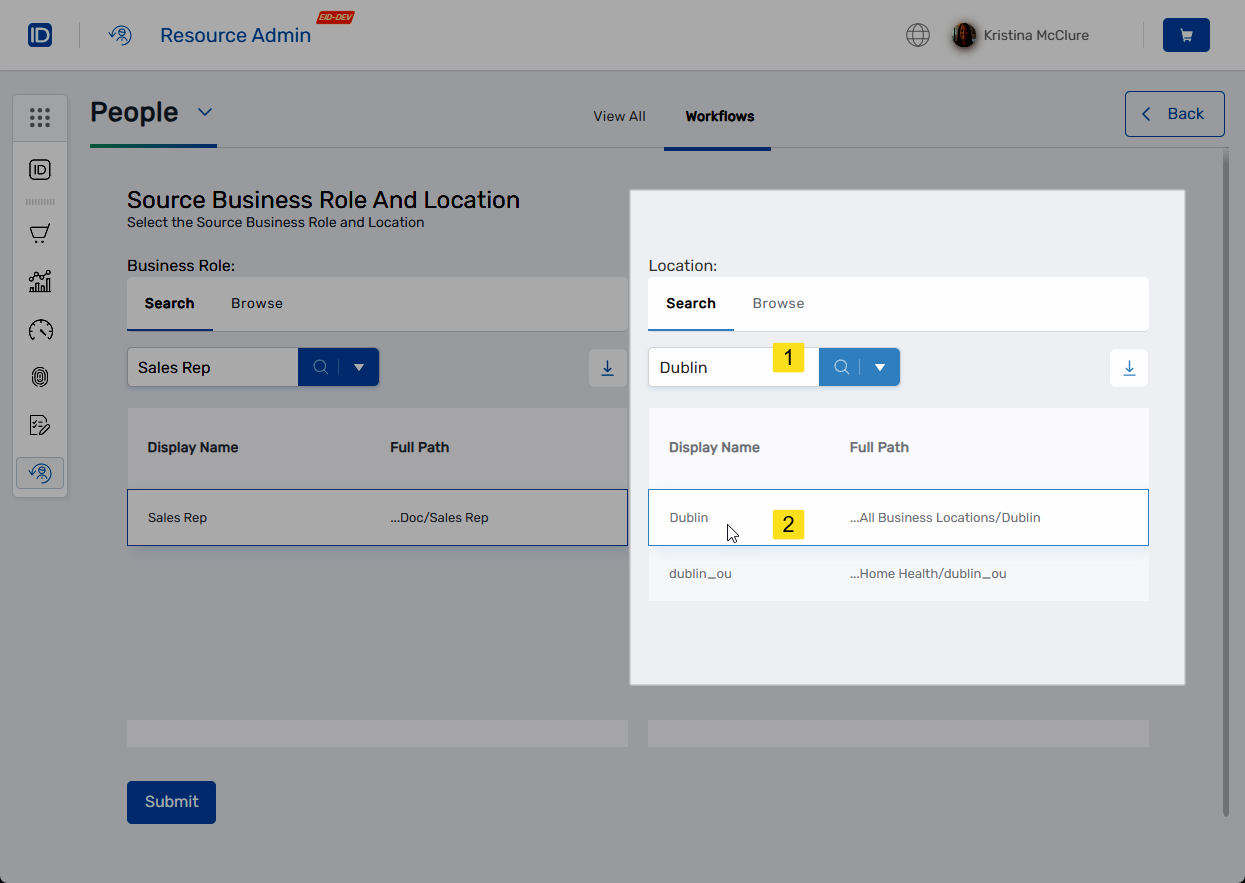
- Click Submit.
- Search for the destination Business Role and click the record to select it. You can also browse for the role using the tree.
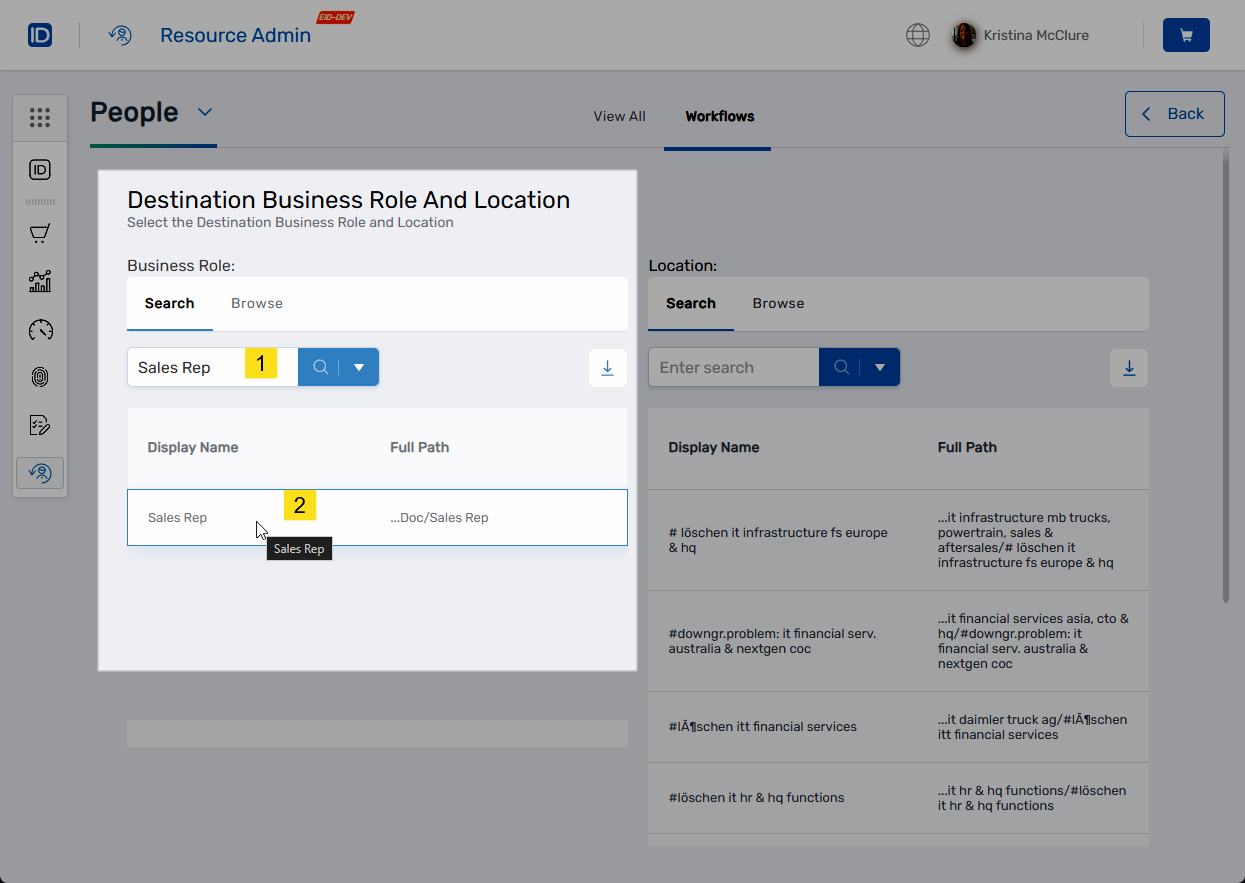
- Search for the destination Location and click the record to select it. You can also browse for the location using the tree.
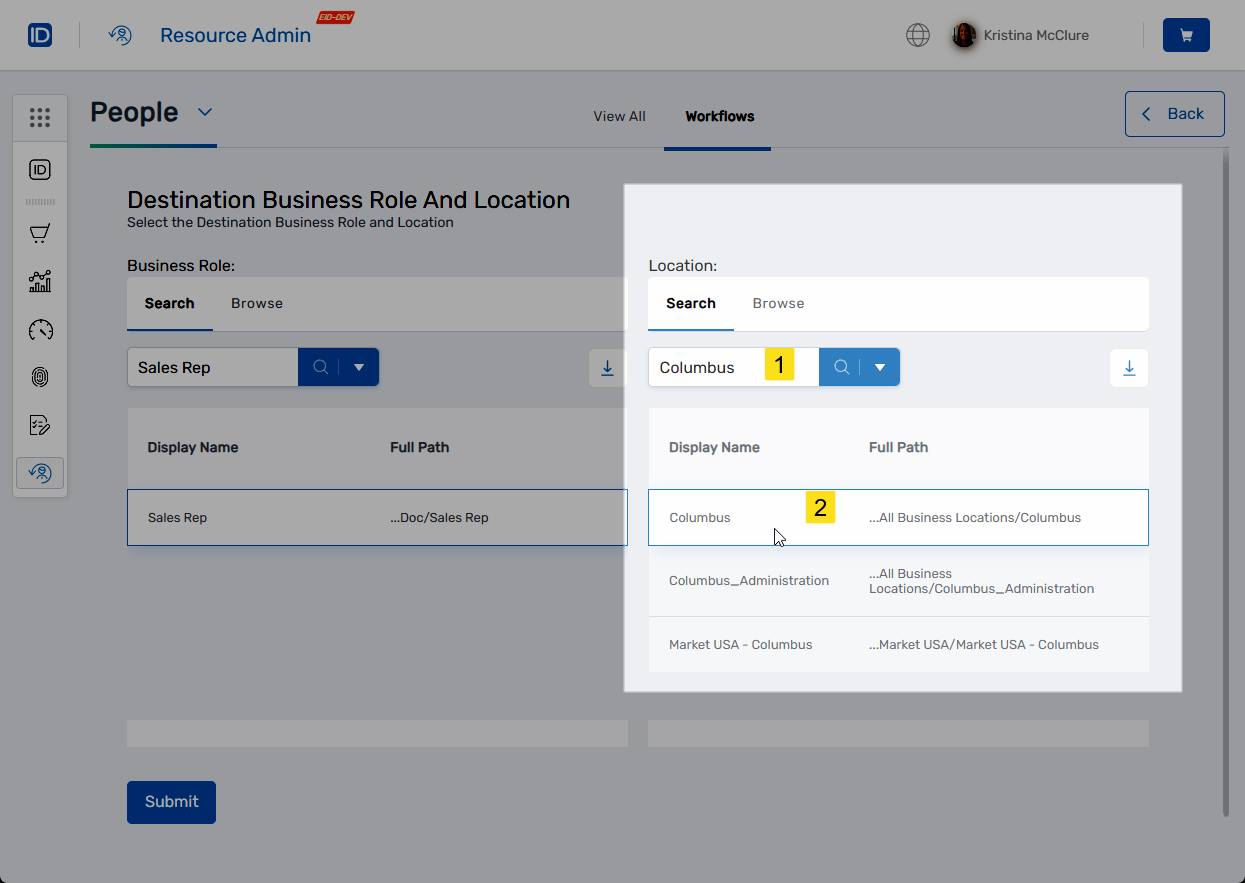
- Click Submit.
- Review the Operation Execution Summary and click Submit to exit the workflow.
Results
After completing either procedure:
- The selected people are moved to the new Business Role and Location
- If Resource Entitlement policies apply to the old or new Business Role and Location, EmpowerID provisions or deprovisions resource entitlements accordingly
- If Default Attribute policies apply, EmpowerID updates attributes as specified by those policies
- The move is recorded in each person's audit log