Configuring Core Identity
Core Identity automatically links multiple Person objects that represent the same individual based on matching attributes you configure. This is particularly useful when individuals have both standard and privileged accounts (e.g., separate user and administrator identities in Active Directory) that need to be linked for governance and reporting.
Prerequisites
Before configuring Core Identity, ensure:
- You have administrative access to EmpowerID System Settings (requires the SaaS Admin Management Role)
- You have reviewed the Matching Strategies below and determined which strategy fits your environment — the attributes you choose should be consistent across personas and unique enough to avoid false positives
- You have identified which scenarios in your organization require Core Identity linking (e.g., standard and privileged account scenarios, multi-domain environments)
Matching Strategies
EmpowerID supports four Core Identity matching strategies. Review the options below before starting configuration to determine which best fits your environment.
| Strategy | Matches On | Best For | Setting Name |
|---|---|---|---|
| Name + Birth Date | FirstName + LastName + BirthDate | Most accurate matching when birth dates are reliable and consistently available | JoinToCIByBirthDateFirstNameLastName |
| Name Only | FirstName + LastName | Simpler matching without birth date requirement; suitable for smaller organizations with unique names | JoinToCIByFirstNameLastName |
| Custom Attributes | Comma-separated attribute list | Flexible matching based on specific organizational identifiers (e.g., Email, EmployeeID) | JoinToCICustomMatchAttributes |
| Advanced SQL | Custom SQL query | Complex scenarios requiring custom join logic beyond standard attribute matching | JoinToCICustomMatch |
Configure Matching Rules
-
Navigate to Infrastructure Admin → EmpowerID Servers and Settings → EmpowerID System Settings.
-
Search for "JoinToCI."
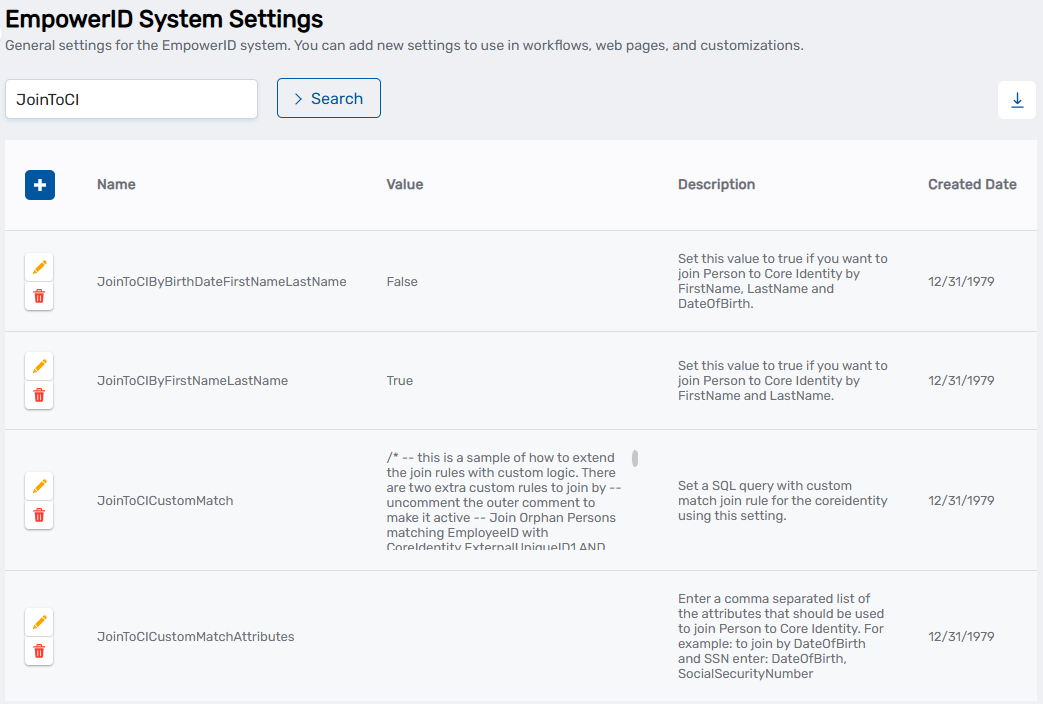 Four Core Identity configuration settings appear, each representing a different matching strategy.
 -
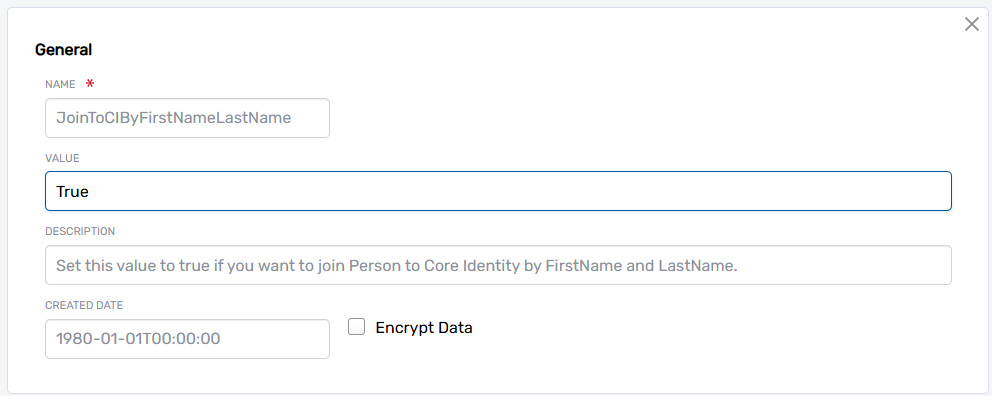
Locate the setting name for your chosen strategy and click Edit.
-
Set Enabled to True.
- For Custom Attributes: Enter a comma-separated list of Person attributes in the value field (e.g.,
Email,EmployeeID,FirstName,LastName) - For Advanced SQL: Enter your custom SQL query with join logic in the value field
- For Name + Birth Date or Name Only: No additional configuration is needed
- For Custom Attributes: Enter a comma-separated list of Person attributes in the value field (e.g.,
-
Click Save.
The matching rule is enabled. During the next inventory run, EmpowerID will evaluate Person objects against the configured criteria and create Core Identity links for matching persons.
Switching Between RulesIf you are changing from one matching strategy to another, first disable the previous rule by setting its Enabled value to false. This prevents conflicting matching logic. Then enable the new rule by setting its Enabled value to true.
-
(Optional) To enable multiple matching rules simultaneously, repeat steps 3–5 for each additional rule. All enabled rules are evaluated during inventory runs, and persons matching any rule will be linked to a Core Identity.
During the next inventory run, EmpowerID:
- Detects Persons whose attributes match the configured criteria
- Creates Core Identities automatically
- Links matching Persons to the Core Identity
In future inventory runs, new Persons with matching attributes are automatically linked to existing Core Identities.
Verify Configuration
After enabling Core Identity matching rules and running an inventory:
- Navigate to Identity Administration → People.
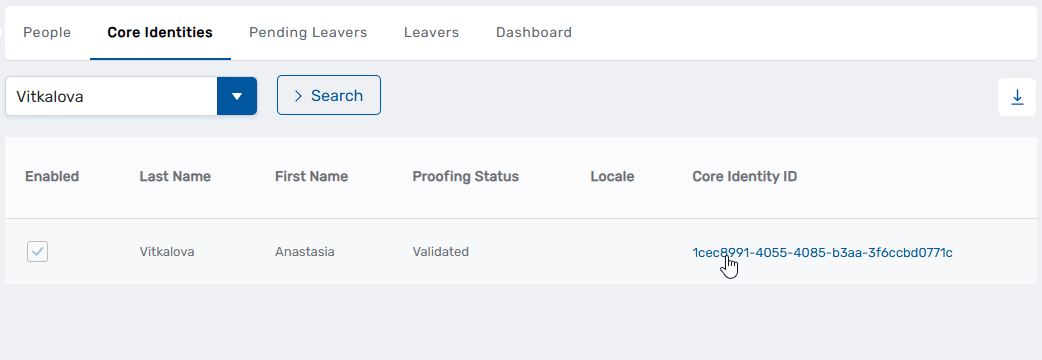
- Click the Core Identities tab. Core Identities created by the matching rules appear in the list.
- Click a Core Identity ID link to view details.
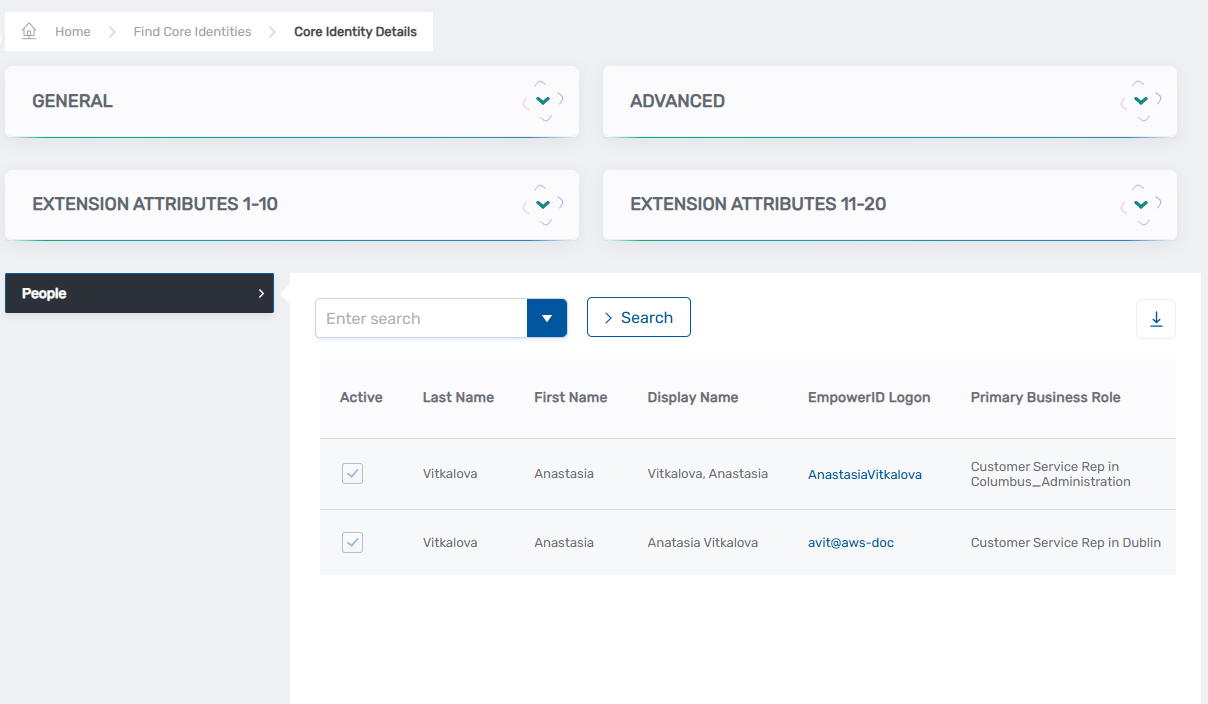
 The Core Identity details page opens, showing information about the Core Identity and its linked personas.
Next Steps
After configuring and verifying Core Identity:
- Monitor linking during inventory runs – Check the Core Identities tab after each inventory to verify that Person objects are being linked as expected. Review any unlinked personas to determine if matching criteria need adjustment.
- Continue user lifecycle management – Onboard People to create new Person objects. Newly onboarded persons are automatically evaluated against configured Core Identity matching rules during the next inventory run.