Reset Password
Set an account to require a password change on the person's next login.
When to Use This
Use this workflow when someone on your team is locked out, forgot their password, or you need to force them to create a new password for security reasons. For new employees, use the Onboard a New Person workflow instead.
Before You Start
- You need access to manage passwords.
- Make sure you have the person's name or username to search for them.
Get Started
- Navigate to the Resource Admin portal
- Select People from the resource type menu
- Click the Workflows tab
- Find and click Reset Password
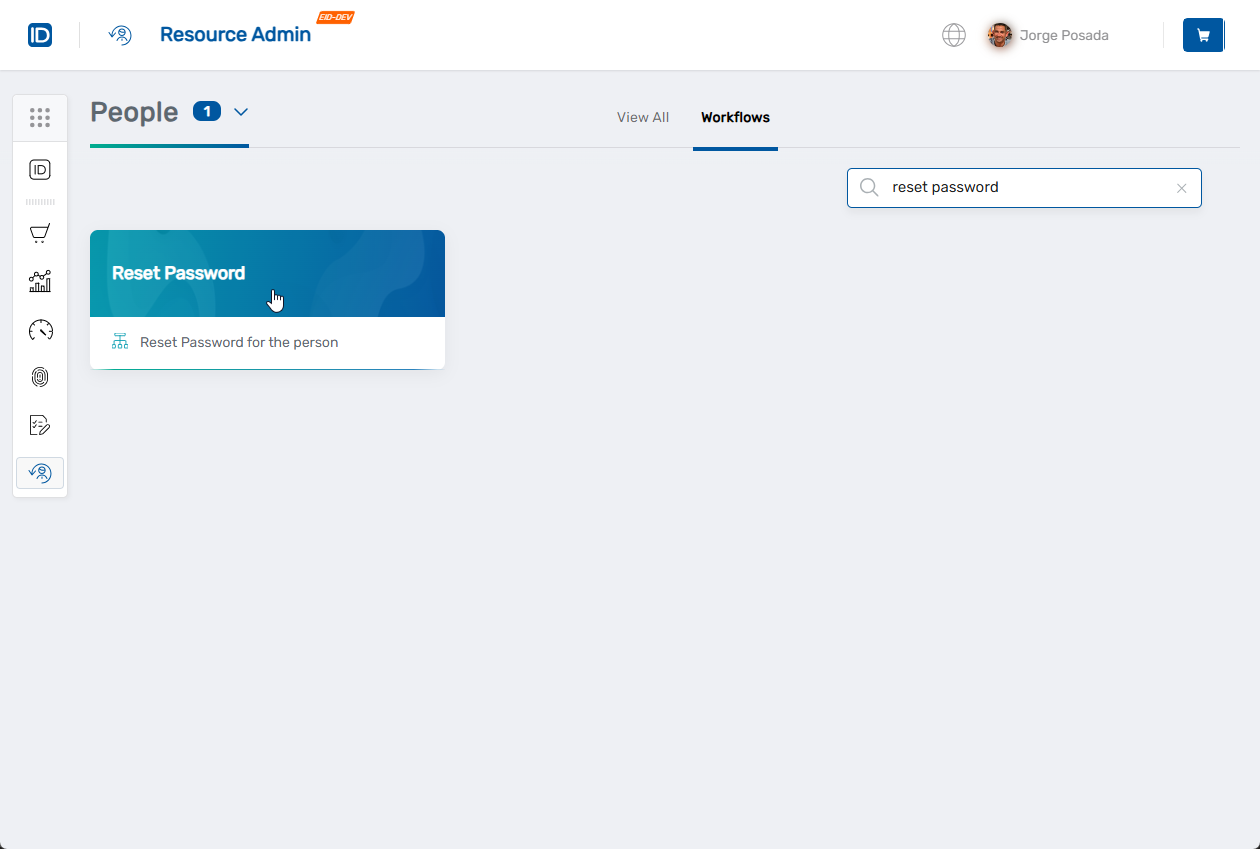
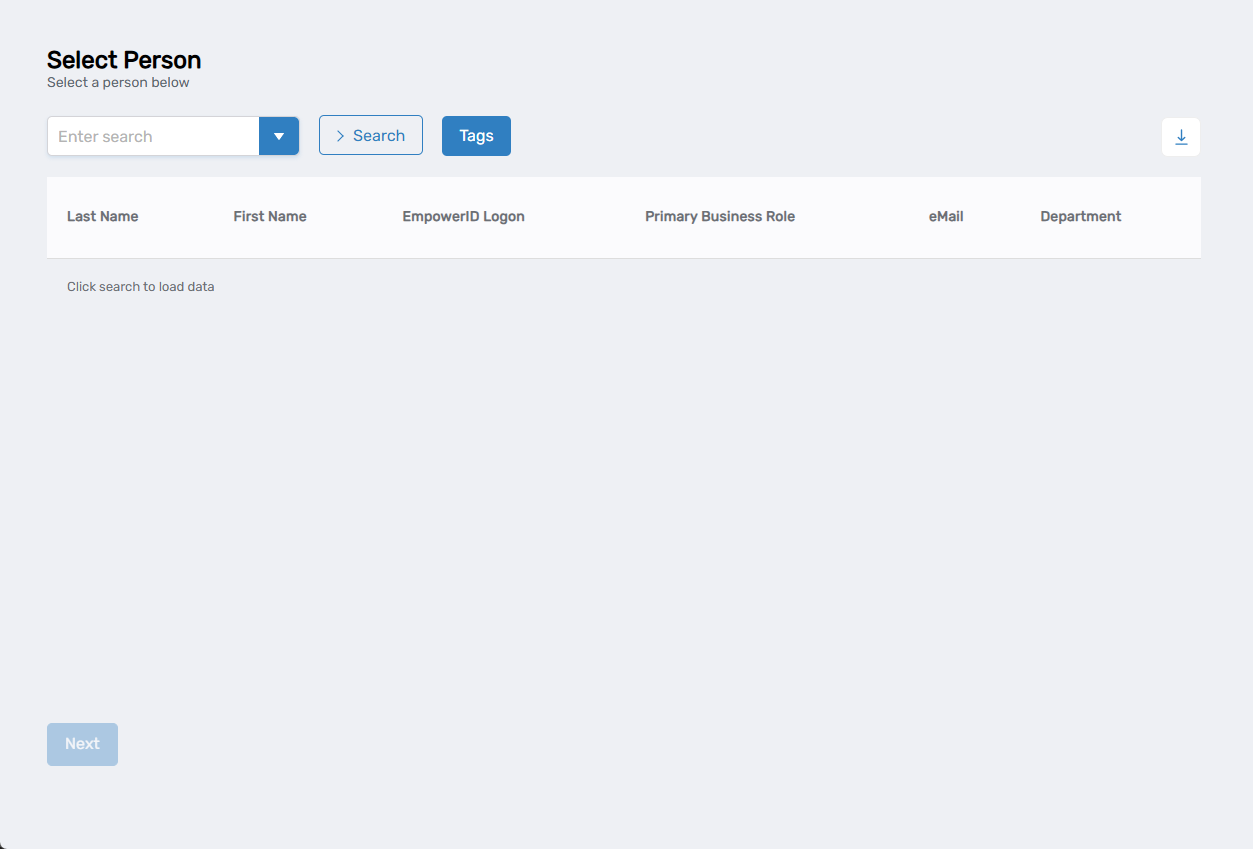
The workflow will open showing a person lookup where you can search for and select the person whose password needs to be reset.
Complete the Password Reset
Step 1: Find the Person
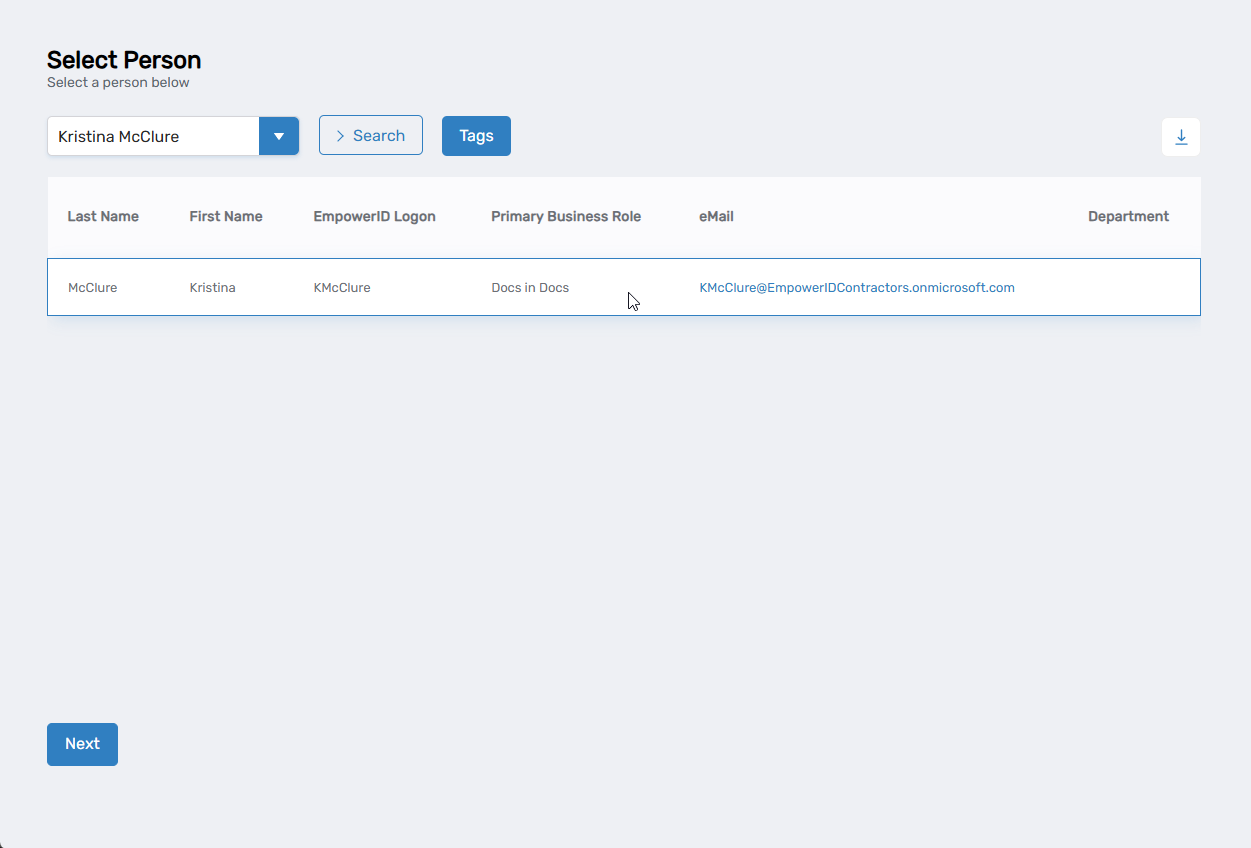
- In the search field, type the person's name or username
- Click Search to see results
- Click on the person's record in the results to select them
Step 2: Apply the Change
- Click Submit to force a password change on their next login
- Review the confirmation showing the action was successful
- Click Submit to finish
What Happens Next
- The system flags the person's account to require a password change
- They can still log in using their current password
- When they log in, they'll be prompted to create a new password
- Once they set a new password, the process is complete
Important: Let the person know they'll need to create a new password when they next log in.
Related Actions
If the person's account is disabled, see Enable People first, then reset their password.