Disable People
When someone should no longer have access to systems, you can disable their account to immediately block their login and application access.
Use this workflow when you need to quickly block someone's access due to security concerns, policy violations, termination, or temporary access suspension. The account remains in the system but cannot be used to log in.
Before You Start
You need access to the Resource Admin application to manage user accounts.
Make sure you have the person's name or username to search for them.
Get Started
- Open the Resource Admin application
- Go to People > Workflows
- Find and click Disable Person
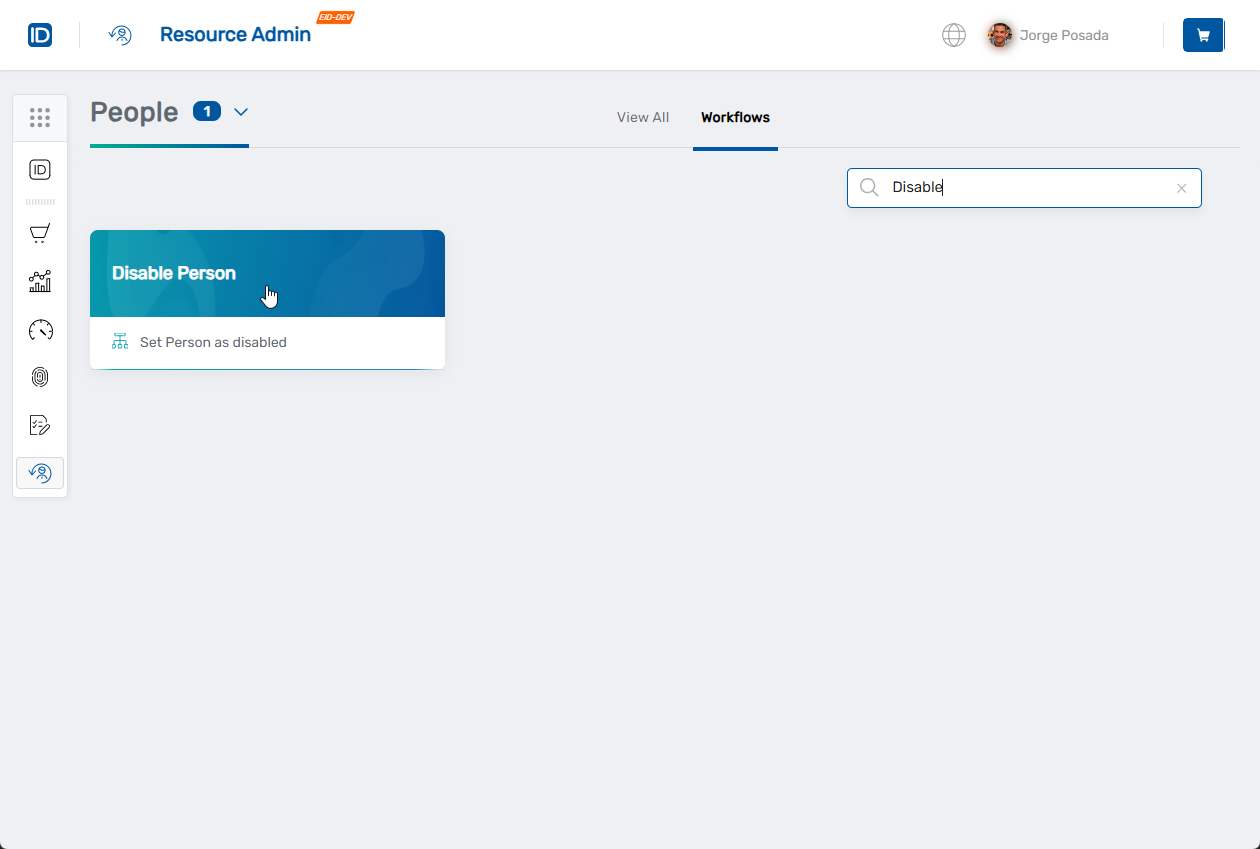
- Choose how you want to select people:
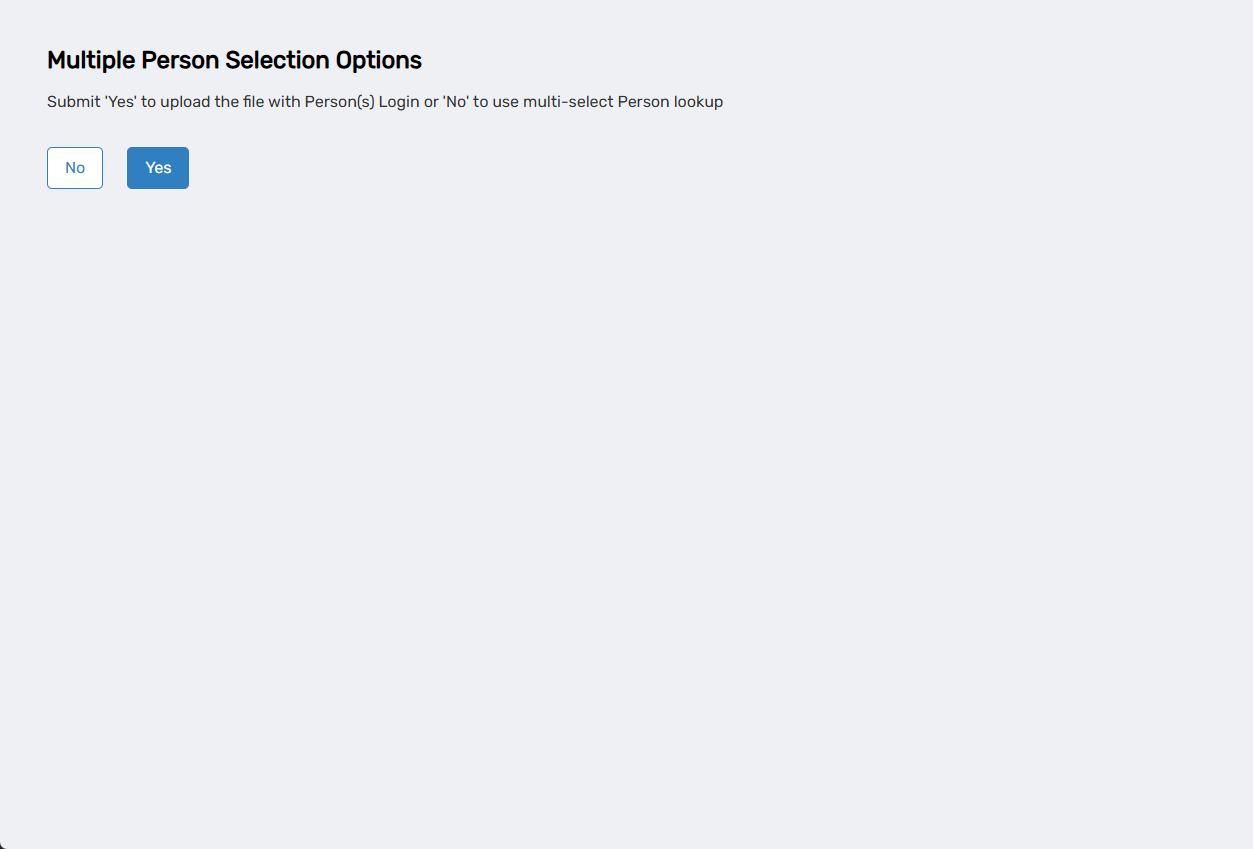
- No - Use the person lookup to search and select people individually
- Yes - Upload a file with a list of people to disable (bulk operation)
- For standard person selection, click No to proceed
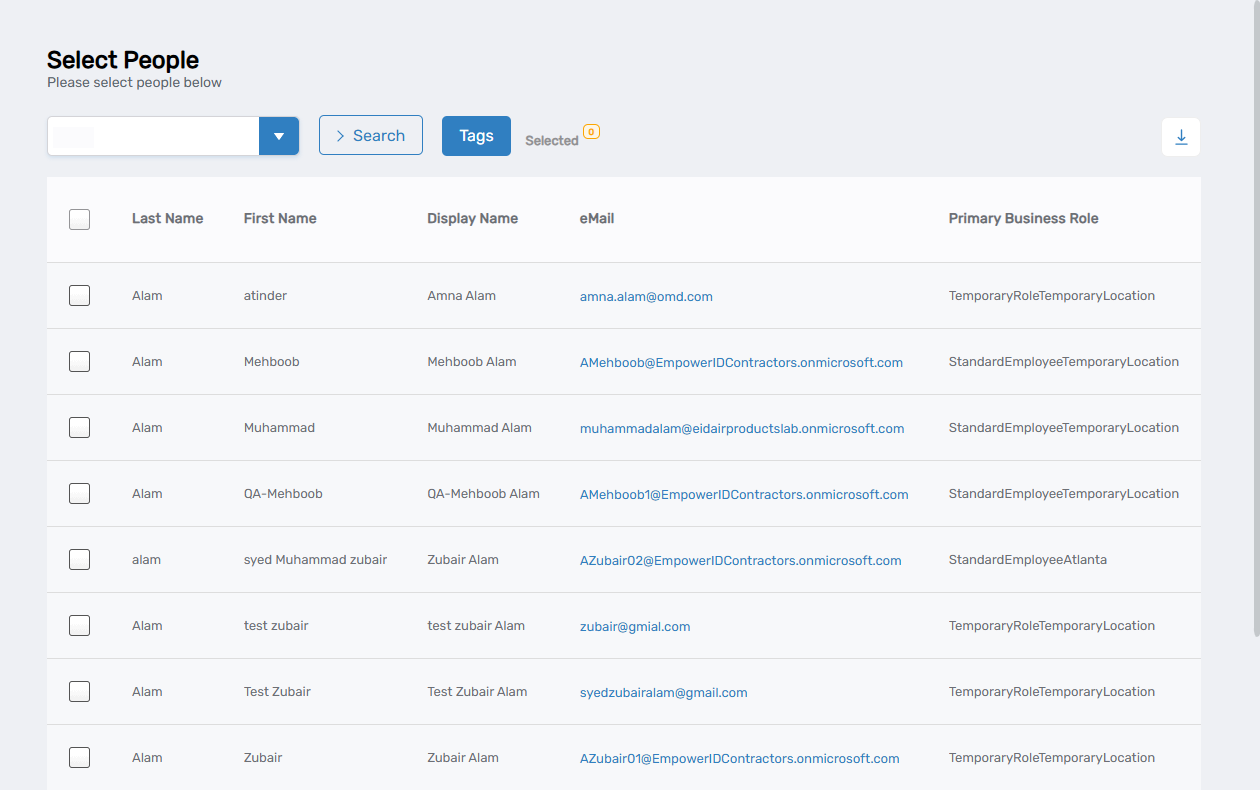
The workflow will open showing a person lookup where you can search for and select one or more people whose accounts you want to disable.
Disable the Accounts
Step 1: Find and Select People
- In the search field, type a person's name or username
- Click Search to see results
- Check the box next to the person to select that account
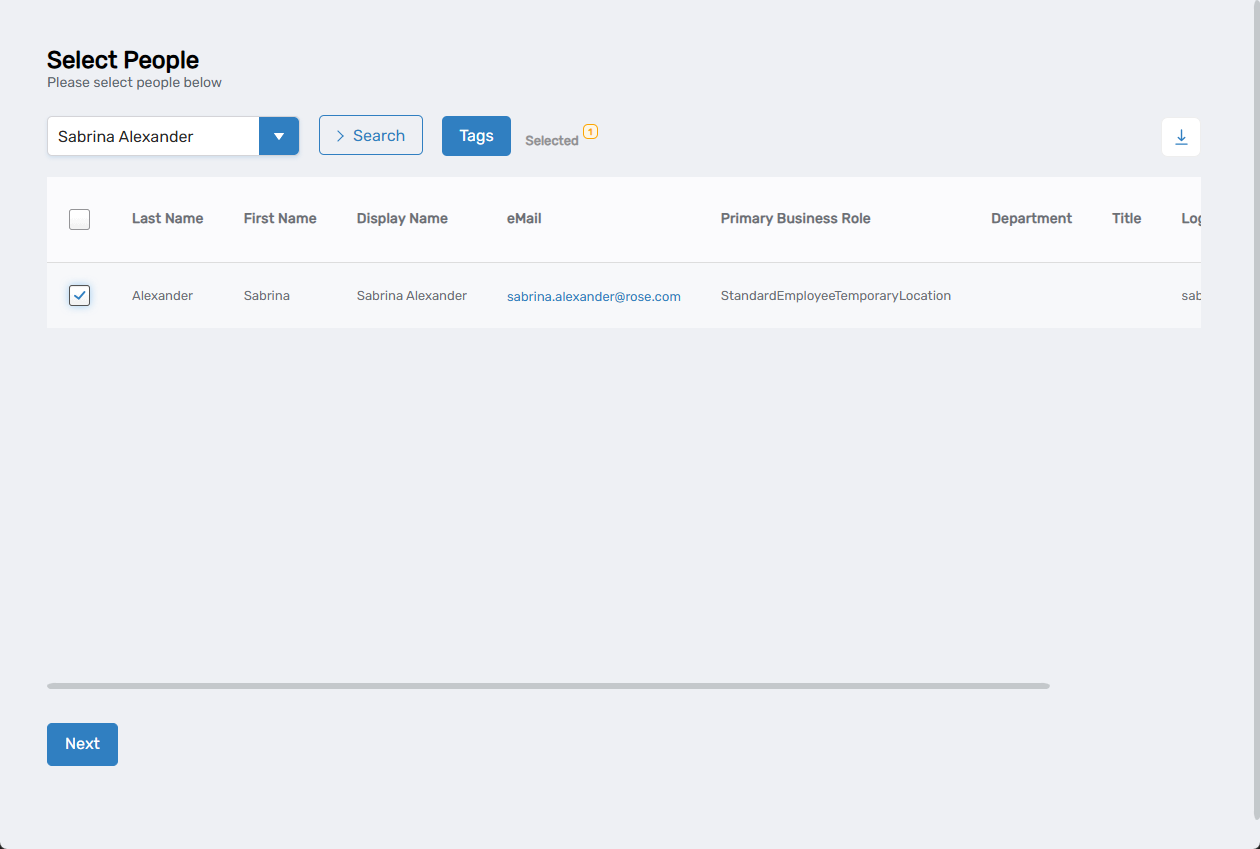
- To select additional people, search for them and check their boxes as well
Step 2: Disable the Accounts
- When you're done selecting people, click Next to disable the selected accounts
- The system will process the request and show a brief success or failure message
What Happens Next
- The selected accounts are immediately disabled in EmpowerID
- The people cannot log in to any systems or applications
- Their existing sessions may remain active until they log out or session timeout occurs
- Account data and roles are preserved - they can be re-enabled later if needed
Important: Let the affected people know their accounts have been disabled if appropriate for your situation.
If You Run Into Problems
Can't find the person: Make sure they exist in EmpowerID and their account is currently enabled. Check the spelling of their name or try searching by their username or email address.
Person can still access systems: Existing active sessions may take time to expire. The person won't be able to start new sessions, but current ones may persist until logout or timeout.
Disable action didn't work: Check that you completed all steps and got a confirmation message. Try the process again if it failed.
Need to reverse the action: Use the Enable Person workflow to reactivate disabled accounts.
Related Actions
To reactivate a disabled peron account, see Enable People.
For permanent removal, see Terminate People.
For temporary password issues without disabling the account, see Reset Password.