Onboard Management Role
When your organization creates new administrative positions, establishes specialized job functions, or needs specific permission combinations that don't exist in current roles, you can use the Onboard Management Role workflow to create new Management Roles with the right access and capabilities. This workflow guides you through setting up comprehensive roles with proper permissions, ownership, and availability settings.
Access Requirements: The Onboard Management Role workflow tile appears only if you have the appropriate access to create and configure Management Roles.
Use this workflow when creating new administrative positions, establishing specialized job functions, setting up roles for specific projects, or when existing roles don't provide the right combination of permissions for particular responsibilities.
Before You Start
You need access to the Resource Admin application to create Management Roles. If you can't access this workflow, contact your IT department to request permissions.
Make sure you have:
- A clear understanding of what permissions and access the new role should provide
- Knowledge of who should own and manage this role
- Decisions about whether the role should be available in the IAM Shop for self-service requests
Get Started
- Navigate to the Resource Admin portal.
- Select Management Roles from the resource type menu.
- Click the Workflows tab.
- Find and click Onboard Management Role.
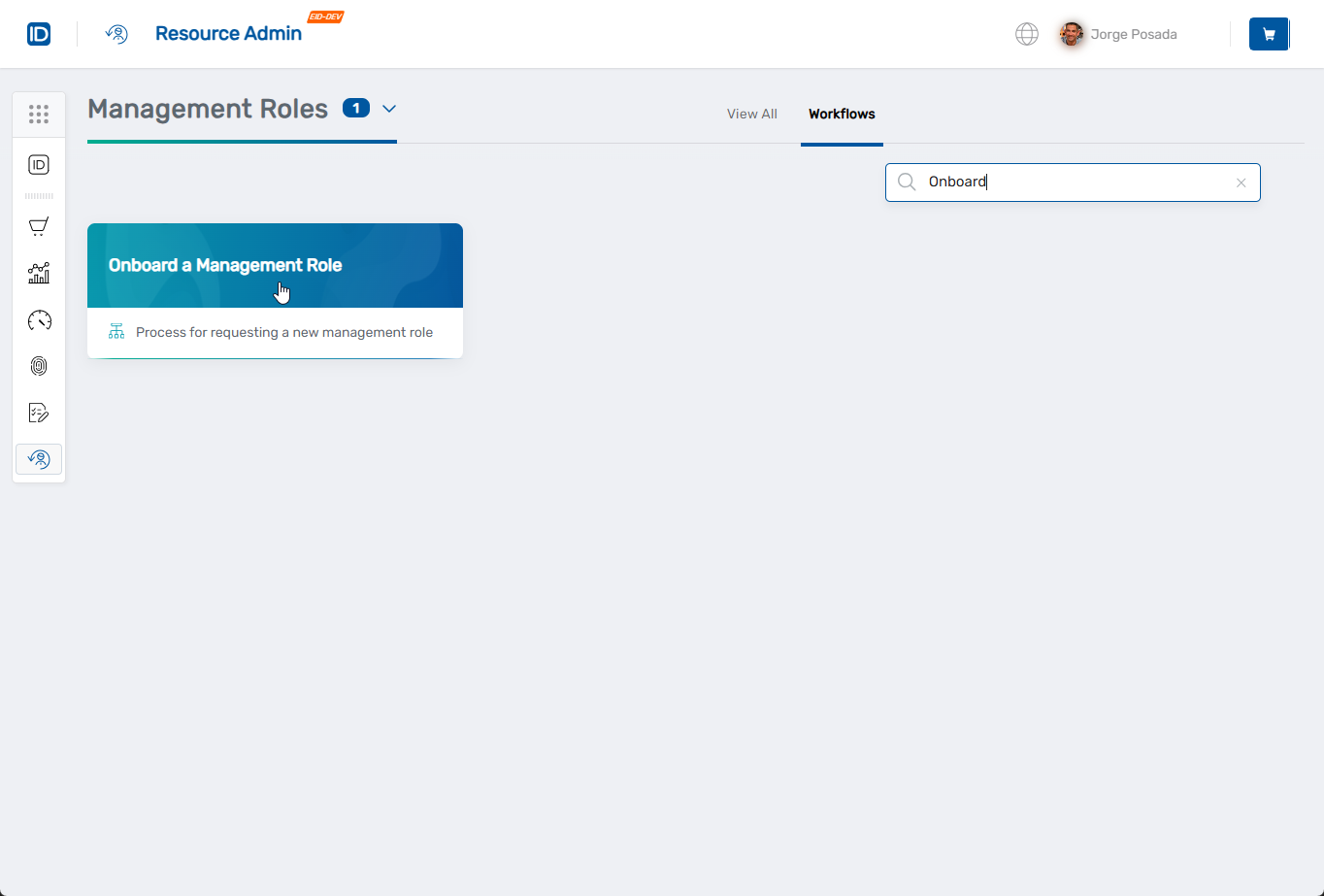
The workflow will open showing a 7-step wizard to configure all aspects of the new Management Role.
Create the Management Role
Step 1: Basic Role Information
- Complete the basic role information:
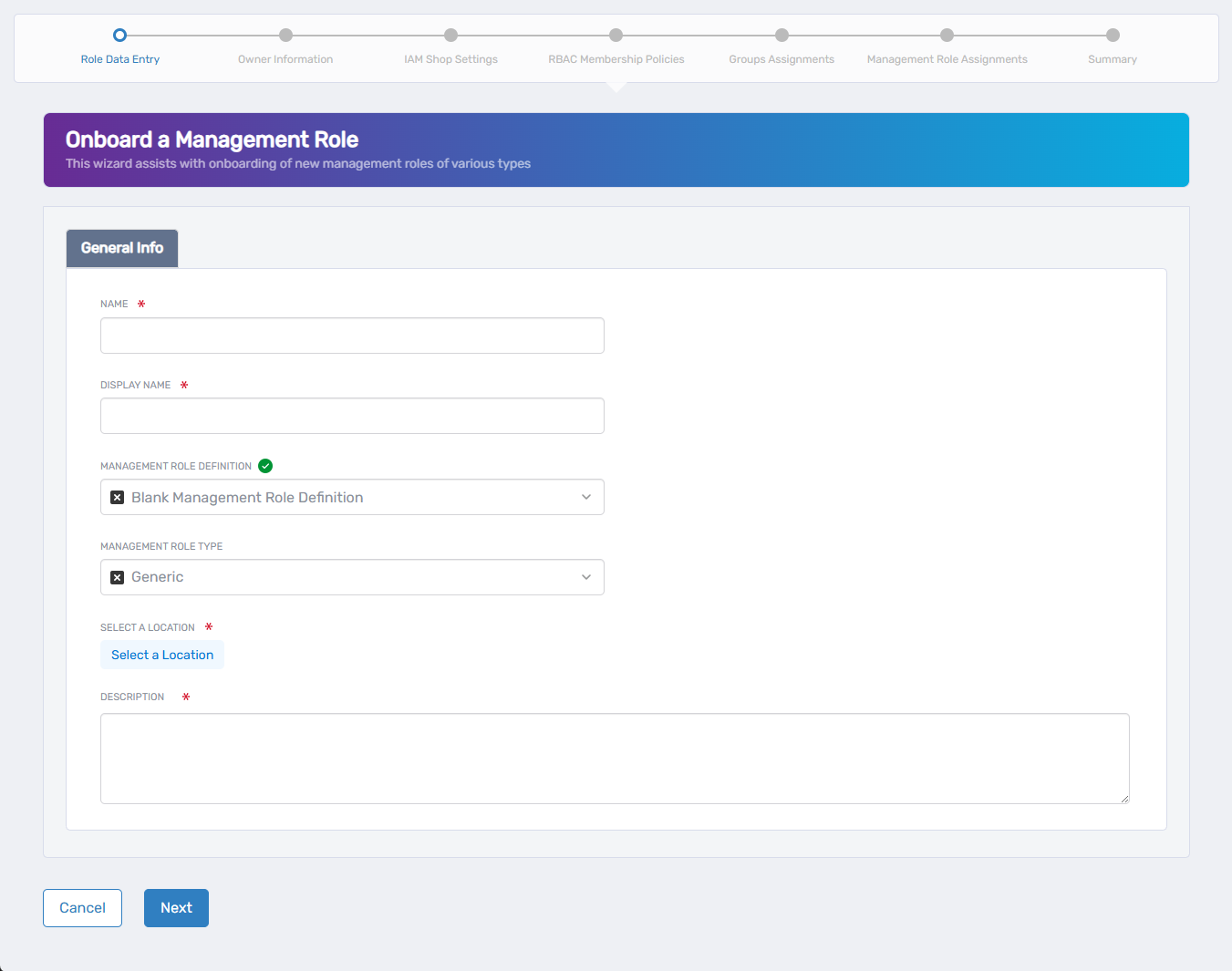
- Name - Unique identifier for the Management Role.
- Display Name - User-friendly name that appears in interfaces.
- Management Role Definition - Select the Management Role Definition to use as the template for the role. The Blank Management Role Definition is the default. To base the role on a parent definition, click the X to clear the field and search for the desired definition.
- Management Role Type - Select the appropriate role type. Role types are used for classifying roles by their function. The Generic role type is the default and fits most circumstances.
- Select a Location - Choose the organizational location for RBAC visibility. Users can only see and manage roles in locations they have access to.
- Description - Brief explanation of the role's purpose and responsibilities.
- Click Next to continue.
Step 2: Owner Information
- Define who can manage this Management Role:
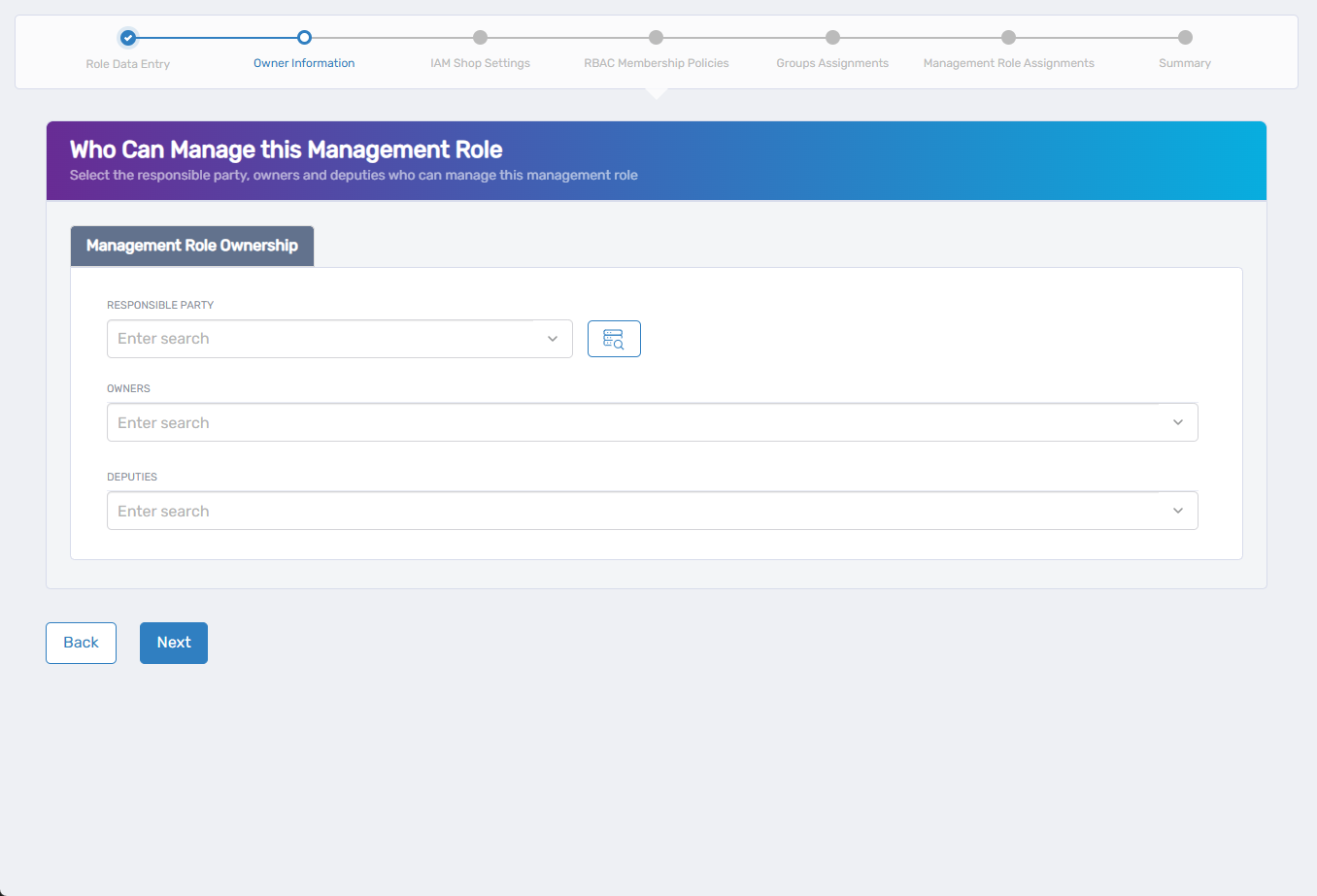
- Responsible Party - The person with ultimate business accountability for this role, including recertification and lifecycle decisions.
- Owners - Search for and select one or more people who can manage this role through RBAC access.
- Deputies - Search for and select backup managers for the role.
- Click Next to continue.
Step 3: IAM Shop Settings (Optional)
- Configure availability for self-service requests if desired:
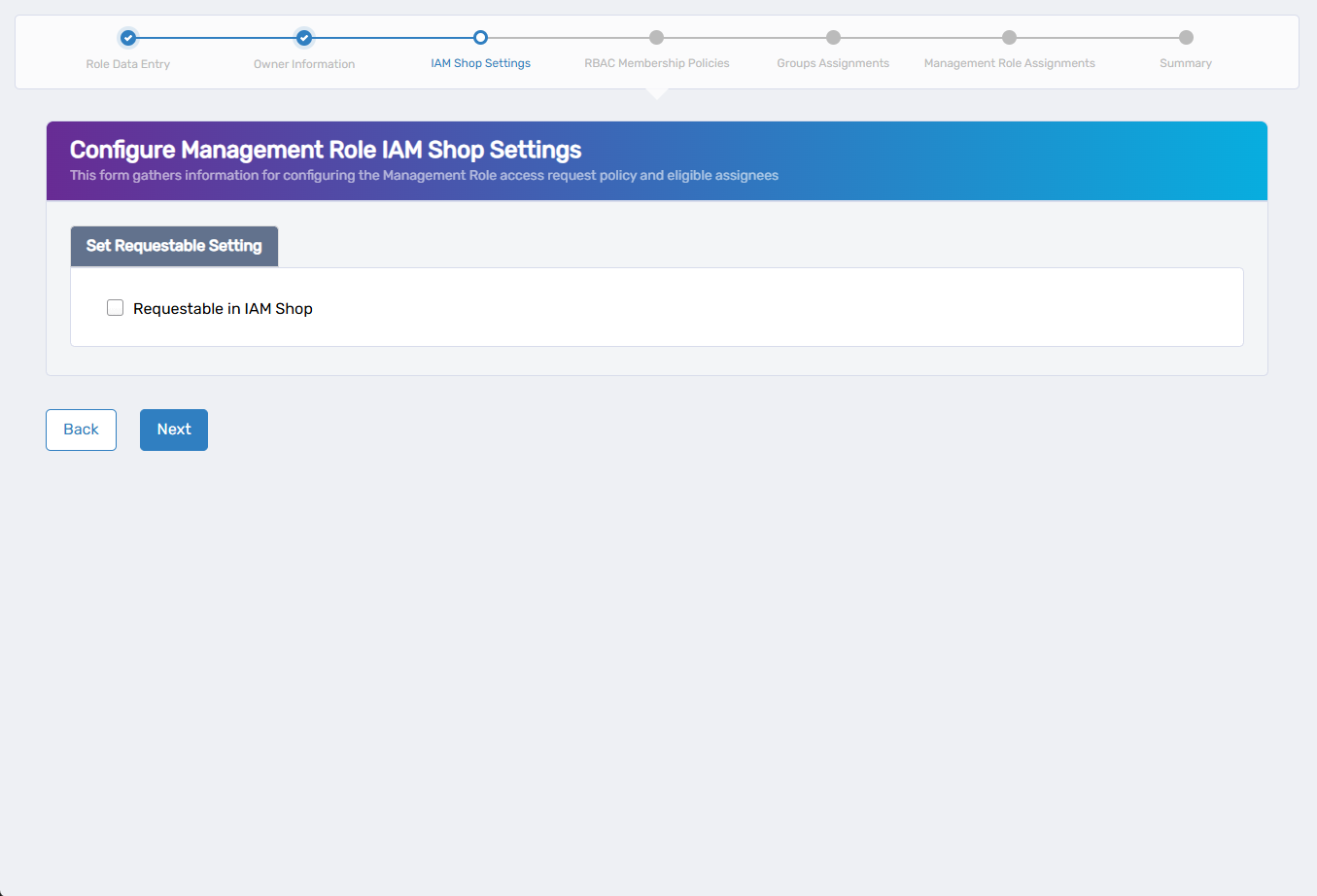
- Requestable in IAM Shop - Check this box if users should be able to request this role through self-service.
- If you enable requestable, complete the additional settings:
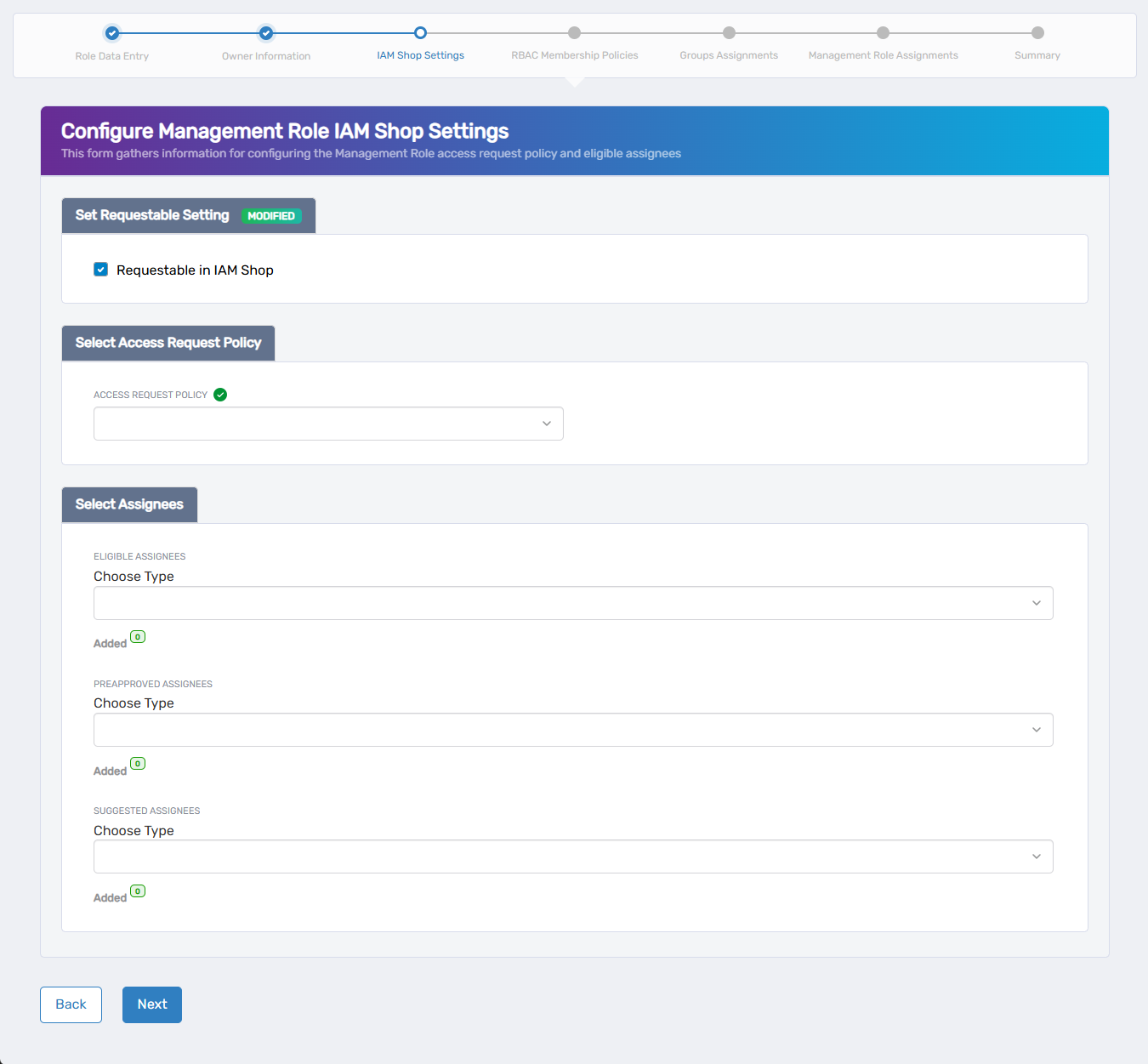
- Select Access Request Policy - Choose the policy that defines how access requests for this role are handled, including approval workflows, time-bound restrictions, and fulfillment behaviors.
- Select Assignees - Configure who can request this role:
- Eligible Assignees - Users who can request access to the role:
- Select a type from the Choose Type dropdown (Person, Group, SetGroup, Management Role, Business Role, or Location).
- Search for and select the specific person, group, or role.
- Repeat as needed to add multiple criteria.
- Use the Added counter to view or remove selections.
- Preapproved Assignees - Users who are automatically granted access without needing approval:
- Select a type from the Choose Type dropdown (Person, Group, SetGroup, Management Role, Business Role, or Location).
- Search for and select the specific person, group, or role.
- Repeat as needed to add multiple criteria.
- Use the Added counter to view or remove selections.
- Suggested Assignees - Users who see this role as suggested in the IAM Shop. Like eligible assignees, their requests generate business requests and follow approval routing:
- Select a type from the Choose Type dropdown (Person, Group, SetGroup, Management Role, Business Role, or Location).
- Search for and select the specific person, group, or role.
- Repeat as needed to add multiple criteria.
- Use the Added counter to view or remove selections.
- Eligible Assignees - Users who can request access to the role:
- Click Next to continue.
Step 4: RBAC Membership Policies (Optional)
- Define automatic membership based on organizational attributes, or skip if you prefer manual assignment only:
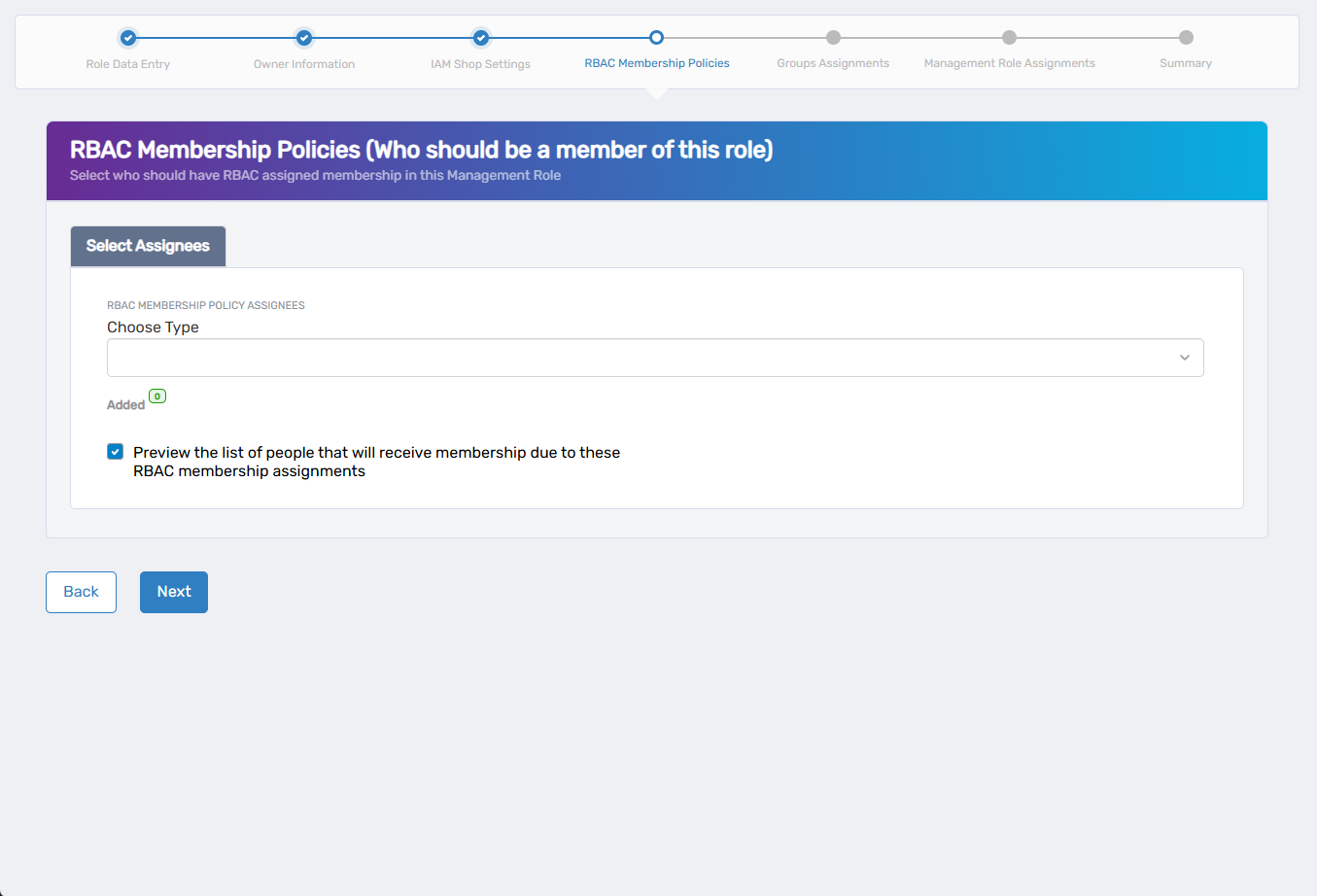
- RBAC Membership Policy Assignees - Define who automatically receives this role:
- Select a type from the Choose Type dropdown (Person, Group, SetGroup, Management Role, Business Role, or Location).
- Search for and select the specific person, group, or role.
- Repeat as needed to add multiple selections.
- Use the Added counter to view or remove selections.
- Preview membership - Check the box to see who will receive automatic membership.
- RBAC Membership Policy Assignees - Define who automatically receives this role:
- Click Next to continue.
Step 5: Groups Assignments (Optional)
- Assign existing groups as members of this Management Role, or skip if not needed:
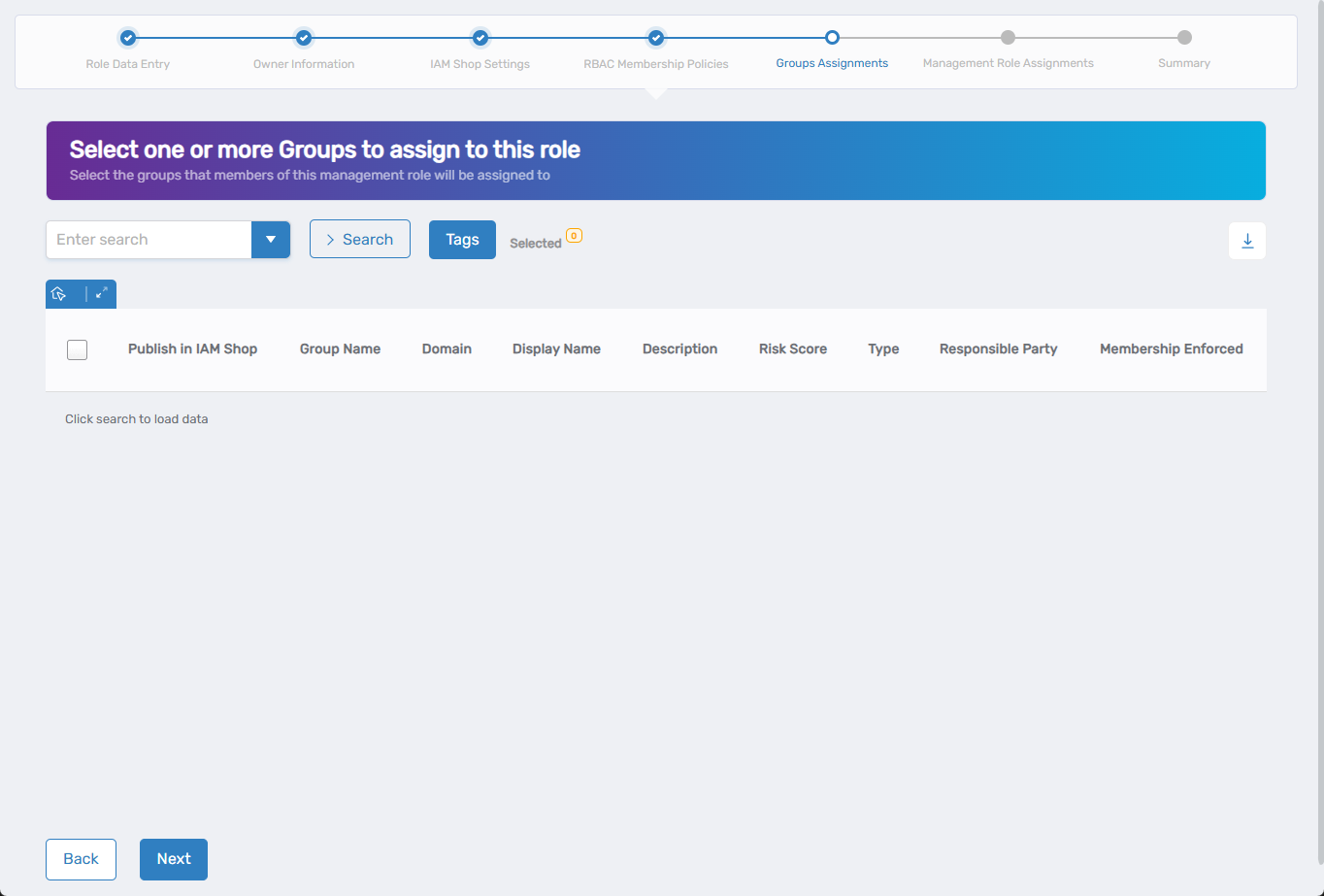
- Search for groups using the search field.
- Check the box next to groups you want to include as members.
- Selected groups will automatically become members when the Management Role is created.
- You can leave this blank if the role doesn't need group memberships.
- Click Next to continue.
Step 6: Management Role Assignments (Optional)
- Bundle other Management Roles into this new role, or skip if this role should stand alone:
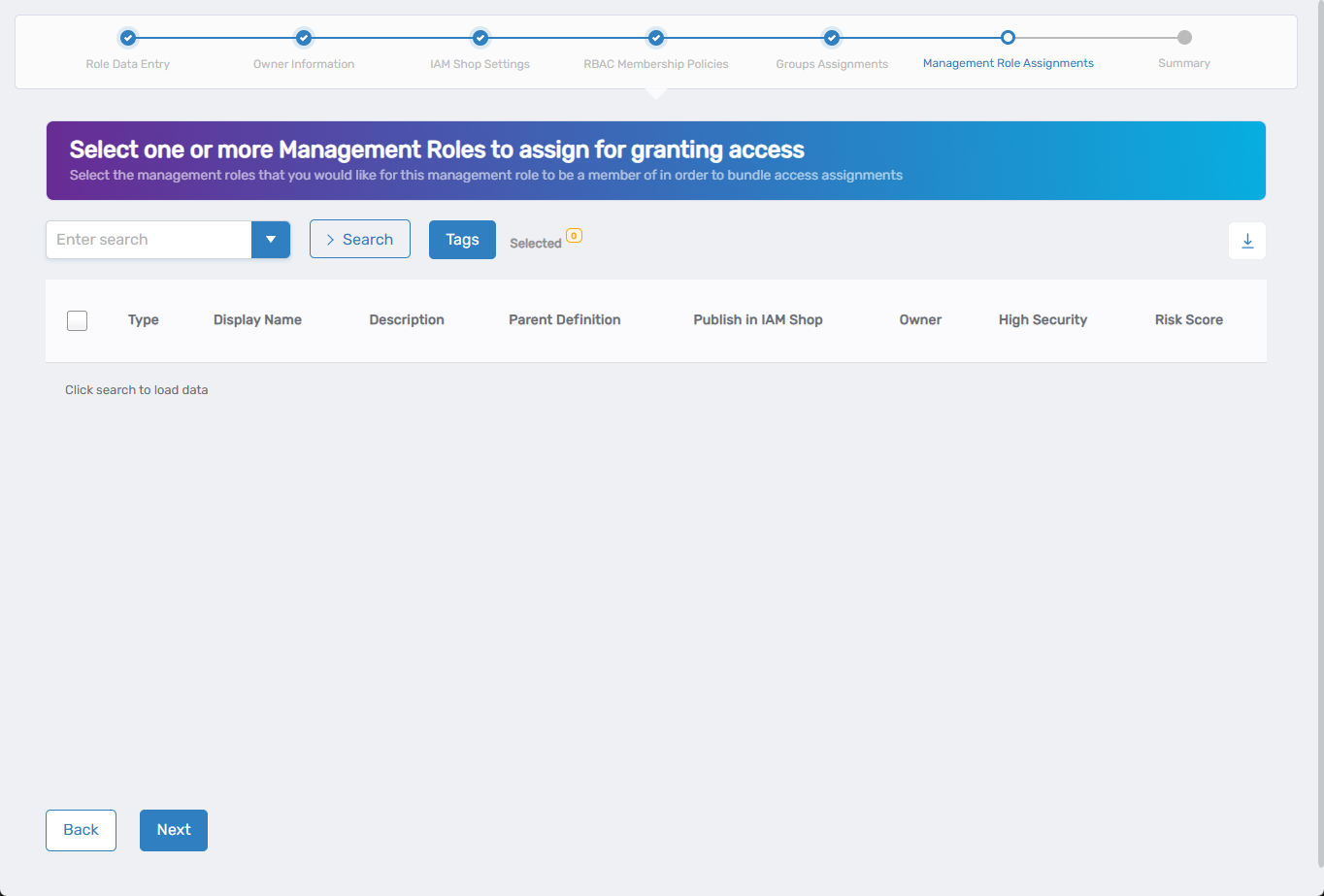
- Search for existing Management Roles.
- Check the box next to roles you want to include.
- Selected roles will automatically be added to the newly created Management Role, so anyone assigned this role also gets the bundled roles.
- Leave blank if this role should not include other Management Roles.
- Click Next to continue.
Step 7: Summary and Create
- Review all configuration details across the summary tabs.
- Verify settings are correct for:
- Role basic information and location selection.
- Ownership assignments.
- IAM Shop configuration if enabled.
- RBAC membership policies and preview results.
- Group assignments and Management Role bundles.
- Click Submit to create the Management Role.
What Happens Next
- The new management role is created and immediately available for assignment
- Automatic RBAC membership policies take effect for qualifying users
- If configured as requestable, the role appears in the IAM Shop for eligible users
- Role owners can begin assigning the role to appropriate people
- Bundled groups and management roles are automatically included in assignments
If You Run Into Problems
The workflow tile doesn't appear: You may not have the required permissions to create Management Roles. Contact your administrator to verify your access.
Can't find the right Management Role Definition: If you need a specific template that doesn't exist, work with your administrator to create the appropriate parent definition first.
RBAC membership policies assign too many people: Review your criteria carefully - broad selections like entire locations can result in unexpected assignments.
Role appears in IAM Shop but users can't request it: Check that the users are included in the Eligible Assignees list.
Related Actions
- For modifying existing roles, see Edit Management Role Settings
- To modify role assignments and membership, see Edit RBAC Membership Policies