Delete Management Role
When Management Roles are no longer needed due to organizational changes, role consolidation, or discontinued functions, you can delete them from the system. This process removes the role and cleans up associated assignments and configurations.
Deletion is permanent and affects all users: Deleting a Management Role removes it from all users who currently have it assigned. Ensure you have reviewed all assignments and dependencies before proceeding.
Consider deactivating or removing IAM Shop visibility before deletion to prevent new assignments while you plan the deletion process.
Before You Start
You need access to the Resource Admin application to delete Management Roles. If you can't access this workflow, contact your administrator to request permissions.
Make sure you have:
- Confirmed the role is no longer needed for business operations
- Reviewed all current assignments and their impact on users
- Identified alternative roles for affected users if needed
- Coordinated with stakeholders about the role removal
Get Started
- Navigate to the Resource Admin portal.
- Select Management Roles from the resource type menu.
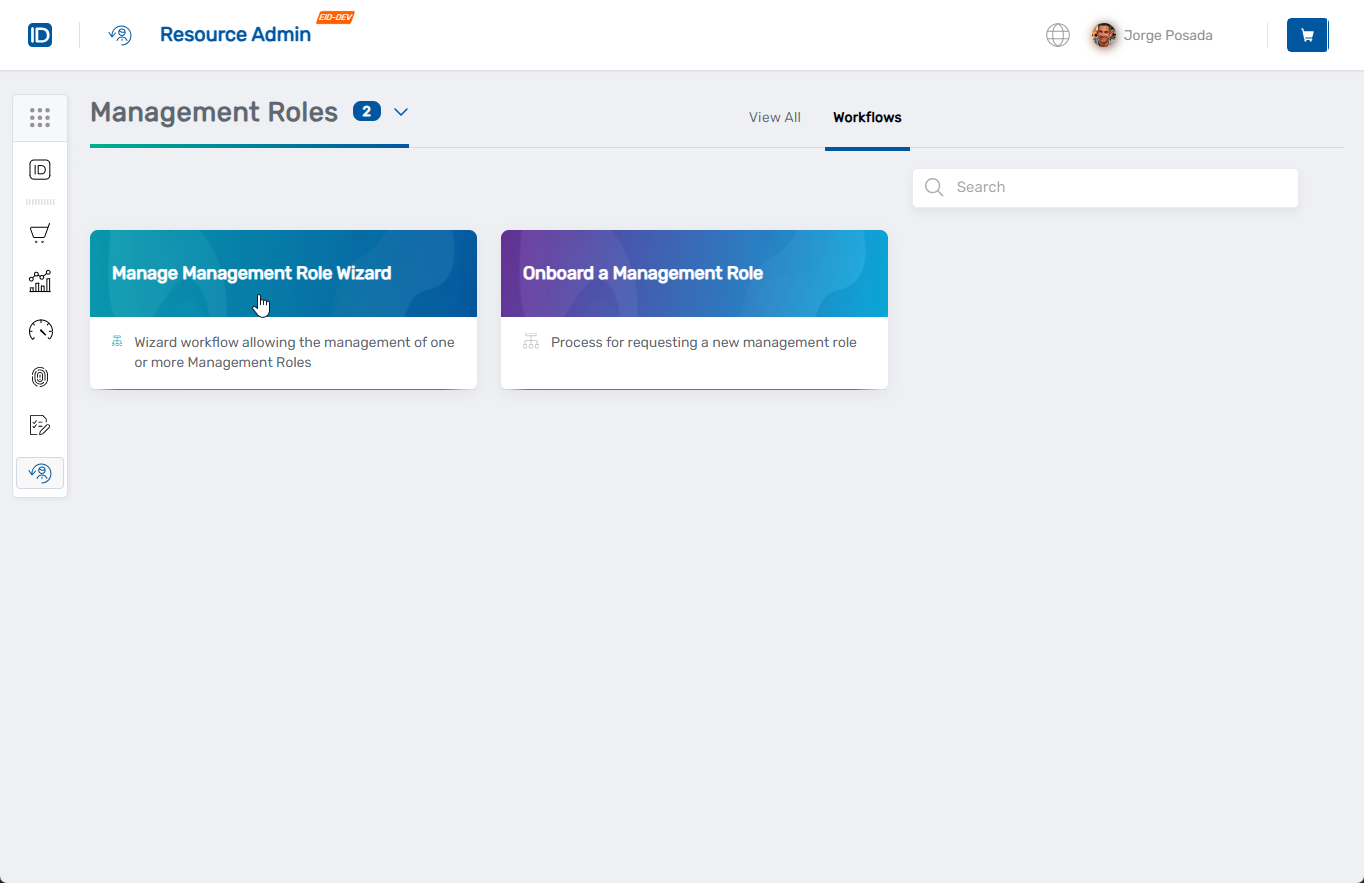
- Click the Workflows tab.
- Find and click Manage Management Role Wizard.
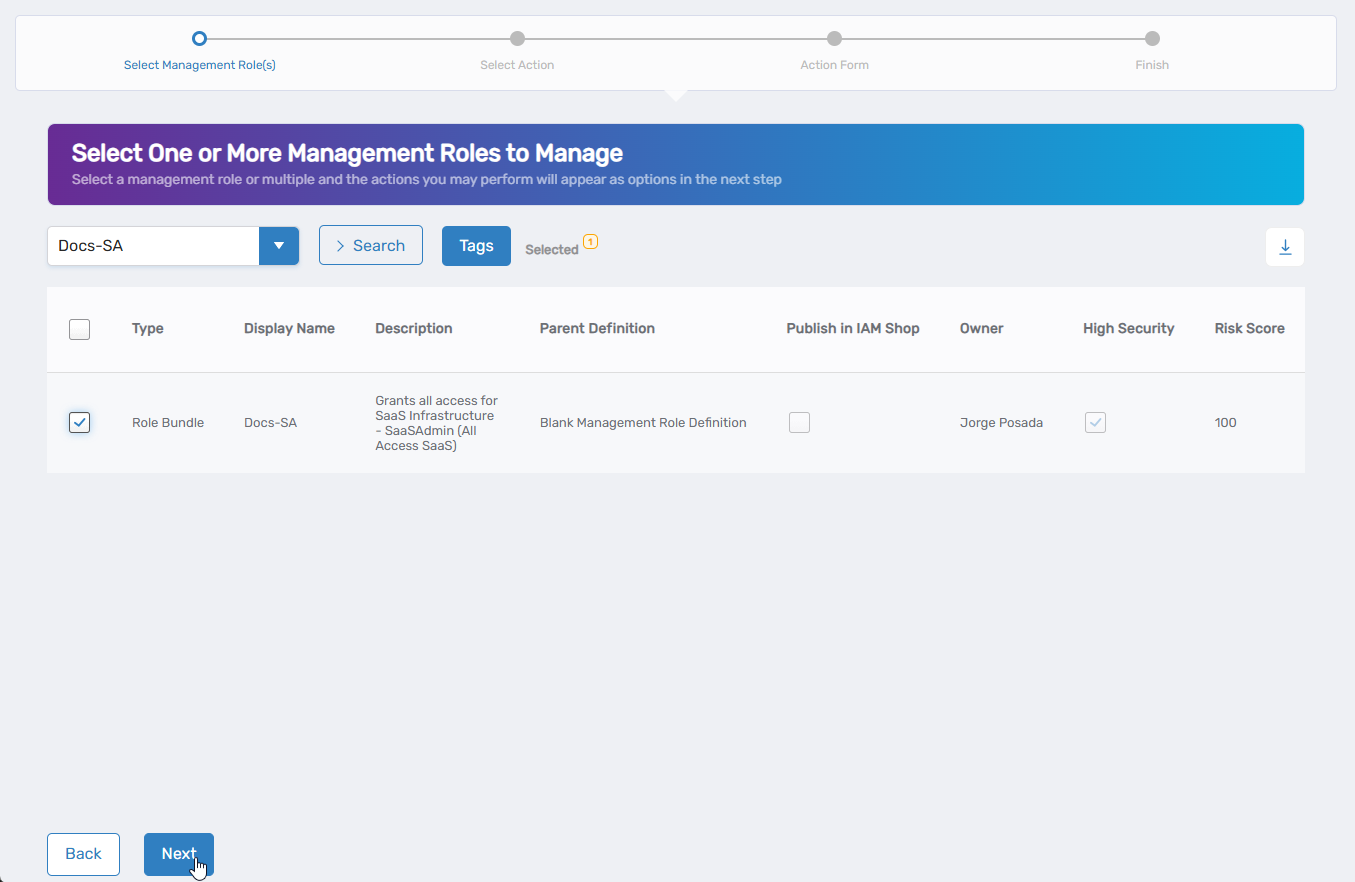
- Select the Management Role you want to delete by checking the box next to it, then click Next.
- Select Delete Management Role from the available actions.
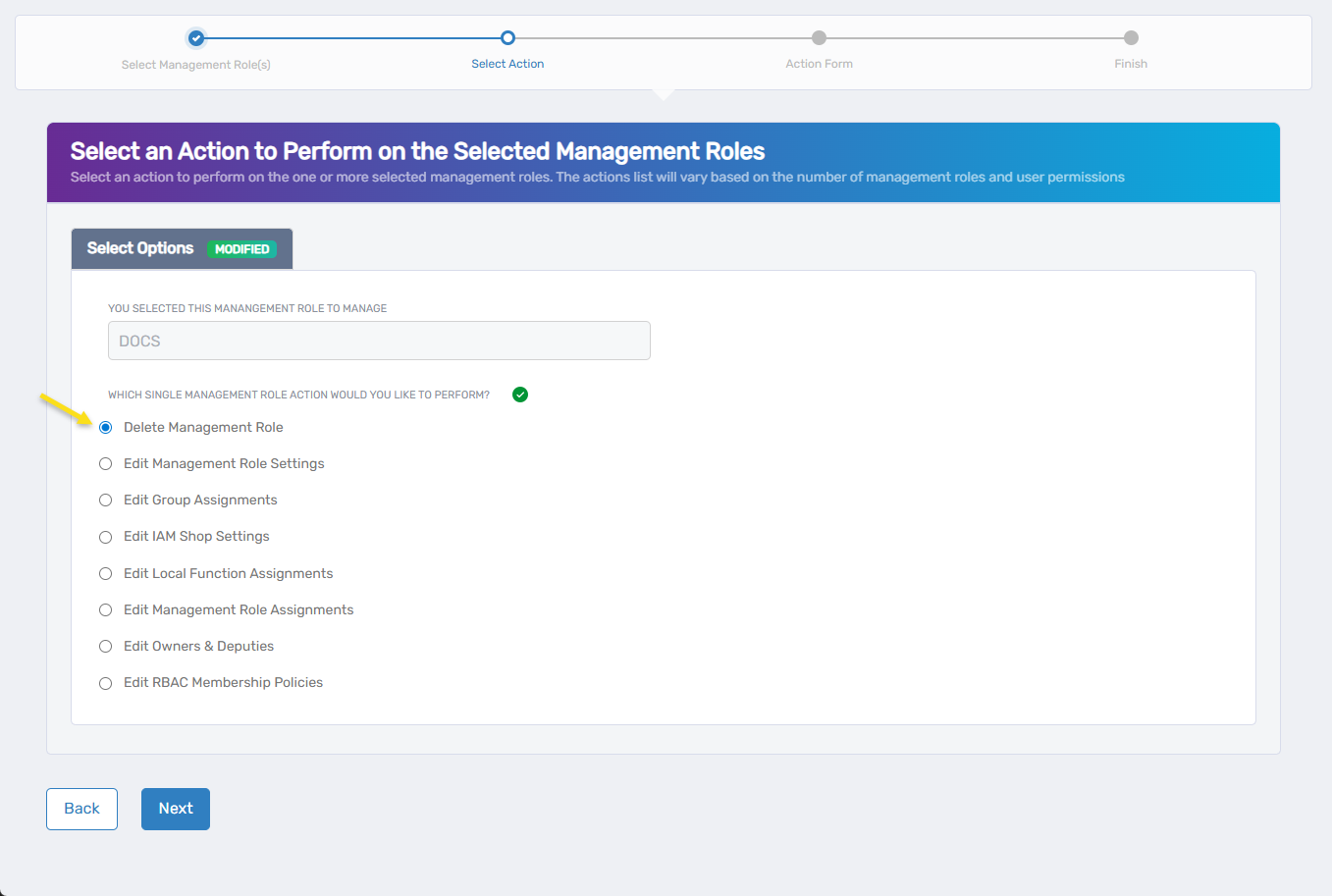
- Click Next to proceed to the deletion confirmation.
The workflow will open showing the deletion confirmation and impact details.
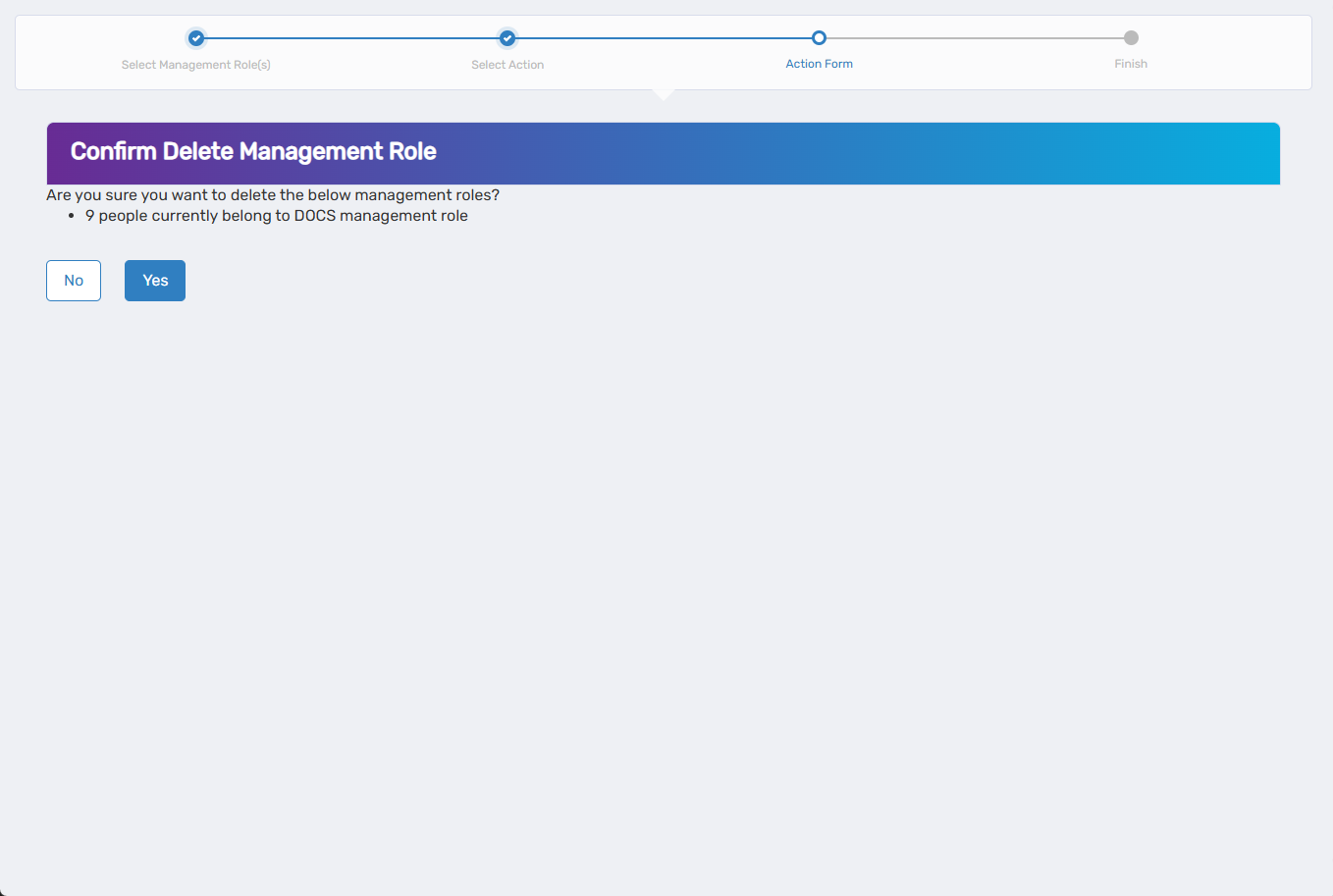
Confirm Deletion
Review the deletion details and confirm the action:
Deletion Impact Review:
- Review the role details including current assignments and dependencies.
- Understand which users will lose access when the role is deleted.
- Verify that the deletion will not disrupt critical business operations.
Confirm Deletion:
- Review all impact information carefully.
- Click Yes to proceed with the deletion.
This action cannot be undone. The Management Role and all its assignments will be permanently removed from the system.
Complete the Workflow
- Review the Operation Execution Summary to confirm the deletion was completed successfully.
- Click Submit to continue.
- Choose your next action:
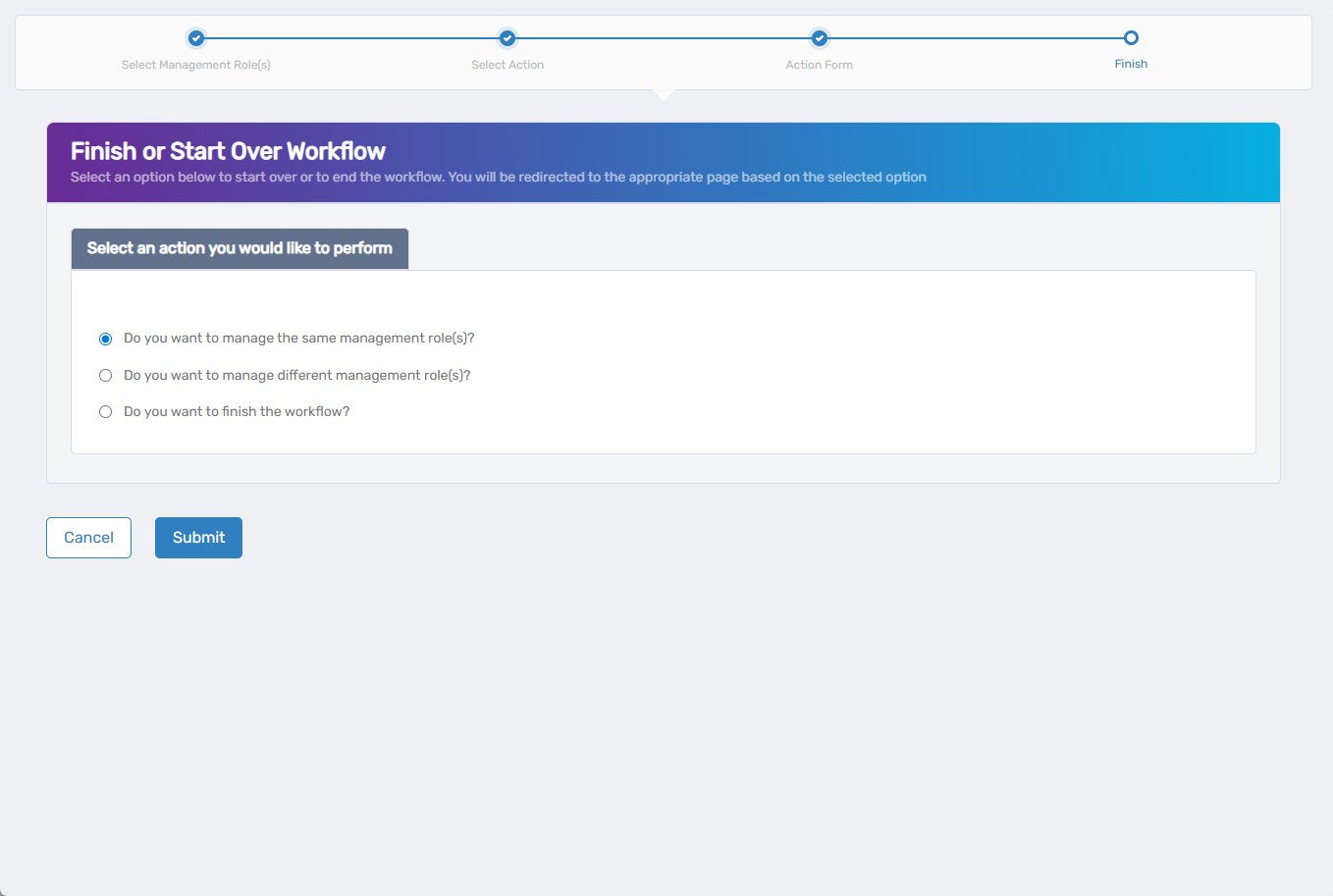
- Do you want to manage the same Management Role? - This option will not be available since the role has been deleted.
- Do you want to manage different Management Role(s)? - Select this to work with other Management Roles.
- Do you want to finish the workflow? - Select this to complete the process and exit the wizard.
- Click Submit to proceed with your selected option.
What Happens Next
- The Management Role is permanently removed from the system.
- All users who had this role assigned will lose any access assignments that were granted to the role (such as application access, group memberships, or other resources assigned to the role).
- The role is removed from the IAM Shop if it was available for self-service requests.
- Any RBAC membership policies associated with the role are deactivated.
- Bundled role assignments that included this role are updated to exclude it.
If You Run Into Problems
Deletion requires approval: Role deletion may generate business requests that require approval before taking effect.
Related Actions
- To create new Management Roles, see Onboard Management Role.
- To modify existing roles instead of deleting, see Edit Management Role Settings.
- To remove users from roles without deleting the role, see Edit Management Role Assignments.