Assigning Role Definitions
Role Definitions simplify the process of granting multiple app rights by bundling them into reusable collections. This article demonstrates how to assign Role Definitions to users and groups in EmpowerID.
Prerequisites
Before assigning Role Definitions, ensure you have:
- Access to Resource Admin with the Application RBAC Owner Management Role (or higher)
- An existing PBAC application with Role Definitions already created
Procedure
-
Sign in to Resource Admin with at least the Application RBAC Owner Management Role.
-
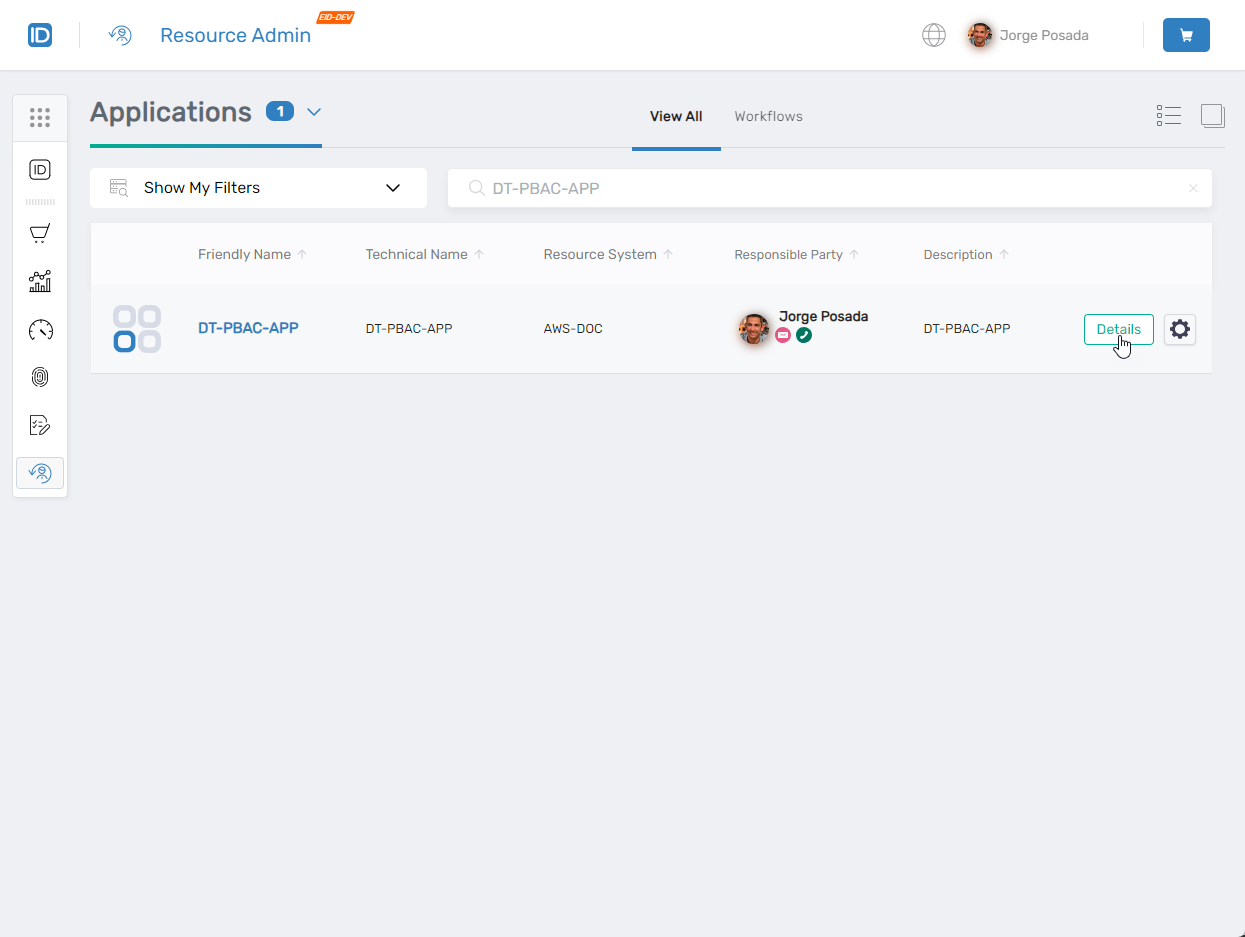
Select Applications from the Resource Type menu, search for the target PBAC application, and click the Details button.
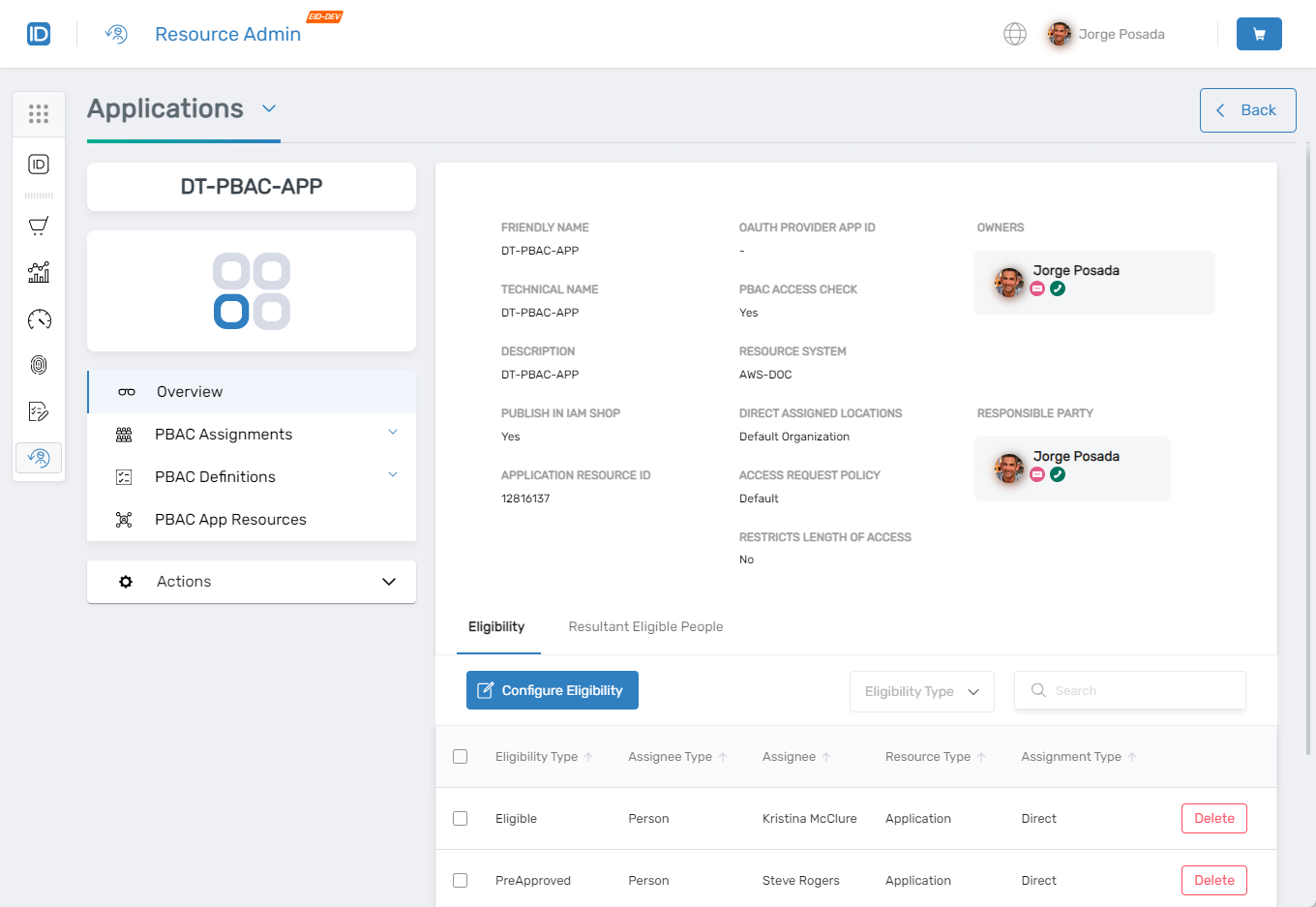
 The Application Overview page opens.
-
Expand PBAC Assignments and click Role Definition Assignments.
-
Click the Assign Role Definition button.

-
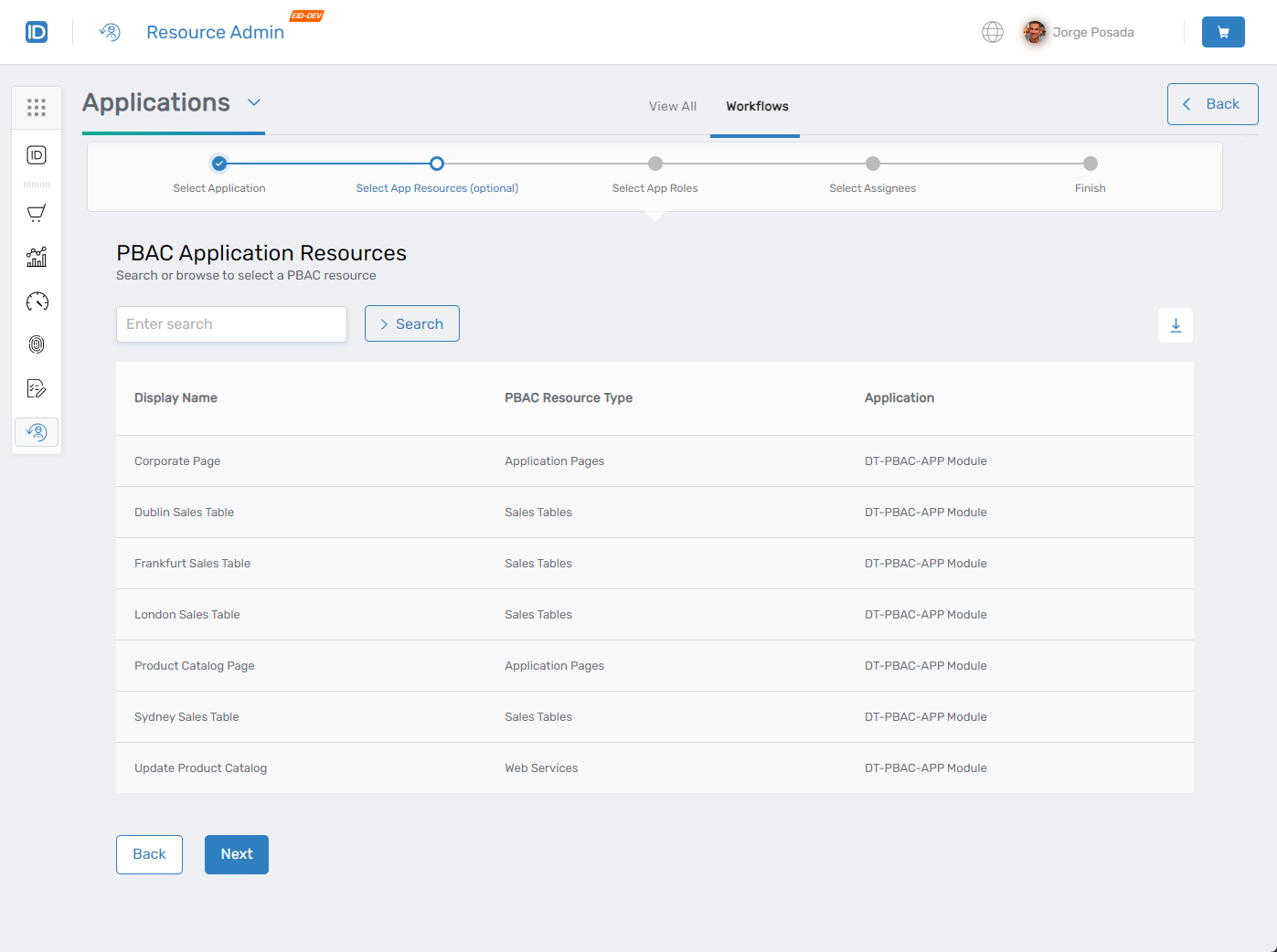
(If prompted) Select the relevant app resource and click Next.
-
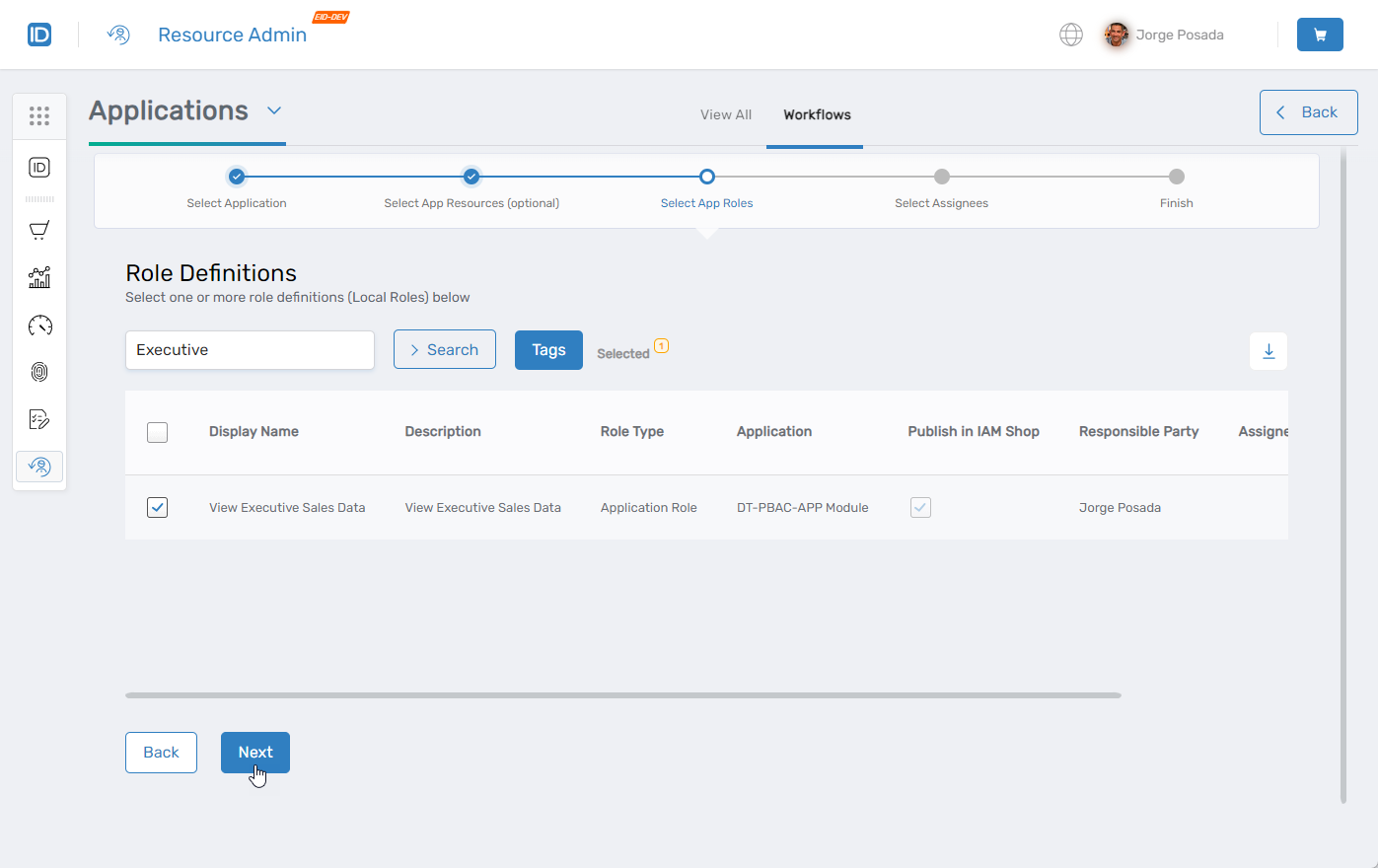
Select one or more Role Definitions to assign and click Next.
-
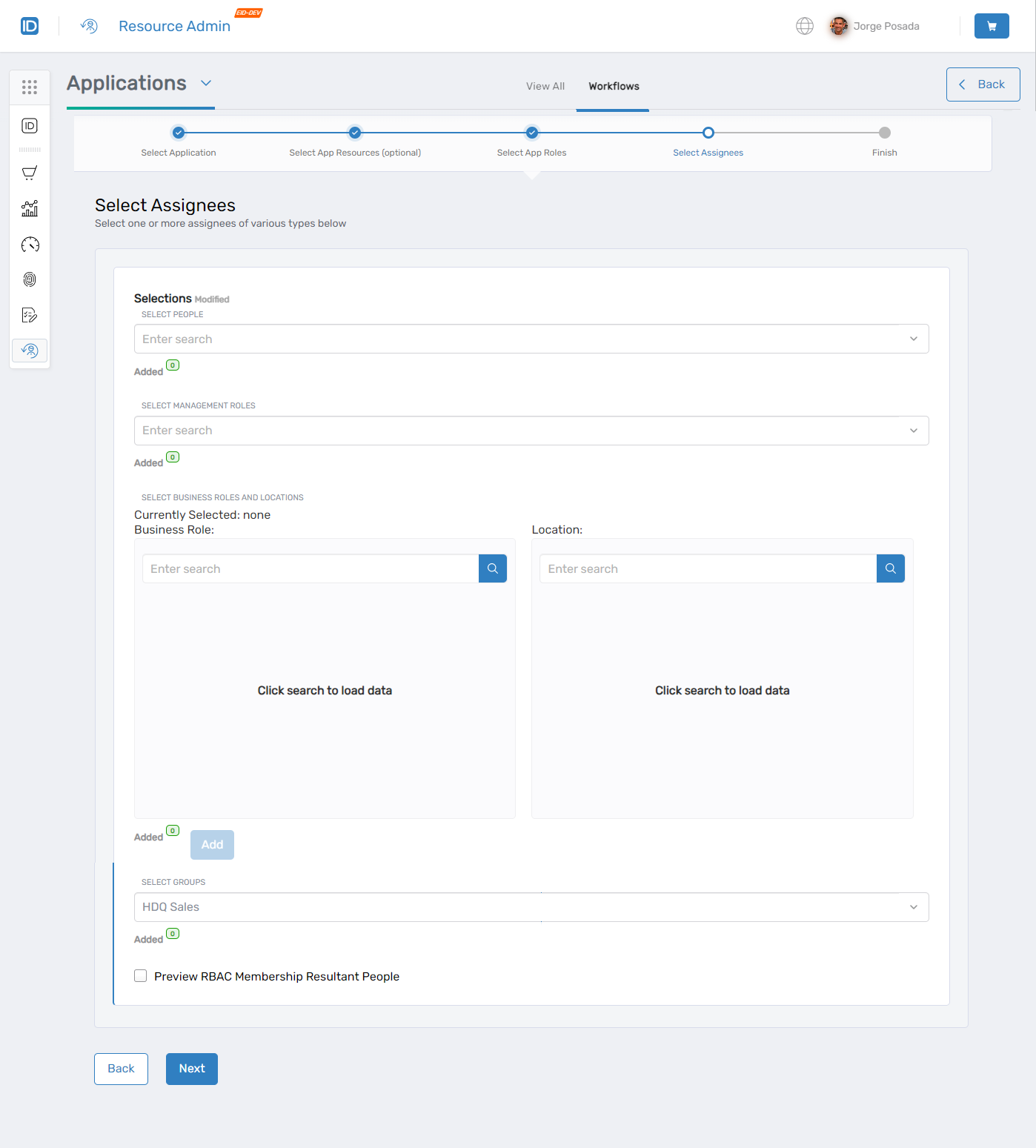
Choose the people or groups who will receive the Role Definition. Supported assignee types include individuals, Management Roles, Business Role and Location combinations, and groups.
(Optional) Click Preview RBAC Membership Resultant People to view who will be included when assigning to a collection.
-
Click Next to proceed.
-
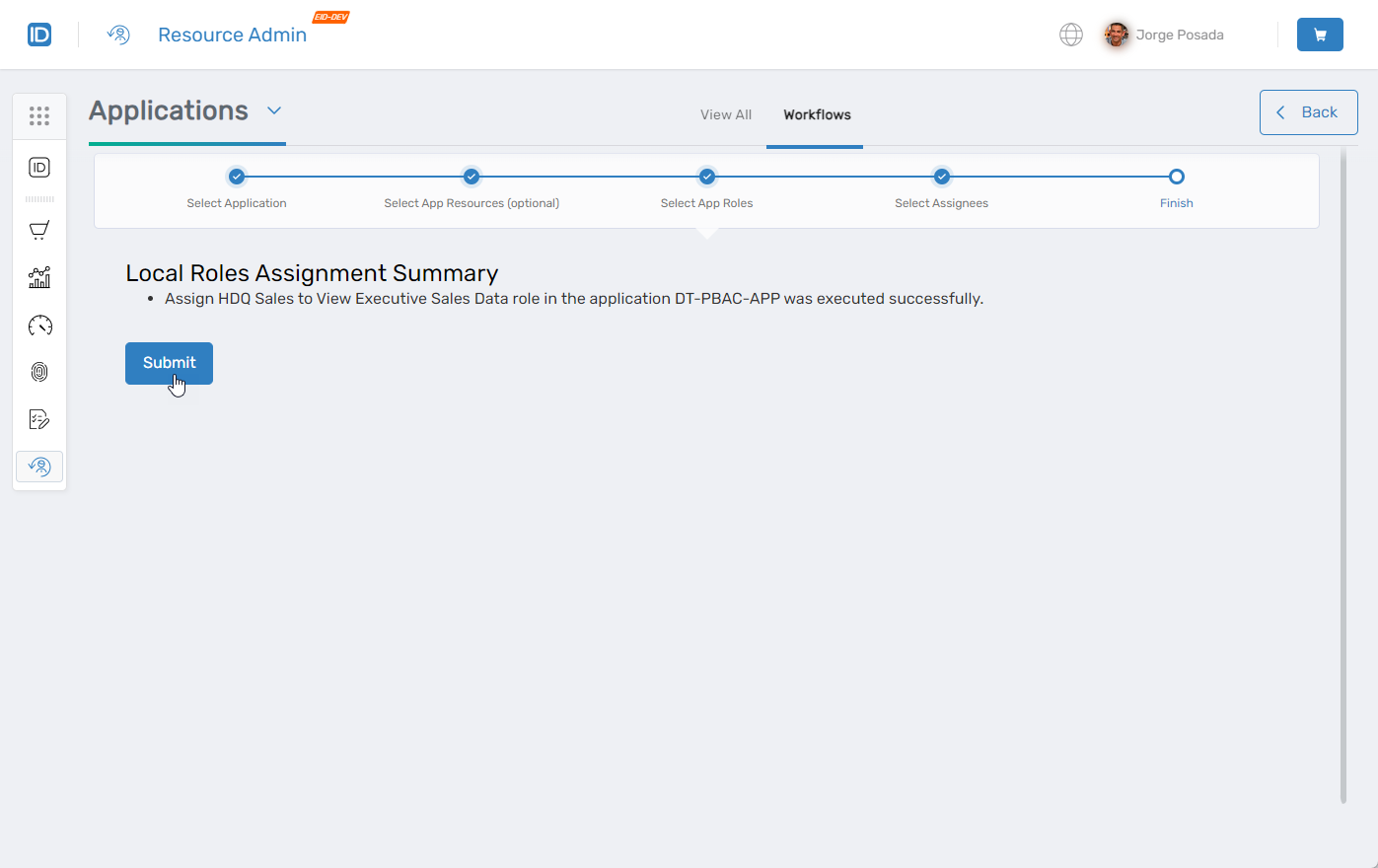
Review the assignment summary and click Submit to complete the assignment.
-
Click Submit again to close the summary message.
Verify the Results
After completing the assignment:
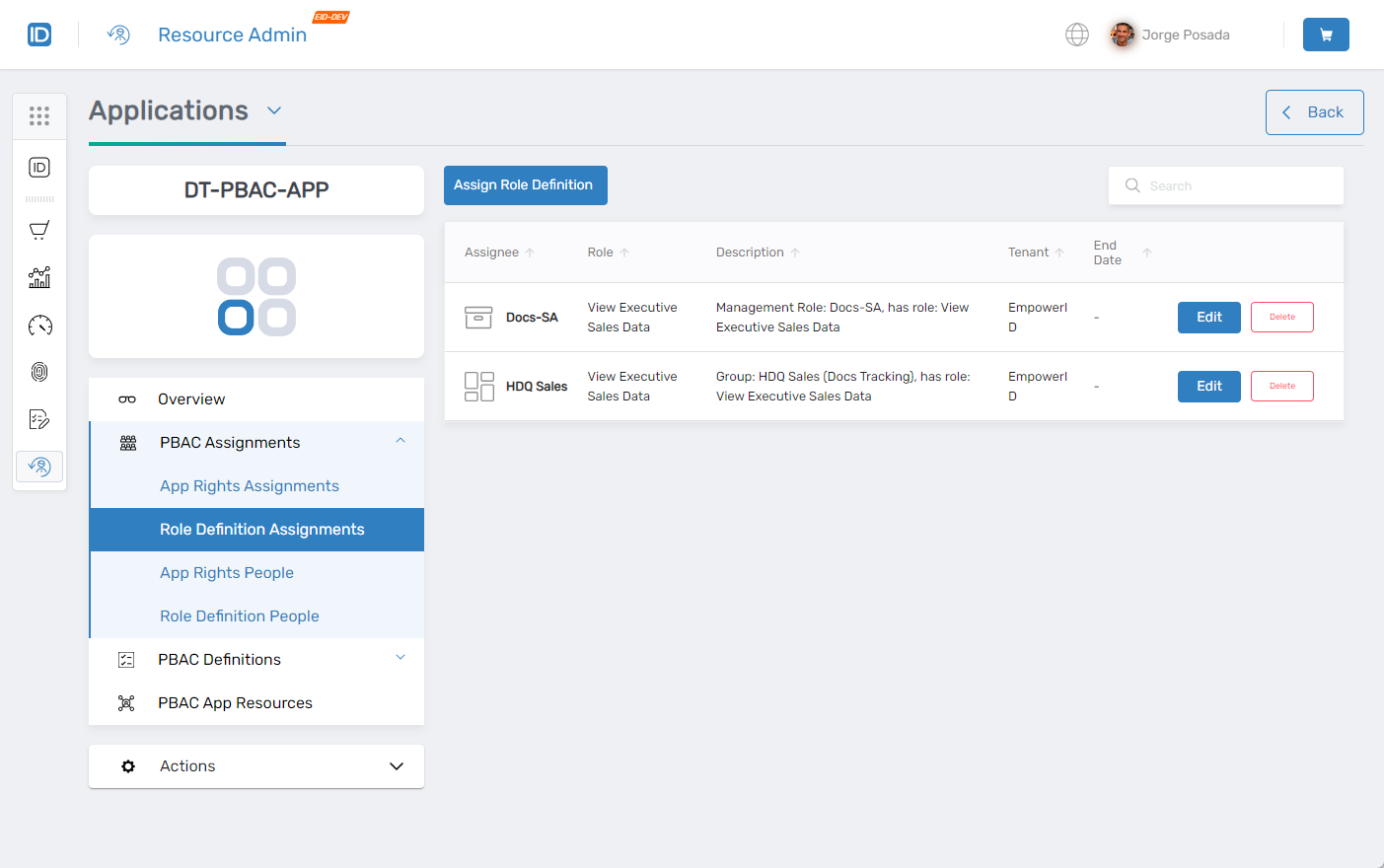
- Navigate to PBAC Assignments > Role Definition Assignments.
- Search for the assignee or Role Definition to confirm the assignment appears in the results grid.
Next Steps
After assigning role definitions, verify that users can successfully access the application with the granted app rights.