Adding PBAC App Resources
PBAC App Resources are the individual elements within your application that require access control, such as pages, database tables, or UI controls. By linking these resources to PBAC Resource Types, you enable precise classification and targeted access control for each component.
This article demonstrates how to add PBAC App Resources to applications in EmpowerID.
Prerequisites
Before adding PBAC App Resources, ensure you have:
- Access to Resource Admin with the Application RBAC Owner Management Role (or higher)
- An existing PBAC application configured with app resources
- PBAC Resource Types already created for the application
The "Add New PBAC App Resource" button will be inactive if PBAC Resource Types have not been created for the application. Resource Types must exist before you can add App Resources.
Procedure
-
Sign in to Resource Admin with at least the Application RBAC Owner Management Role.
-
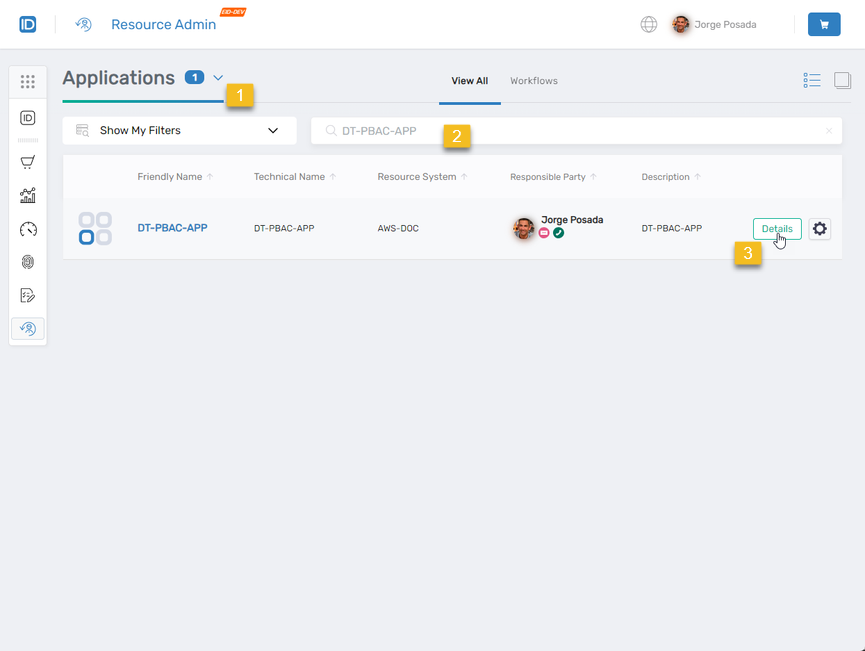
Select Applications from the resource type menu, search for the target PBAC application, and click the Details button.
-
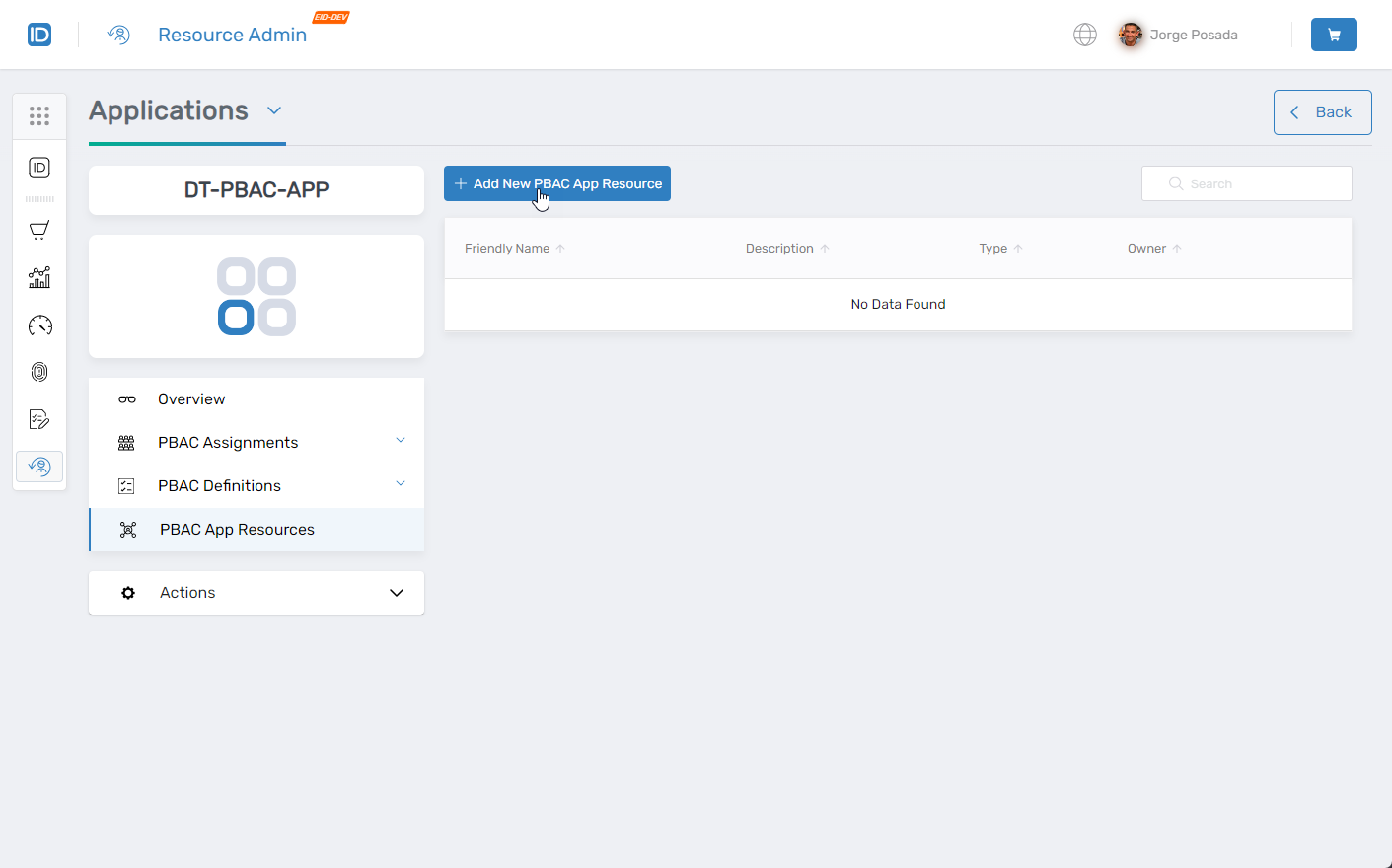
Select PBAC App Resources from the application menu.
-
Click the Add New PBAC App Resource button.
-
Complete the form with the appropriate information for the app resource:
Field Description Name Internal name for the app resource (no spaces recommended). Display Name User-friendly name displayed in the UI. PBAC Resource Type Select the corresponding resource type from the dropdown. This lists only Resource Types created for this application. Owner Select an owner for the app resource. Description Brief description of the application resource. 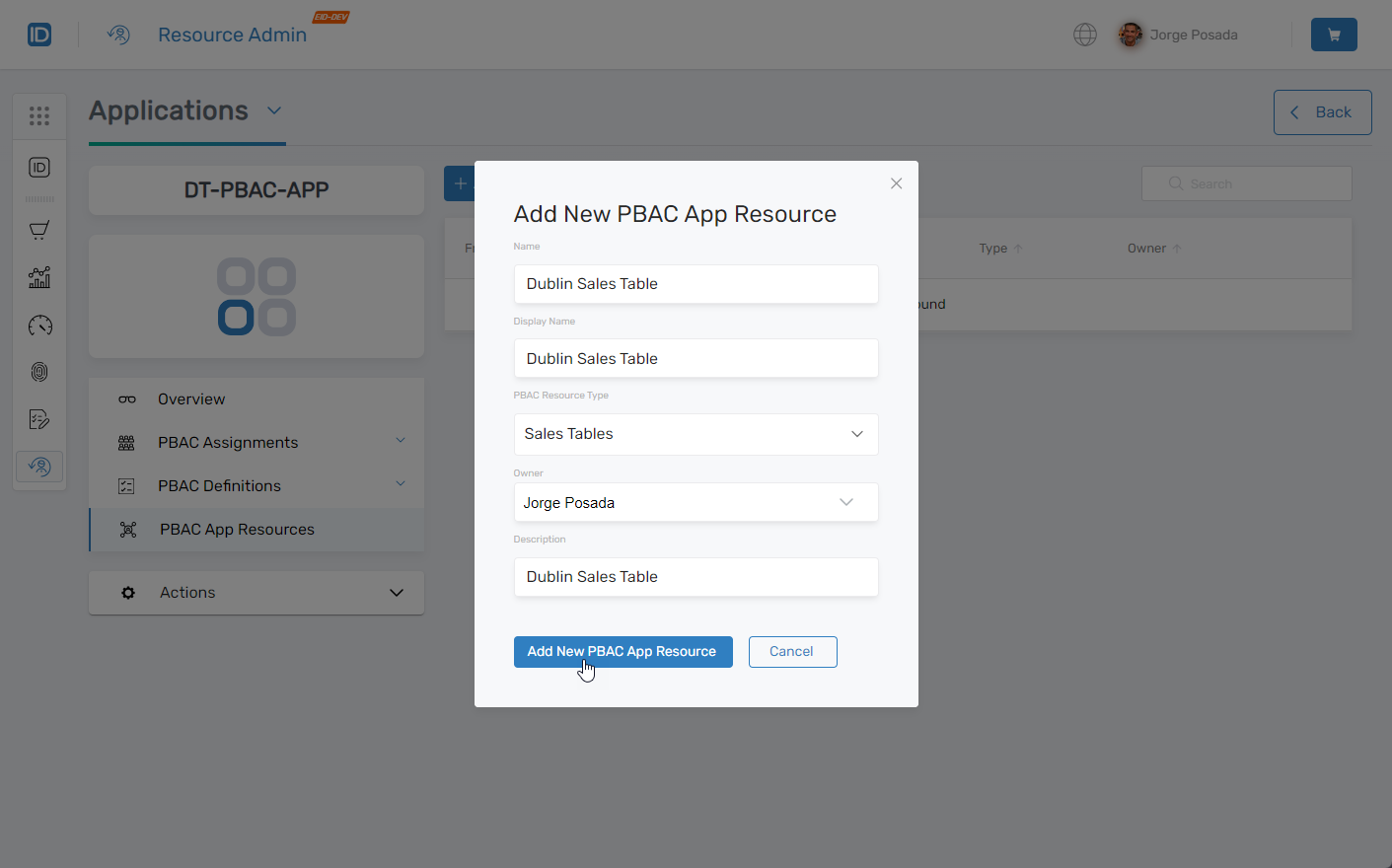
-
Click Add New PBAC App Resource to save the entry.
-
Repeat steps 4-6 for each additional app resource, ensuring all are properly categorized under their respective PBAC Resource Types.
Verify the Results
After adding PBAC App Resources:
- Navigate to PBAC App Resources in the application menu.
- Verify that your newly created app resources appear in the list.
- Click Details on an app resource to confirm it is associated with the correct PBAC Resource Type.
Next Steps
After adding PBAC App Resources, configure app rights and associate them with field types to enable fine-grained, attribute-based access control.