Add Runtime Dependencies to a Manifest
Runtime dependencies are files not included with Workflow Studio that need to be referenced by your project's manifest for it to run correctly in a runtime environment. When this is the case, you can quickly add to the manifest references to these files. This ensures that all required files will be included when you package the manifest for deployment.
What You'll Learn
In this guide, you'll learn how to:
- Add external runtime files as dependencies to a manifest
- Build a manifest to prepare for adding runtime dependencies
- Verify that runtime dependencies are properly included
Add Runtime Dependencies
- In Workflow Studio, open the Deployment pane by selecting either Deployment Services from the Common menu or Deploy from the Build menu.
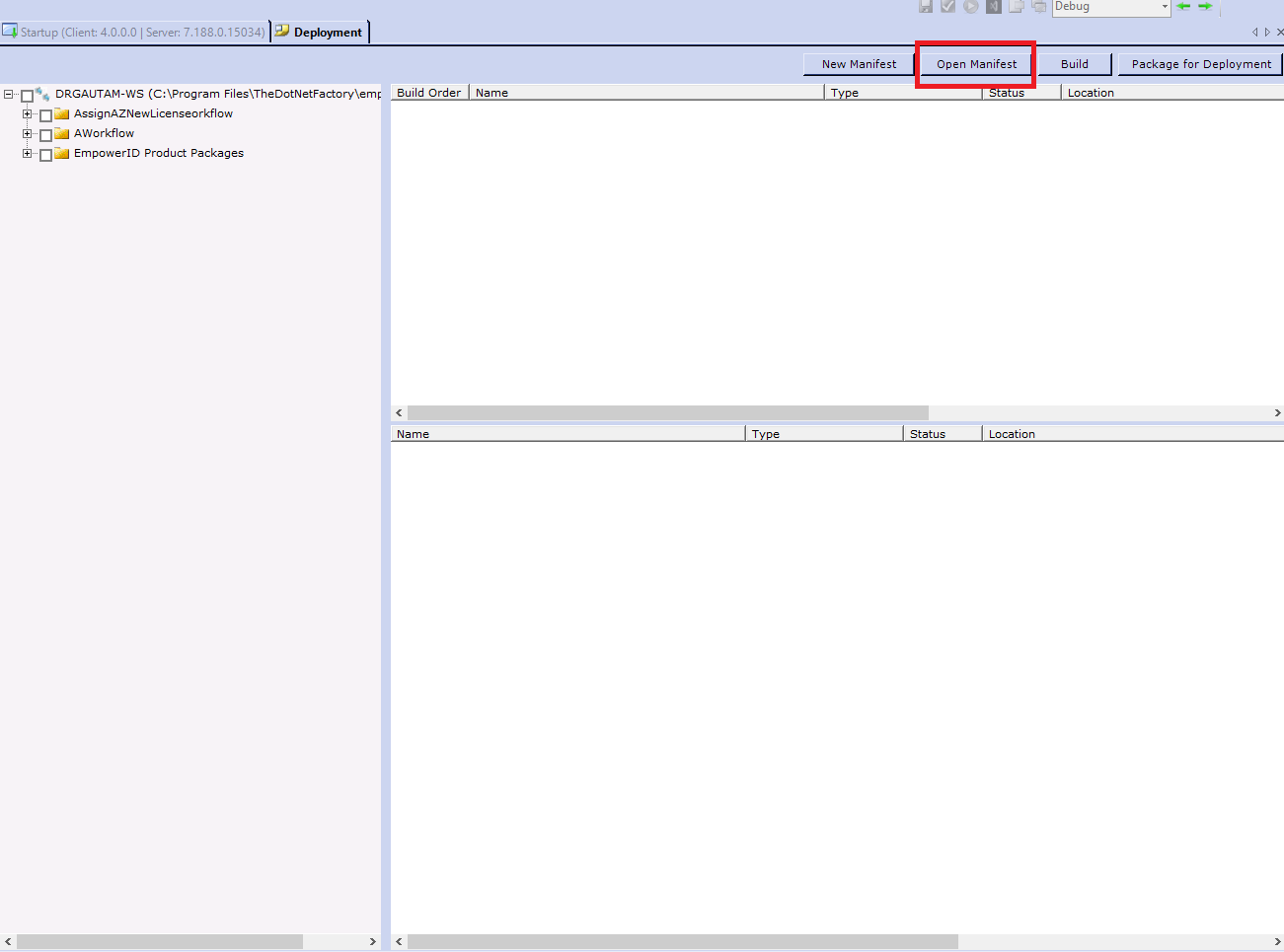
- Click the Open Manifest button located above the Build Order pane.
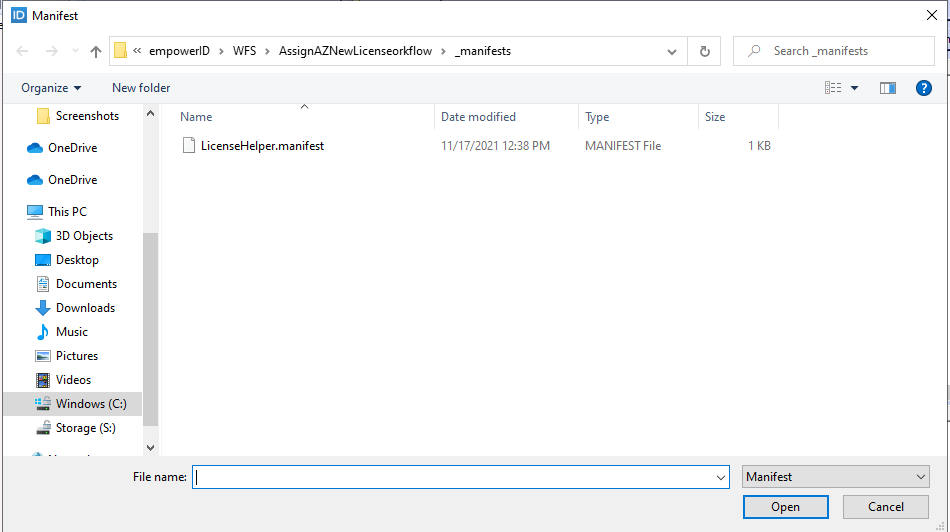
- Search for and select the manifest file you want to update.
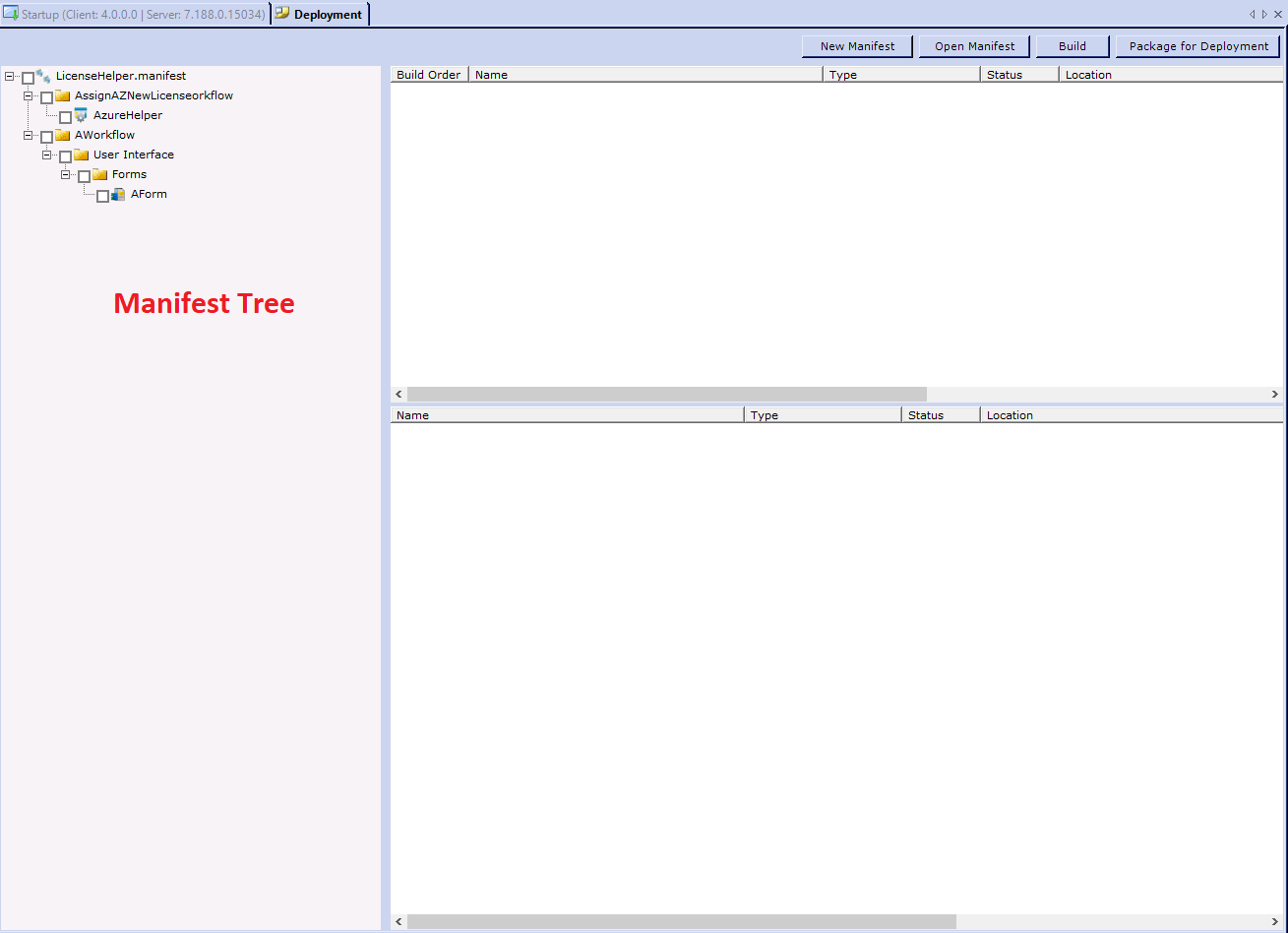
 You should see the manifest tree open.
- Build the manifest.
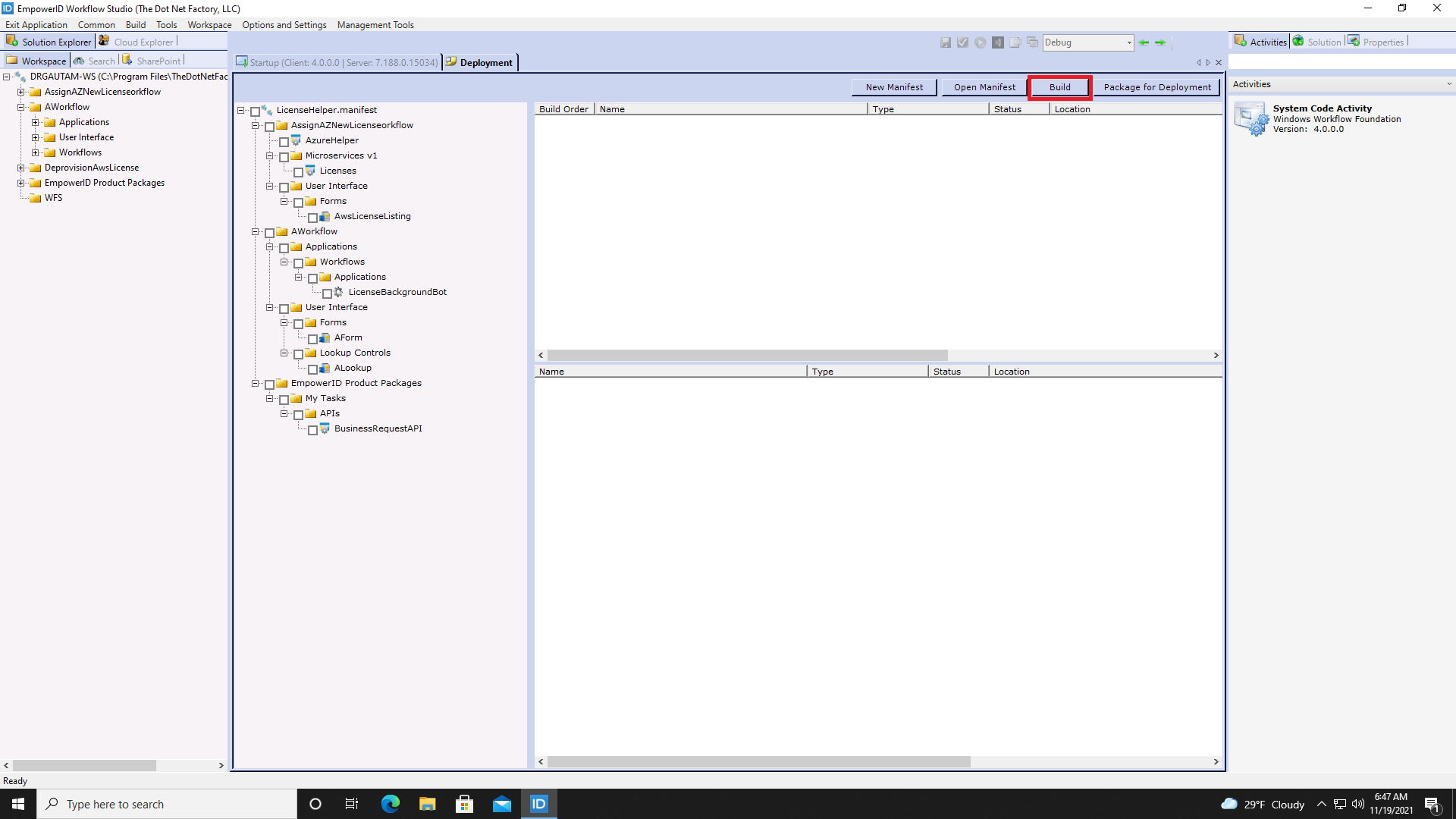
- Click No when asked about restarting Workflow Studio.

- Right-click anywhere in the lower Status pane and select Add New Runtime Dependency.
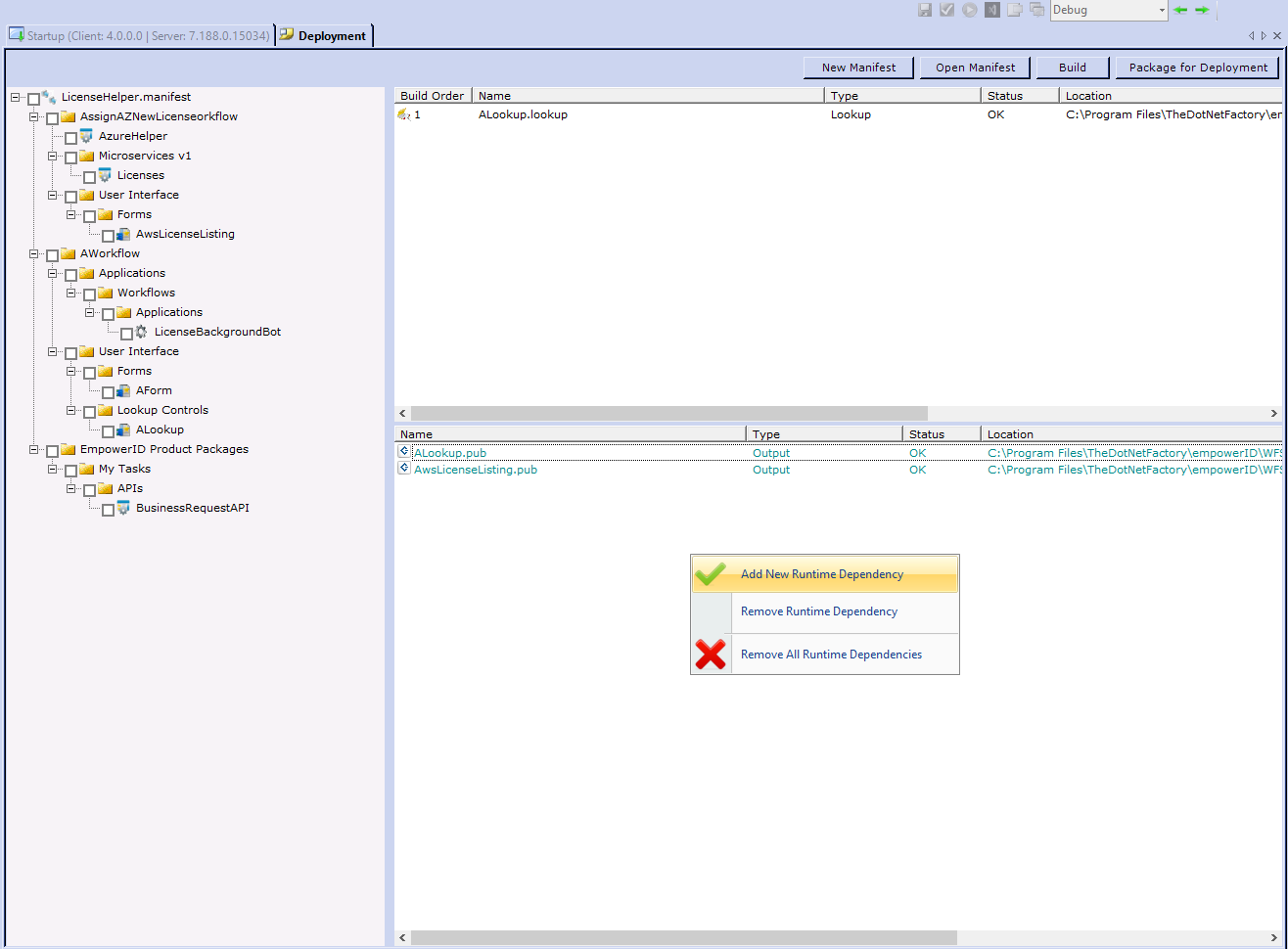
- Search for the file required by your project and click Open.
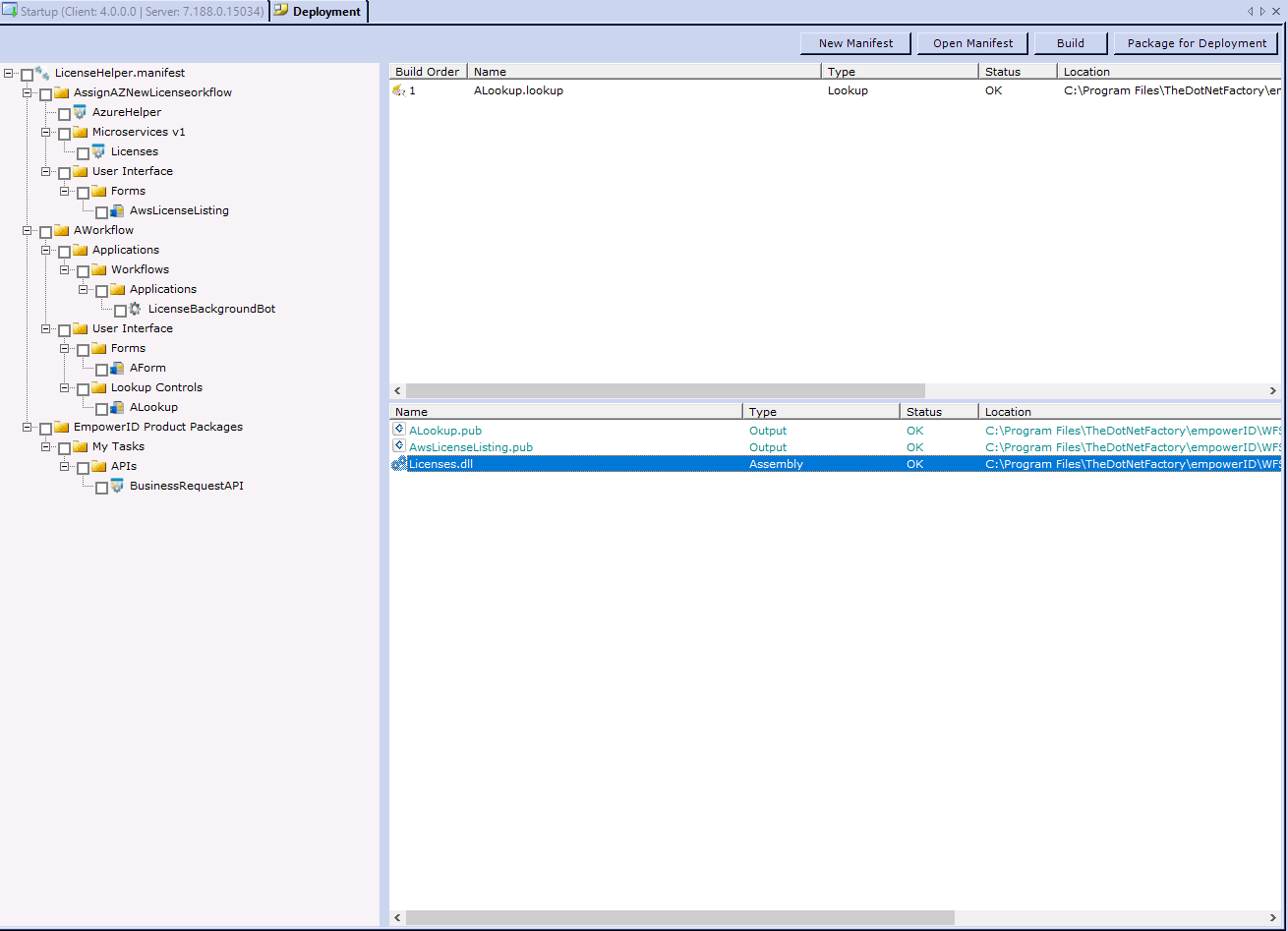
You should see the new dependency in the lower Status pane.