Create a Notification Policy
Notification policies define which Business Request events trigger notifications and who receives them. Each policy specifies the event type, participant role, scope level, and priority. When multiple policies match a single event, the policy with the highest priority (lowest number) determines which notification is sent.
See About EmpowerID Notifications and Emails for detailed descriptions of Business Request Events, Participant Types, and Notification Scope Levels.
Create a Notification Policy
-
On the navbar, expand Low Code/No Code Workflow and click Notification Policies.
-
On the Notification Policies tab, click the Add (+) icon to create a new notification policy.

-
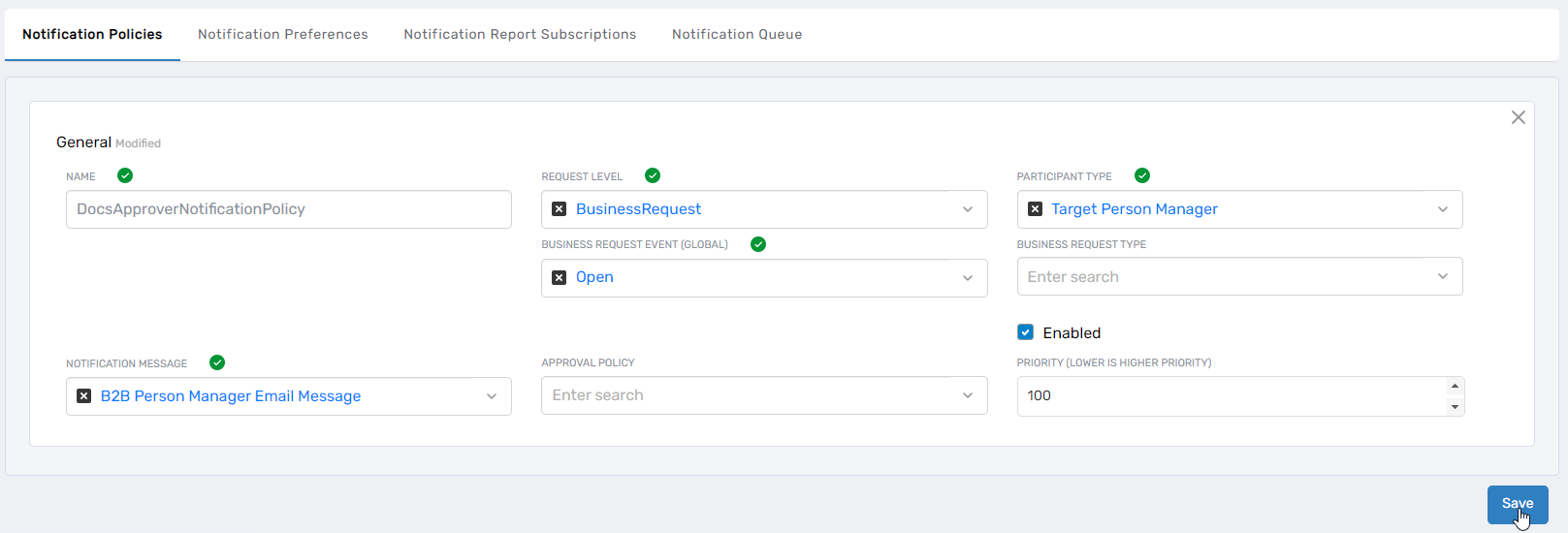
Configure the following fields:
-
Name - Enter a descriptive name for the policy. Use a naming convention that identifies the participant type and event, such as "Initiator Request Created" or "Approver Item Open."
-
Request Level - Select the scope where the notification applies. Options include BusinessRequest (overall request), BusinessRequestItem (individual items), BusinessRequestApprovalStep (request-level approval steps), and BusinessRequestItemApprovalStep (item-level approval steps).
-
Participant Type - Select who receives the notification based on their role in the Business Request process.
-
Business Request Event (Global) - Select the event that triggers the notification.
-
Enabled - Set to On to activate the policy immediately, or Off to create the policy in a disabled state.
-
Priority - Enter a numeric value that determines execution order when multiple policies match an event. Lower numbers indicate higher priority. If policies with priority 1, 3, and 5 all match an event, only the priority 1 policy generates a notification.
-
Notification Message - Select the email template that defines the message content, subject line, and formatting.
-
Approval Policy - (Optional) Select an approval policy to limit this notification to Business Requests handled by that specific approval workflow. When set, the notification only triggers when the selected approval policy is routing the request. Leave blank to send the notification for all matching events regardless of approval policy. Example: To notify executives only when high-value requests use the Executive Approval Policy, set this field to "Executive Approval Policy." Requests using standard approval policies will not trigger this notification.
-
-
Click Save.
The notification policy is now active (if enabled) and will trigger notifications when the specified Business Request Event occurs for the configured participant type.