Configure Daily Digest Reports
EmpowerID supports daily digest emails through the Notification Report Subscription feature. Daily digest reports are scheduled email reports that are separate from event-driven Business Request notifications. These reports deliver summaries of pending tasks, expiring access, and owned resources to subscribers on a scheduled basis.
Available Reports
The following daily digest reports are available:
- My Business Requests – Email containing open or recently closed requests for the subscriber or requests initiated by the subscriber
- My Expiring Access – Email containing access to groups, Management Roles, and shared folders that will expire within a configured time frame
- My Local Functions – Email containing local functions owned by the subscriber
- My Local Risks – Email containing local risks owned by the subscriber
- My Mitigation Controls – Email containing mitigating controls owned by the subscriber
- To Do Business Requests – Email containing all pending tasks for the subscriber
The following procedures configure digest report settings, verify the compiler job, and edit email templates.
Update the Time Frame for Expiring Access Reports
The ITShopMyAccessShowExpiresXDays system setting controls how many days in advance the My Expiring Access report notifies users of expiring access.
-
On the navbar, expand Infrastructure Admin > EmpowerID Servers and Settings and click EmpowerID System Settings.
-
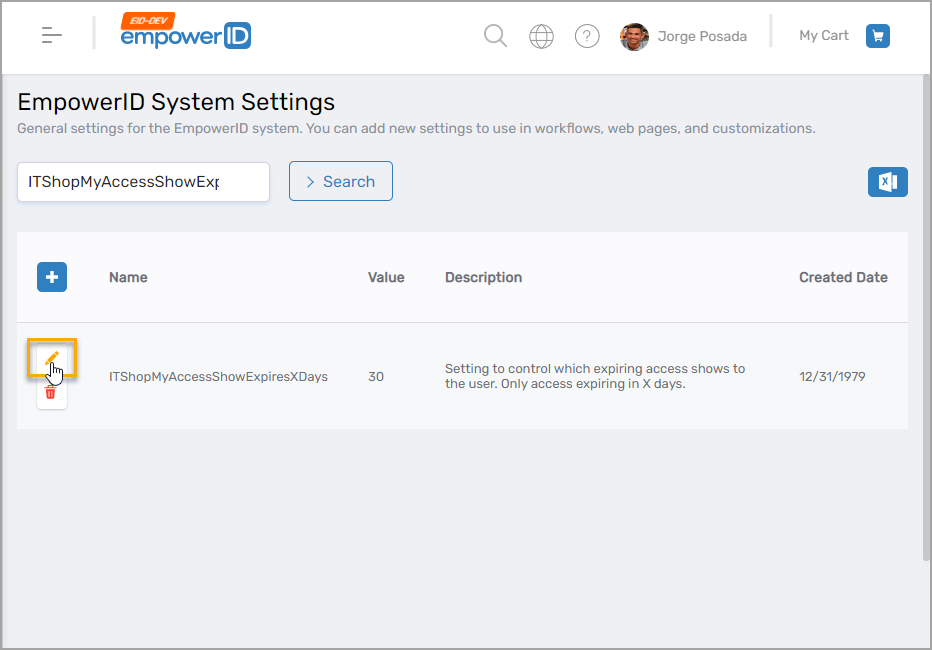
Search for ITShopMyAccessShowExpiresXDays.
-
Click the Edit button for the setting.
-
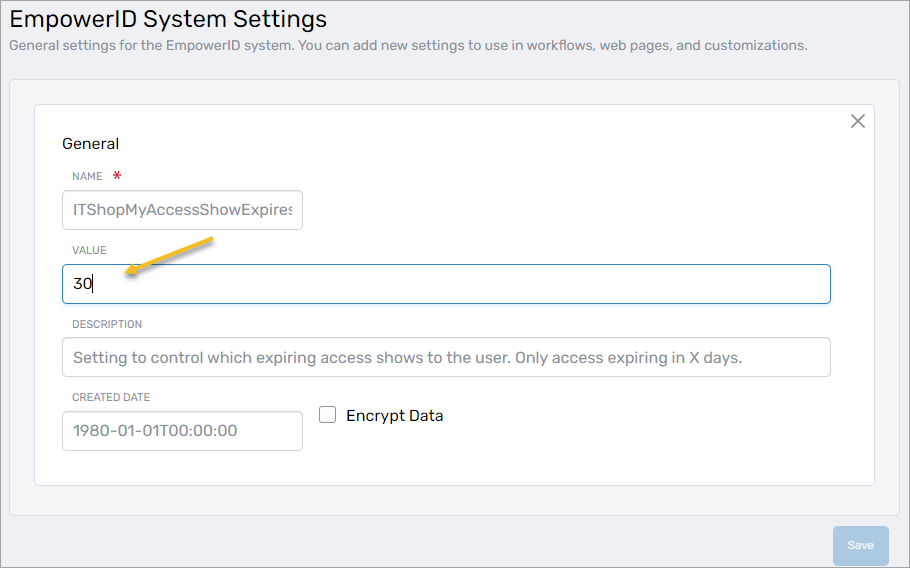
In the Value field, enter the time span in days.
For example, enter 30 to notify users 30 days before access expires.
-
Click Save.
Verify the Notification Report Subscription Compiler Job
The Notification Report Subscription Compiler job processes daily digest reports on a scheduled basis. Verify that the job is enabled and running on at least one server in your environment.
-
On the navbar, expand Infrastructure Admin > EmpowerID Servers and Settings and click EmpowerID Servers.
-
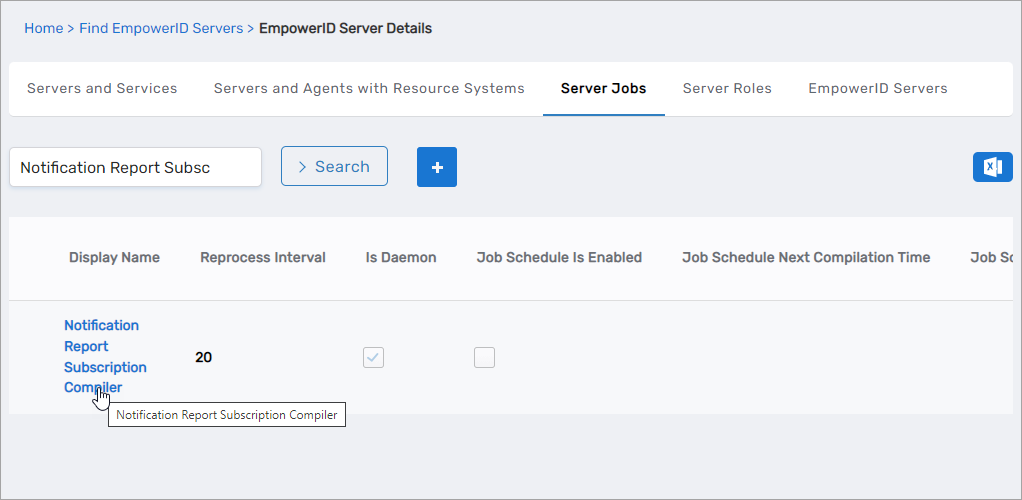
Select the Server Jobs tab and search for Notification Report Subscription Compiler.
-
Click the Display Name link for the job to open the View One page.
-
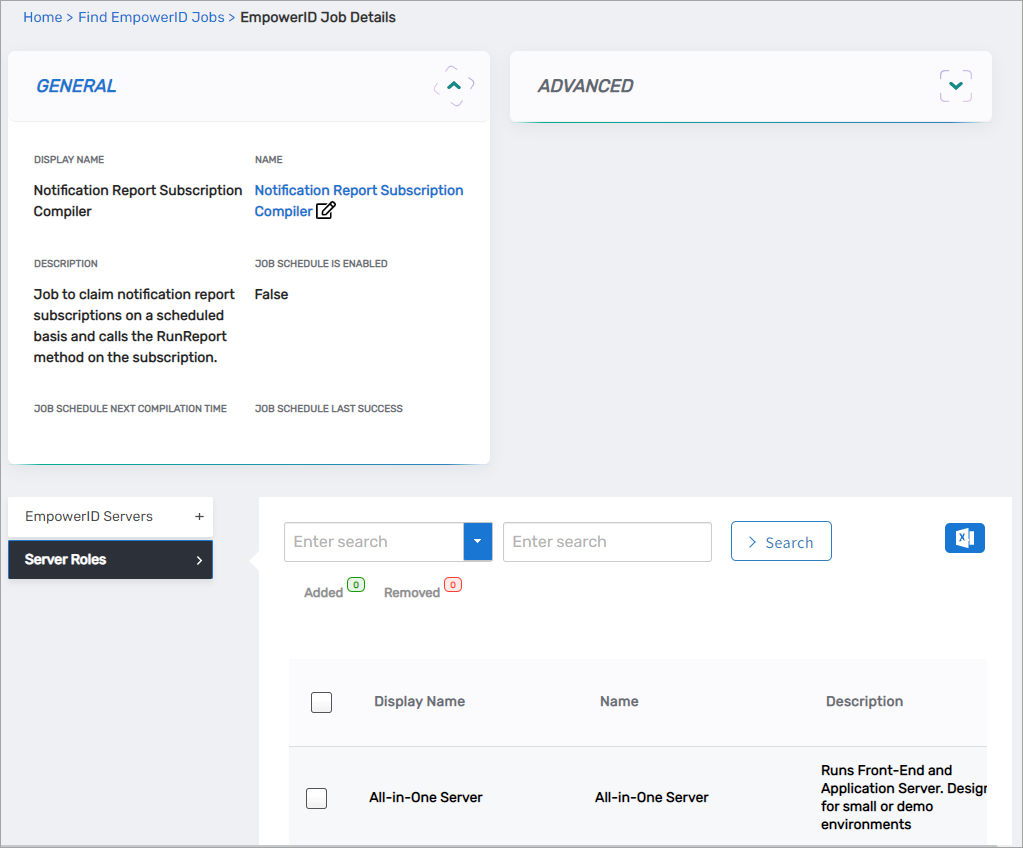
Expand the Server Roles accordion and verify that the job is enabled on at least one server role.
-
Expand the EmpowerID Servers accordion and verify the job is running on at least one server.
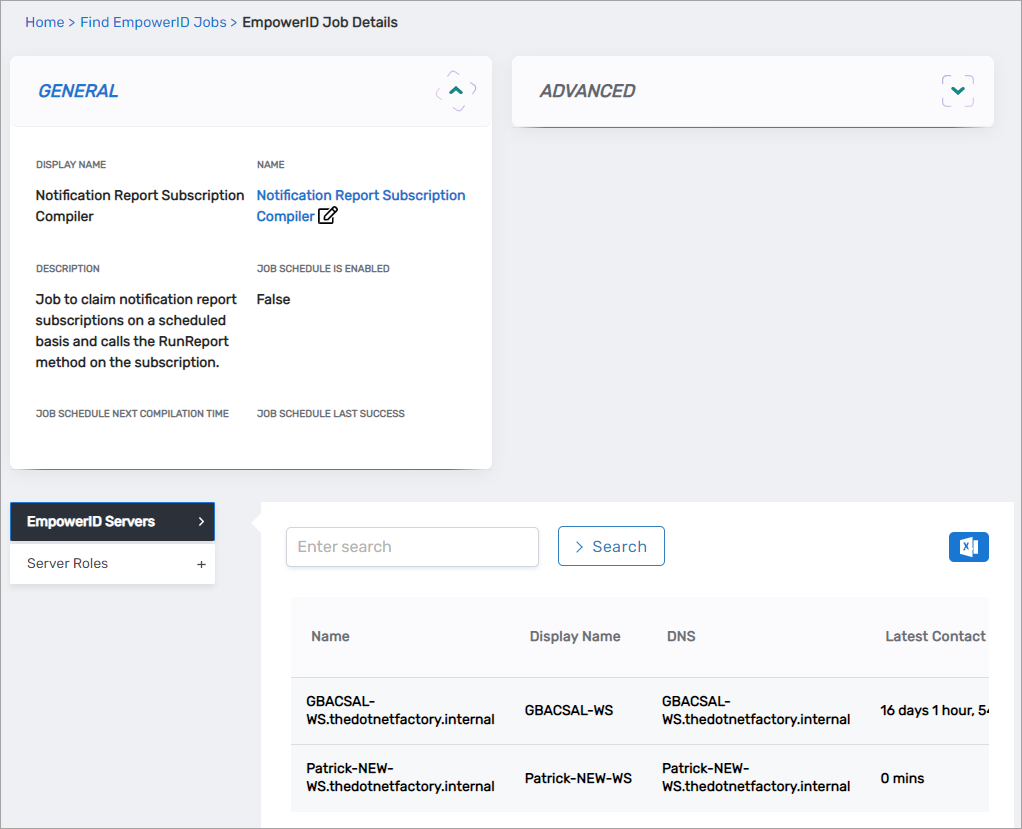
If the job is not enabled or not running on any server, daily digest reports will not be generated or sent.
Edit Daily Digest Email Templates
Each daily digest report has an associated email template containing HTML formatting and wildcard tokens for dynamic content insertion.
Available Daily Digest Templates
View Daily Digest Email Templates
| Template Name | Email Subject |
|---|---|
| MyTasks_DailyDigest_ToDoBusinessRequests | My To Do Business Requests |
| MyTasks_DailyDigest_MyBusinessRequests | My Business Requests Summary |
| MyTasks_DailyDigest_MyMitigationControls | My Mitigation Controls |
| MyTasks_DailyDigest_MyLocalRisks | My Local Risks |
| MyTasks_DailyDigest_MyLocalFunctions | My Local Functions |
| MyTasks_DailyDigest_MyExpiringAccess | My Expiring Access Summary |
| MyTasks_DailyDigest_OwnersMyResourceExpiringAccess | Owners My Resource Expiring Access |
Edit a Daily Digest Template
-
On the navbar, expand Admin > Miscellaneous and select Localized Emails.
-
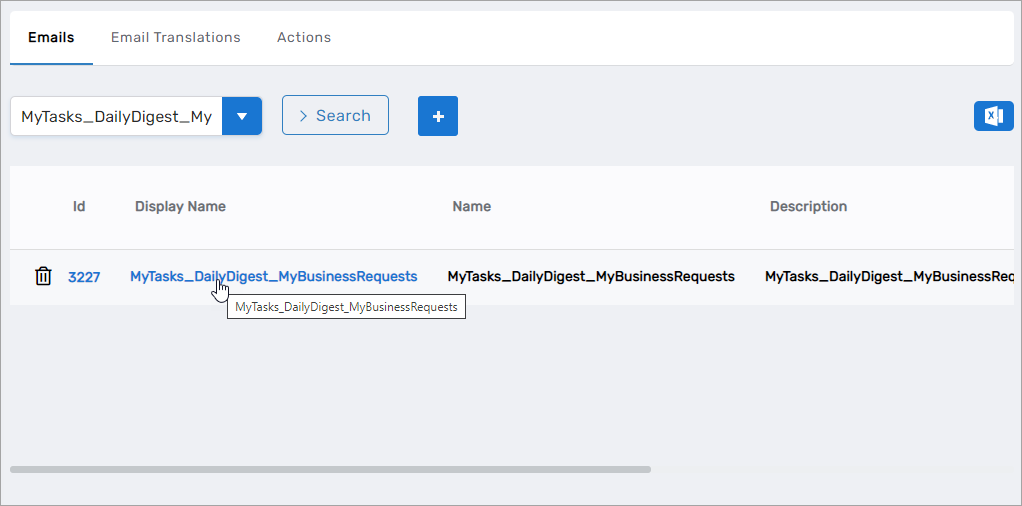
Select the Emails tab and search for the template you want to edit.
For example, search for MyTasks_DailyDigest_MyBusinessRequests.
-
Click the Display Name link for the template.
-
On the View One page for the template, click the Edit link.
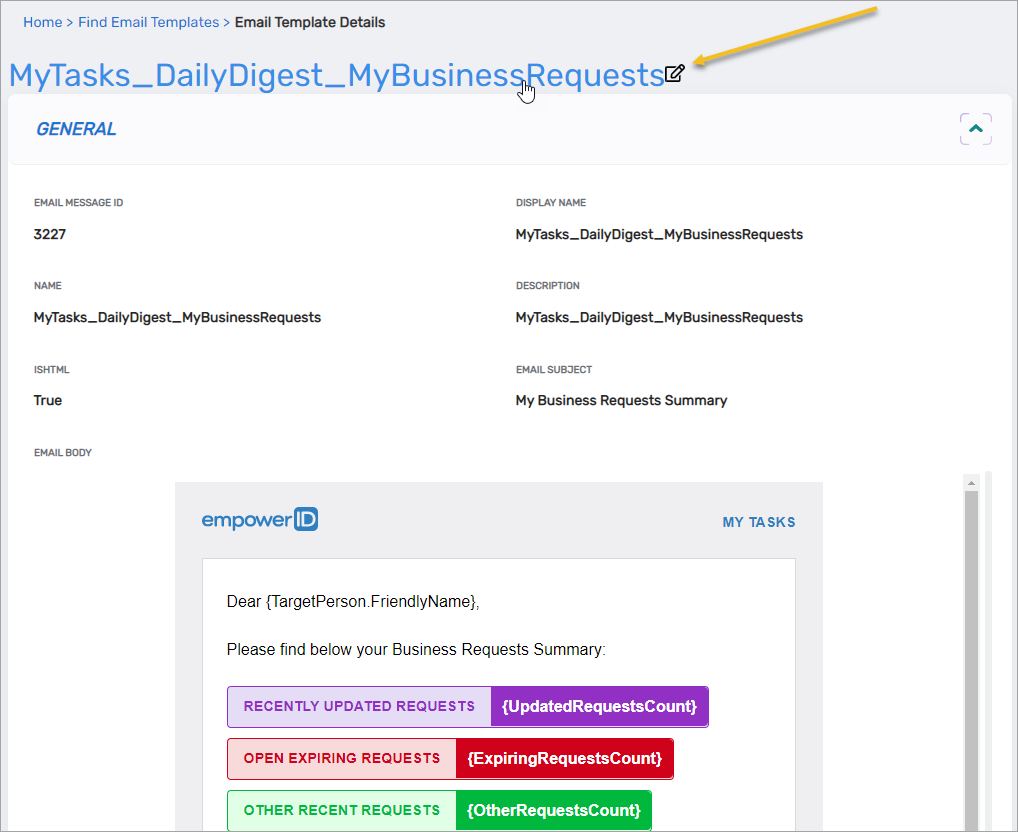
This opens the template editor where you can modify the email subject, HTML content, and view available wildcard tokens.
Wildcard Tokens
Email templates use wildcard tokens (text enclosed in braces) to dynamically insert data at runtime. For example, {TargetPerson.FriendlyName} inserts the display name of the person receiving the notification.
Available tokens vary by template based on the report type. The tokens correspond to properties of Business Request objects, person records, and data tables generated by the report.
Common tokens for the MyTasks_DailyDigest_MyBusinessRequests template:
{TargetPerson.FriendlyName}– Display name of the person receiving the email{UpdateRequestsDisplay}– Section displaying updated requests{UpdatedRequestsCount}– Number of updated requests{UpdatedRequestsDataTable.RowX.Column1}– Column data from updated requests table{UpdatedRequestsDataTable.RowX.Column2}– Column data from updated requests table{UpdatedRequestsDataTable.RowX.Column3}– Column data from updated requests table{UpdatedRequestsDataTable.RowX.Column4}– Column data from updated requests table{ExpiringRequestsDisplay}– Section displaying expiring requests{ExpiringRequestsCount}– Number of expiring requests{ExpiringRequestsDataTable.RowX.Column1}– Column data from expiring requests table{ExpiringRequestsDataTable.RowX.Column2}– Column data from expiring requests table{ExpiringRequestsDataTable.RowX.Column3}– Column data from expiring requests table{ExpiringRequestsDataTable.RowX.Column4}– Column data from expiring requests table{OtherRequestsDisplay}– Section displaying other requests{OtherRequestsCount}– Number of other requests{OtherRequestsDataTable.RowX.Column1}– Column data from other requests table{OtherRequestsDataTable.RowX.Column2}– Column data from other requests table{OtherRequestsDataTable.RowX.Column3}– Column data from other requests table{OtherRequestsDataTable.RowX.Column4}– Column data from other requests table{MyIdentityMicroserviceUrl}– URL to the My Identity application{CompanyName}– Organization name
Wildcard tokens vary by template and report type. To view all available tokens for a specific template, open the template in edit mode and review the tokens list displayed in the editor.
- Edit the template as needed and click Save.