Configure Notification Preferences
Notification preferences control whether end users can configure their own notification settings. When Allow User Config is enabled for a notification, users can disable it through the My Identity application. When disabled, the organizational setting is enforced for all users.
Configure Notification Preferences
-
On the navbar, expand Low Code/No Code Workflow and click Notification Policies.
-
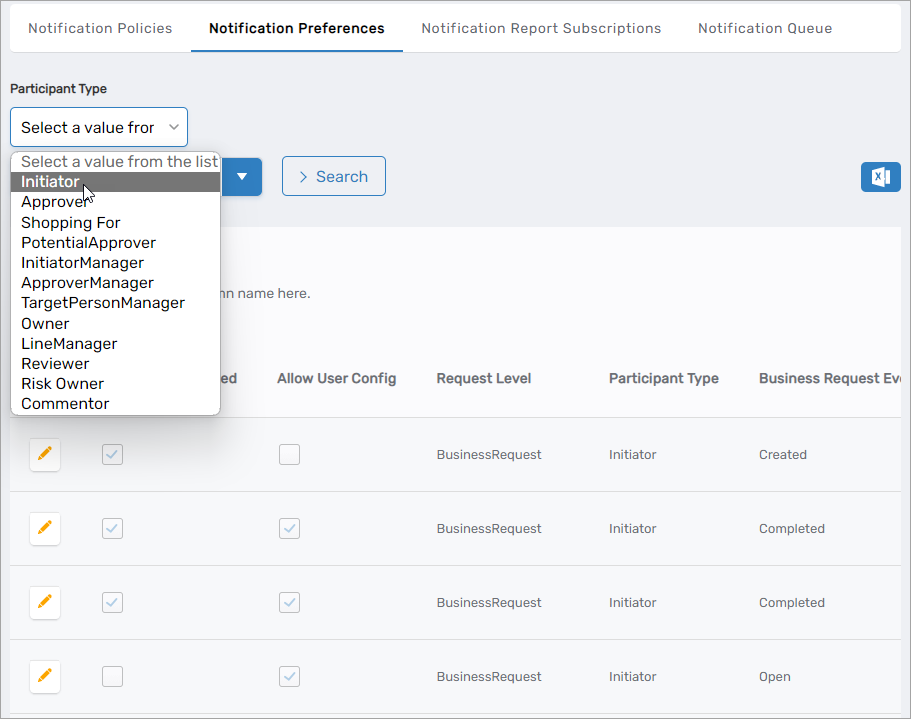
On the Notification Preferences tab, select a participant type from the Participant Type dropdown menu to view all available notifications for that category.
For example, select Initiator to see notifications related to users who submit requests in the IT Shop.
-
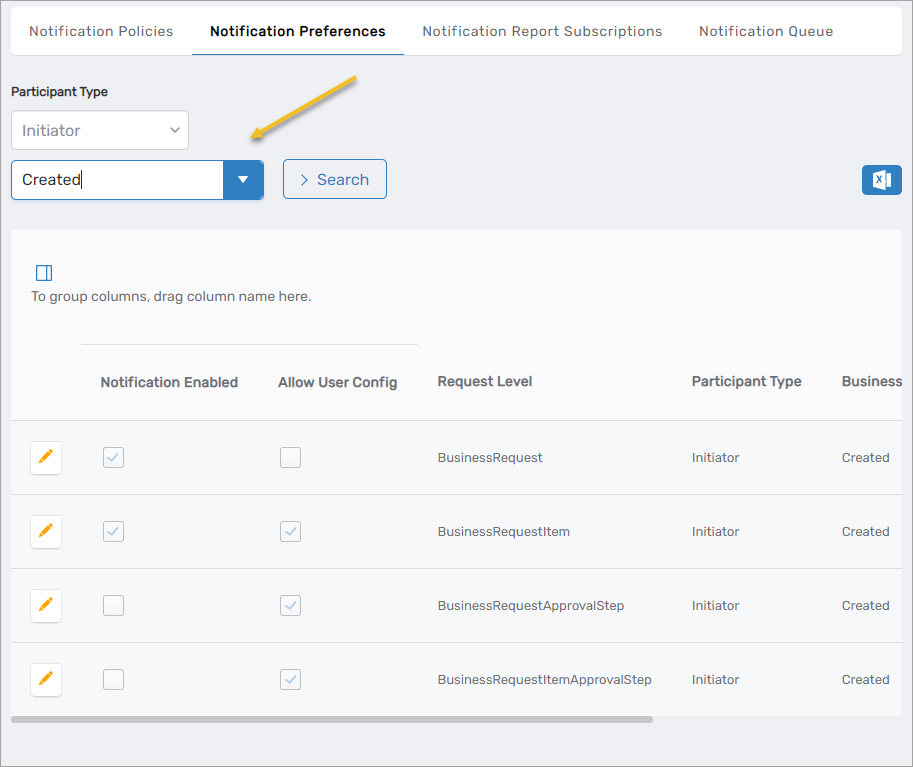
To filter results by Business Request Event, enter the event name in the search field and press Enter.
-
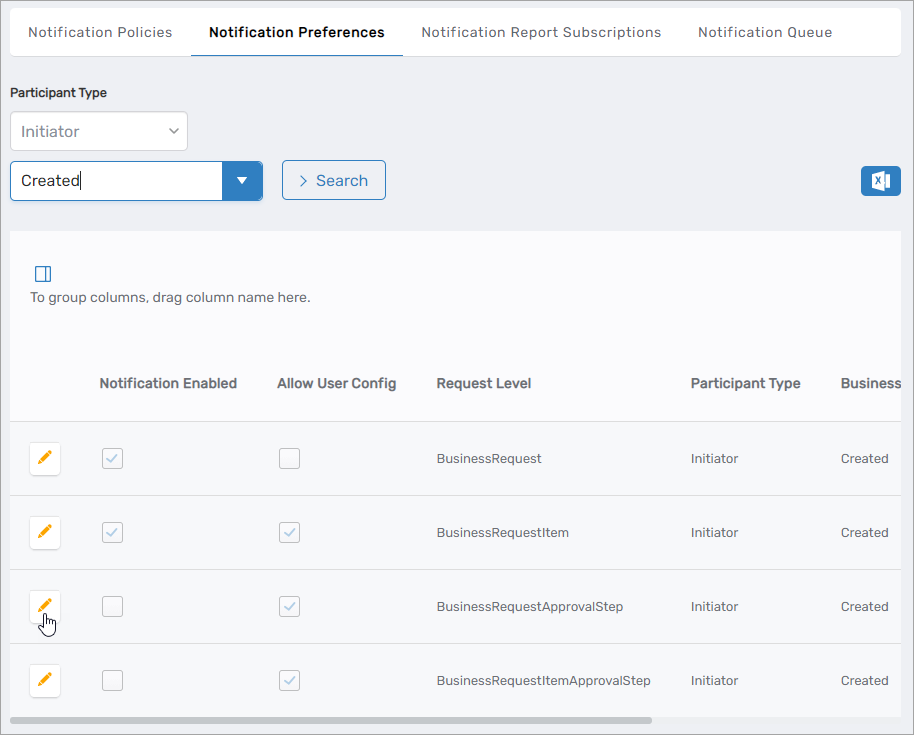
Click the Edit button beside the notification you want to configure.
-
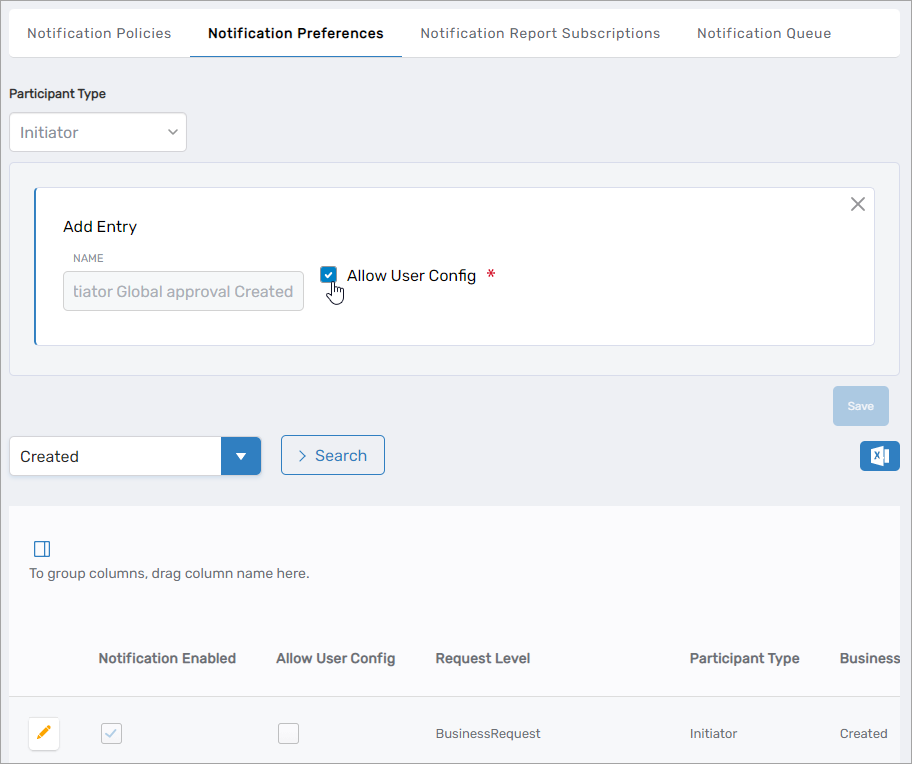
To allow end users to configure this notification themselves, enable the Allow User Config checkbox. To enforce the organizational setting for all users, disable the checkbox.
-
Click Save.
Understanding User Configuration
When Allow User Config is enabled:
- Users can access notification preferences in the My Identity application
- Users can disable notifications for their own account
- The organizational policy serves as the default, but users can override it
When Allow User Config is disabled:
- Users cannot modify notification settings in My Identity
- The organizational policy is enforced for all users
- This ensures critical notifications cannot be disabled by individual users