Subscribe Users to EmpowerID Alerts
EmpowerID alerts notify administrators and users of critical identity and system events, such as account lockouts, group membership changes, and job failures. These alerts are separate from Business Request notifications and are delivered via email to users who belong to specific alert-enabled Management Roles.
Alert-Enabled Management Roles
The following out-of-the-box Management Roles are configured to receive specific alert types:
| Management Role | Description |
|---|---|
| AD Account Locked Out Notifications | Notifies users when their Active Directory account becomes locked. |
| Group Membership Change Alerts | Notifies administrative users of group membership changes. |
| Group Owner Notifications | Notifies group owners of changes in group membership. |
| Person Enrolled Notifications | Notifies users when they enroll in Password Self-Service Reset. |
| Person Password Changed Notifications | Notifies users when their password is changed. |
To perform the procedures in this article, you must have the SaaS Admin Management Role.
Add Users to Alert Management Roles
To ensure users receive alert emails, assign them to the appropriate alert-enabled Management Role.
-
In the navbar, go to Role Management > Management Roles.
-
Select the All Roles tab.
-
Search for the Management Role associated with the alert type.
For example, search for Group Owner Notifications to subscribe users to group ownership alerts.
-
Click the Management Role link for the role.
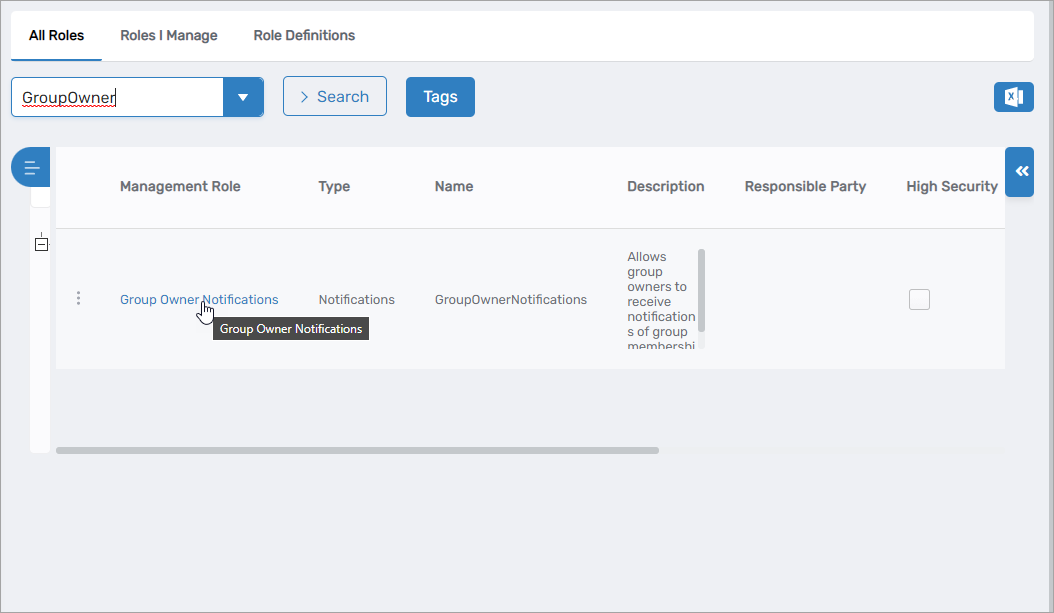
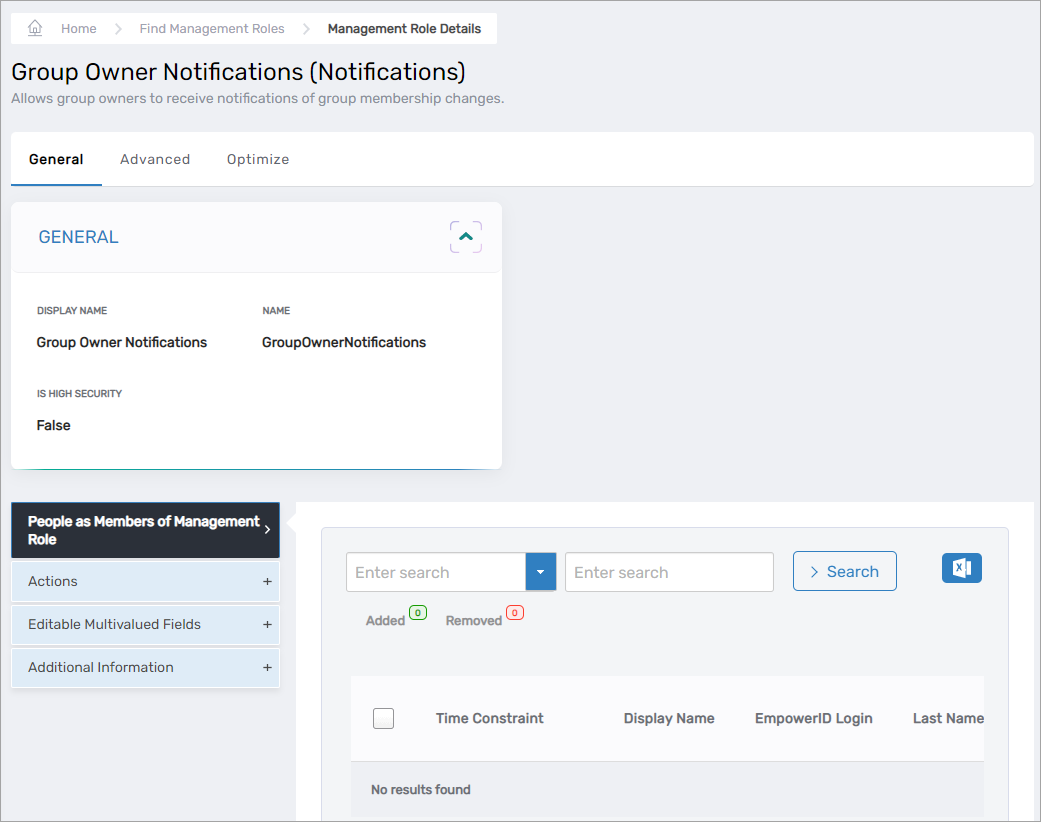
This opens the View One page for the selected Management Role.
-
On the View One page, expand the People as Members of Management Role accordion.
-
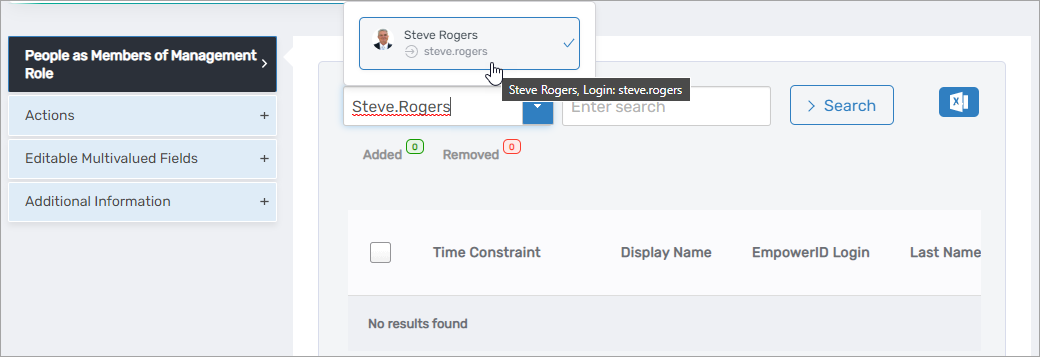
In the search field on the left, enter the name of the person you want to add, then click their name in the results.
-
Repeat Step 6 to add additional people.
-
Click Submit to save the changes.
Users assigned to the Management Role will now receive email alerts for the associated event type.
Configure Job Failure Alert Threshold
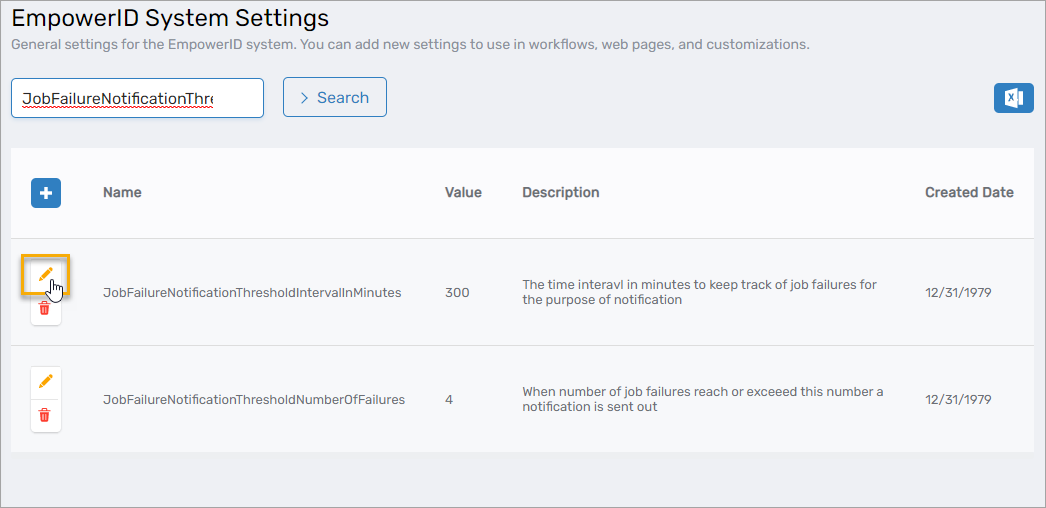
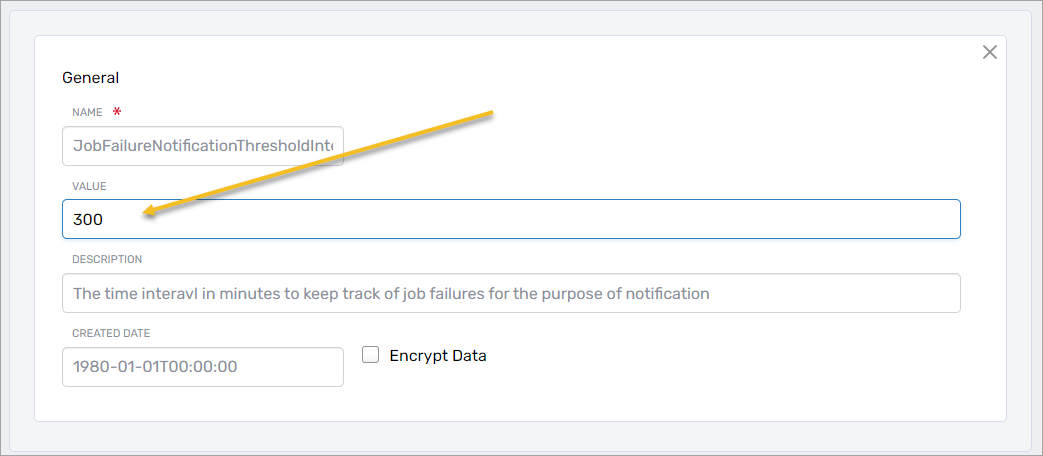
EmpowerID sends job failure alerts to administrators when scheduled jobs fail to execute. The JobFailureNotificationThresholdIntervalInMinutes system setting controls the minimum time interval between successive job failure notifications. Adjusting this threshold helps reduce alert fatigue while ensuring administrators are notified of critical failures.
-
In the navbar, navigate to Infrastructure Admin > EmpowerID Servers and Settings > EmpowerID System Settings.
-
In the EmpowerID System Settings page, search for JobFailureNotificationThresholdIntervalInMinutes.
-
Click the Edit button next to the setting.
-
In the Value field, enter the desired number of minutes between notifications.
For example, enter 60 to limit job failure notifications to once per hour for the same job.
-
Click Save to apply the new setting.