No Code Flows Overview
No Code Flows is an event-driven automation framework for designing, managing, and automating business process workflows without coding. Built on a component-based architecture, No Code Flows uses predefined elements that connect stages of a business process—from event triggers through approval mechanisms to task execution—creating transparent, auditable automation that adapts to changing business requirements.
This article explains the core components, execution architecture, and relationships between the elements that comprise the No Code Flows framework.
The "If This, Then That" Principle
No Code Flows automates business processes using a simple logical pattern: If This, Then That.
Everyday examples:
- If a person leaves the company, then disable their accounts and revoke access
- If a new mailbox is discovered, then configure security controls and add to distribution lists
- If an account takeover is detected, then suspend the account and notify security teams
This declarative approach allows organizations to define automation rules in business terms rather than procedural code. The system translates these "if-then" rules into reliable, auditable workflows through four interconnected components:
- Events represent the "if" — the triggers that start the automation pipeline
- Policies provide routing logic — determining which workflows apply to which scenarios
- Definitions represent the "then" — the blueprints of actions to execute
- Items define the specific actions — the individual tasks within each workflow
By separating trigger conditions from execution logic, organizations can build sophisticated automation that remains transparent, flexible, and auditable.
Why No Code Flows
Traditional workflow automation creates operational challenges that impact security, agility, and compliance.
Security gaps - Custom code increases attack surface and requires separate security assessments for each workflow implementation.
Lack of agility - Coded workflows create barriers to rapid change, making it difficult to adapt to evolving business requirements without developer intervention.
Poor visibility - Custom scripts become "black boxes" where tracking who changed what, when, and why becomes a critical compliance failure.
No Code Flows addresses these challenges through a declarative, component-based architecture where organizations configure what should happen rather than coding how to execute it. The queue-backed execution model provides reliability and scalability, while the separation of business logic (policies) from execution logic (definitions) supports flexible adaptation to changing requirements.
Architecture Overview
No Code Flows implements an event-driven automation model where triggers initiate workflows through a series of interconnected components. The architecture separates configuration (what should happen) from execution (how it happens), allowing organizations to build complex workflows by assembling pre-built, tested components.
Component relationships:
- Flow Events serve as triggers that initiate the automation pipeline
- Flow Policies act as routing rules that determine which workflows to execute based on scope criteria
- Flow Definitions function as blueprints containing the sequence of actions
- Flow Items represent atomic, reusable actions within the workflow
- Business Requests provide trackable execution records for audit and compliance
Core Components
No Code Flows consists of interconnected components organized into two categories: configuration components that define automation logic, and runtime components that handle execution.
Configuration Components
These components define the automation logic and are configured by administrators before workflows execute.
Flow Events
Flow Events are triggers that start the automation pipeline. They act as the starting point for any workflow, initiating business processes based on system events or external triggers. For instance, when an employee's status changes to terminated, a Person Leaver event is triggered, which initiates offboarding workflows such as disabling accounts and removing access.
When an event occurs, it is added to the Flow Event Inbox where it awaits processing. The Business Request Event Inbox Processor (event inbox processor) evaluates all Flow Policies that reference that event type. EmpowerID includes 18 default shipping Flow Events for common identity lifecycle and security scenarios. Organizations can create custom Flow Events to extend automation to organization-specific scenarios or external system integrations.
Common Flow Event examples:
- Person Leaver — Triggered when an employee or contractor's status changes to terminated. Organizations typically configure policies to disable accounts, remove group memberships, archive emails, and revoke access to resources.
- Mailbox Discovered — Triggered when a new mailbox is detected during system discovery. Organizations typically configure policies to perform verification processes, add the mailbox to distribution lists, and set up security controls.
- Account Takeover — Security-related trigger indicating potential unauthorized access. Organizations typically configure policies to suspend accounts, notify security teams, and initiate investigation procedures.
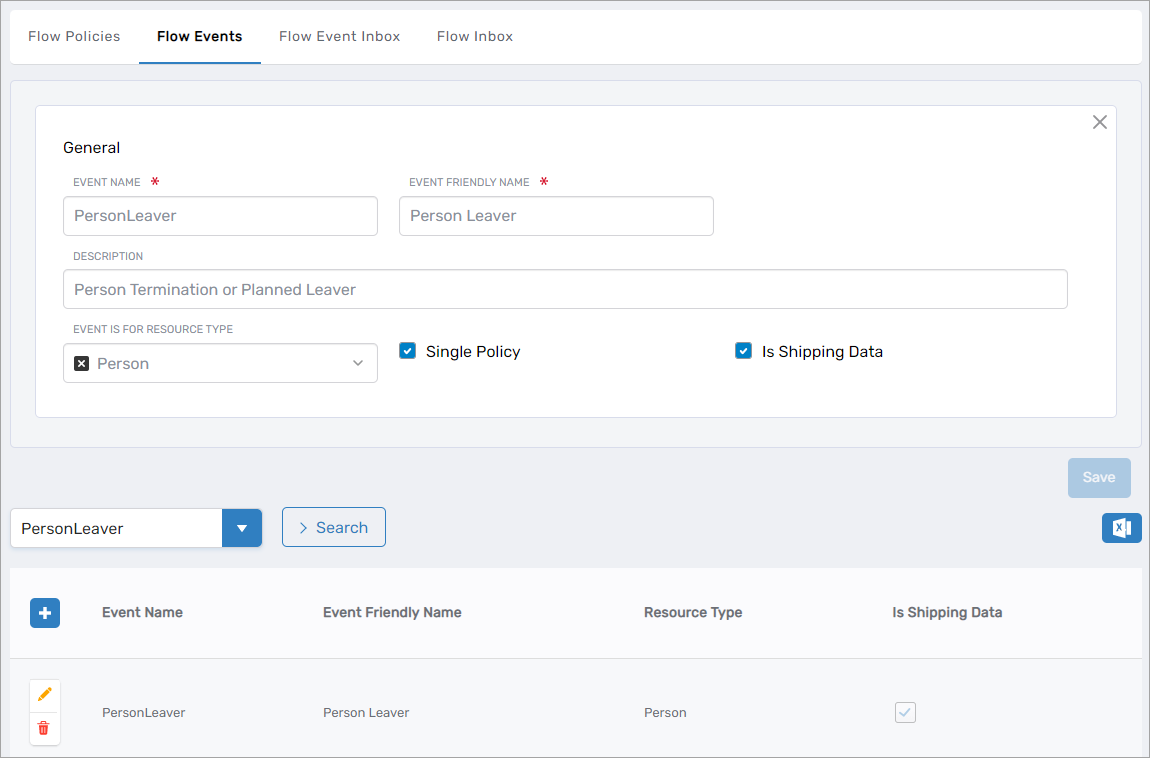 Figure 1: Flow Events page showing the Person Leaver event configuration
Flow Policies
Flow Policies connect Flow Events to Flow Definitions, serving as the routing logic that determines which automated workflows to trigger in response to specific events. Each Flow Policy specifies three critical elements:
- Which Flow Event triggers the policy (e.g., Person Leaver)
- Which Flow Definition to execute (e.g., Employee Offboarding Definition)
- Which scope criteria determine when the policy applies (e.g., full-time employees only)
Organizations create multiple Flow Policies for a single event to handle different scenarios based on scope. When an event occurs, the event inbox processor evaluates all policies for that event type and executes only those whose scope criteria match the current context.
Example: Person Leaver event with two policies
-
Policy 1: "Employee Offboarding Policy"
- Event: Person Leaver
- Scope: Full-time employees
- Flow Definition: "Employee Offboarding Definition"
- Result: Comprehensive offboarding with account archival, extended access retention, and manager notifications
-
Policy 2: "Contractor Offboarding Policy"
- Event: Person Leaver
- Scope: Contractors
- Flow Definition: "Contractor Offboarding Definition"
- Result: Immediate access revocation without archival procedures
When a full-time employee leaves, only Policy 1 fires because the scope matches. When a contractor leaves, only Policy 2 fires. The scopes are mutually exclusive, ensuring the correct workflow executes for each scenario.
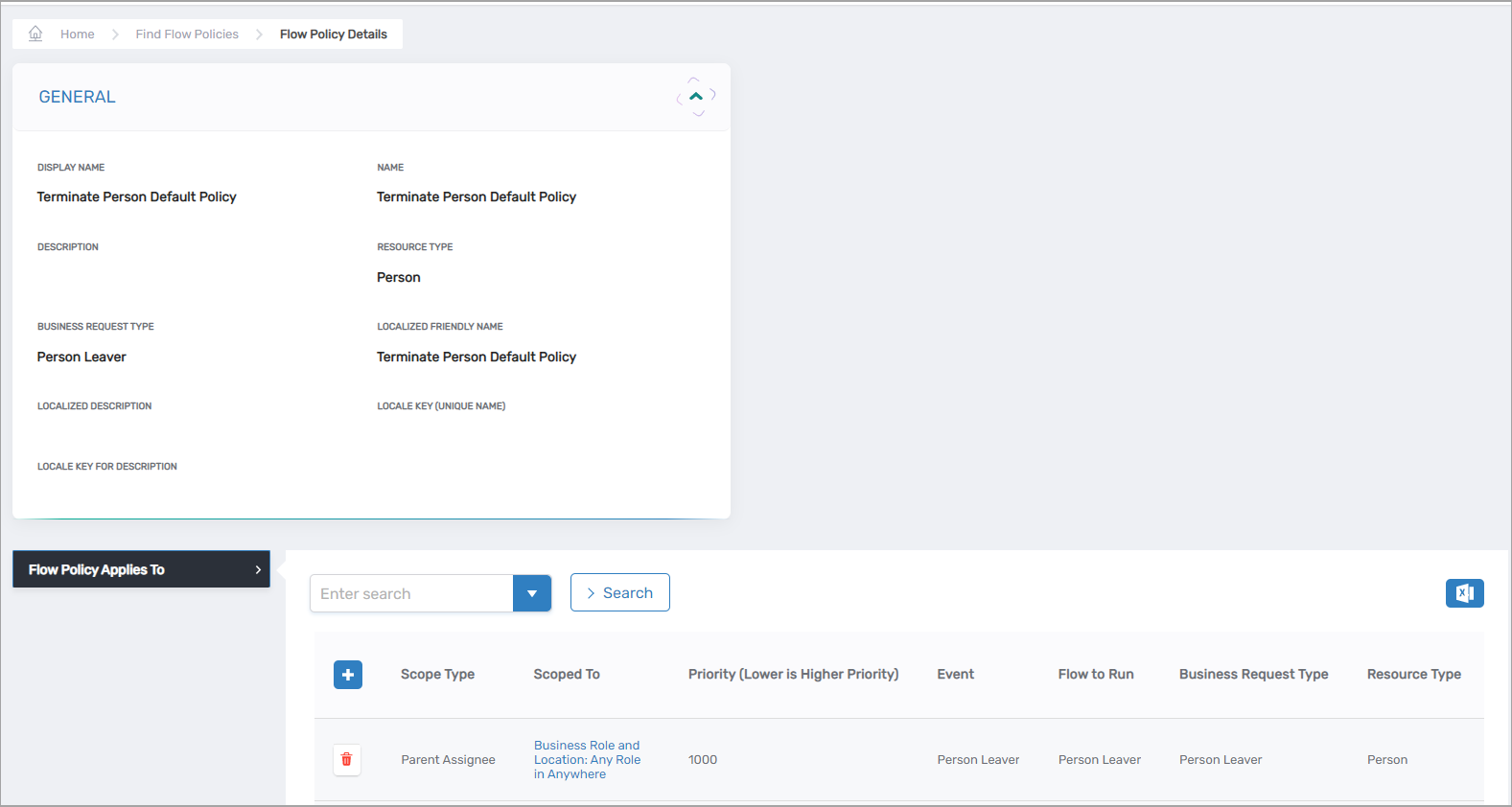 Figure 2: Flow Policy linking a Flow Event to its corresponding Flow Definition
Key principle: Flow Policies implement the business logic layer—determining what should happen based on organizational rules and scope criteria—while Flow Definitions specify how the automation executes. This separation allows organizations to change routing rules (which people get which workflows) without modifying the underlying workflow implementation (the actual steps performed).
Flow Definitions
Flow Definitions are containers that hold one or more Flow Items in a specific sequence. They serve as reusable templates for business processes, defining how Flow Items are orchestrated in response to Flow Events.
Flow Definitions are typically scenario-specific rather than generic. For example, organizations create separate definitions for different offboarding scenarios:
- "Employee Offboarding Definition" — Comprehensive process with extended timelines, archival procedures, and detailed notifications
- "Contractor Offboarding Definition" — Streamlined process focused on immediate access revocation
Each Flow Definition contains Flow Items configured with:
- Timing — When each action executes (immediate, delayed, or scheduled)
- Dependencies — Which items must complete before others begin
- Approval requirements — Whether human approval is needed before execution
- Execution order — The sequence in which items are processed
Example: Employee Offboarding Definition
- Disable the person's account (execute immediately, no approval required)
- Send manager notification (execute immediately after item 1 completes)
- Remove group memberships (execute after 24 hours, no approval required)
- Archive the mailbox (execute after 48 hours, no approval required)
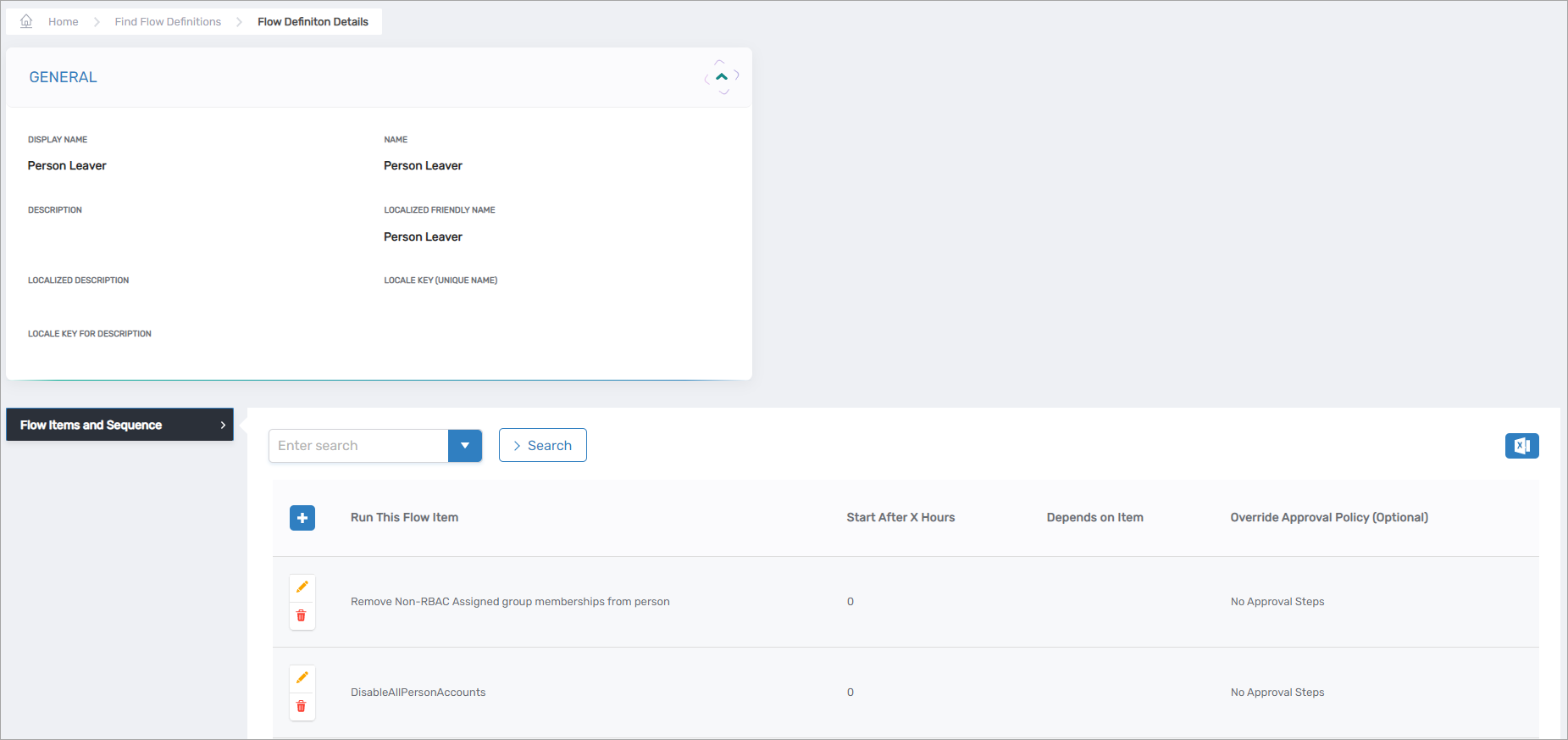 Figure 3: Flow Definition showing multiple Flow Items and their execution sequence
This orchestration capability allows organizations to build complex, time-sensitive workflows without writing code. The Flow Definition controls the "how"—the precise sequence, timing, and dependencies that ensure the business process executes correctly.
Flow Items
Flow Items are specific tasks or actions performed within a Flow Definition. Each Flow Item is configured through three key parameters that define what action to take, where to apply it, and which resources to affect:
| Parameter | Purpose | Example |
|---|---|---|
| Item Type Action | Specifies the exact task to execute | "Bulk Remove Person Group Membership", "Person Disable" |
| Item Scope Type | Determines the range of resources the action affects | "All Accounts for Person", "All Non-RBAC Group Accounts" |
| Item Collection Query | SQL statement that retrieves the specific resources to target | Query to retrieve all user accounts owned by a person |
Together, these parameters create a flexible, reusable action. The same Item Type Action can be combined with different Item Scope Types to handle various scenarios without creating duplicate workflows.
Example: Flow Items in Employee Offboarding Definition
Flow Item 1: Disable Account
- Item Type Action: "Person Disable"
- Item Scope Type: "All Accounts for Person"
- Item Collection Query: Retrieves all active accounts owned by the person
- Timing: Execute immediately
- Approval: No approval required
Flow Item 2: Remove Non-RBAC Groups
- Item Type Action: "Bulk Remove Person Group Membership"
- Item Scope Type: "All Non-RBAC Group Accounts"
- Item Collection Query: Retrieves all non-RBAC group memberships for the person
- Timing: Execute after 48 hours
- Approval: No approval required
Flow Item 3: Send Manager Notification
- Item Type Action: "Send Email"
- Item Scope Type: "Person's Manager"
- Item Collection Query: Retrieves the person's direct manager
- Timing: Execute immediately
- Dependency: Waits for Flow Item 1 (Disable Account) to complete
- Approval: No approval required
Each Flow Item operates independently but can be configured with timing delays and dependencies on other items within the same definition, enabling sophisticated orchestration patterns.
Reusability principle: The separation of action (Item Type Action) from scope (Item Scope Type) dramatically simplifies workflow management. For example, the "Remove Account from Group" action can be reused with different scopes:
- "All Non-RBAC Groups" for standard offboarding
- "SAP-Specific Groups" for SAP account cleanup
- "Application Responsible Parties" for application ownership changes
This eliminates the need to create dozens of similar workflows, ensuring consistent execution while reducing configuration effort.
How Components Connect
The four configuration components work together through explicit references that form the complete automation chain. Understanding these connections is essential to grasping how No Code Flows translates business rules into automated workflows.
Events Enter the System
When a triggering condition occurs in the system (such as an employee's status changing to "terminated" in the HR system), a Flow Event is created and added to the Event Inbox queue. The event contains contextual information about what happened—for example, which person left, their employment type, their location, and when the termination occurred.
Policies Match Based on Scope
Each Flow Policy is configured with:
- Event Type: Which Flow Event triggers this policy (e.g., "Person Leaver")
- Scope Criteria: Rules that determine when this policy applies (e.g., "Employment Type = Full-time Employee")
- Flow Definition: Which workflow to execute when both the event and scope match (e.g., "Employee Offboarding Definition")
When the event inbox processor processes an event from the Event Inbox, it evaluates all Flow Policies that reference that event type. For each policy, the processor checks whether the scope criteria match the event's context.
Example: Person Leaver event for John Smith (full-time employee)
The system evaluates two policies:
-
Policy 1: Event = "Person Leaver", Scope = "Employment Type = Full-time", Definition = "Employee Offboarding Definition"
- Evaluation: Event matches ✓, Scope matches ✓ → Policy fires
-
Policy 2: Event = "Person Leaver", Scope = "Employment Type = Contractor", Definition = "Contractor Offboarding Definition"
- Evaluation: Event matches ✓, Scope does NOT match ✗ → Policy does not fire
Only Policy 1 executes because John Smith is a full-time employee. The scope criteria ensure that each person receives the appropriate workflow based on their characteristics.
Definitions Orchestrate Items
Once the event inbox processor identifies which Flow Definitions to execute, a Flow Inbox record is created for each matching definition. When the Flow Inbox processor claims these records, it generates a Business Request containing all the Flow Definition's Flow Items as executable tasks.
The Flow Definition acts as the blueprint that orchestrates multiple Flow Items into a cohesive process. It specifies:
- Which Flow Items to execute
- The sequence in which items execute
- Timing delays for each item (e.g., "wait 48 hours before executing")
- Dependencies between items (e.g., "item 3 cannot start until item 1 completes")
- Approval requirements for each item
Items Define Specific Actions
Each Flow Item within the Flow Definition specifies:
- What action to take (Item Type Action): The specific operation to perform
- What resources to target (Item Scope Type): The category of resources affected
- Which specific resources (Item Collection Query): The SQL query that retrieves exact resources
When the Business Request is created, each Flow Item becomes a Business Request Item—an individual executable task with all parameters defined and ready for the Fulfillment Engine.
Complete Chain in Action
Here's how all components work together for a Person Leaver event:
- Event: Person Leaver event occurs for John Smith (full-time employee)
- Policy Match: "Employee Offboarding Policy" fires because scope = "full-time employee"
- Flow Inbox Record: A record referencing "Employee Offboarding Definition" is queued for execution
- Flow Items: Three items are configured in the definition:
- Item 1: Disable Person Account (immediate)
- Item 2: Send Manager Notification (immediate, depends on Item 1)
- Item 3: Remove Non-RBAC Group Memberships (after 48 hours)
- Business Request: "Offboard John Smith" is created with three Business Request Items
- Execution: Each item executes according to its timing and dependencies
This explicit linking structure provides complete transparency. Administrators can trace exactly which events trigger which policies, which policies invoke which definitions, and which definitions contain which items—creating a clear audit trail from trigger to execution.
Runtime Components
These components are generated automatically during workflow execution and provide tracking, approval routing, and fulfillment capabilities.
Business Requests
When a Flow Definition is processed from the Flow Inbox, the system generates a Business Request. This represents a formal request to execute the actions defined in the Flow Definition and serves as the trackable execution record for the entire workflow.
Purpose: Business Requests convert a sequence of configured actions into a single, auditable unit of work. Instead of tracking individual script executions across multiple systems, auditors can review Business Requests to see the complete workflow execution history—including which event triggered the workflow, when it executed, which items completed successfully, any approval decisions made during the process, and the final outcome of each action.
Example: When a Person Leaver event occurs for an employee, the system creates a Business Request titled "Employee Offboarding for John Smith." This request contains all the Flow Items from the Employee Offboarding Definition as individual Business Request Items, each tracking its own execution status, timing, and results.
Business Request Items
Business Request Items are the individual tasks generated from Flow Items within a Business Request. Each item represents one discrete action to be performed, holding data such as:
- Which action to execute (from the Item Type Action)
- Which resources to target (from the Item Scope Type and Item Collection Query)
- When to execute (timing configuration from the Flow Item)
- Whether approval is required
- Which items must complete first (dependencies)
- Current execution status (pending, in progress, completed, failed)
Execution model: Business Request Items are processed independently in the order and timing defined by the Flow Definition. If an item is configured with a delay (e.g., "execute after 48 hours"), it waits in queue until the delay period expires. If an item depends on another item's completion, it remains pending until the dependency is satisfied.
This dependency management supports complex orchestration patterns—such as sending a manager notification only after account disablement succeeds, or waiting 48 hours before removing group memberships—while maintaining complete auditability for each discrete action.
Example: Business Request Items for "Employee Offboarding for John Smith"
-
Item 1: Disable John Smith's account
- Status: Completed at 2:15 PM
- Result: Account successfully disabled
-
Item 2: Send notification to Jane Doe (manager)
- Status: Completed at 2:16 PM (after Item 1 completed)
- Result: Email sent successfully
-
Item 3: Remove John Smith from all non-RBAC groups
- Status: Scheduled for execution in 48 hours
- Result: Pending
Approval Flow Policies
Approval Flow Policies route Business Request Items to appropriate approvers based on organizational rules. For example, when a person changes locations, the request might route to their manager for approval before resource allocation occurs.
Flexibility: Items can be configured to execute automatically without approval when appropriate, supporting both human-gated and fully automated workflows depending on business requirements. This allows organizations to require approval for sensitive actions (such as granting privileged access) while automating routine tasks (such as standard offboarding procedures).
Each Flow Item can specify whether it requires approval, and if so, which approval policy to use. This item-level control enables mixed workflows where some actions execute immediately while others wait for human authorization.
Flow Execution Process
No Code Flows uses a queue-based execution pipeline to ensure reliability, scalability, and auditability. Events do not execute immediately; instead, they progress through a series of queues where business logic is applied, workflows are selected, and actions are tracked.
Execution steps:
-
An event occurs — A triggering condition is detected in the system (e.g., an employee's status changes to "terminated" in the HR system). The event contains contextual information such as the person's name, employment type, location, and termination date.
-
The event is added to the Event Inbox queue — Instead of executing immediately, the event enters a queue for processing. This queue-based approach ensures events are not lost if the system is temporarily busy or unavailable.
-
The event inbox processor evaluates scope criteria — The processor retrieves all Flow Policies that reference this event type (e.g., all policies for "Person Leaver" events). For each policy, it checks whether the policy's scope criteria match the event's context. For example:
- Policy 1 (Scope: "Employment Type = Full-time") → Checks if the person is a full-time employee
- Policy 2 (Scope: "Employment Type = Contractor") → Checks if the person is a contractor
Only policies whose scope criteria match will proceed to the next step. Typically, scope criteria are mutually exclusive, so only one policy fires per event.
-
Flow Inbox records are created for matching definitions — Each policy that matches generates a Flow Inbox record that references its associated Flow Definition. These records are queued for processing, creating another reliability checkpoint before execution begins.
-
The Flow Inbox processor generates Business Requests — The Flow Inbox processor claims records from the queue and generates a Business Request for each one. The processor uses the referenced Flow Definition as the blueprint, creating a Business Request that will contain all the actions to be performed.
-
The Business Request generates Business Request Items — The system reads all Flow Items from the Flow Definition and creates a corresponding Business Request Item for each one. Each item inherits its configuration from the Flow Item, including the action to perform, resources to target, timing requirements, and dependencies.
-
Business Request Items are sequenced — Items are organized according to the Flow Definition's timing configurations and dependencies. Items with "execute immediately" timing are marked ready for execution. Items with delays (e.g., "execute after 48 hours") are scheduled for future execution. Items with dependencies are marked as waiting for prerequisite items to complete.
-
Items requiring approval are routed to approvers — The system evaluates each Business Request Item to determine if approval is required. Items configured with approval requirements are routed to the appropriate approvers via Approval Flow Policies. Items configured for auto-approval proceed directly to execution.
-
Approved items are sent to the Fulfillment Engine — Upon approval or auto-approval, individual Business Request Items are sent to the Fulfillment Engine for execution. The engine performs the actual work—such as disabling accounts, removing group memberships, or sending notifications.
Queue-based advantages:
Reliability - Asynchronous queues prevent event loss if systems are temporarily unavailable. Events persist in queues until successfully processed, ensuring no workflow executions are lost due to infrastructure issues. If a component fails during processing, the queue system allows the work to be retried without losing track of what needs to be done.
Scalability - Centralized SQL-based queue processing handles high event volumes without performance degradation. The system processes events in batches using stored procedures, allowing it to scale efficiently as automation usage grows. Organizations can process hundreds or thousands of events per hour without impacting system responsiveness.
Auditability - Every step in the pipeline creates trackable records, providing complete visibility into workflow execution for compliance requirements. Auditors can trace an event from initial detection through policy matching, definition selection, item generation, approval routing, and final execution. Each transition between queues is logged with timestamps and context, creating a comprehensive audit trail that satisfies regulatory requirements and simplifies troubleshooting.
Key Benefits
No Code Flows delivers measurable operational benefits through its architectural design:
Separation of concerns - Flow Policies (business rules) are separate from Flow Definitions (execution logic). Organizations can change routing rules without modifying the underlying workflow, and vice versa. This dramatically reduces the scope and risk of configuration changes. For example, expanding an offboarding policy to cover contractors in additional locations requires only a policy scope change, not workflow modification. The workflow steps remain identical while the routing logic adapts to organizational changes.
Complete visibility - Every workflow execution creates a trackable Business Request containing all actions as line items. Auditors can review exactly what happened, when, and why without analyzing custom code or log files. This transparency satisfies compliance requirements and simplifies troubleshooting. When investigating why an account wasn't disabled during offboarding, administrators can review the Business Request to see which item failed, when it was attempted, and what error occurred—eliminating the guesswork inherent in debugging custom scripts.
Component reusability - Flow Items are atomic, tested actions that can be combined in different ways. The "Remove Account from Group" action works with multiple Item Scope Types, eliminating the need to create dozens of similar workflows. This reusability reduces configuration effort and ensures consistent behavior across all workflows. Organizations maintain a library of proven actions that can be assembled into new workflows without writing or testing new code.
Declarative configuration - Organizations define what should happen (disable accounts for leavers) rather than how to code it (SQL queries, API calls, error handling). The system handles implementation details through secure, tested processes. This approach eliminates common coding errors and security vulnerabilities associated with custom scripts. Business analysts can configure automation without developer assistance, dramatically reducing time-to-deployment for new processes.
Enterprise reliability - Queue-backed architecture ensures workflows survive system outages, process events at scale, and maintain execution state across infrastructure changes. Organizations can confidently automate critical security processes knowing the system will handle failures gracefully and maintain complete audit trails. If a downstream system is temporarily unavailable, queued items wait for retry rather than failing permanently, ensuring business processes complete even when dependencies experience disruption.
Next Steps
To build automated workflows with No Code Flows:
- Create Flow Definitions — Build workflow templates for your business processes
- Create Flow Items — Define specific actions for your workflows
- Create Flow Policies — Connect events to automated responses
- Email Flow Items — Configure automated email notifications