Create Flow Definitions
Flow Definitions are blueprints that define the sequence of actions (Flow Items) required for a specific business process. When the system processes a Flow Definition from the Flow Inbox, it generates a Business Request containing the configured Flow Items, which then execute according to their defined timing and dependencies. This article demonstrates creating a Flow Definition for employee offboarding.
Create a Flow Definition
-
Navigate to Low Code/No Code Workflow > No Code Flows.
-
From the Flow Definitions tab, click the New Flow Definition button (plus sign).
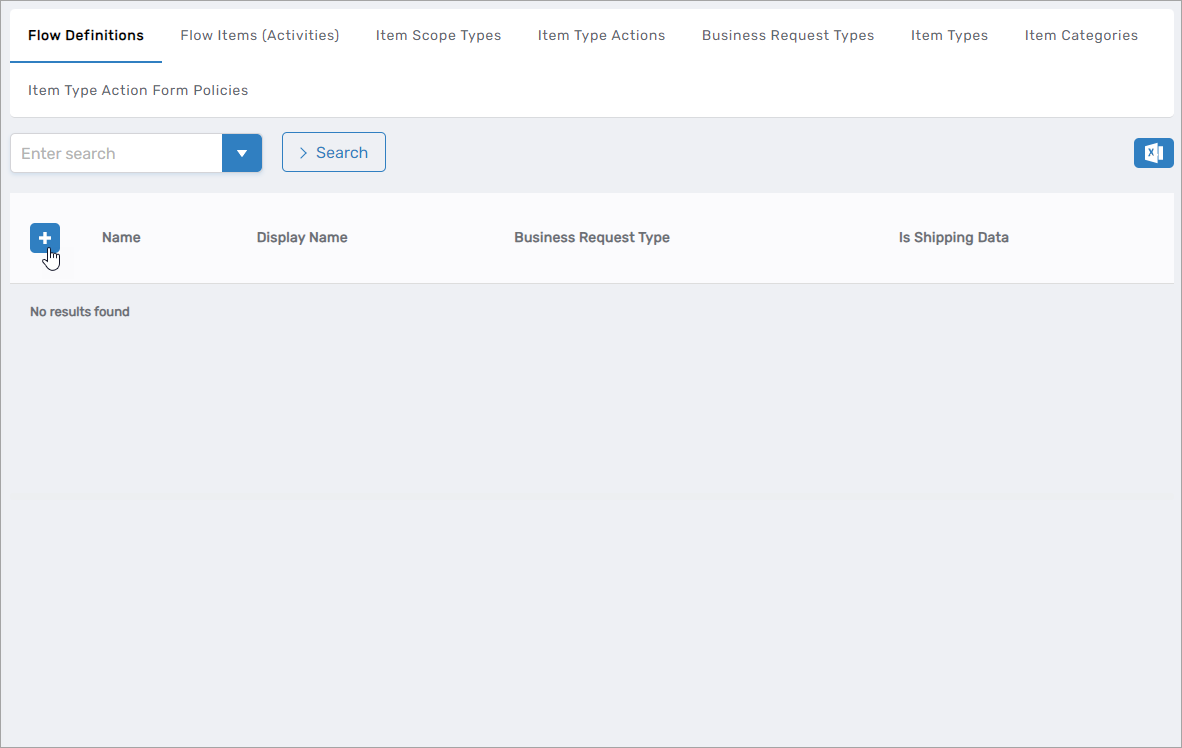
This opens the form for creating a new Flow Definition.
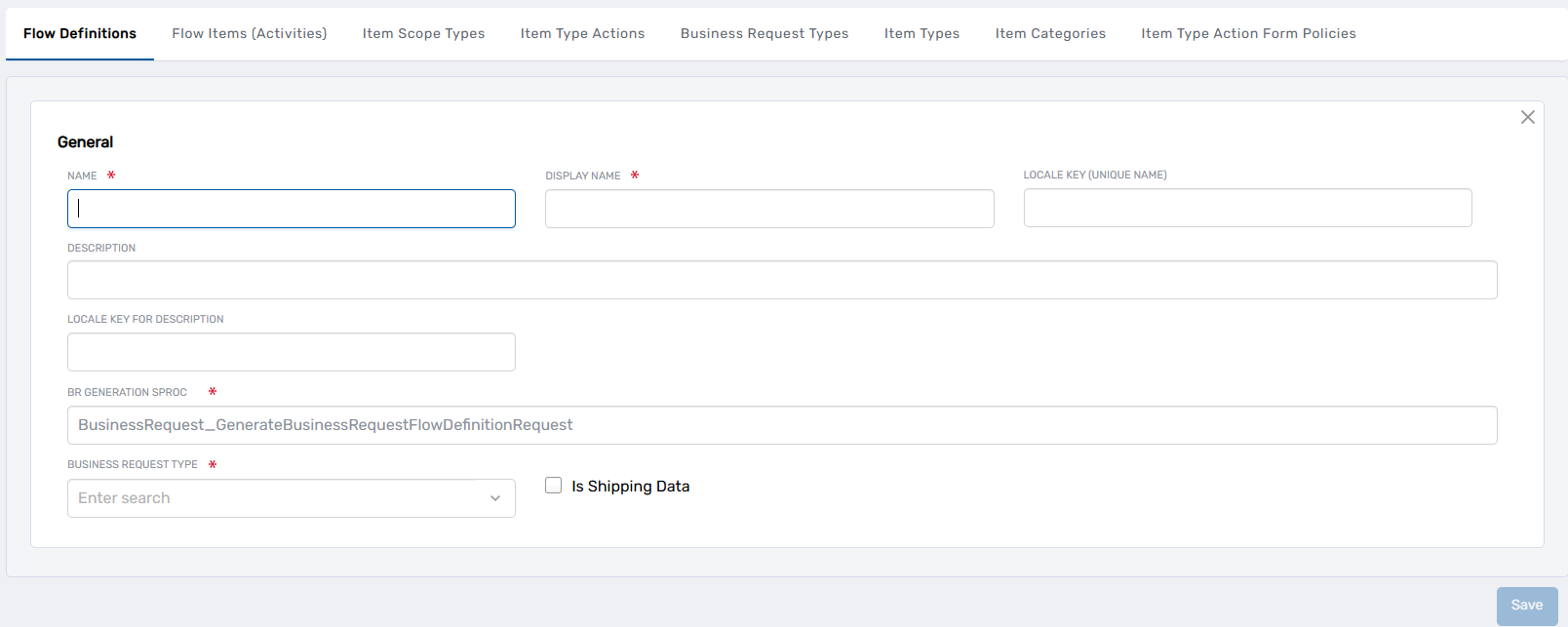
-
Enter the details for the Flow Definition:
Field Description Name Internal name for the Flow Definition (e.g., "Terminate Employee", "Employee Offboarding") Display Name Name displayed in the EmpowerID UI Locale Key (Unique Name) Optional: Locale key for translating the Flow Definition name into other languages. Leave blank if not using multi-language support. Description Description of the Flow Definition's purpose and the business process it automates (e.g., "Terminate any person identities that are employee types") Locale Key For Description Optional: Locale key for translating the description. Leave blank if not using multi-language support. BR Generation Stored Procedure Stored procedure that converts the Flow Definition into a Business Request. Use the default value: BusinessRequest_GenerateBusinessRequestFlowDefinitionRequestBusiness Request Type The type of Business Request this Flow Definition generates (e.g., "Person Leaver" for offboarding). This determines how the request appears in Business Request queues and reporting. -
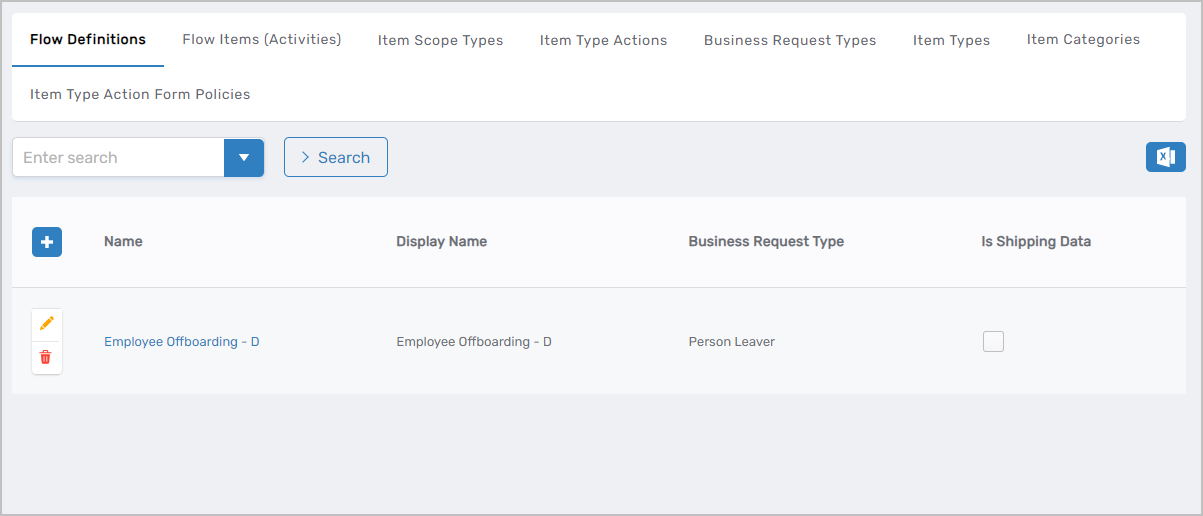
Click Save. The new Flow Definition appears in the Flow Definitions tab of the Find Business Request Flow page.
Next Steps
After creating the Flow Definition, add Flow Items to define the specific actions that execute when this definition runs. Flow Items must be created before you can add them to a Flow Definition.
See Create Flow Items for instructions on creating Flow Items and adding them to this Flow Definition.
To make the Flow Definition operational, create a Flow Policy that connects a Flow Event to this Flow Definition and defines when it should execute. See Create Flow Policies for instructions.
Related Articles
- Create Flow Items — Create the individual actions to add to Flow Definitions
- Create Flow Policies — Connect Flow Events to Flow Definitions
- No Code Flows Reference — Complete list of default Flow Items, Flow Events, and workflows
- Overview of No Code Flows — Understand the complete No Code Flows architecture