Create Flow Items
Flow Items are the individual, atomic actions inside a Flow Definition. Each Flow Item represents a single operation—such as "Person Disable" to disable a user account, "Remove Group Memberships" to revoke access, or "Send Email" to deliver notifications. Flow Definitions orchestrate multiple Flow Items together to create complete business processes. This article demonstrates creating Flow Items and adding them to Flow Definitions.
Create a Flow Item
-
Expand Low Code/No Code Workflow and click No Code Flows.
-
Select the Flow Items (Activities) tab and click the New Flow Item button (plus sign).
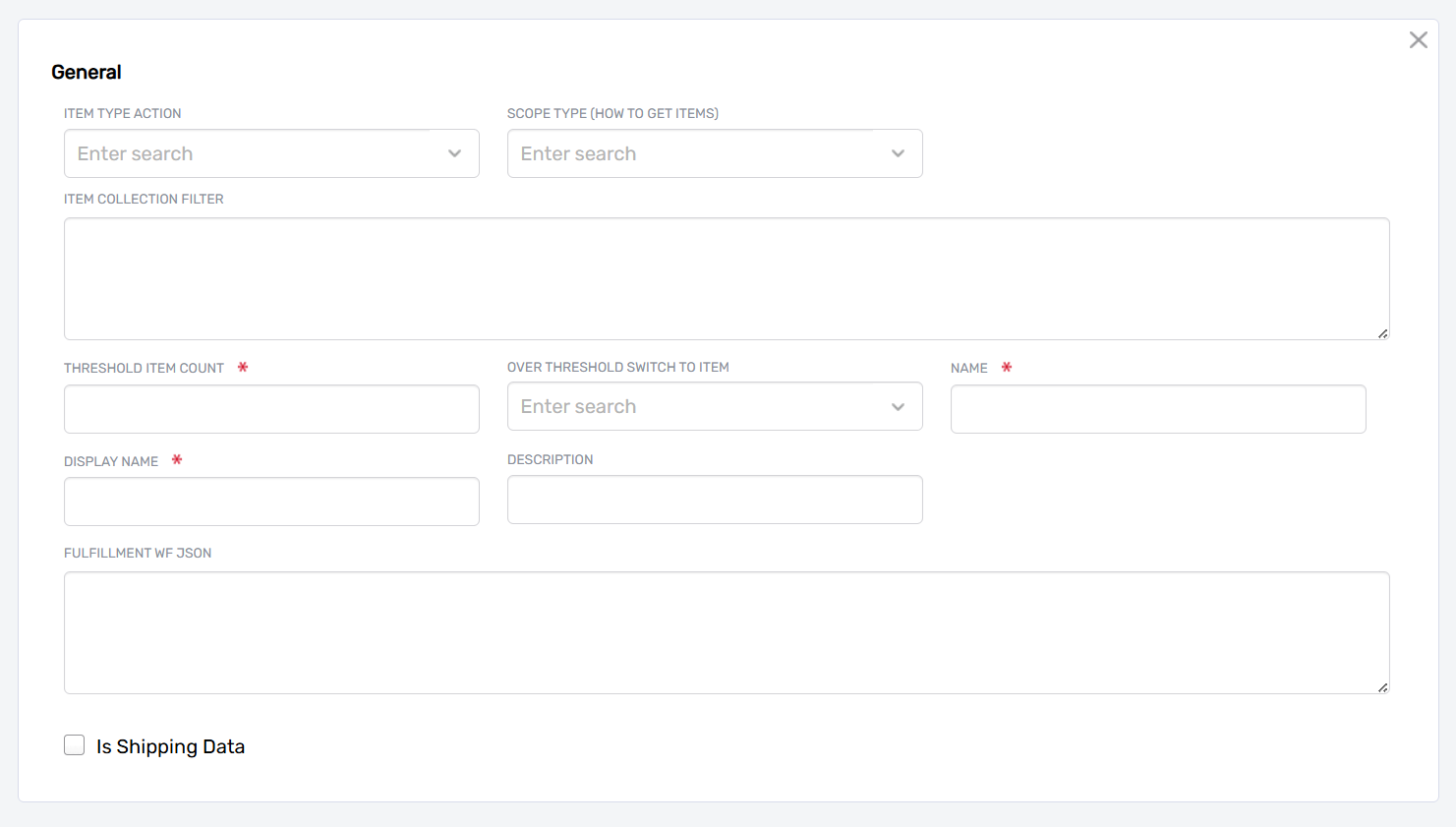
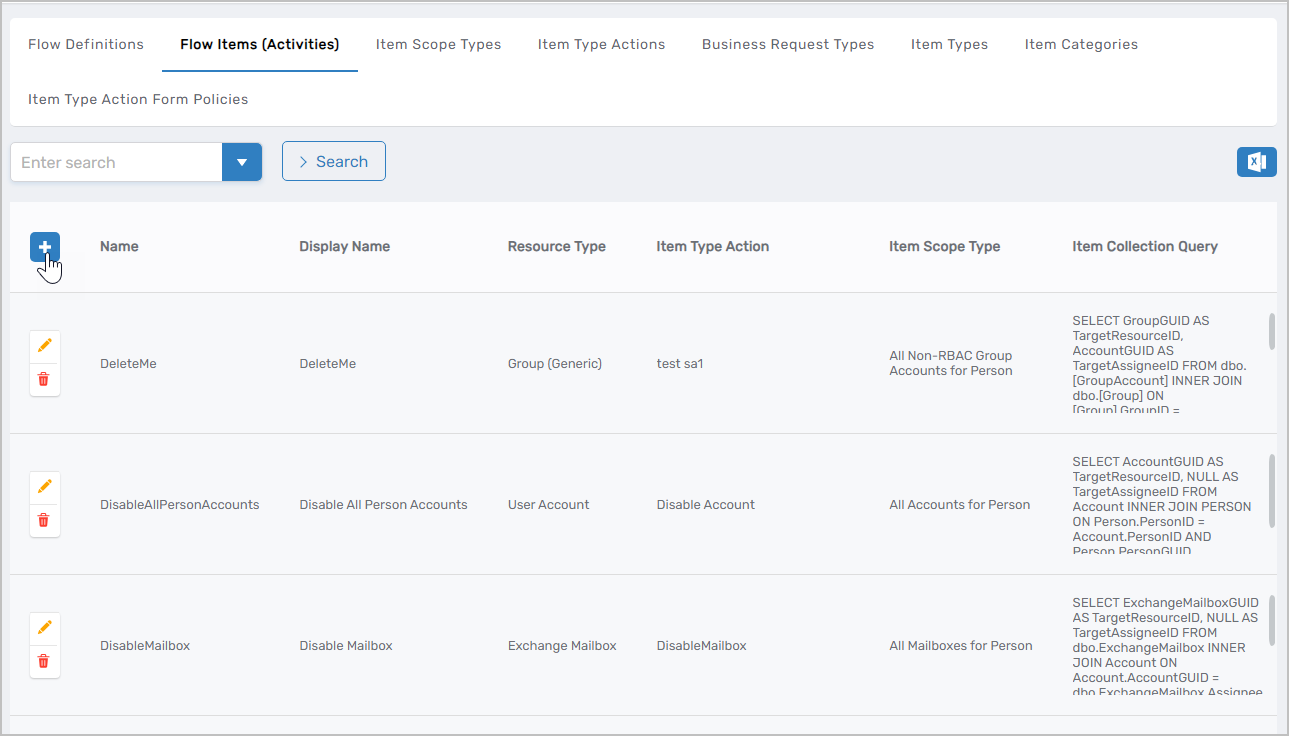 This opens the form for creating a new Flow Item.
-
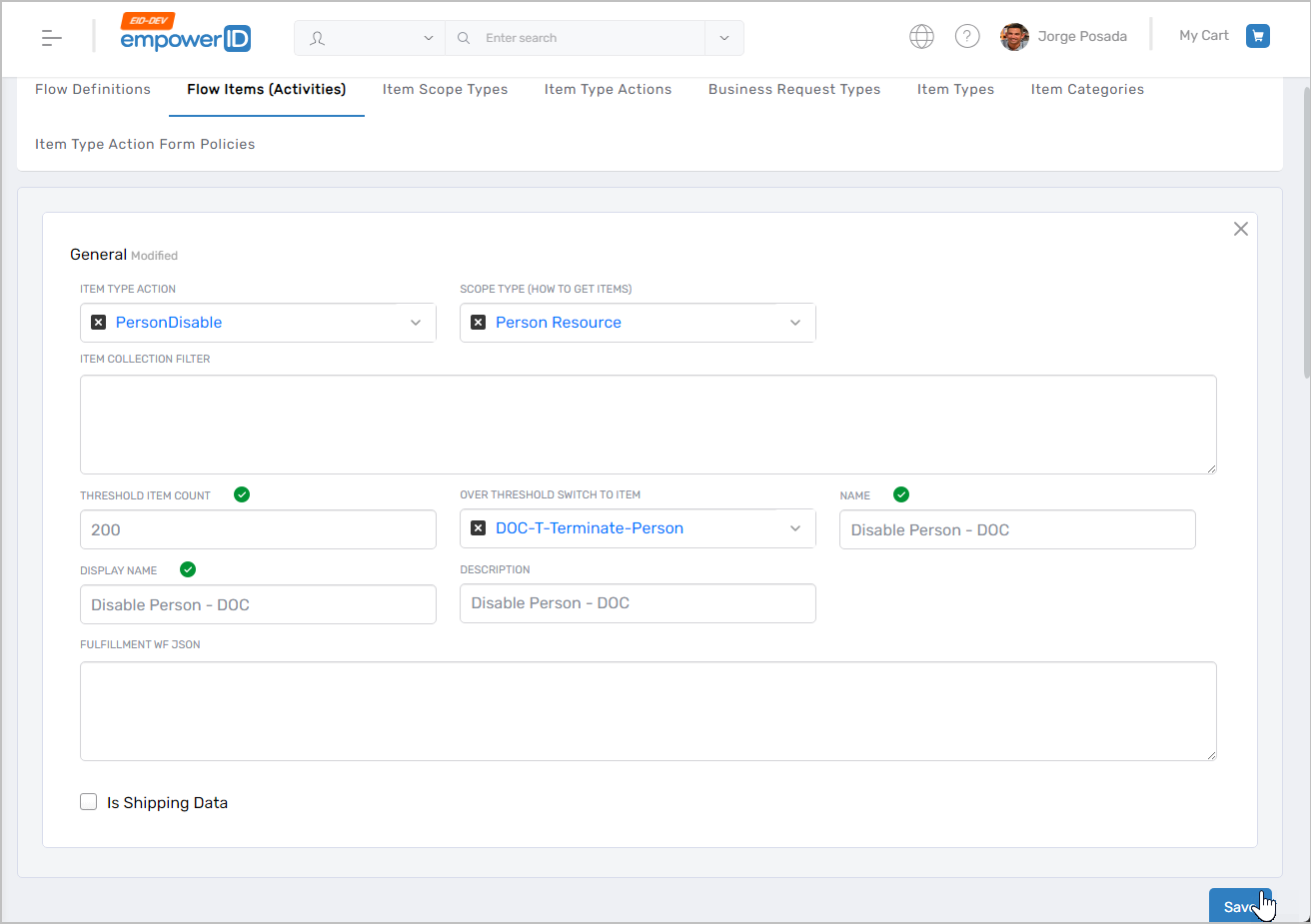
Enter the details for the Flow Item:
Field Description Item Type Action The system operation this Flow Item performs (e.g., "PersonDisable" to disable an EmpowerID Person account, "EmailPerson" to send notifications, "FWSendEmail" to send emails with templates) Scope Type (How to Get Items) The resource type this Flow Item acts upon (e.g., "Person Resource" for Person accounts, "Account Resource" for system accounts, "Person's Manager" for manager notifications) Item Collection Filter Optional query filter for limiting which items this Flow Item processes based on specific criteria Threshold Item Count Maximum number of items the system processes using this Flow Item. If the count exceeds this threshold, the system switches to the Flow Item specified in Over Threshold Switch to Item to handle large-scale operations differently. Set to 0 if not using threshold switching. Over Threshold Switch to Item Alternative Flow Item to use when the item count exceeds the threshold. This allows different processing logic for bulk operations. Name Internal name for the Flow Item (e.g., "Person Disable", "Notify Admin Team", "Email Manager") Display Name Name displayed in the EmpowerID UI Description Description of what this Flow Item does and when it should be used Fulfillment WF JSON Optional JSON configuration that provides parameters to the Flow Item's fulfillment workflow. For email Flow Items, specify the email template name here. For Flow Items that notify management roles, specify the role GUID and email settings. This JSON applies to all uses of this Flow Item unless overridden when adding the item to a Flow Definition. Is Shipping Data Marks objects in the EmpowerID Identity Warehouse as shipping data. For internal use only. Leave unchecked unless instructed otherwise. -
Click Save.
-
Repeat steps 2-4 to create any additional Flow Items needed for your workflows.
Add Flow Items to a Flow Definition
After creating Flow Items, add them to Flow Definitions to configure their execution sequence, timing, and dependencies. If you haven't created a Flow Definition yet, see Create Flow Definitions.
-
On the Flow Definitions tab, search for and select the Flow Definition where you want to add Flow Items.
-
Click the Name link for the definition.
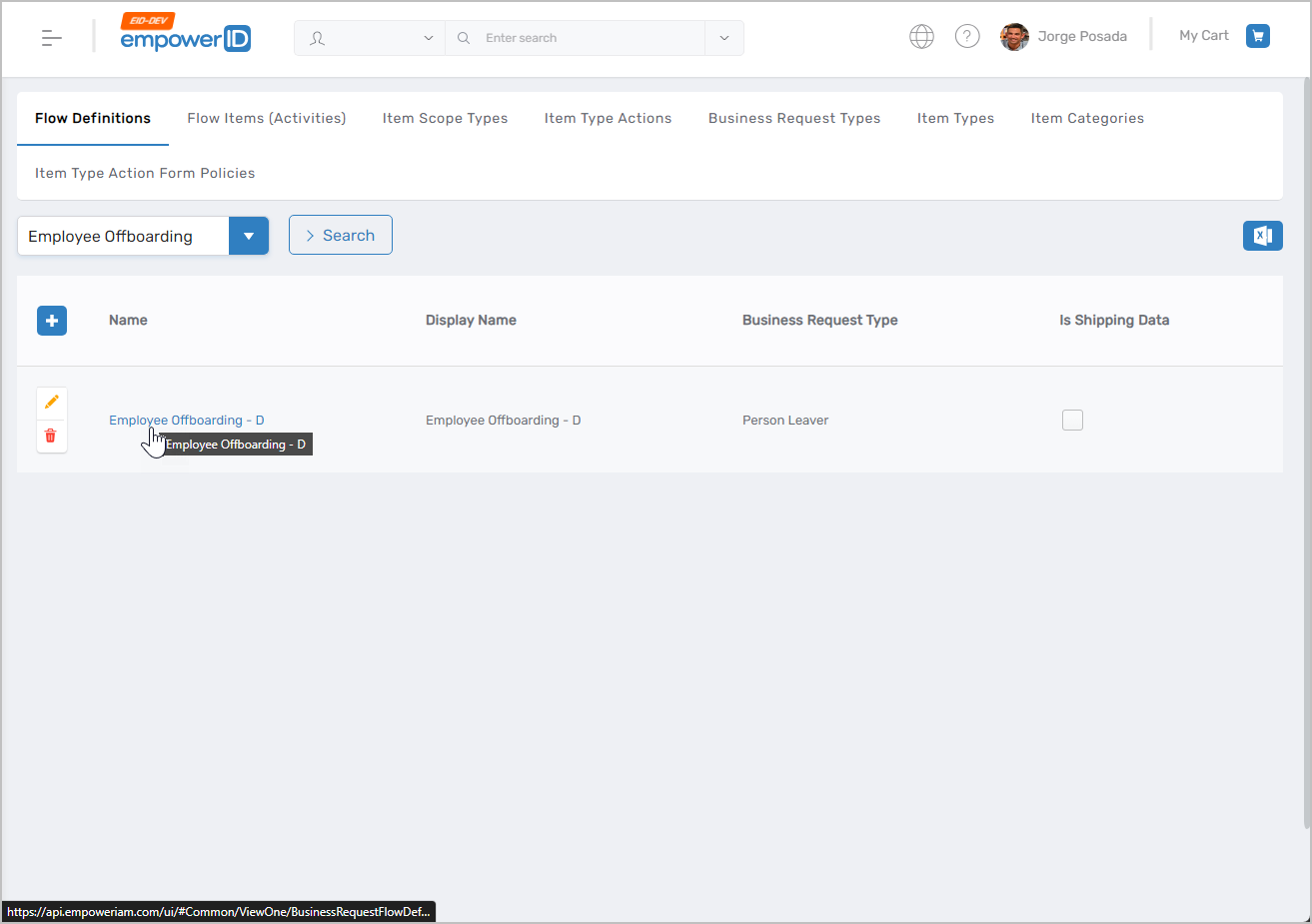 This opens the View One page for the definition.
 -
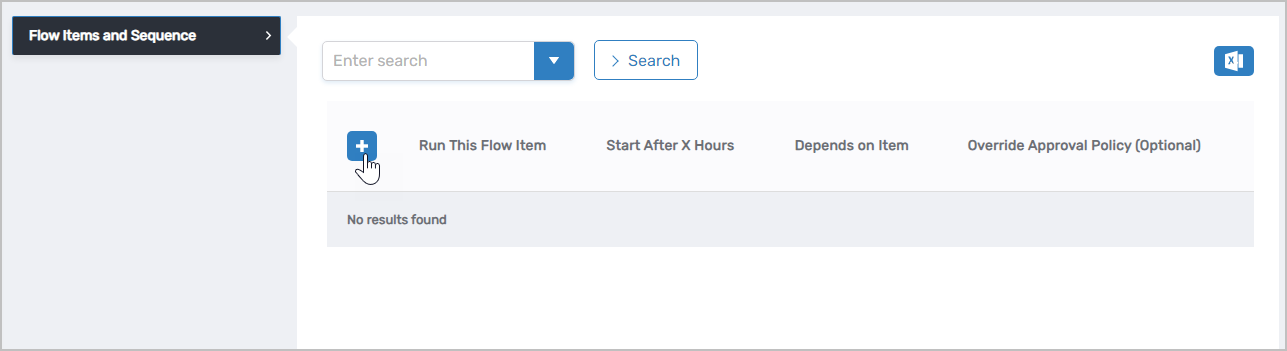
On the View One page, click the Add New button (plus sign) in the Flow Items and Sequence section.
-
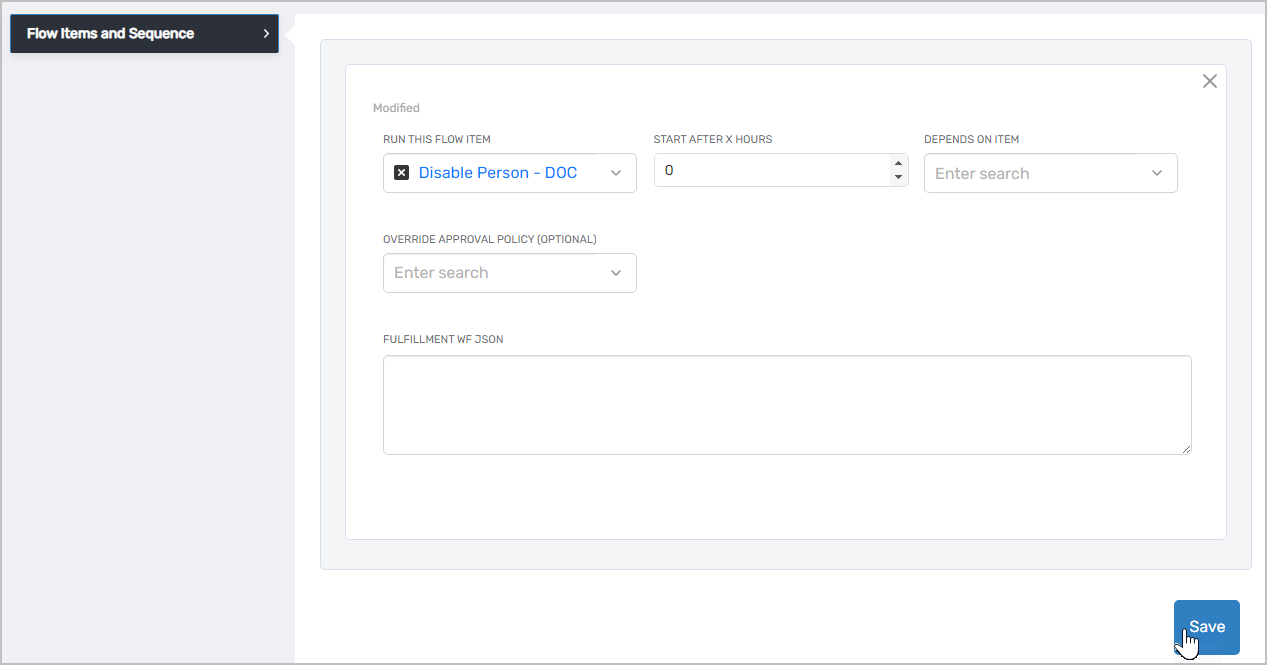
Configure how this Flow Item executes within the Flow Definition:
Field Description Run This Flow Item Select the Flow Item to add to this definition Start After X Hours Number of hours to wait before executing this Flow Item. Set to 0 for immediate execution. Use delays when actions should occur after a waiting period (e.g., "Terminate Person" with a one-hour delay ensures accounts are disabled before deletion occurs). Depends on Item Optional Flow Item that must complete before this item executes. Use this to create execution dependencies between Flow Items (e.g., "Send Manager Notification" depends on "Disable Person" completing first). Override Approval Policy Override the default Approval Policy for this Flow Item's Item Type Action. Use this when the default approval behavior is inappropriate for the specific scenario. For example, in termination workflows, bypass approval policies that would normally require manager approval for group removal by selecting the "No Approval Steps" policy. Fulfillment WF JSON Optional JSON configuration for this specific instance of the Flow Item within this Flow Definition. This JSON can override or supplement the JSON configured in the Flow Item itself. For email Flow Items, you can specify different templates or notification settings for different uses of the same Flow Item. -
Click Save.
-
Repeat steps 3-5 to add additional Flow Items to the definition. You can reorder Flow Items or modify their configurations after adding them.
Next Steps
After creating Flow Items and adding them to Flow Definitions, create Flow Policies to determine when your Flow Definitions execute. Flow Policies connect Flow Events to Flow Definitions based on scope criteria. See Create Flow Policies for instructions.
Related Articles
- Create Flow Definitions — Create workflow blueprints that contain Flow Items
- Create Flow Policies — Connect Flow Events to Flow Definitions
- Email Flow Items — Configure email notifications with detailed JSON parameters
- Overview of No Code Flows — Understand the complete No Code Flows architecture