Create Flow Events
Flow Events are triggers that start the automation pipeline. When an event occurs in the system, it is added to the Flow Event Inbox where it awaits processing by Flow Policies. EmpowerID includes 18 default shipping Flow Events for common identity lifecycle and security scenarios. Organizations can create custom Flow Events to extend automation to organization-specific scenarios or external system integrations.
This article demonstrates creating a custom Flow Event.
When to Create Custom Flow Events
Create custom Flow Events to:
- Integrate with external systems — Trigger workflows based on events from HR systems, ticketing systems, or other external sources
- Support organization-specific scenarios — Define triggers unique to your business processes that don't match default events
- Extend automation capabilities — Build workflows for scenarios beyond the 18 default shipping events
After creating a custom Flow Event, create Flow Policies that reference the event to define which Flow Definitions execute when the event occurs.
Create a Flow Event
-
Navigate to Low Code/No Code Workflow > No Code Flows.
-
From the Flow Events tab, click the Add button (plus sign).
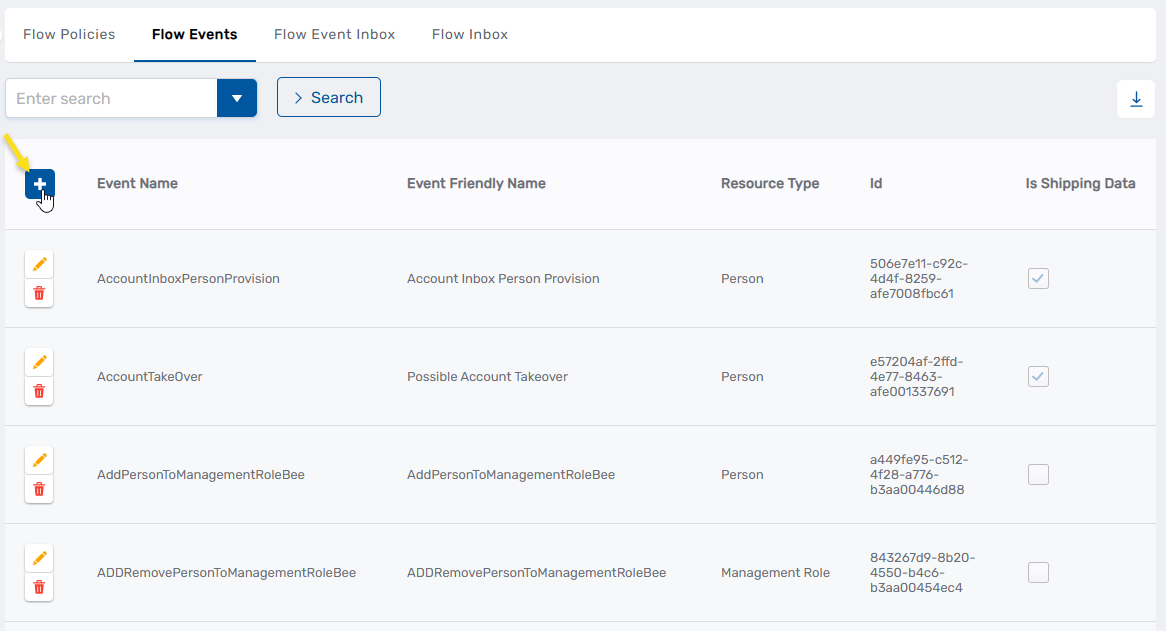 This opens the form for creating a new Flow Event.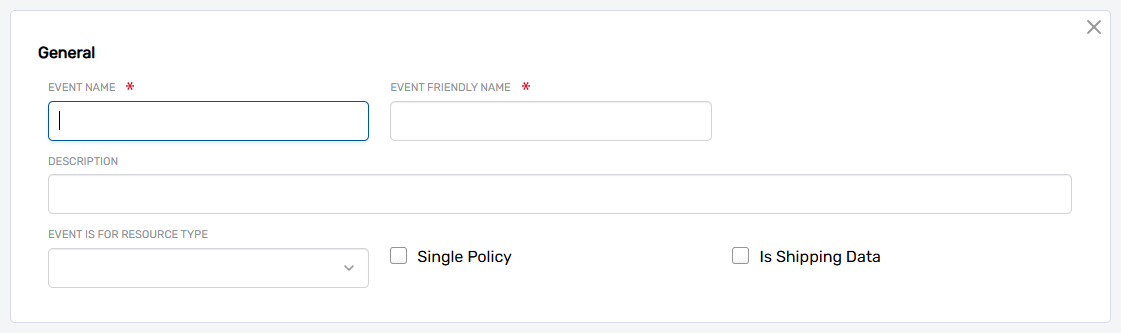
-
Enter the details for the Flow Event:
Field Description Event Name Internal system name for the event (e.g., "ContractorOnboarding", "EquipmentReturn") Event Friendly Name Display name shown in the EmpowerID UI Description Description of what triggers this event and when it occurs Event Is For Resource Type The type of resource this event applies to (e.g., Person, Account, Exchange Mailbox) Single Policy When checked, restricts this Flow Event to be associated with only one Flow Policy. Leave unchecked if multiple Flow Policies should be able to reference this event. Is Shipping Data Marks objects in the EmpowerID Identity Warehouse as shipping data. For internal use only. Leave unchecked unless instructed otherwise. -
Click Save.
The custom Flow Event is now available for use in Flow Policies. Create Flow Policies that reference this event to define automation workflows. See Create Flow Policies for instructions.
Next Steps
After creating custom Flow Events, create Flow Policies to connect the events to Flow Definitions. Flow Policies determine which workflows execute when the event occurs based on scope criteria.
For a complete list of default Flow Events included with EmpowerID, see No Code Flows Reference.
Related Articles
- Overview of No Code Flows — Understand the complete No Code Flows architecture
- Create Flow Policies — Connect Flow Events to Flow Definitions
- Create Flow Definitions — Create workflow blueprints
- No Code Flows Reference — Complete list of default Flow Items, Flow Events, and workflows