Set Multi-Factor Authentication for People
Multi-factor authentication (MFA) adds an additional security layer to user authentication by requiring a second verification method beyond username and password. Configure MFA requirements for individual Person objects to enforce stronger authentication for specific users.
Understanding MFA Configuration
EmpowerID provides flexible MFA configuration at multiple levels:
Password Manager Policy Level:
- Defines required MFA types for all users assigned to the policy
- Takes precedence over individual Person MFA settings
- Enforces organization-wide security standards
Person Level (This Article):
- Assigns MFA types directly to individual Person objects
- Only applies when MFA types are not required by the Person's Password Manager Policy
- Allows per-user security customization
If the Password Manager Policy assigned to a Person has one or more required MFA Types, those requirements take precedence. MFA Types set directly on the Person object only apply when they are not already required by policy.
Prerequisites
- Administrative access to manage Person security settings
- Understanding of available MFA types in your environment
- Appropriate Password Manager Policy assigned to the Person
Set Multi-Factor Authentication
-
Navigate to the View or View One page for the Person using one of these methods:
- Use the Global search bar (quickest method)
- Navigate through the Find Person page
-
Expand the Multifactor Authentication accordion.
-
Click the Add (+) button in the grid.
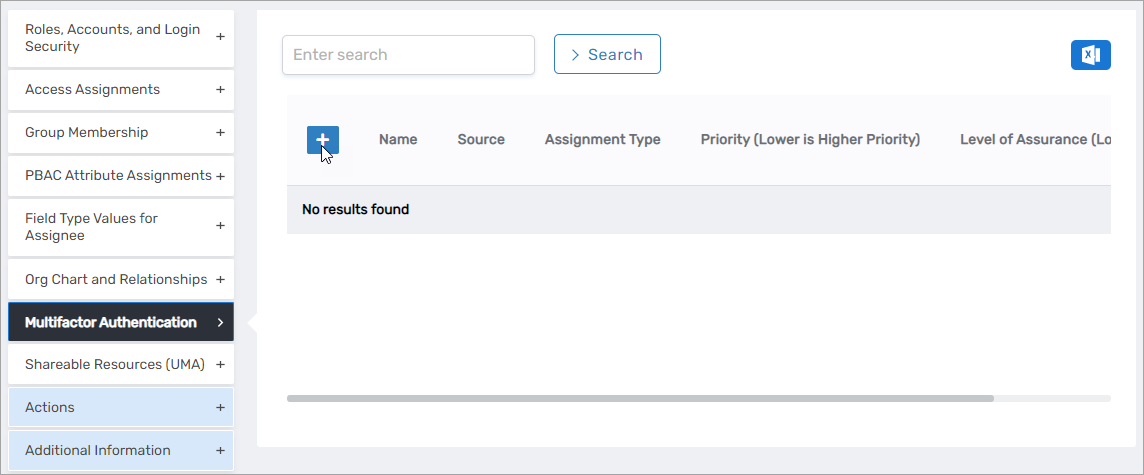
-
In the dialog, configure the MFA settings:
- Type — Select the desired MFA type from the dropdown
- Priority — Specify the order in which this MFA type should be evaluated
-
Click Save.
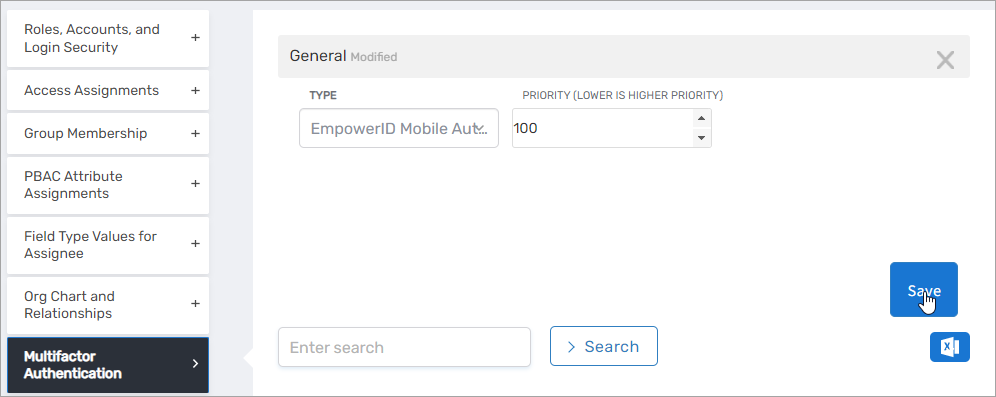
-
Verify the MFA type appears in the grid.

The grid displays the configured MFA type, indicating it is now required for the Person.
Results
- The selected MFA type is required for the Person during authentication
- The user must complete the additional authentication factor before access is granted
- MFA requirements are enforced at login and for sensitive operations
- Multiple MFA types can be assigned with different priorities
- MFA configuration changes are recorded in audit logs
Common MFA types include:
- SMS/Text message codes
- Email verification codes
- Authenticator apps (TOTP)
- Biometric authentication
- Hardware security keys
The available MFA types depend on your EmpowerID configuration.