Enable Persona Switching
Persona switching allows users to authenticate as different Person identities and move between them during a session without re-authenticating. Common scenarios include administrators maintaining separate standard and privileged personas, developers switching between test accounts, support staff troubleshooting user issues, and employees with responsibilities across multiple offices requiring different access levels.
Persona switching requires authorization in both directions: which personas a Person can log in as, AND which people can log in as a specific Person. Both relationships must be configured for switching to work.
Configure Authorization Settings
Configure bidirectional authorization by setting both relationships between Person identities.
Set Authorized to Login As
Configure which other Person identities a user can authenticate as:
- Expand Identity Admin > People and click Find People.
- Search for the person.
- Click the EmpowerID Login link for the person to open their View One page.
- Expand the Roles, Accounts and Login Security accordion.
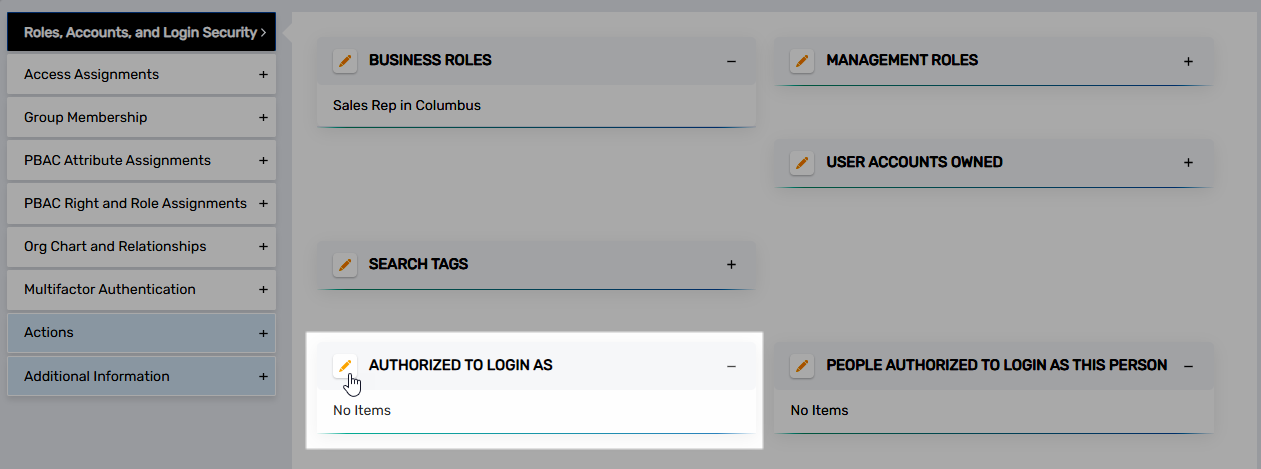
- Click Edit in the Authorized to login as pane.
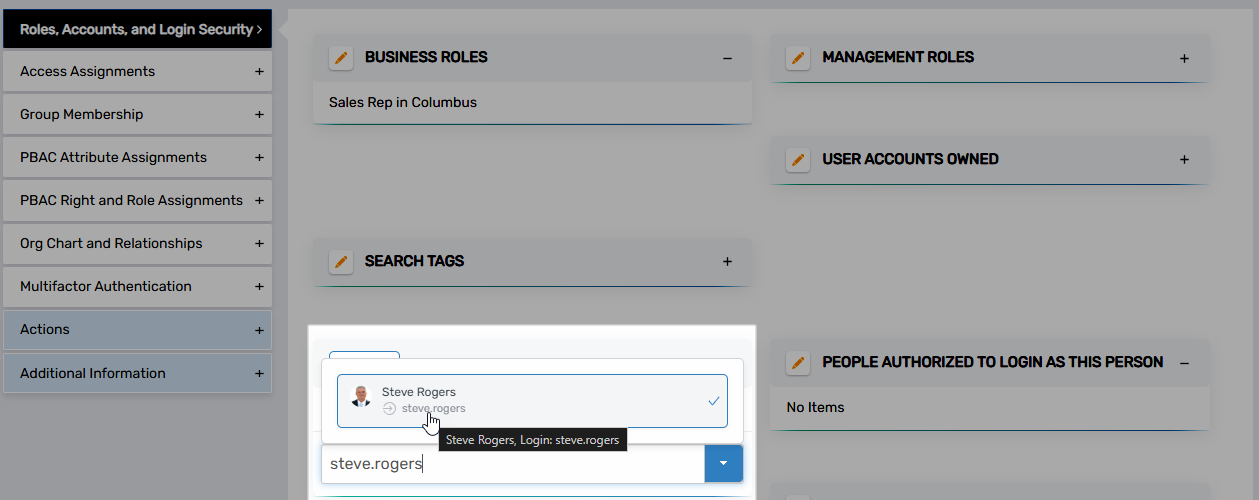
- In the Search field, enter the name of the Person identity this user should be authorized to log in as.
- Click the tile for the Person identity.
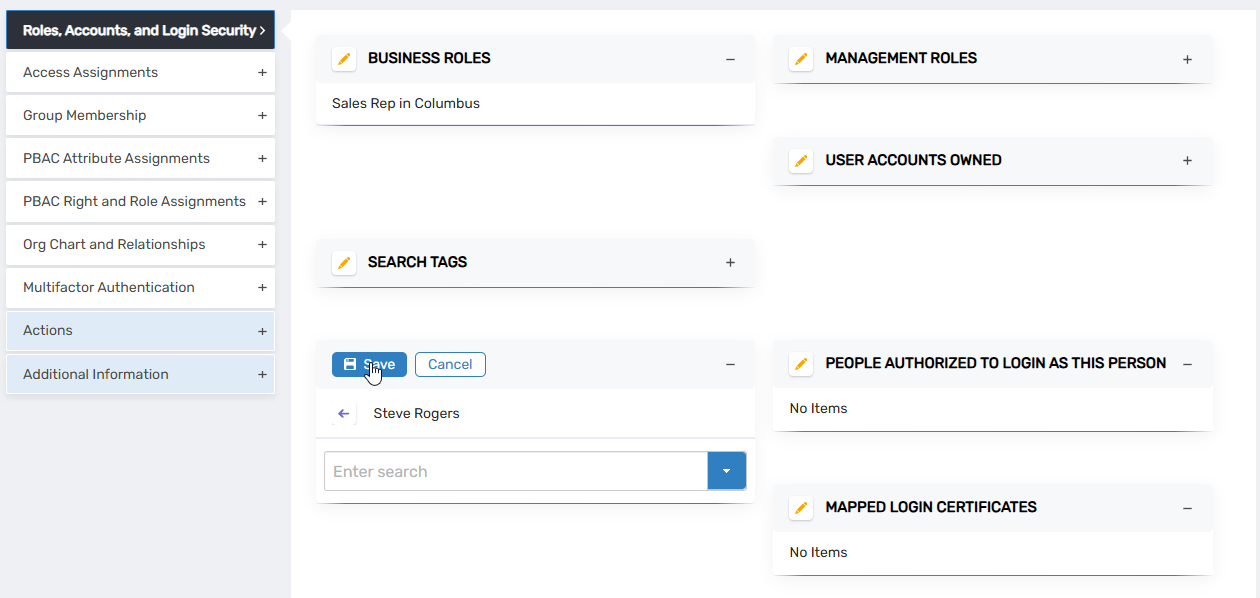
- Click Save.
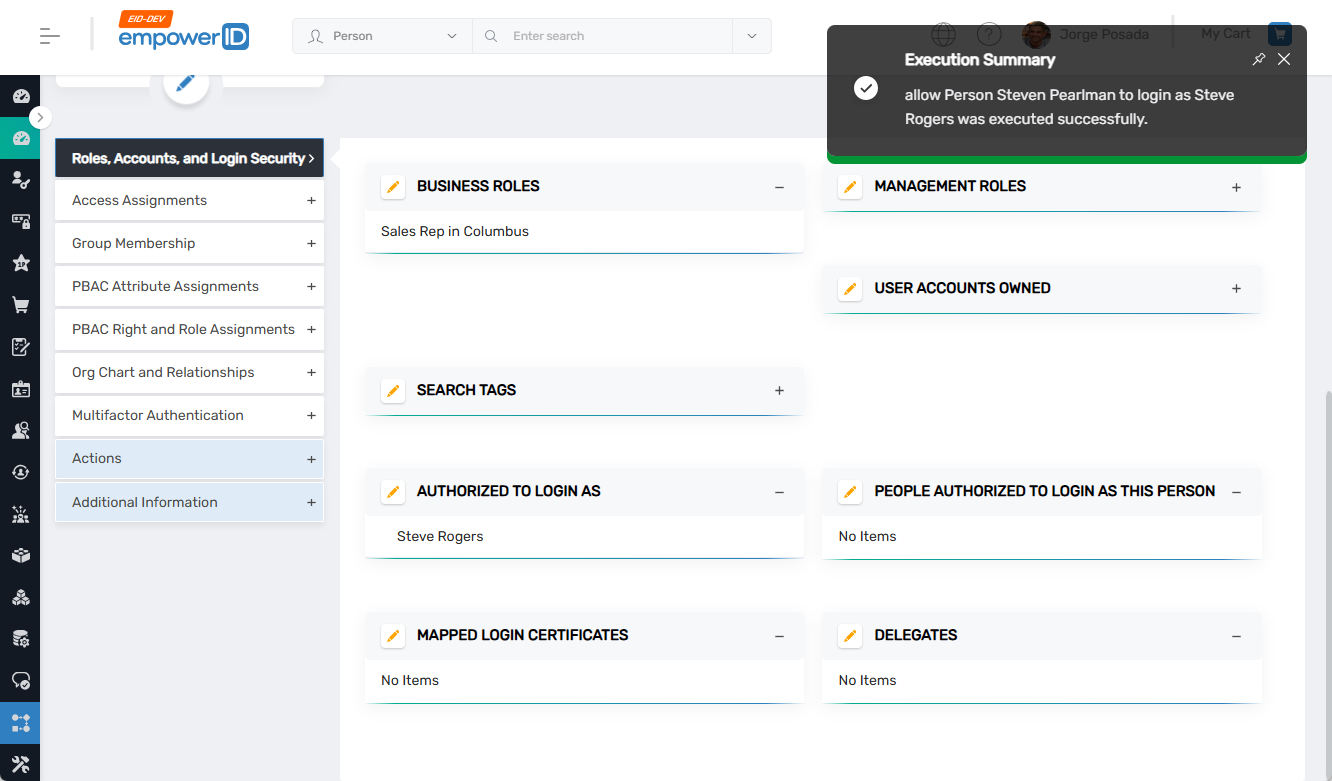
 A successful Execution Summary message confirms the configuration.
Set People Authorized to Login As This Person
Configure which people can authenticate as a specific Person identity:
- Expand Identity Admin > People and click Find People.
- Search for the target person.
- Click the EmpowerID Login link for the person to open their View One page.
- Expand the Roles, Accounts and Login Security accordion.
- Click Edit in the People Authorized to Login as This Person pane.
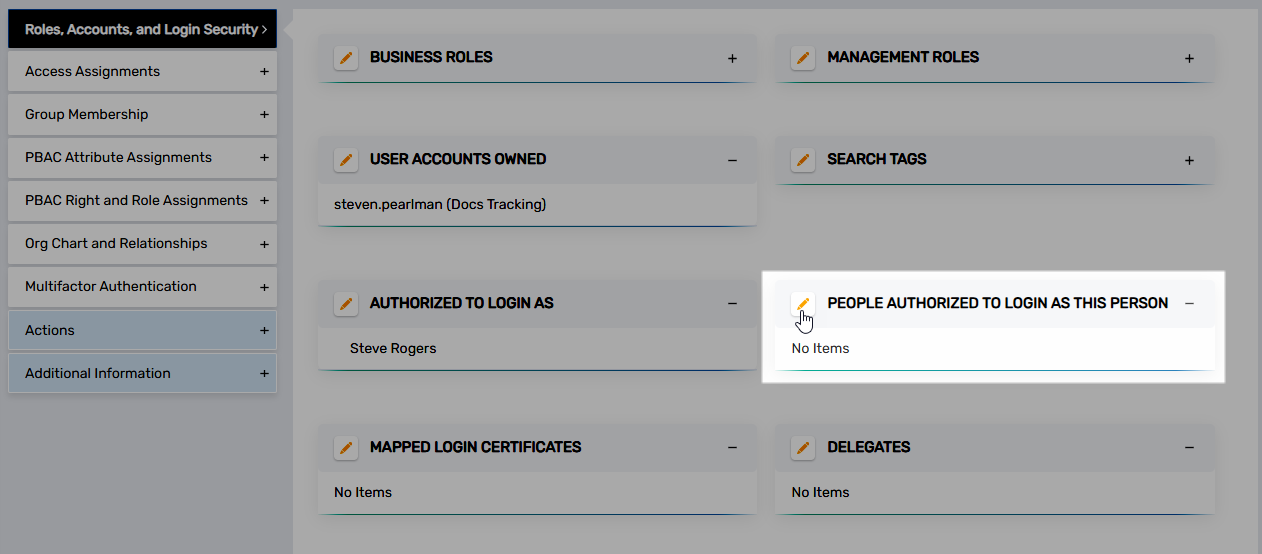
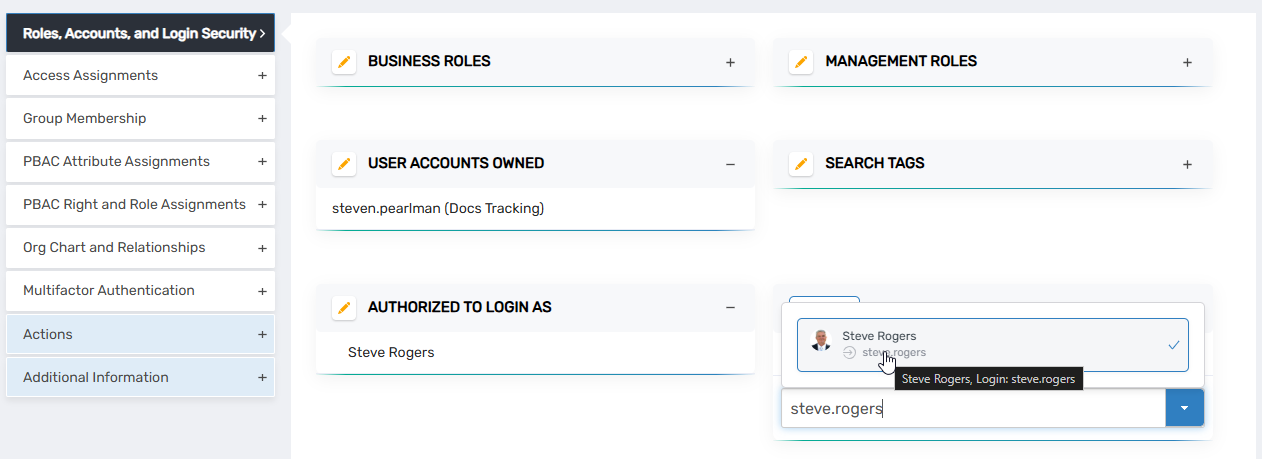
- In the Search field, enter the name of the Person identity who should be authorized to log in as this Person.
- Click the tile for the Person identity.
- Click Save.
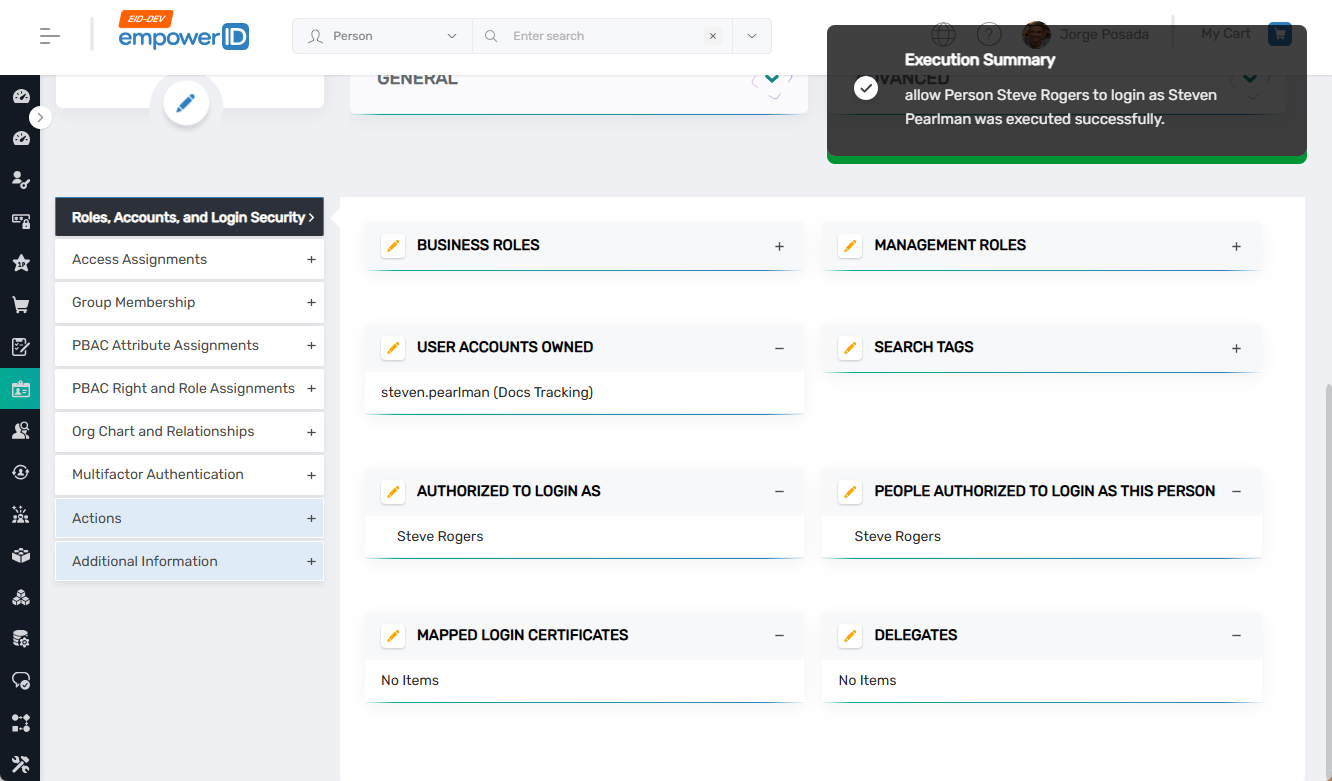
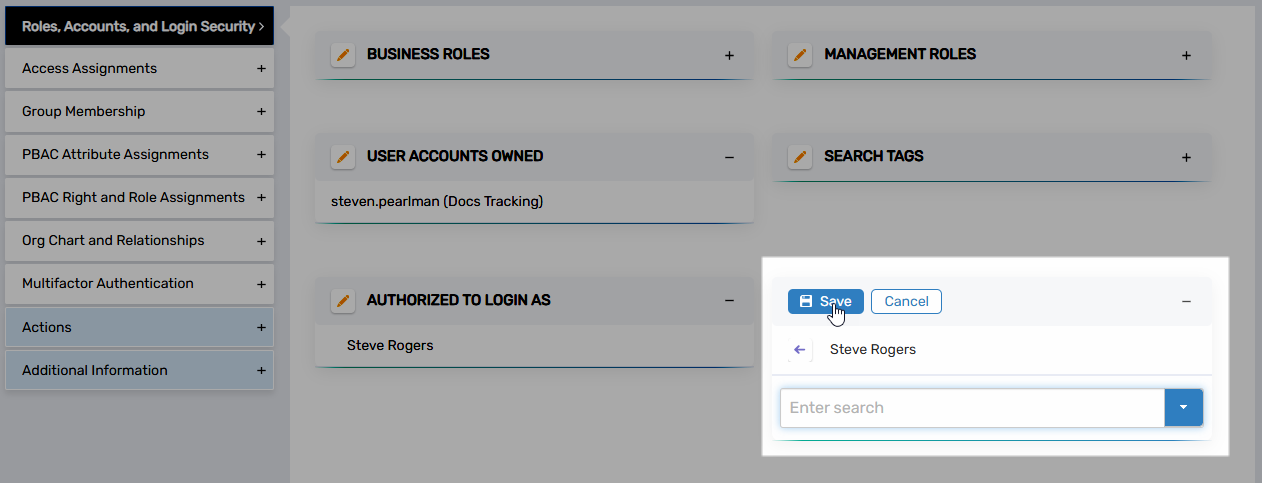 A successful Execution Summary message confirms the configuration.
Verify Persona Switching
- Log in to EmpowerID using credentials for a Person with persona switching enabled.
- After authentication, you should see options to select from multiple authorized Person identities.
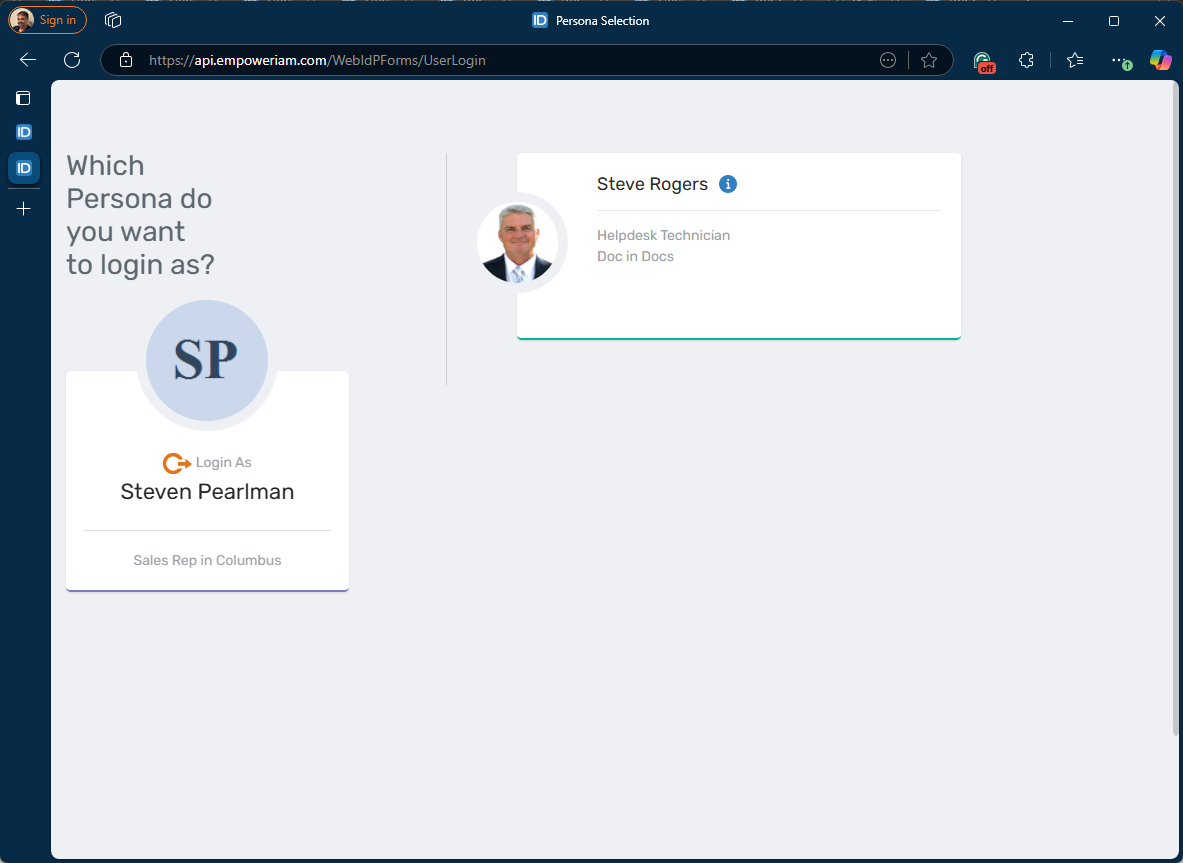
- Select the desired persona to continue.
Results
After configuring bidirectional authorization:
- Users can select from authorized Person identities at login
- Different access levels and permissions apply based on the selected persona
- Users can switch personas during their session without re-authenticating
- All persona switching actions are audited in EmpowerID logs