Delete Business Roles
Delete Business Roles that are no longer needed to maintain an accurate role model. When you delete a Business Role, EmpowerID removes all resource access granted through that role, and any people assigned to the role are automatically reassigned to the Temporary Business Role.
⚠️Deletion Impact
Deleting a Business Role immediately removes access for all assigned users. This action cannot be undone.
Prerequisites
Before deleting Business Roles, ensure you have:
- Access to delete Business Roles in EmpowerID
Procedure
- Navigate to Role Management > Business Roles and Locations.
- Select the Business Roles tab.
- Search for and locate the Business Role you want to delete.
- Click the Trash Can icon for the Business Role.
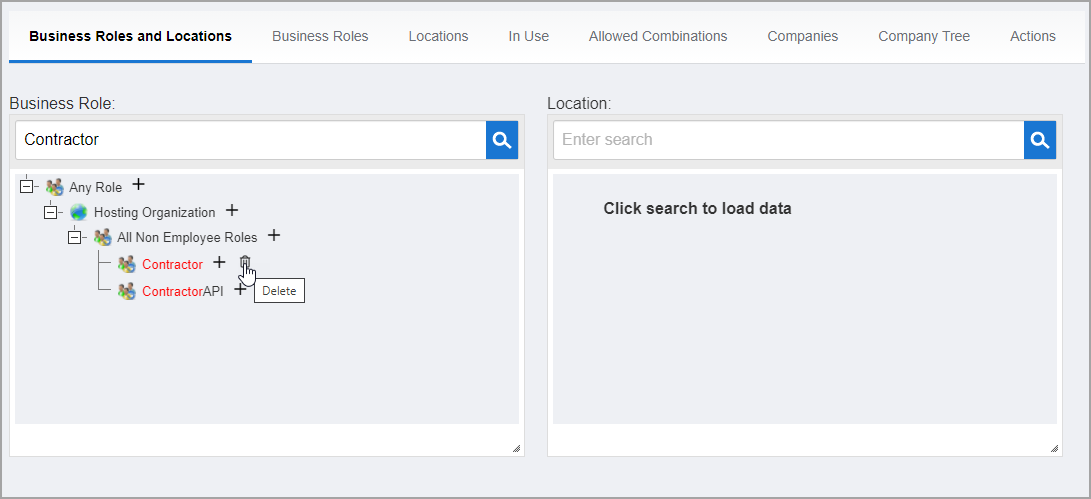
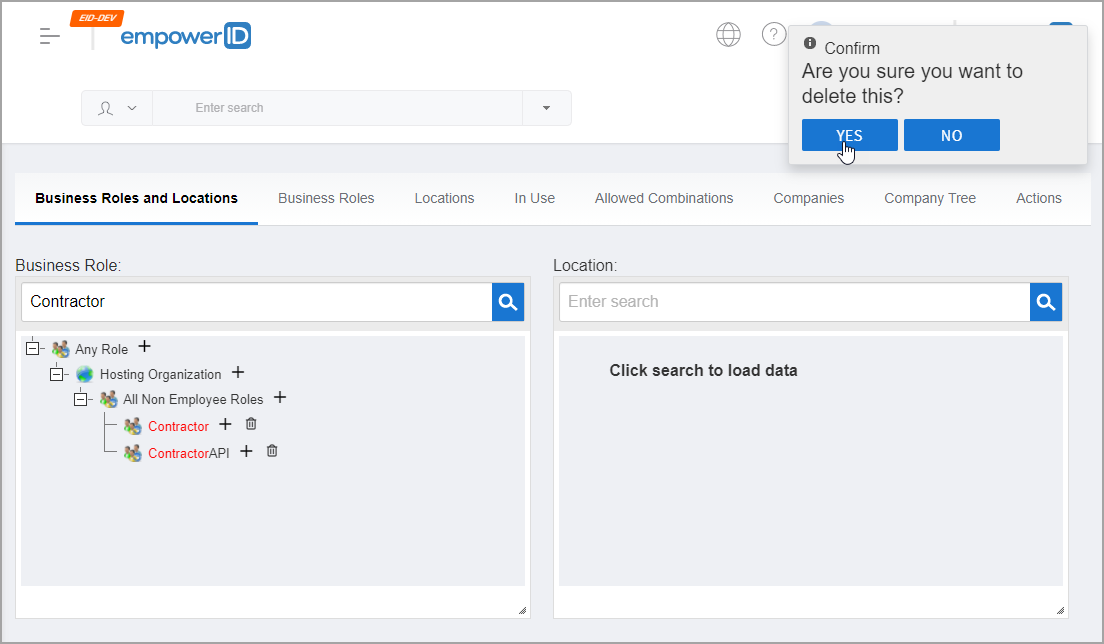
- In the confirmation dialog, review the Business Role name to ensure you are deleting the correct role.
- Click Yes to delete the Business Role, or click No to cancel.
Verify the Results
After deleting the Business Role:
- The Business Role is removed from the list on the Business Roles tab.
- Search for the deleted Business Role by name to confirm it no longer appears in the system.
- Verify that people previously assigned to the role:
- Navigate to Identity Admin > People
- Search for users who were in the deleted role
- Confirm they are now assigned to the Temporary Business Role
- Review their access to ensure no critical permissions were inadvertently removed
- Check audit logs to confirm the deletion was recorded with appropriate justification and timestamp.
Related Topics
- Create Business Roles — Create new Business Roles
- Add People to Business Role and Location Combinations — Assign people to roles before deletion
- About Business Roles and Locations — Understand Business Role concepts