Unlock Credentials
Unlock approved privileged credentials to view their details and access systems securely.
Overview
Once your request for a credential has been approved, you can unlock it to access the vaulted username, password, and any additional notes tied to that credential. This action requires your master password to ensure secure decryption.
🔐Why Unlocking Is Required
All credentials are encrypted using your public key. Unlocking decrypts them using your master password, ensuring only you can view or use the data.
What You’ll Need
- An approved credential request
- Your EmpowerID master password
- Access to the IAM Shop portal
Unlock a Credential
- Log in to the IAM Shop
Navigate to the IAM Shop for your organization and sign in. - Access Credential Resources
- Select Credentials from the Resource Type dropdown.
- Click Manage Access.
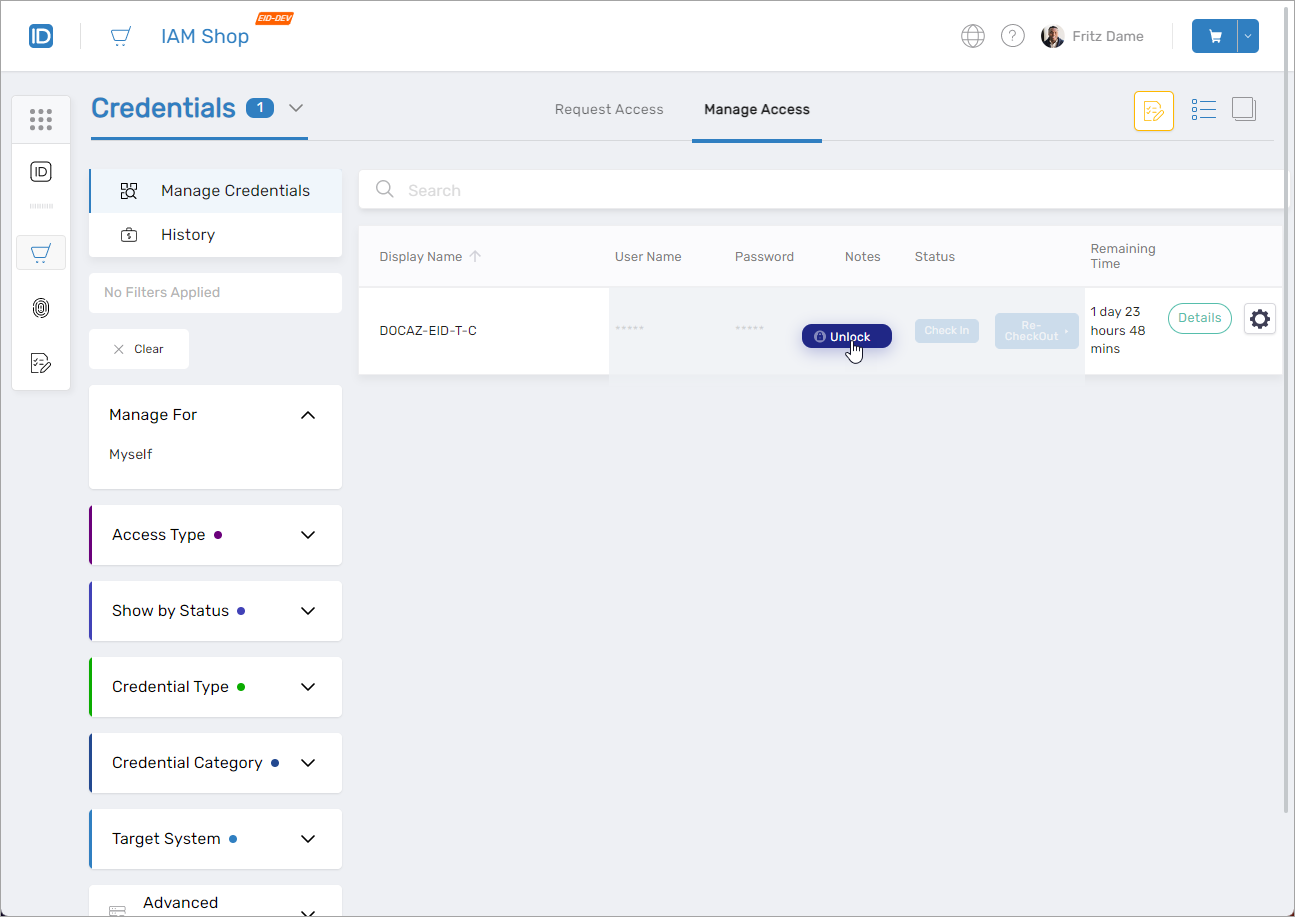
- Locate and Unlock the Credential
- Find the credential you want to use.
- Click Unlock.
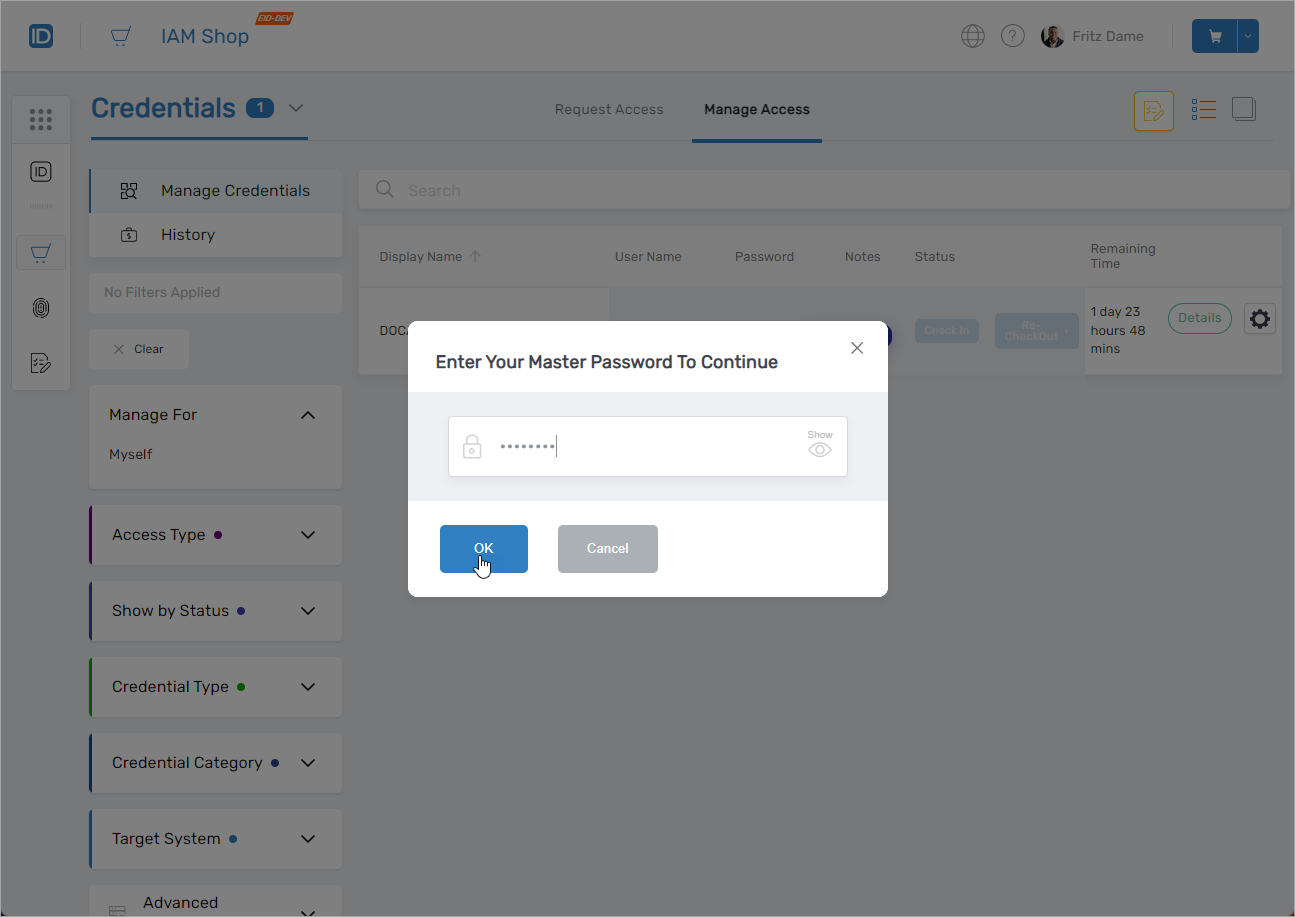
- Enter Your Master Password
- Provide your master password in the dialog box.
- Click OK.
- Reveal or Copy Credential Details
- Hover over User Name, Password, or Notes to view or copy the data.
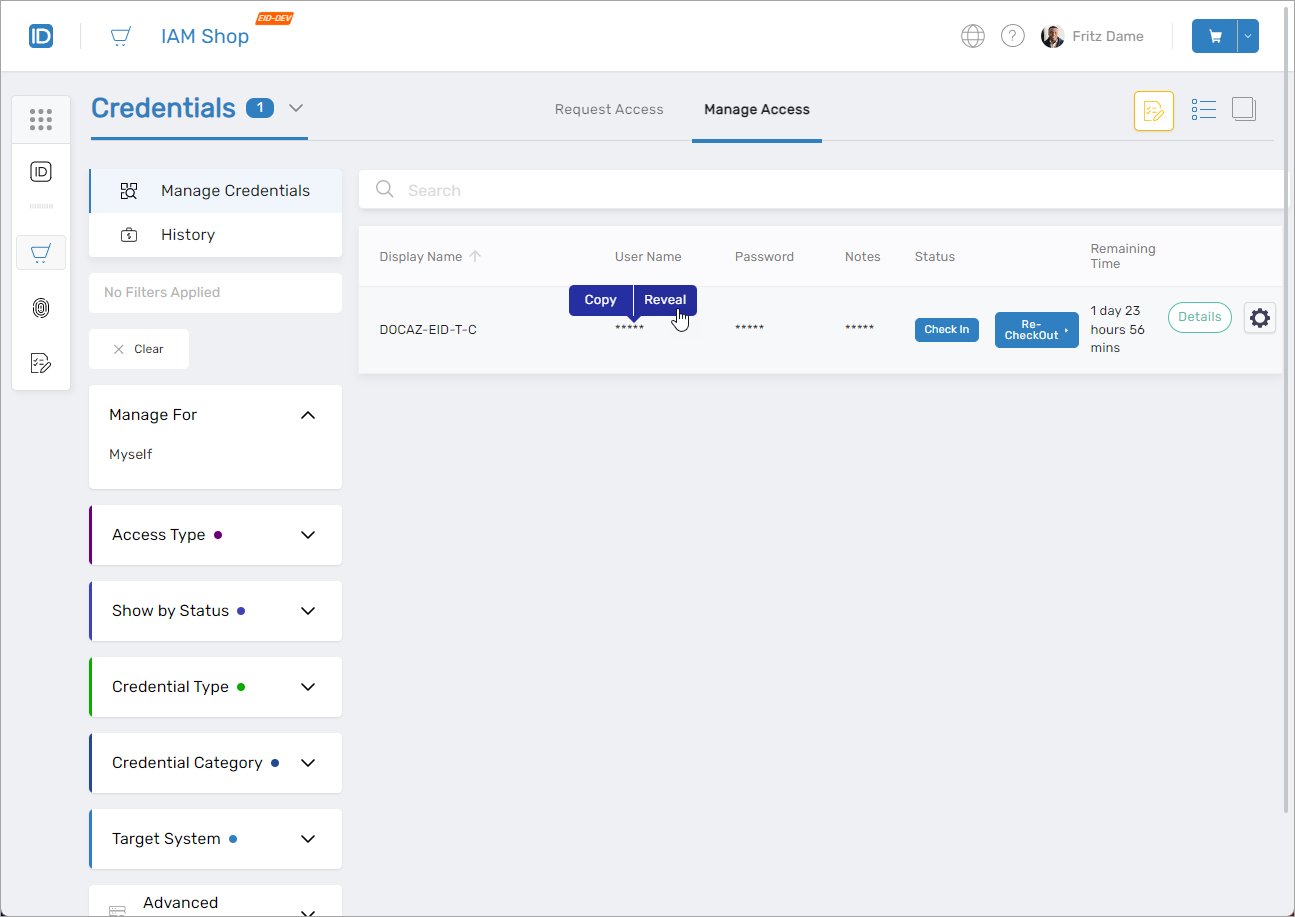
- Hover over User Name, Password, or Notes to view or copy the data.
What Happens Next
Unlocked credentials remain available for the approved duration. You can use them to log into systems, complete tasks, and meet your operational needs securely.
Troubleshooting Tips
- Unlock button missing? Make sure your request was approved and is still active.
- Master password incorrect? Confirm it’s correct or reset it if forgotten.
- Nothing happens after clicking Unlock? Try refreshing the browser or checking network access.