Check In Credentials
Manually check in privileged credentials you’ve previously checked out before your access period ends.
Overview
If you no longer need access to a credential before the approved period expires, you can check it in early. This action revokes your access and ensures credential reuse or rotation policies can take effect immediately.
🔁Credential Rotation Policy
Many organizations enforce automatic password rotation when a credential is checked in. Once checked in, the password may be rotated and your previous access will no longer be valid.
What You’ll Need
- An approved credential that is currently checked out
- Access to the IAM Shop portal
Check In a Credential
- Sign in to the IAM Shop Portal
- Open your organization’s IAM Shop and log in.
- Select Credential Resource Type
- In the Resource Type dropdown, choose Credentials.
- Locate and Check In the Credential
- Navigate to the Manage Access tab.
- Find the credential you currently have checked out.
- Click Check In.
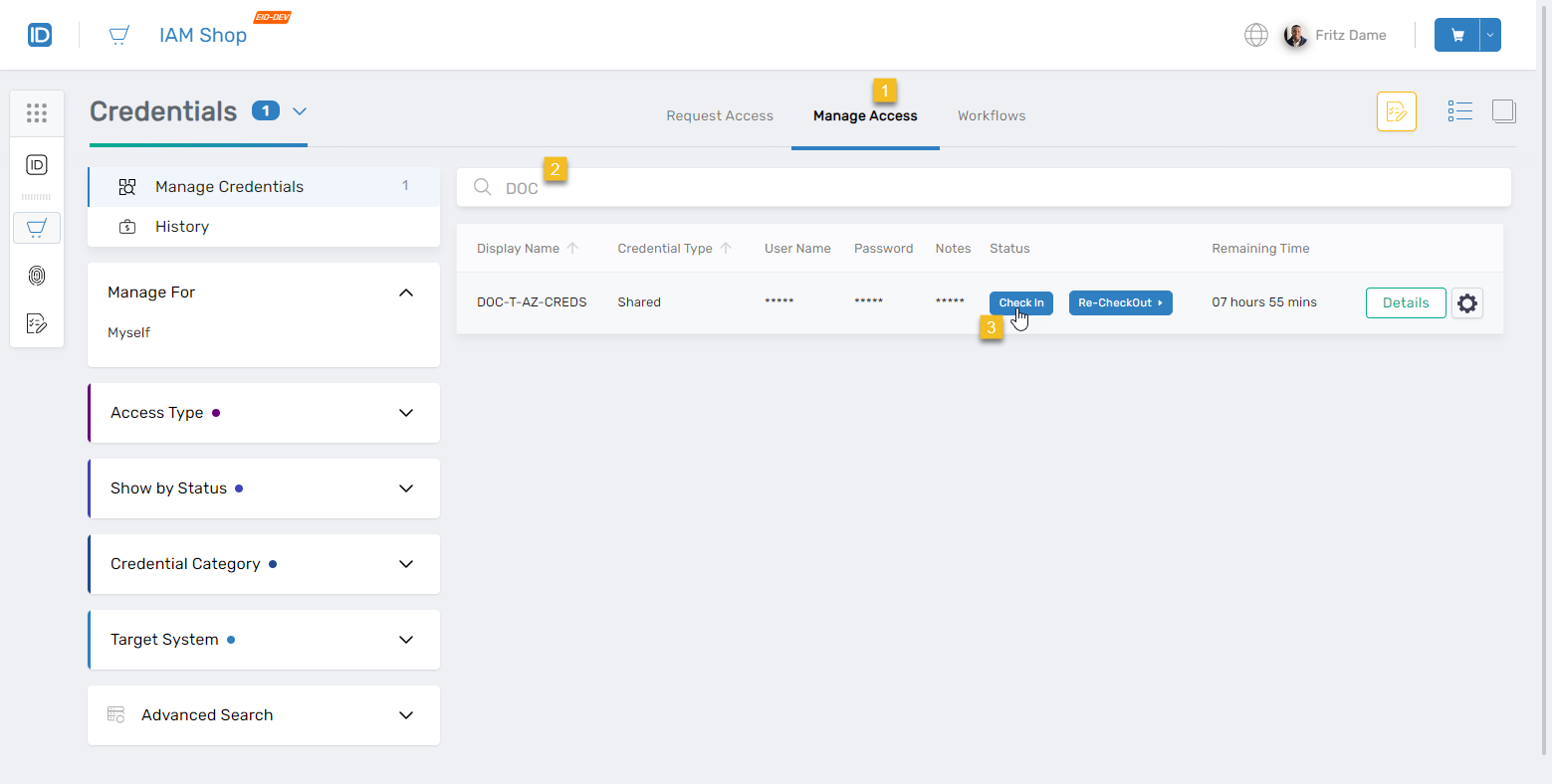
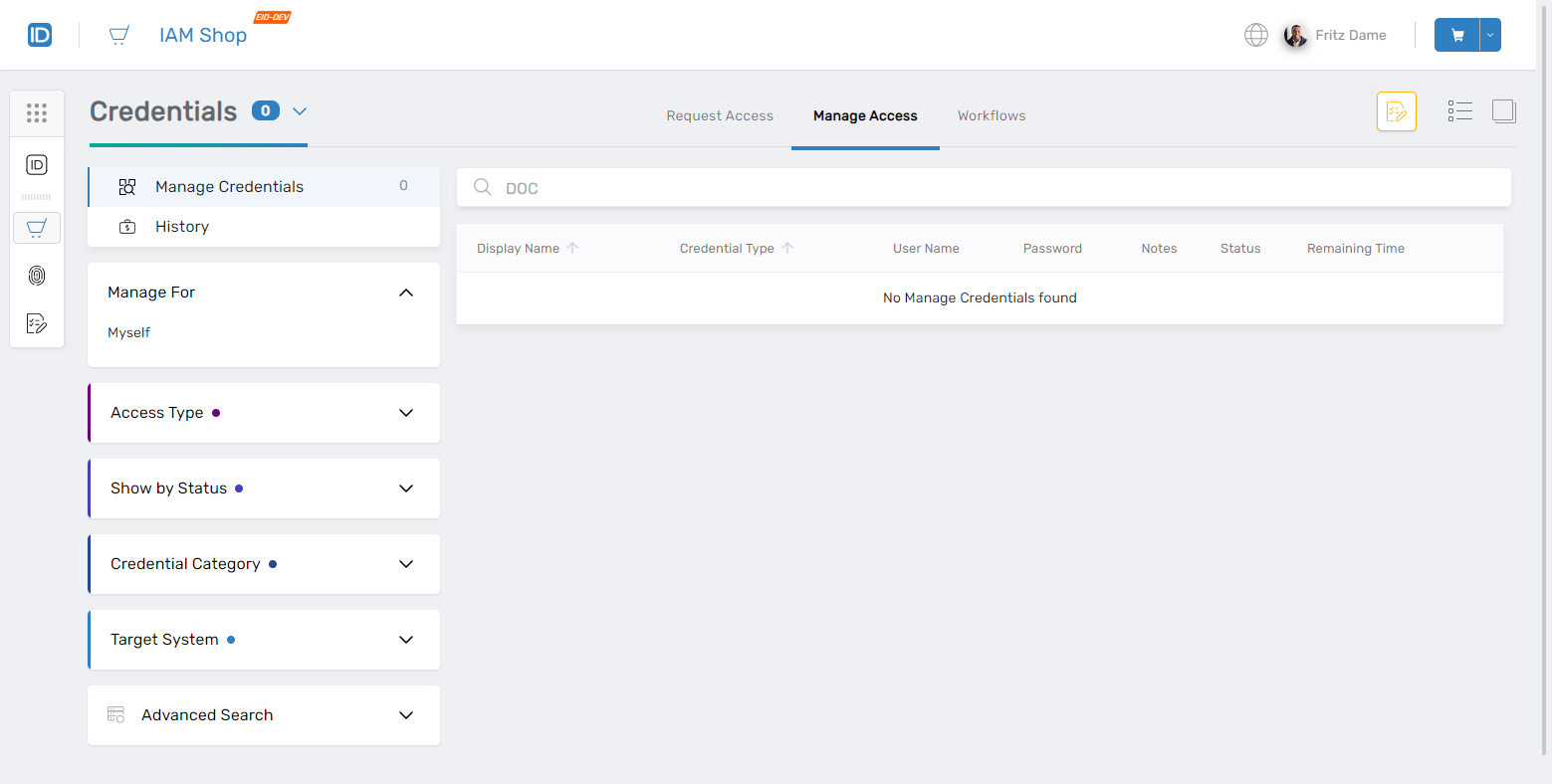
Once checked in, the credential will no longer appear in your access list.
What Happens Next
Once a credential is checked in:
- Your access to the username and password is revoked
- You’ll need to submit a new request to access it again
- The credential may be rotated depending on policy
Troubleshooting Tips
- Don’t see the Check In button? Make sure the credential is still checked out to you.
- Credential still appears after check-in? Refresh the page or check your session expiration.
- Password no longer works? The system may have rotated it automatically after check-in.