Request Privileged Credentials in EmpowerID
Request access to vaulted privileged credentials and check them out securely using your master password.
Overview
In EmpowerID, privileged account credentials (such as admin usernames and passwords) are stored securely and vaulted. If you need access to one, you can submit a request to check out the credential for a limited period of time.
Once approved, the credential is made visible and usable only to you. This ensures secure, auditable access to sensitive accounts — without exposing the credential to others.
What You’ll Need
- Access to the IAM Shop portal
- A valid EmpowerID master password
Request Credentials
-
Log in to the IAM Shop Portal
Navigate to the IAM Shop for your organization and sign in with your credentials. -
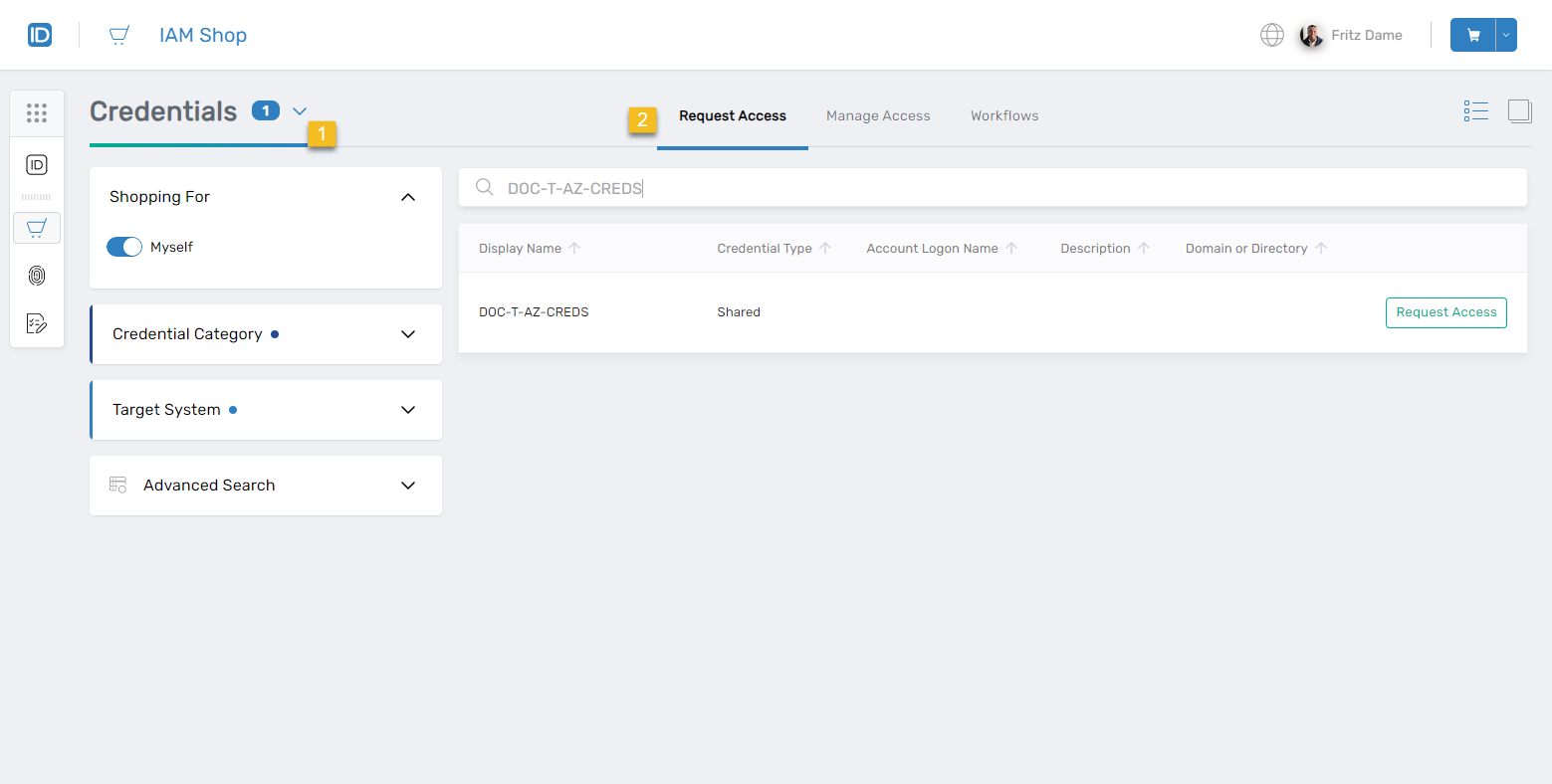
Select Credentials as the Resource Type
- Choose Credentials from the Resource Type dropdown.
- Go to the Request Access tab and search for the credential you need.
-
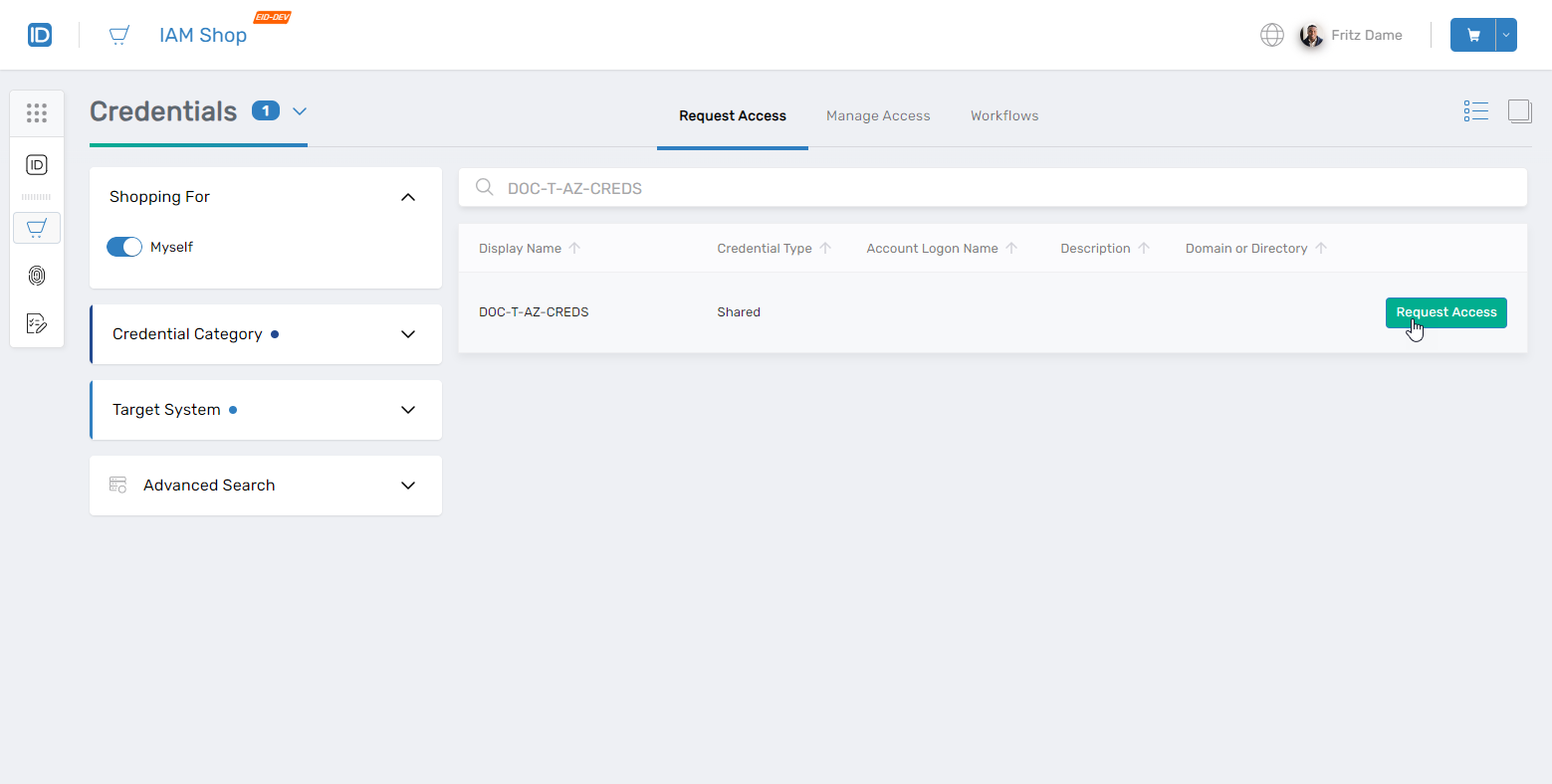
Click Request Access
- Click the Request Access button beside the credential you want to check out.
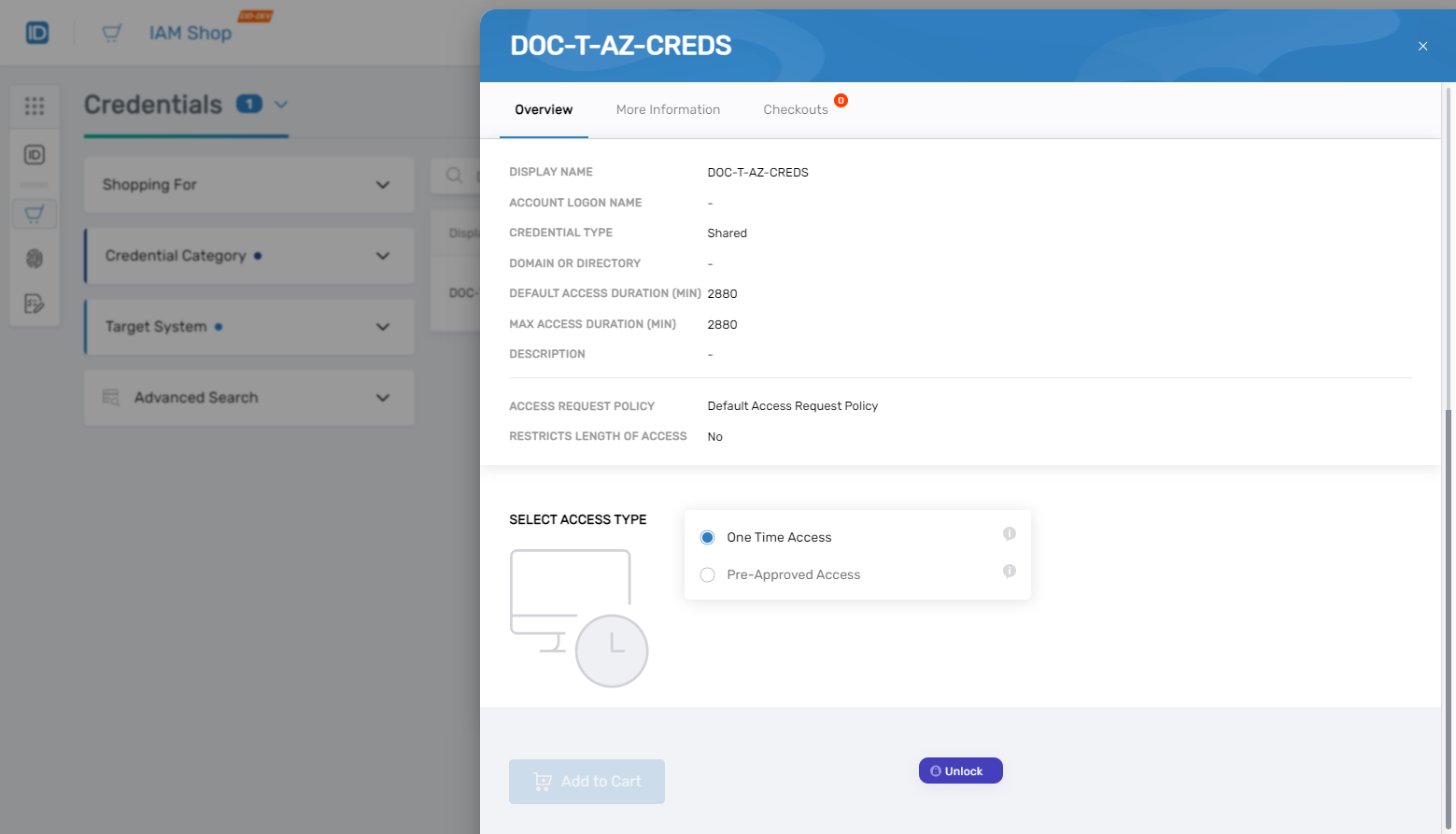
This opens the request card.
- Click the Request Access button beside the credential you want to check out.
-
Choose Access Type
- One Time Access
- Pre-Approved
Choose this option if you only need the credential for a single task or limited use.
Choose this option if you need frequent access to this credential and your organization supports pre-approvals.
-
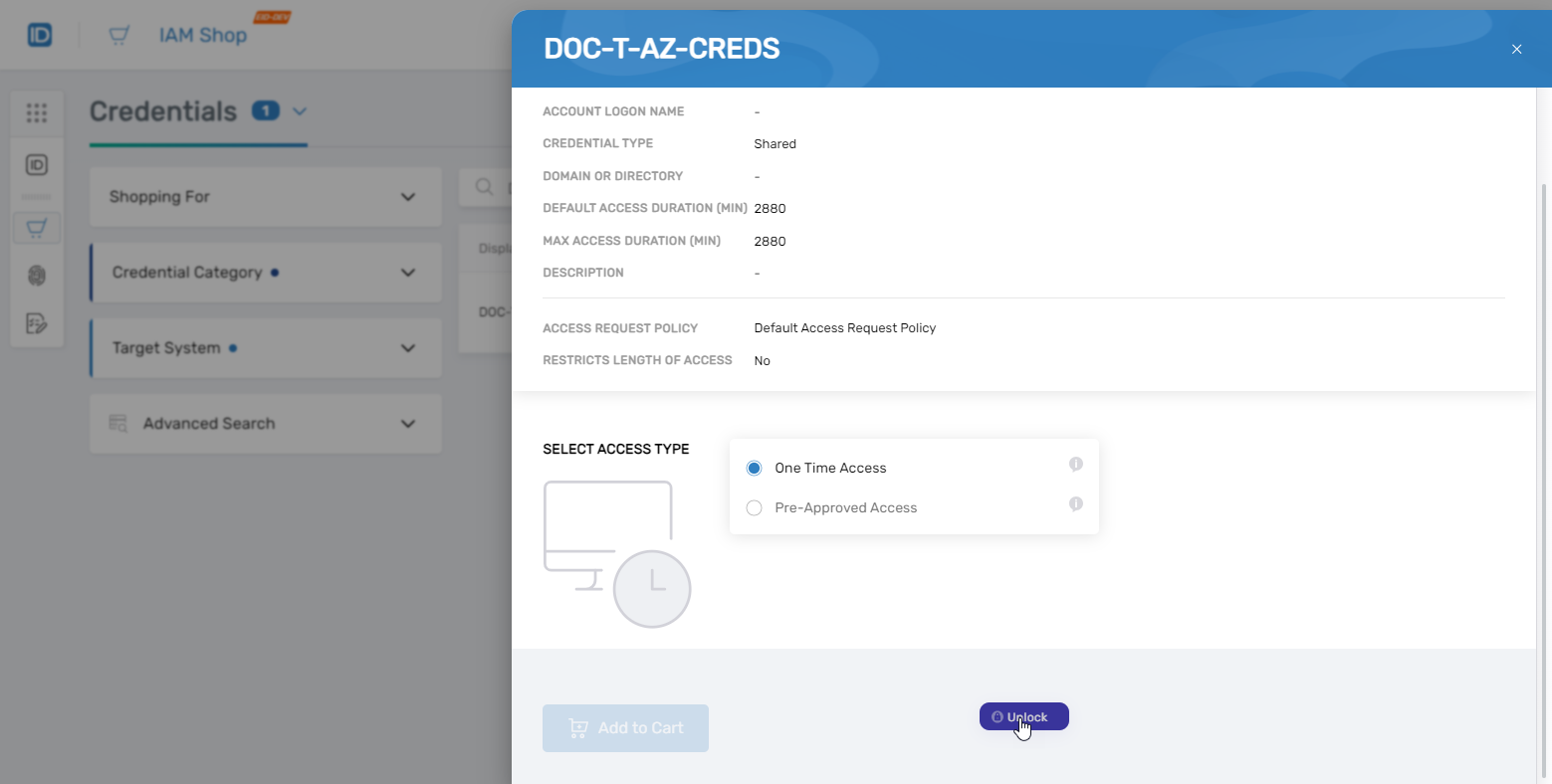
Click Unlock
Click the Unlock button to proceed.
-
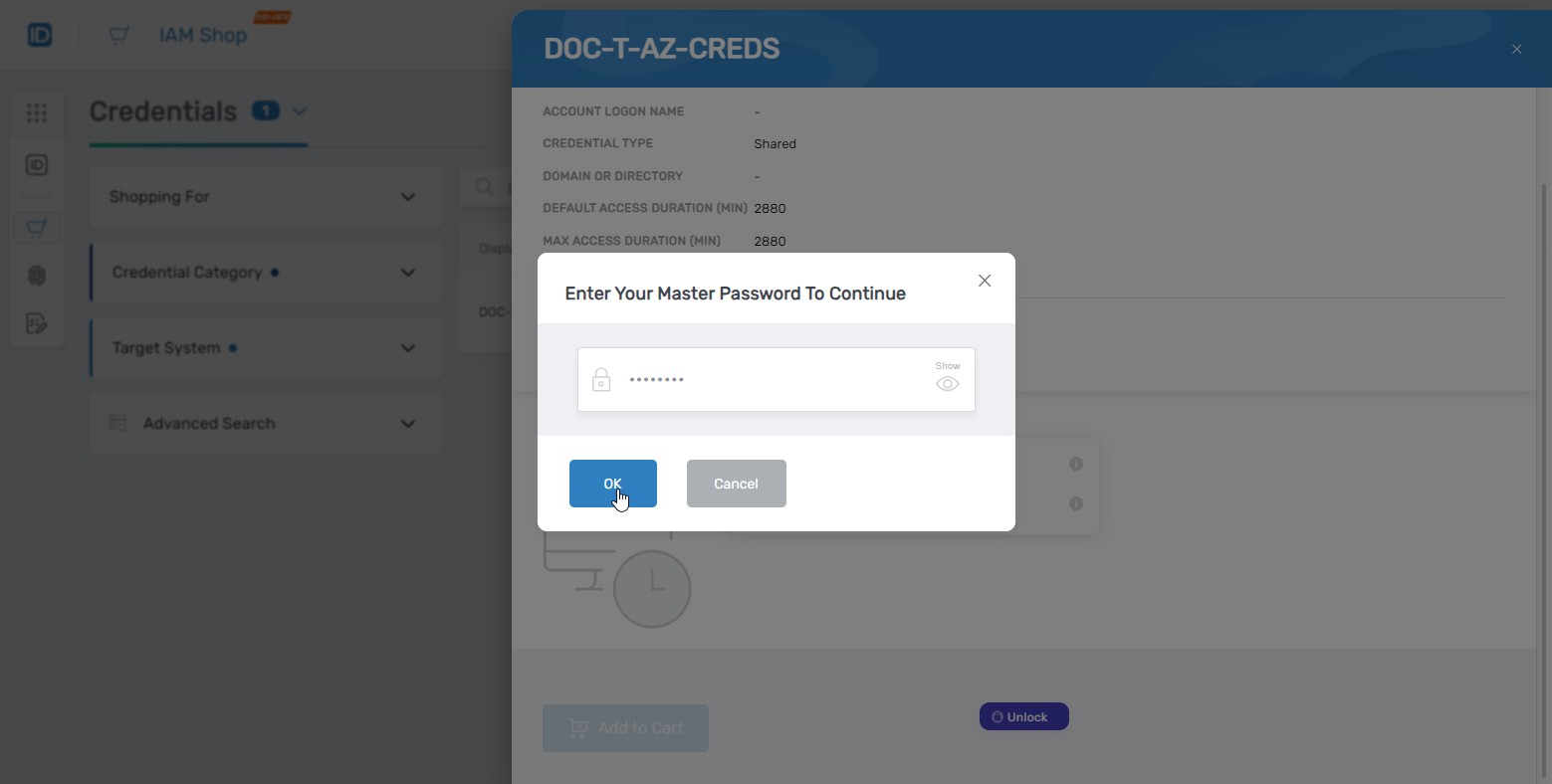
Enter Your Master Password
Provide your master password to decrypt the private key needed for access.
Click OK.
-
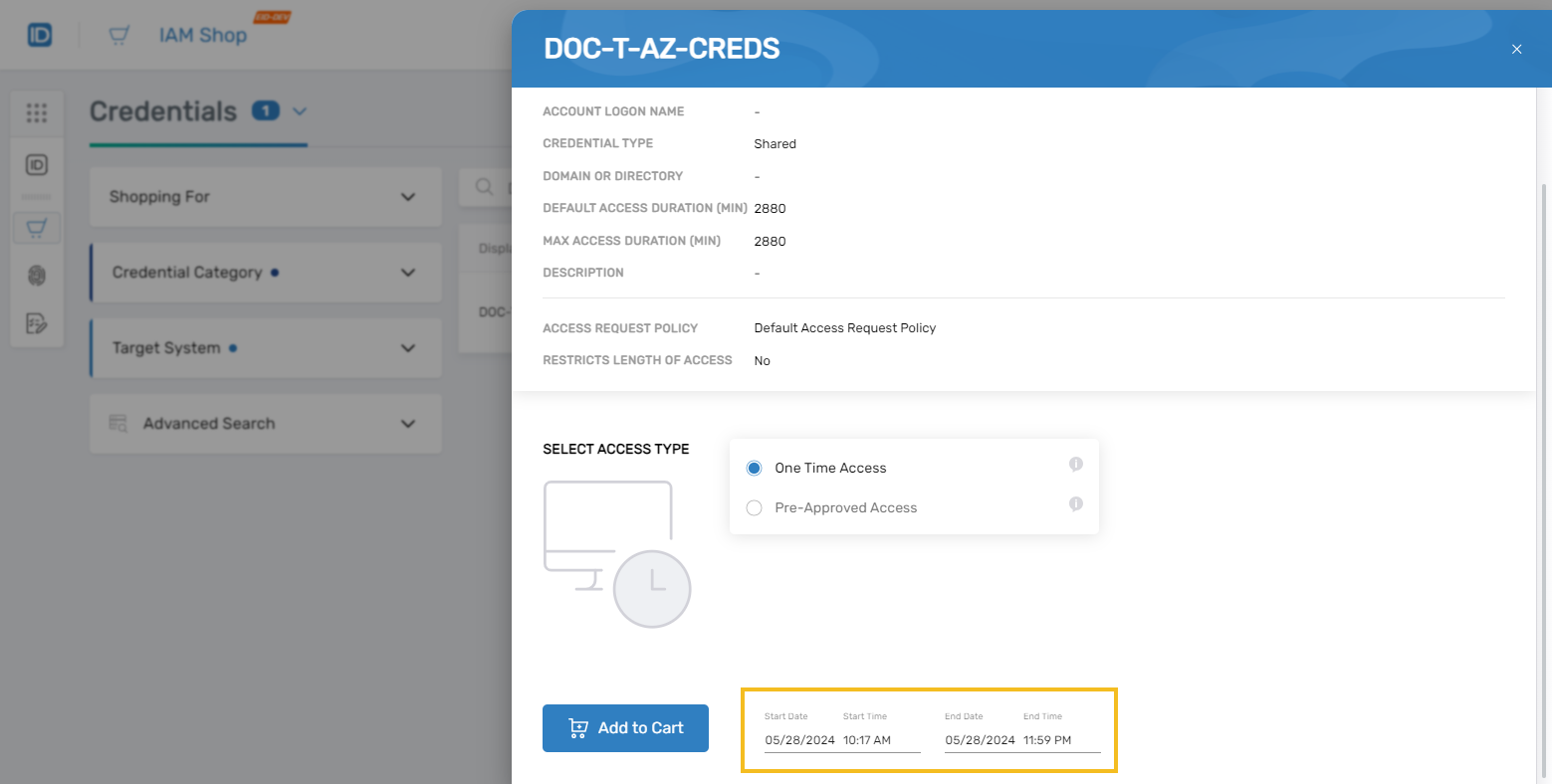
Set Access Duration (for One Time Access)
If you're using One Time Access, define the start and end date/time for when you need the credential.
-
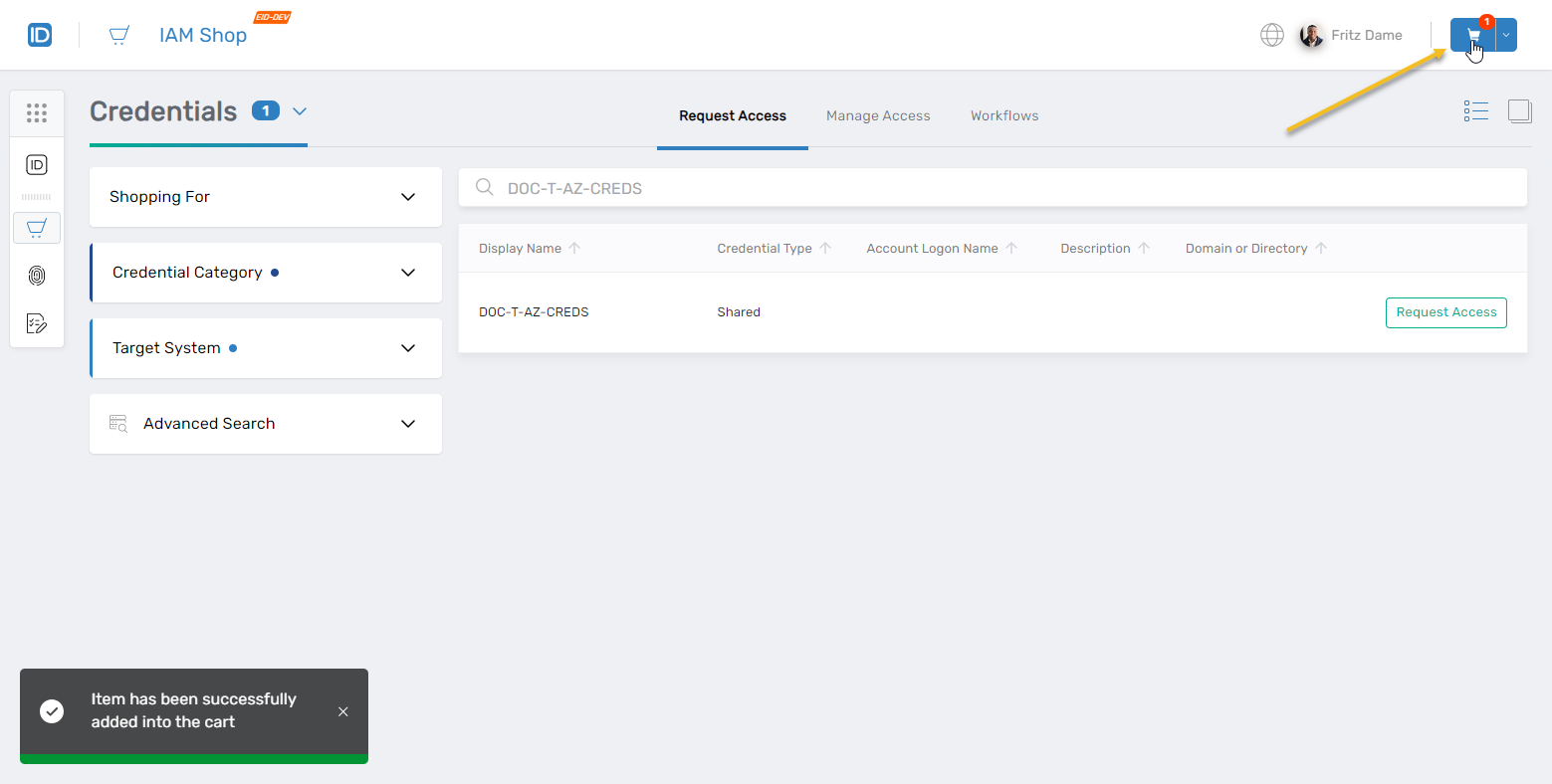
Add to Cart
Click Add to Cart and then open the cart at the top of the page.
-
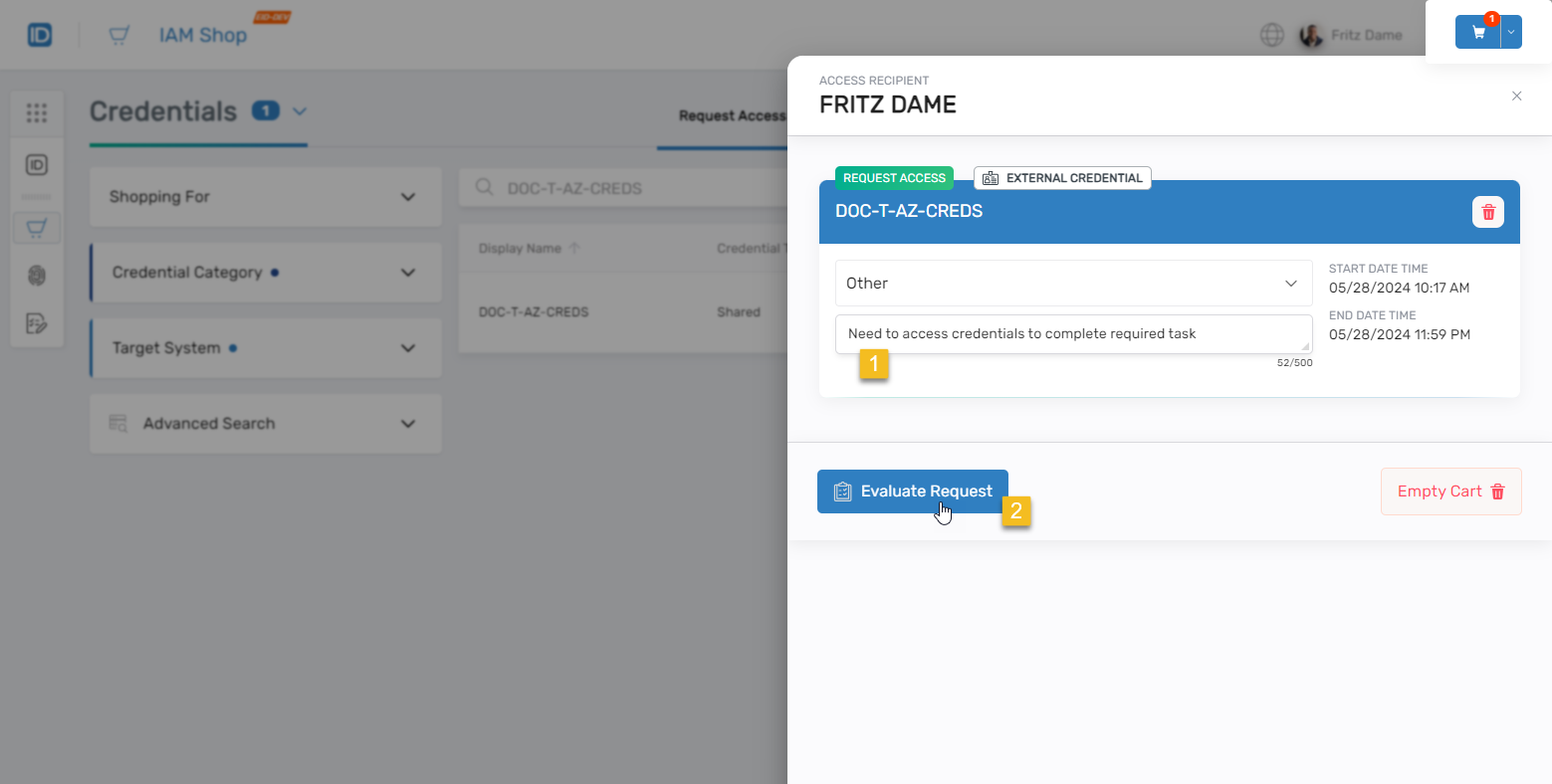
Evaluate the Request
Optionally enter a comment and click Evaluate Request.
-
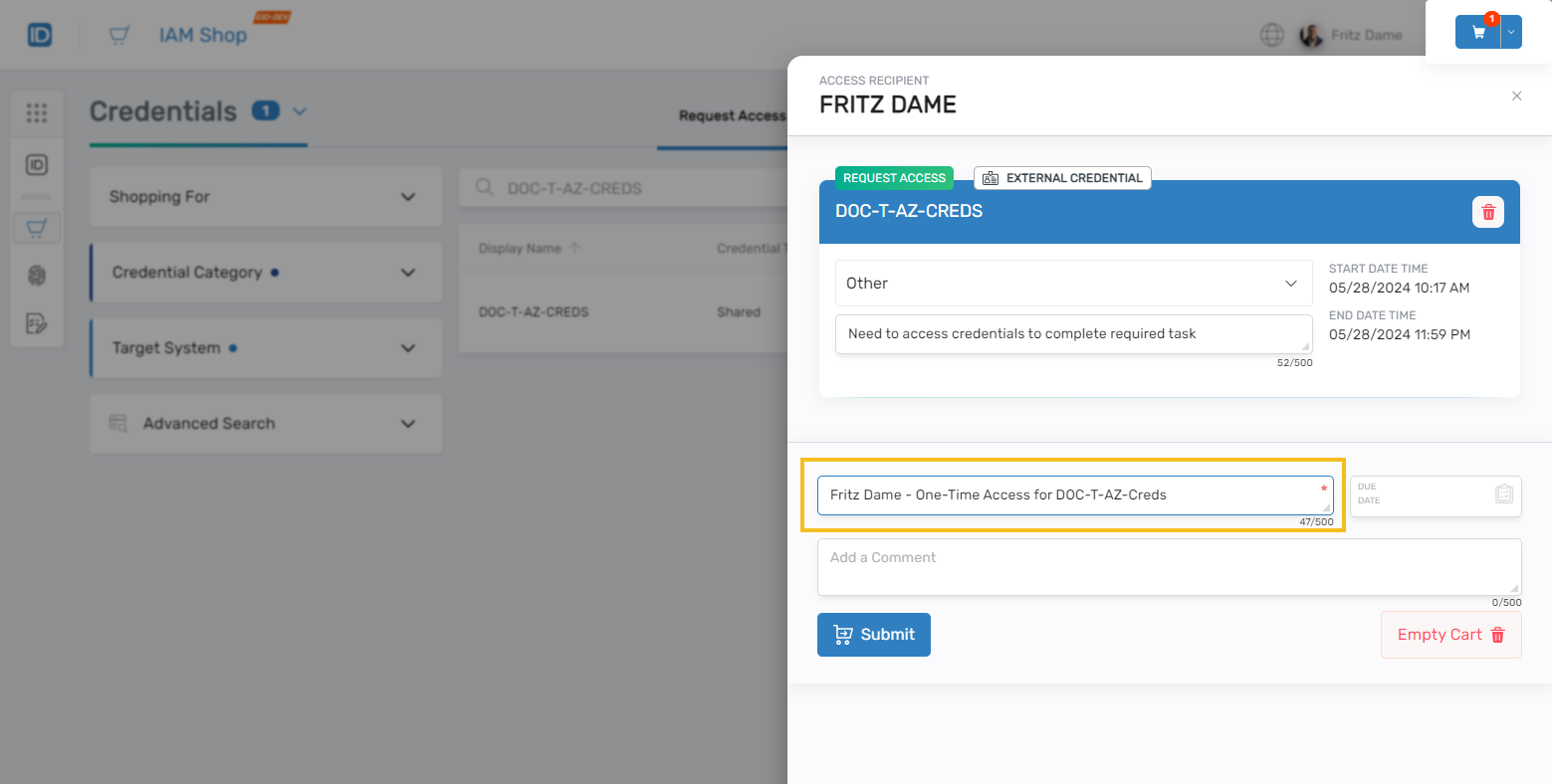
Enter Business Request Name
Provide a descriptive name to explain the reason for access.
This name is visible to approvers.
-
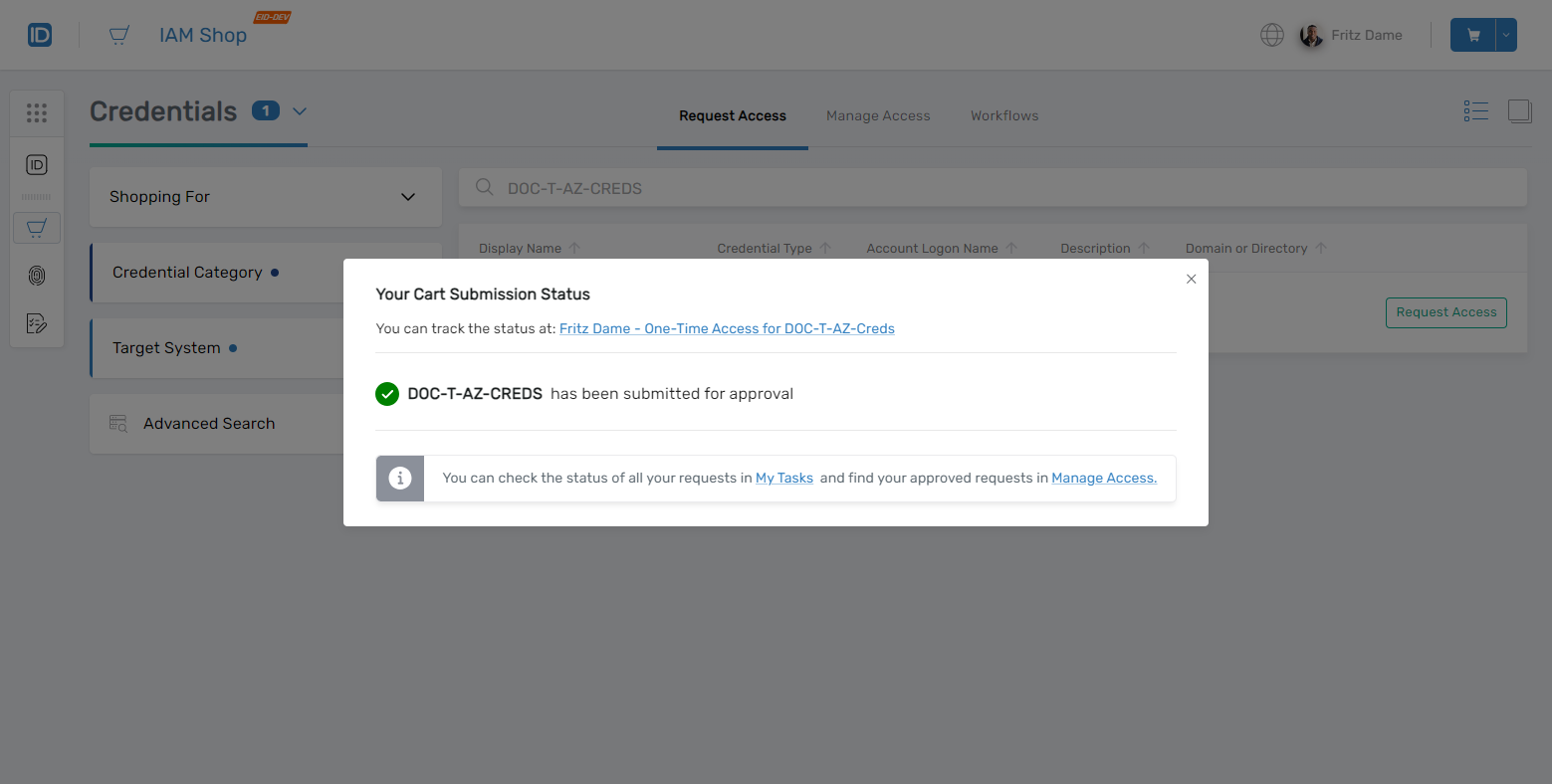
Submit the Request
Click Submit to finalize the request.
A confirmation will appear with a tracking link.
-
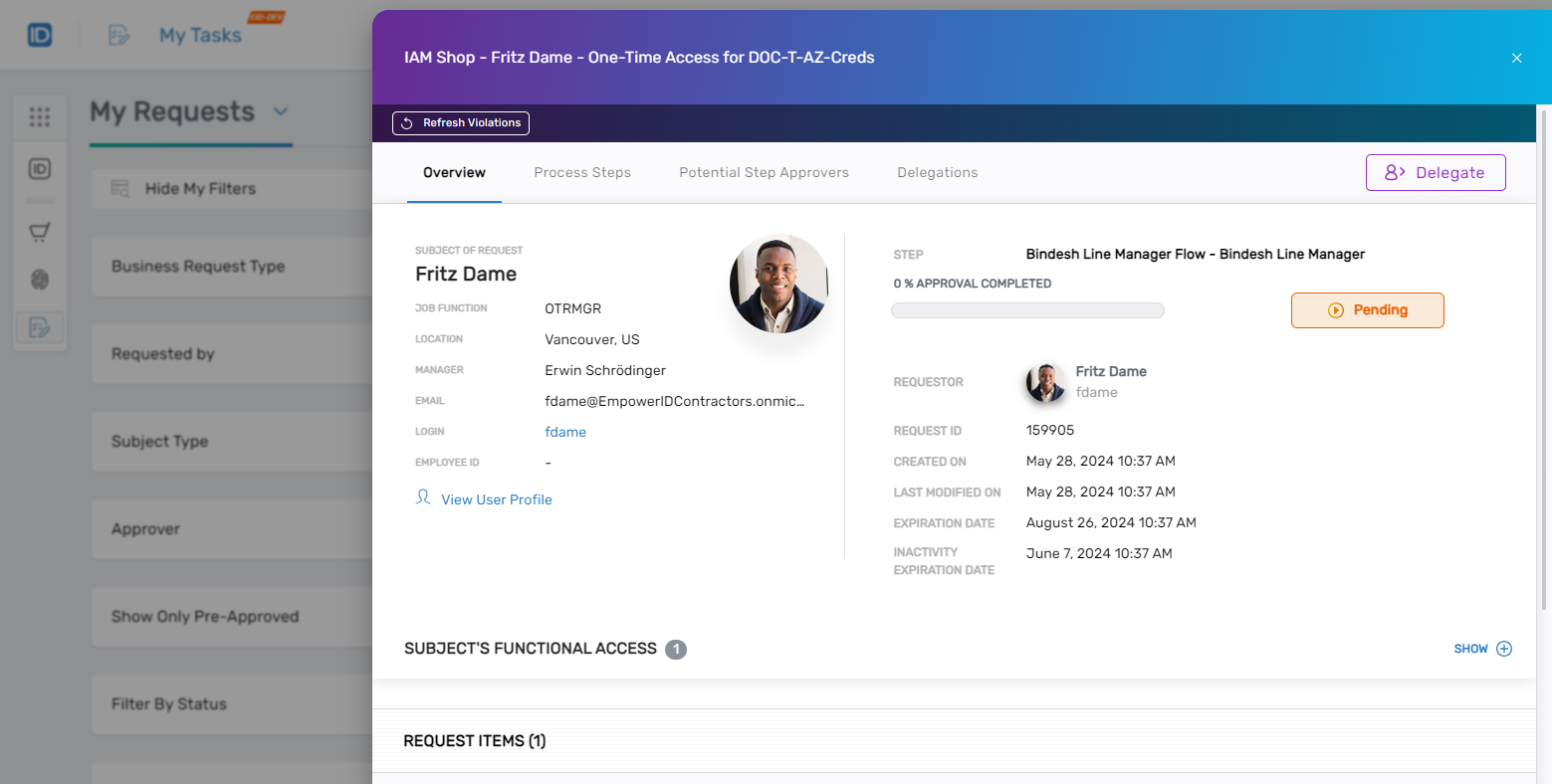
View the Request Status
Click the tracking link to open your request in My Tasks.
Here, you can view status updates, assigned approvers, and process steps.
What Happens Next
Once your request is approved, you’ll be able to check out the credential for the defined time window. Credentials are encrypted and only visible to you.
Troubleshooting Tips
- Can't find the credential? Check your filters or entitlements.
- Unlock fails? Confirm your master password is correct.
- Cart won’t submit? Make sure all required fields are complete and valid.