Start Computer Sessions
Learn how to unlock a computer and start a privileged session in EmpowerID after your request has been approved.
Overview
Once your access request is approved, you can unlock the computer and begin a session using either your own credentials or privileged credentials, depending on the type of access granted. EmpowerID uses Privileged Session Management (PSM) to ensure secure, auditable session activity.
What You’ll Need
Before starting a session, ensure you have the following:
- An approved request to access the computer
- Access to your organization’s IAM Shop portal
- Your master password
- Knowledge of the access type you're using:
- Login Session Access
- Membership-Based Access
Before You Begin
- Login Session Access logs you in using your own credentials.
- Membership-Based Access logs you in as a privileged identity (e.g., local or domain admin), depending on what was granted to you.
Select the appropriate access type based on what your task requires.
Start a Computer Session
- Log in to the IAM Shop
- Navigate to your organization’s IAM Shop portal and sign in.
- Select the Computer Resource Type
- From the Resource Type dropdown, choose Computers.
- Click Manage Access.
- Choose an Access Type
- Select Login Session Access or Membership-Based Access, depending on your needs.
- Unlock the Computer
- Locate the computer you want to access.
- Click Unlock.
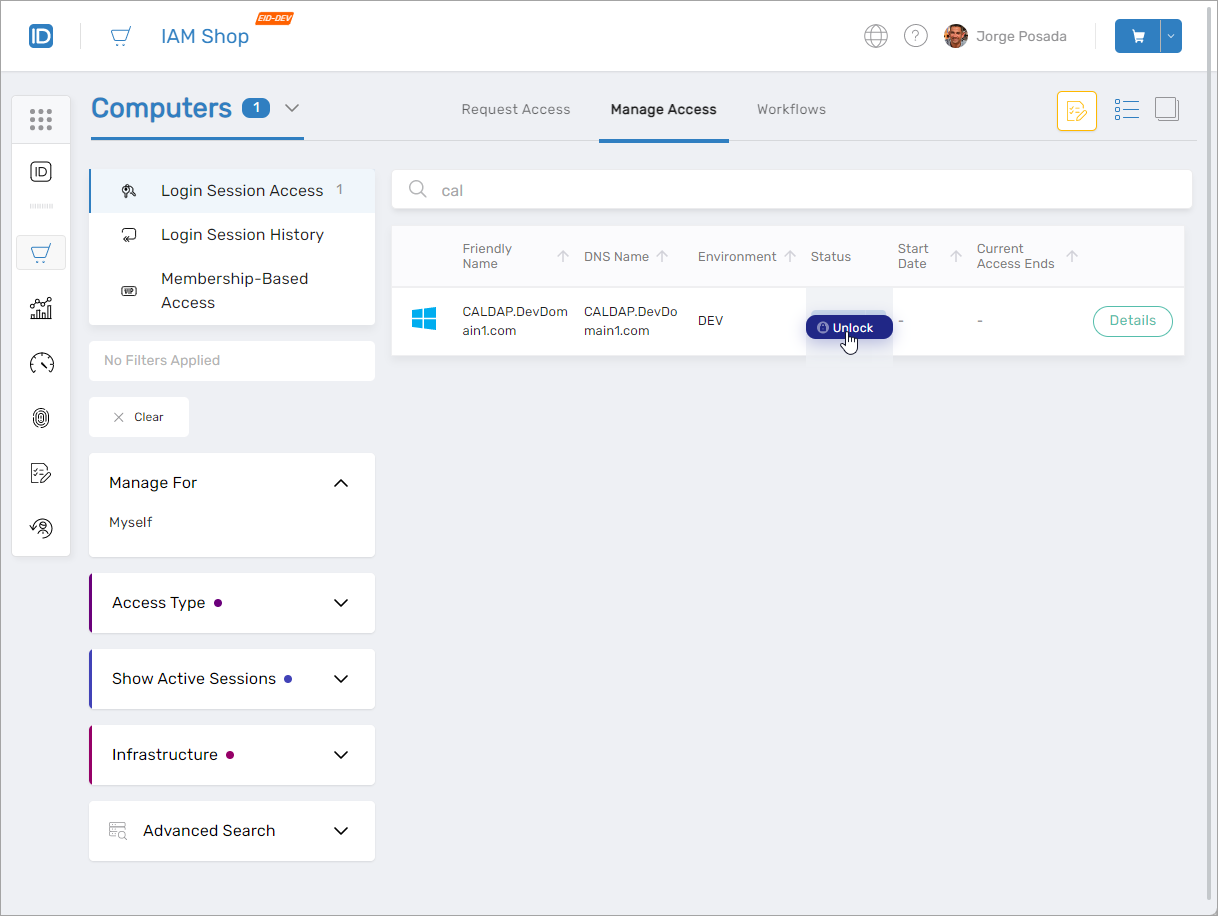
- Enter Your Master Password
- Type your master password and click OK.
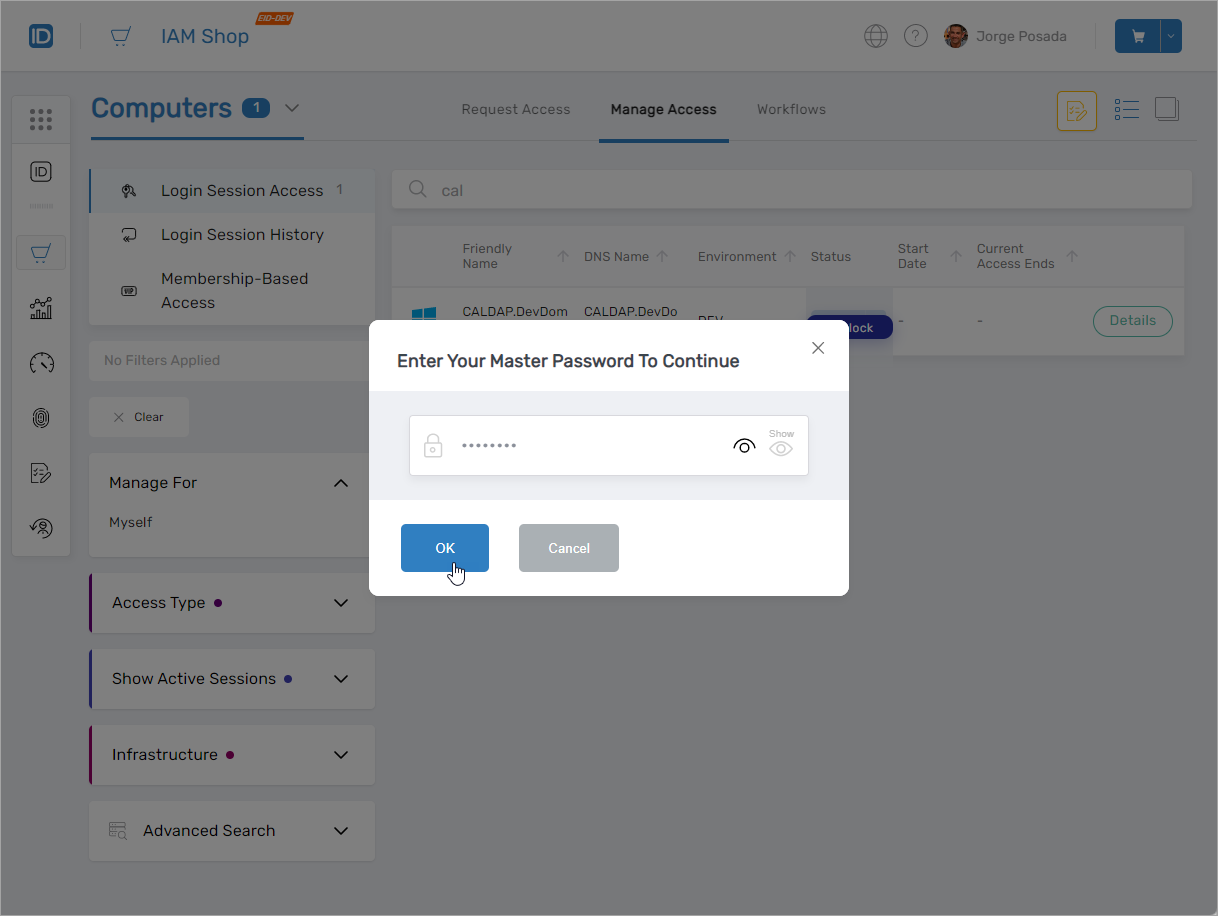
- Type your master password and click OK.
- Click Connect
- Click Connect to initiate the remote session.
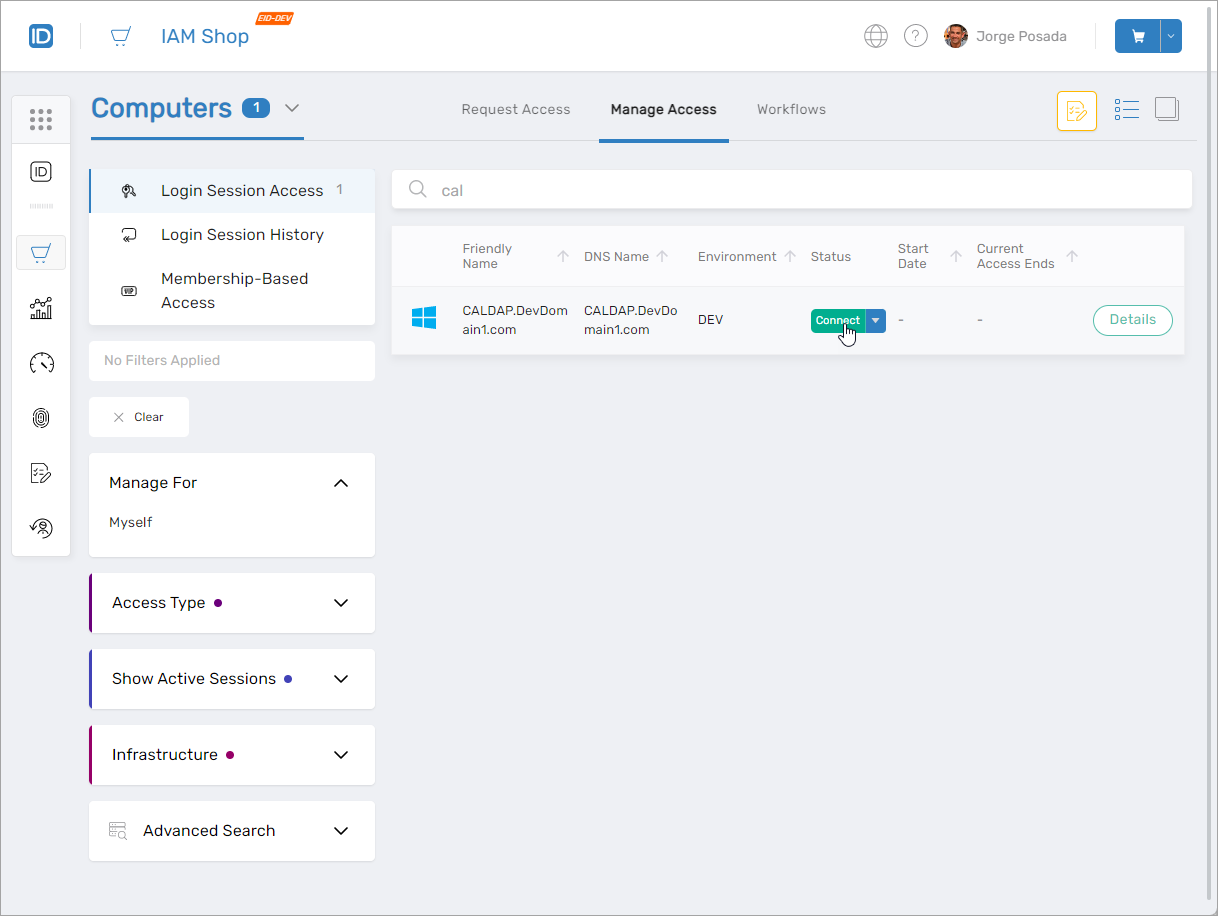
- Click Connect to initiate the remote session.
- Accept the User Consent Agreement
- Review and agree to the consent terms.
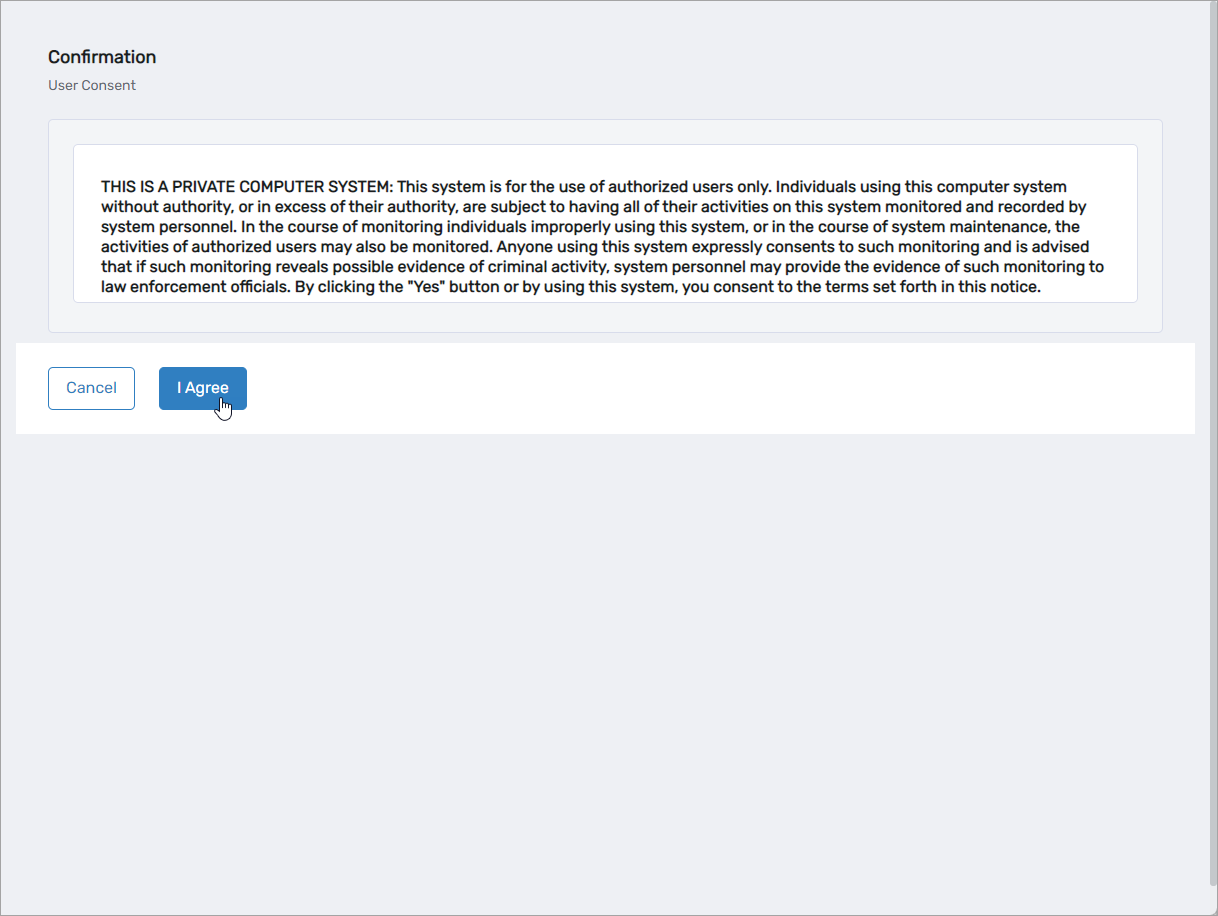
- Review and agree to the consent terms.
- Authenticate Again
- Re-enter your master password and click Submit.
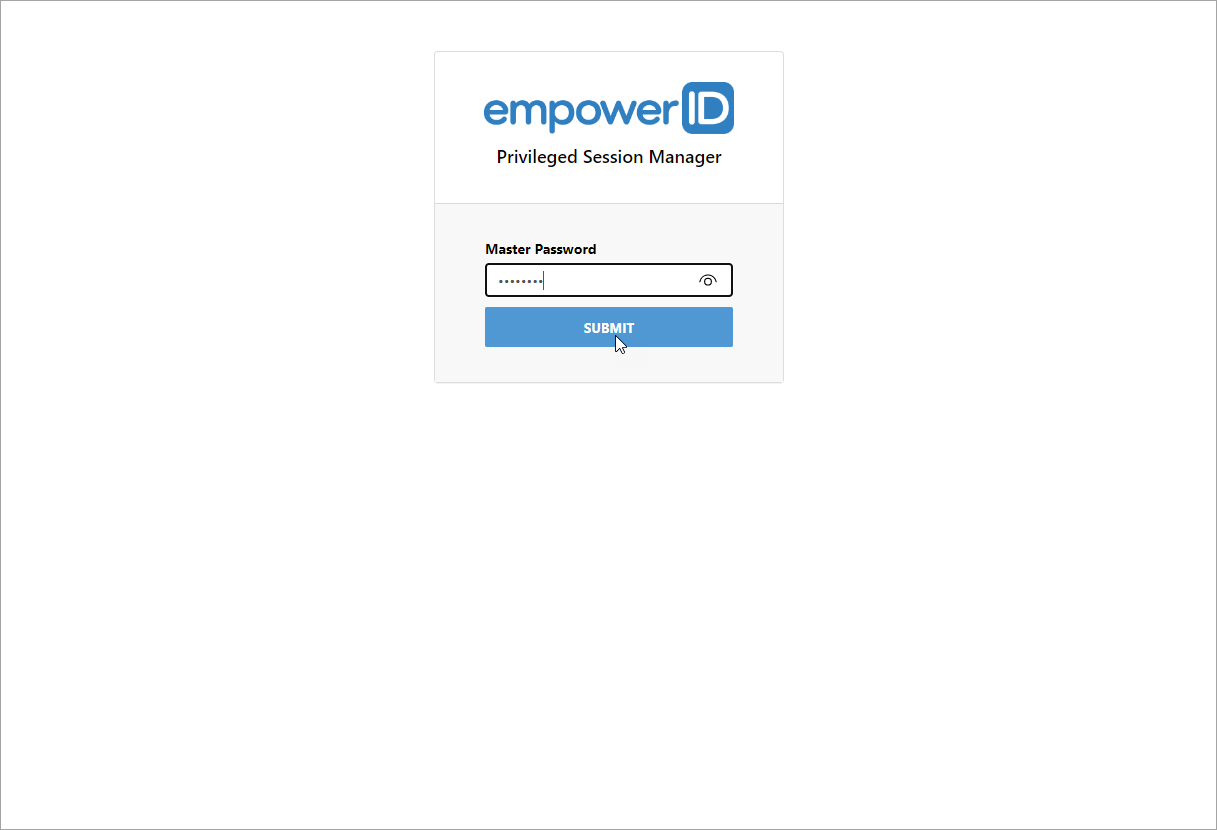
- Re-enter your master password and click Submit.
Your session will begin immediately.
Session Duration
Sessions last for the duration approved in your request. If you finish early, you can end the session manually. See Disconnect Computer Sessions for instructions.
How to Confirm It's Working
- After clicking Connect and providing your master password, your session should start.
- You will be logged into the target computer with the correct identity type:
- Your own credentials (Login Session Access)
- A privileged account (Membership-Based Access)
Troubleshooting Tips
- Wrong master password? Try again carefully or reset it if necessary.
- Can’t click Unlock? Ensure your access request has been approved and is not expired.
- Nothing happens after clicking Connect? Make sure the target computer is powered on and reachable.
Related Tasks
You’ve now successfully started a computer session in EmpowerID and can begin your privileged work securely.