Disconnect Computer Sessions
Manually disconnect from an active computer session once you’ve completed your work.
Overview
Computer sessions in EmpowerID are time-bound, based on the approved request duration. If you finish early, it’s best practice to disconnect manually. This helps free up resources, prevent unauthorized use, and ensure a clean audit trail.
What You’ll Need
- An active session on a computer via EmpowerID
- Access to the IAM Shop portal
- Your master password if prompted for reauthentication
Disconnect a Computer Session
- Log in to the IAM Shop
- Open your organization’s IAM Shop portal and sign in.
- Access the Computers Resource
- From the Resource Type dropdown, select Computers.
- Click Manage Access.
- Find the Active Session
- Locate the computer you're currently connected to.
- Click Disconnect
- Select Disconnect next to the active session.
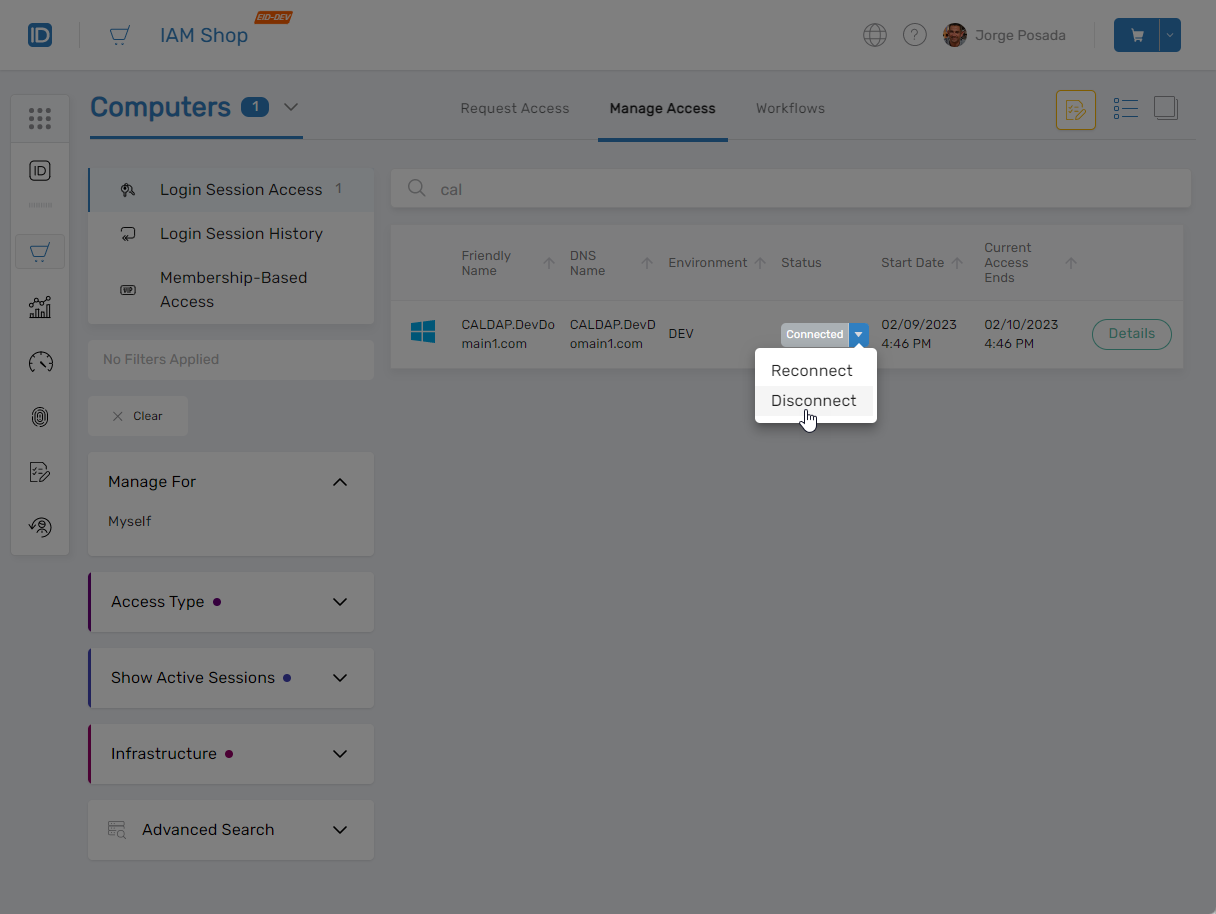
- Select Disconnect next to the active session.
Your session will end immediately, and credentials will be checked back in if applicable.
When to Disconnect Early
Why Disconnect Early?
Disconnecting early helps reduce risk exposure and ensures your privileged session isn’t left open longer than necessary. It also releases any vaulted credentials tied to the session.
Troubleshooting Tips
- Don't see a Disconnect button? You may not have an active session, or your session may have already timed out.
- Error while disconnecting? Refresh the IAM Shop portal and try again. If the issue persists, contact your administrator.
Related Tasks
You’ve now manually disconnected your session. Your session access is closed and credentials are securely returned.