Request Computer Sessions
Learn how to request access to a computer using EmpowerID's Privileged Access Management (PAM) features.
Overview
With PAM, your organization can protect Windows and Linux systems by vaulting credentials such as Windows usernames and passwords or SSH keys for Linux servers. When you need access to a specific machine, you request a "check-out" of the credentials tied to that computer.
Once approved, EmpowerID launches the session through Privileged Session Manager (PSM) — a browser-embedded application that logs you in automatically. This means you don’t need to launch Remote Desktop or manually enter credentials.
Privileged Session Manager (PSM) allows you to access remote machines directly from your browser without exposing underlying credentials.
Request a Computer Session
-
Log in to Resource Admin.
-
Search for the Target Computer
- Select Computers from the Resource Type dropdown.
- Locate the desired machine using the search bar.
-
Click Request Access
- Click Request Access beside the computer.
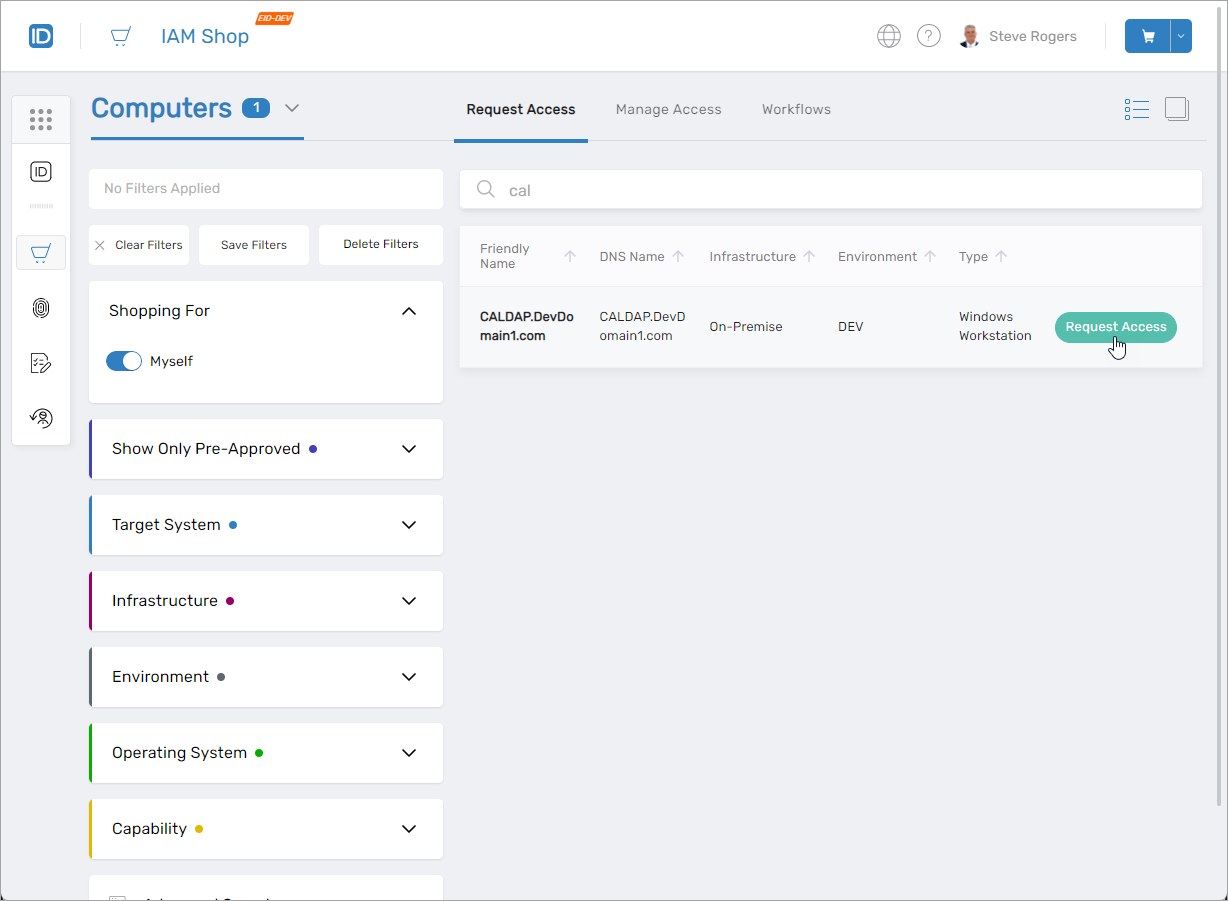
This opens the request card.
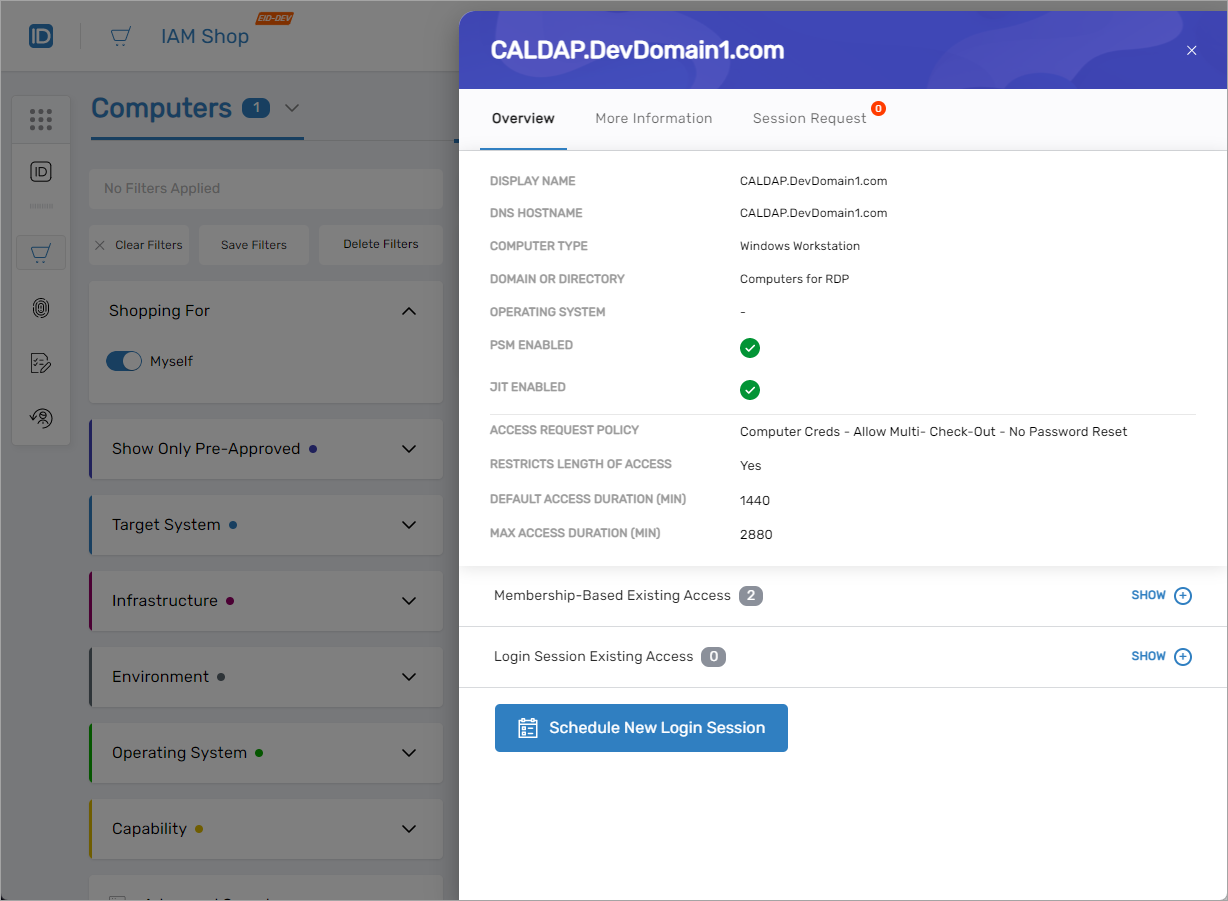
- Click Request Access beside the computer.
-
Choose Your Access Type
- One Time Access
- Pre-Approved
Choose this option for occasional or time-limited access.
-
Under Select Request Type, choose:
- Membership-Based Access to request elevated privileges
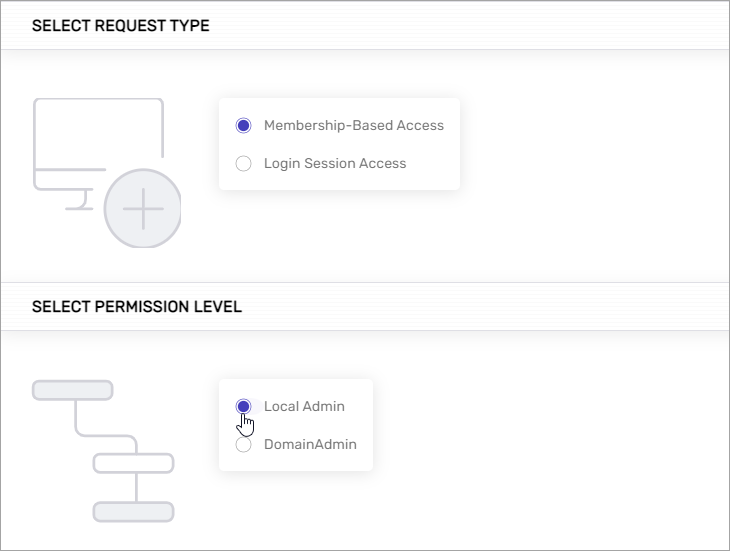
- Login Session Access to access the computer using credentials assigned to you
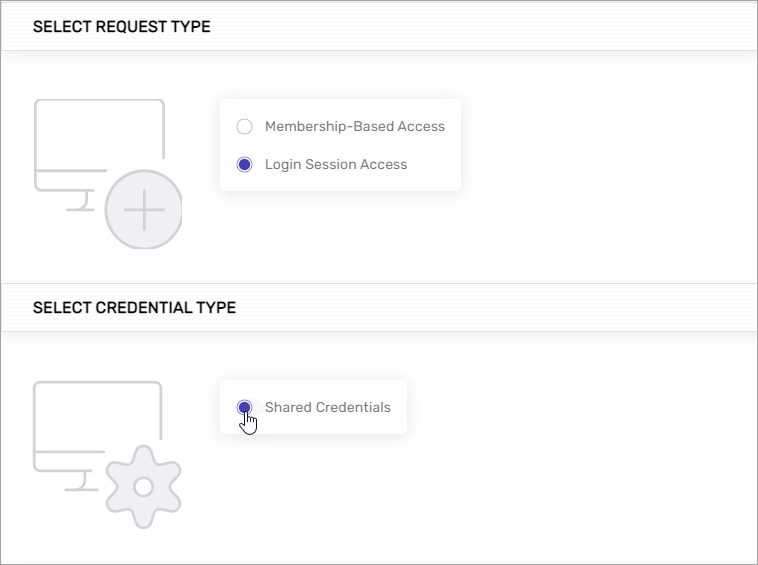
- Membership-Based Access to request elevated privileges
-
Under Select Duration, set your Start Date, Start Time, End Date, and End Time.
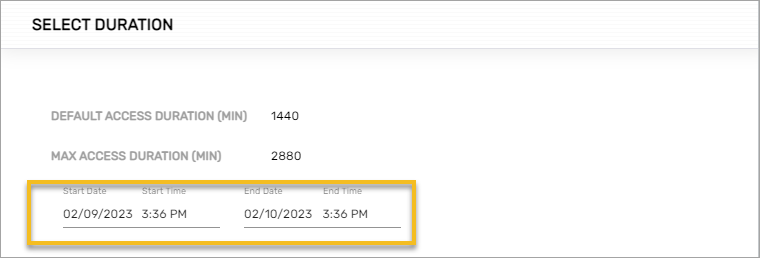
Choose this option if you frequently access this computer and need ongoing access without reapproval.
-
Click Add to Cart
-
Open the Cart
- Click the cart icon at the top of the page.
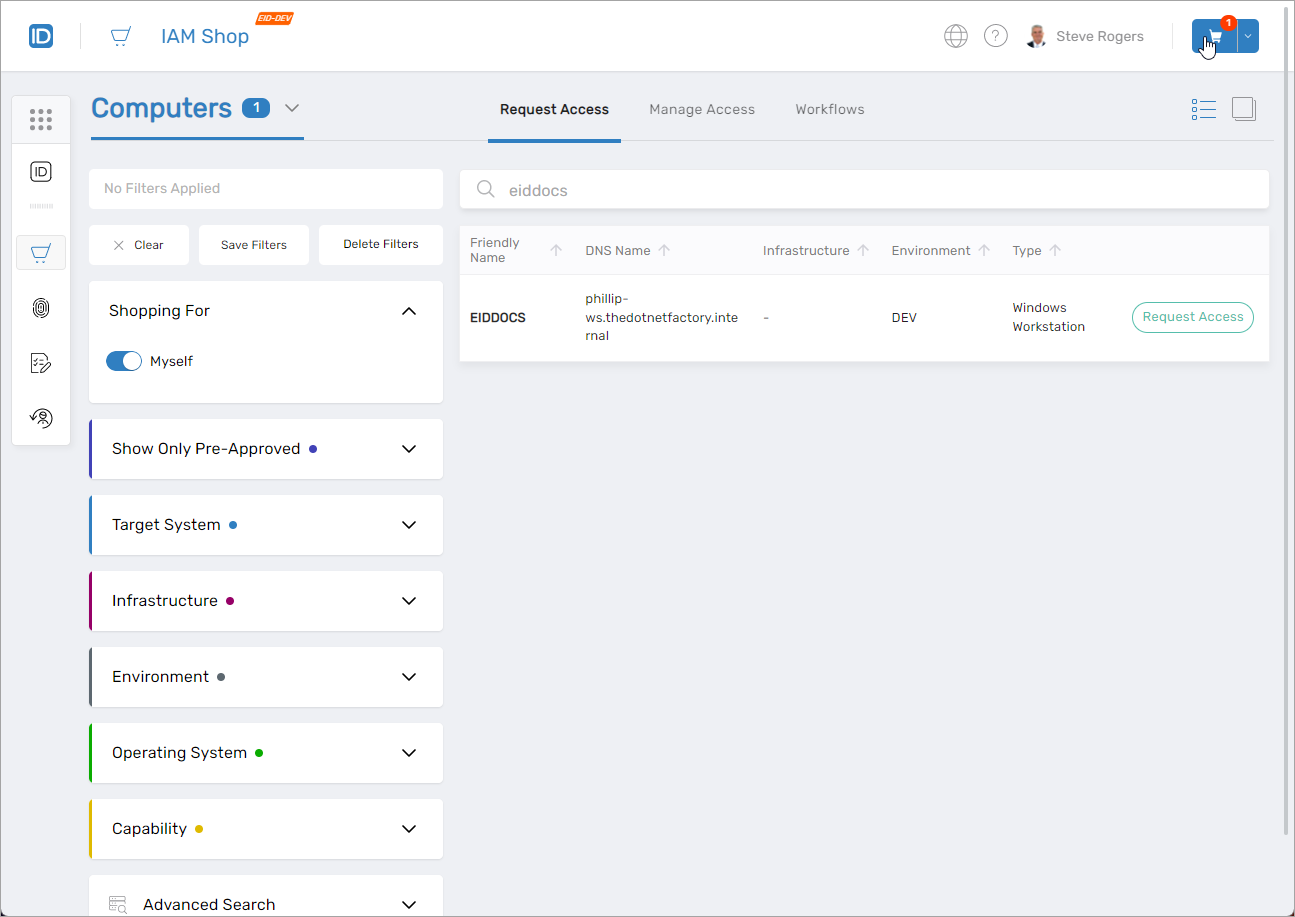
- Click the cart icon at the top of the page.
-
Add Justification
- Optionally enter a comment and a Business Request Name to clarify the purpose of the request for reviewers.
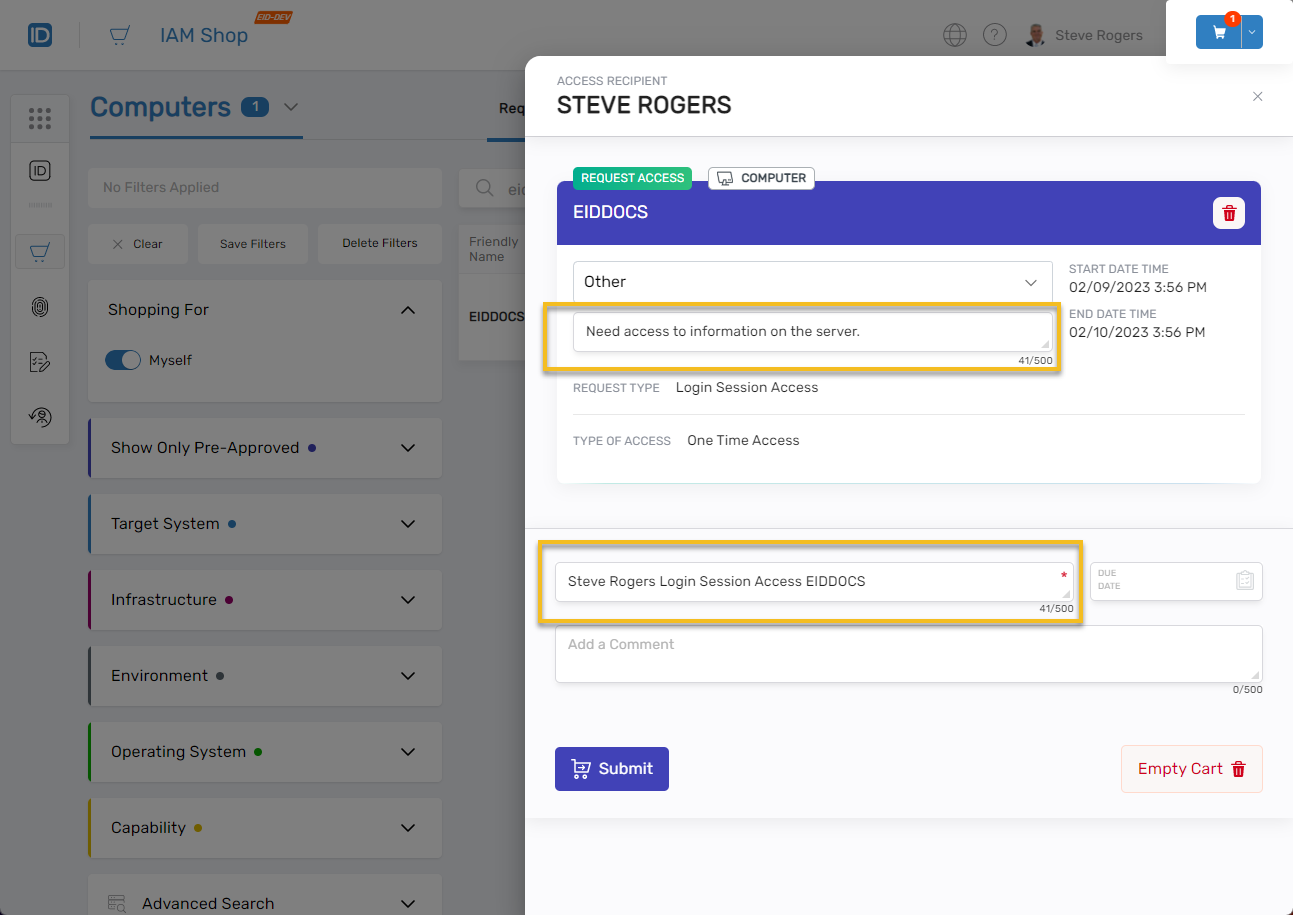
- Optionally enter a comment and a Business Request Name to clarify the purpose of the request for reviewers.
-
Click Submit
- A confirmation message appears with a tracking link.
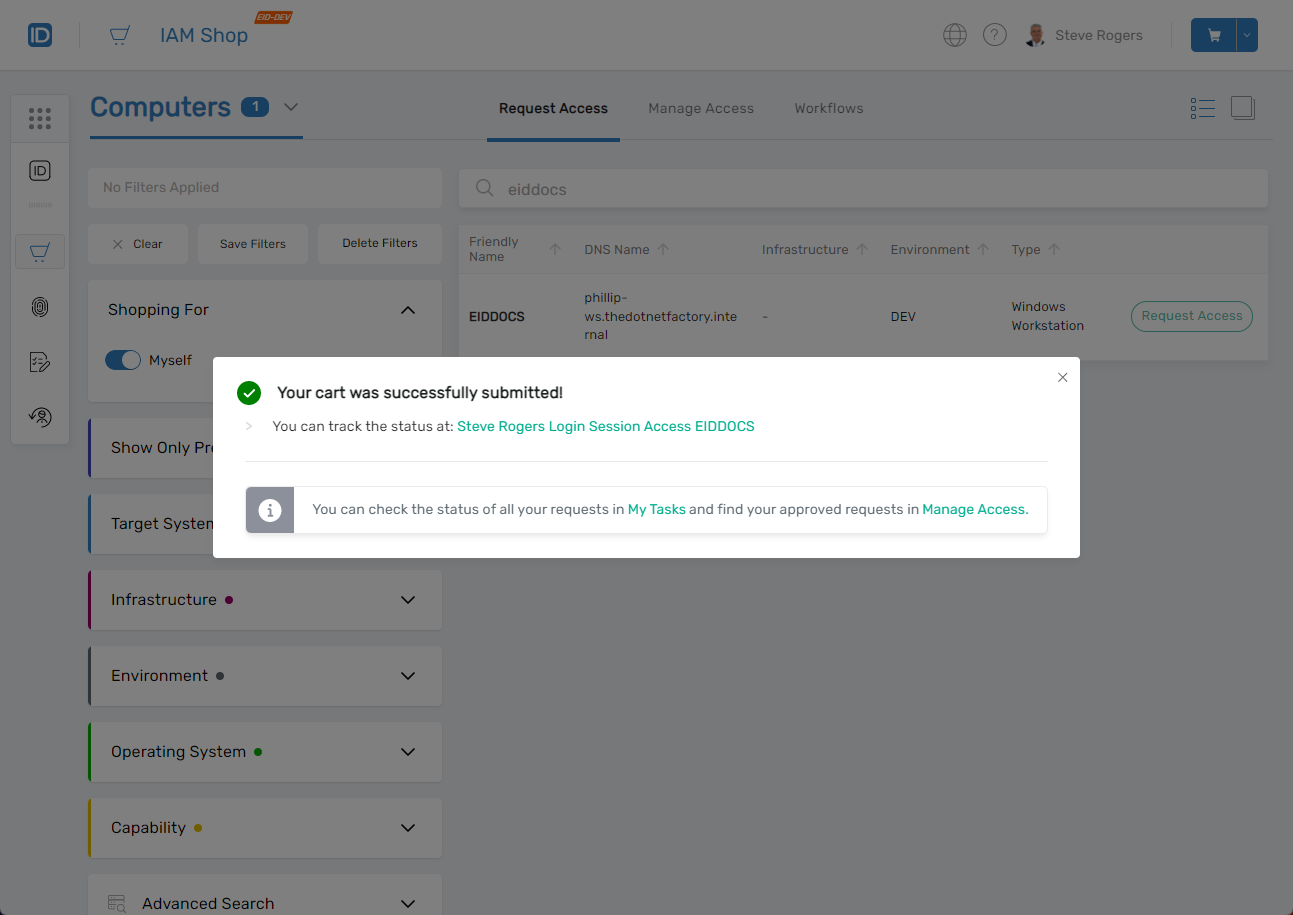
- A confirmation message appears with a tracking link.
-
View Request Status
- Click the tracking link to open the request in My Tasks.
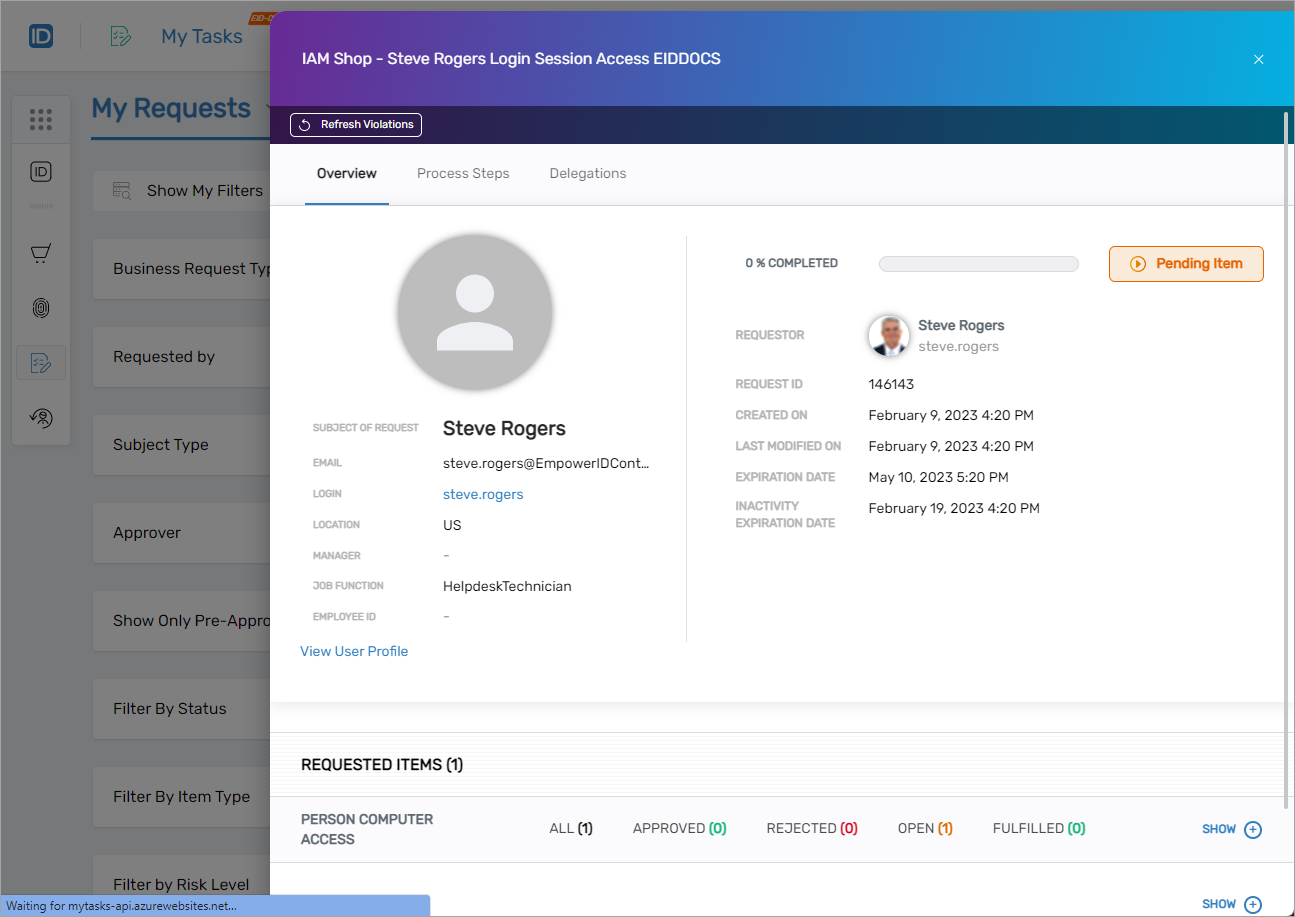
- Click the tracking link to open the request in My Tasks.
What Happens Next
Once approved, you can unlock and connect to the computer from the IAM Shop. See Start Computer Sessions to proceed with your session.
Troubleshooting Tips
- Computer not listed? Ensure your resource scope and filters are correct.
- Access type unavailable? You may not have the necessary entitlements.
- No approval received? Check your request status in My Tasks or follow up with an approver.
Related Tasks
You’ve now submitted a request to access a computer using PAM. Once approved, you’re ready to begin your session securely through EmpowerID.