Role-Based Group Memberships
Role-based group memberships enable dynamic assignment of users to groups based on their organizational roles or other criteria. When you assign an actor (such as a Business Role and Location combination) membership access to a group, all members of that actor are automatically added to the group. This eliminates manual membership management and ensures group membership stays synchronized with organizational changes.
For example, if you grant the "Sales - North America" Business Role and Location combination membership access to a group, all people in that role and location are automatically members of the group.
Prerequisites
To ensure EmpowerID maintains group membership, verify that Group Membership Reconciliation is enabled for the account store containing the target group.
Configure Role-Based Membership
- On the navbar, expand Role Management and select Manage Delegations.
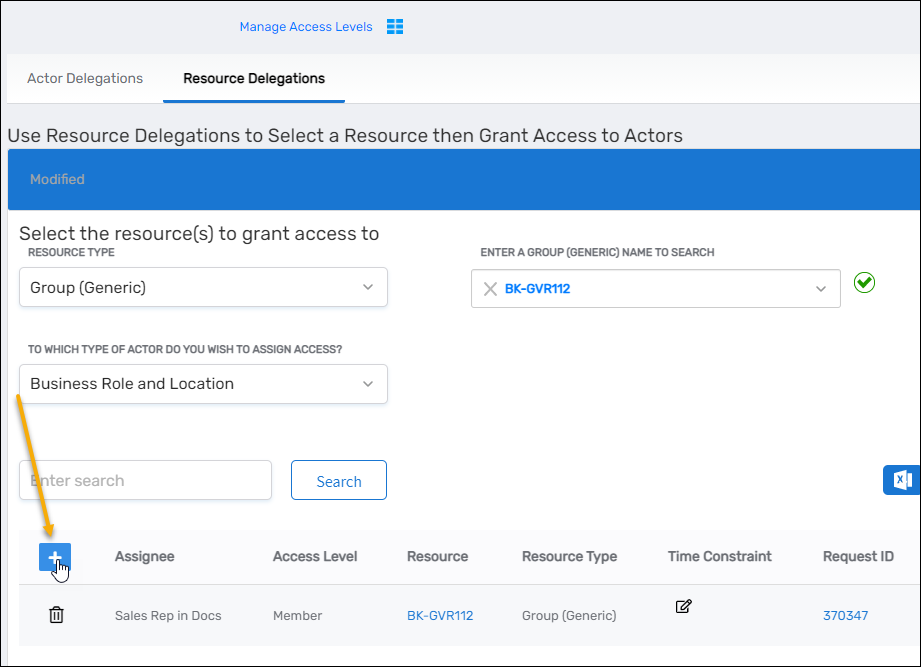
- Select the Resource Delegations tab.
- For Resource Type, select the type of group you want to configure.
- For Enter a Group (Group Type) Name to Search, enter the name of the target group.
- For To Which Type of Actor Do You Wish To Assign Access, select the desired actor type (such as Business Role and Location).
- Click the Add New button on the grid header.
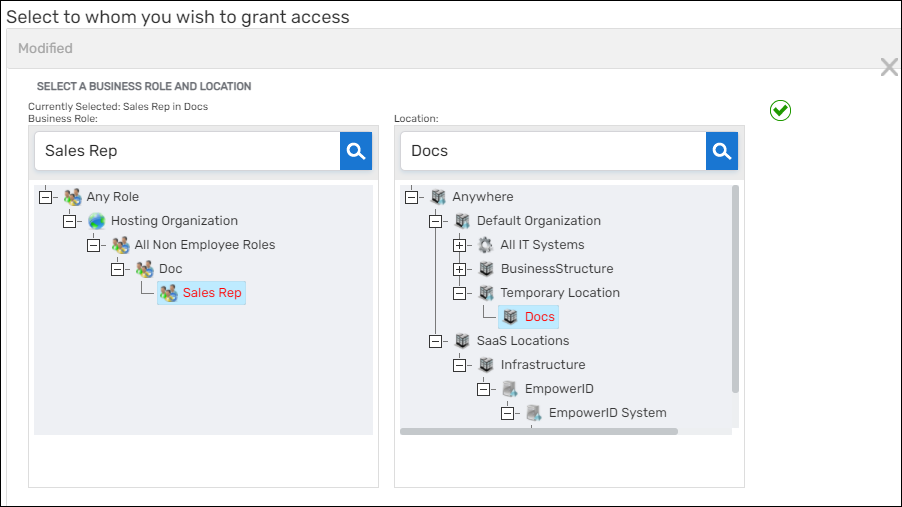
- Search for and select a Business Role from the Business Role tree.
- Search for and select a Location from the Location tree.
- For Access Level, select Member.

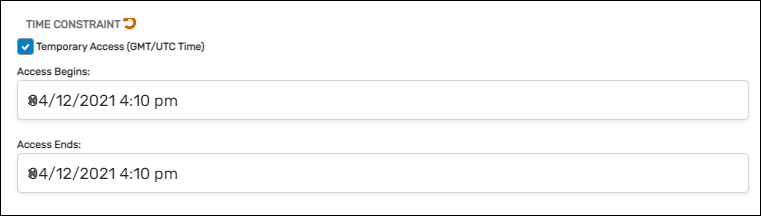
- If you want to limit the duration of the membership, select Temporary Access and configure the access parameters.
- Click Save.
Results
After saving:
- All members of the selected actor (Business Role and Location, Management Role, Query-Based Collection, etc.) are automatically added to the group
- When people join or leave the actor, their group membership is automatically updated
- Group Membership Reconciliation maintains the memberships based on current actor assignments
- The delegation appears in the group's access management settings
Supported Actor Types
Role-based memberships can be assigned to various EmpowerID actor types:
- Business Role and Location – People assigned to specific organizational roles in specific locations
- Management Roles – Users with specific management role assignments
- Query-Based Collections – Users matching dynamic query criteria
- Groups – Members of other groups (nested group scenario)
- Other actor types – As available in your EmpowerID deployment
Related Topics
- Add Groups to Groups – Nest groups for inherited permissions
- About the View One Group Page – View and manage group delegations
- Access to Groups – Required permissions for configuring delegations