Add Additional Applications to Announcements
After creating an announcement, assign it to additional applications to ensure the notification reaches users across all target environments.
Add Applications to an Existing Announcement
- Log in to the EmpowerID Web portal as an administrator.
- In the sidebar menu, navigate to Admin > Miscellaneous > Announcements.
- In the Announcements grid, search for the announcement you want to update.
- Click the Name link for the target announcement.
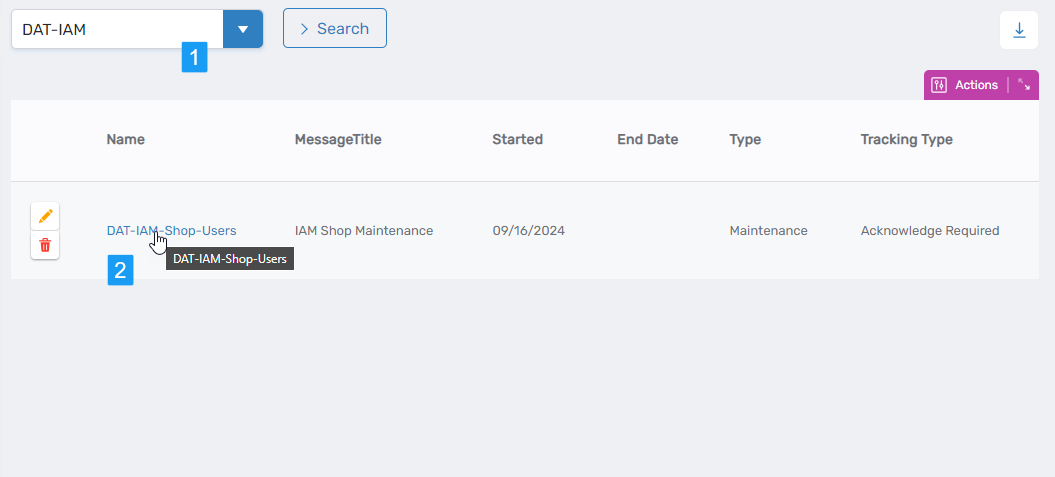 This opens the View One page for the selected announcement.
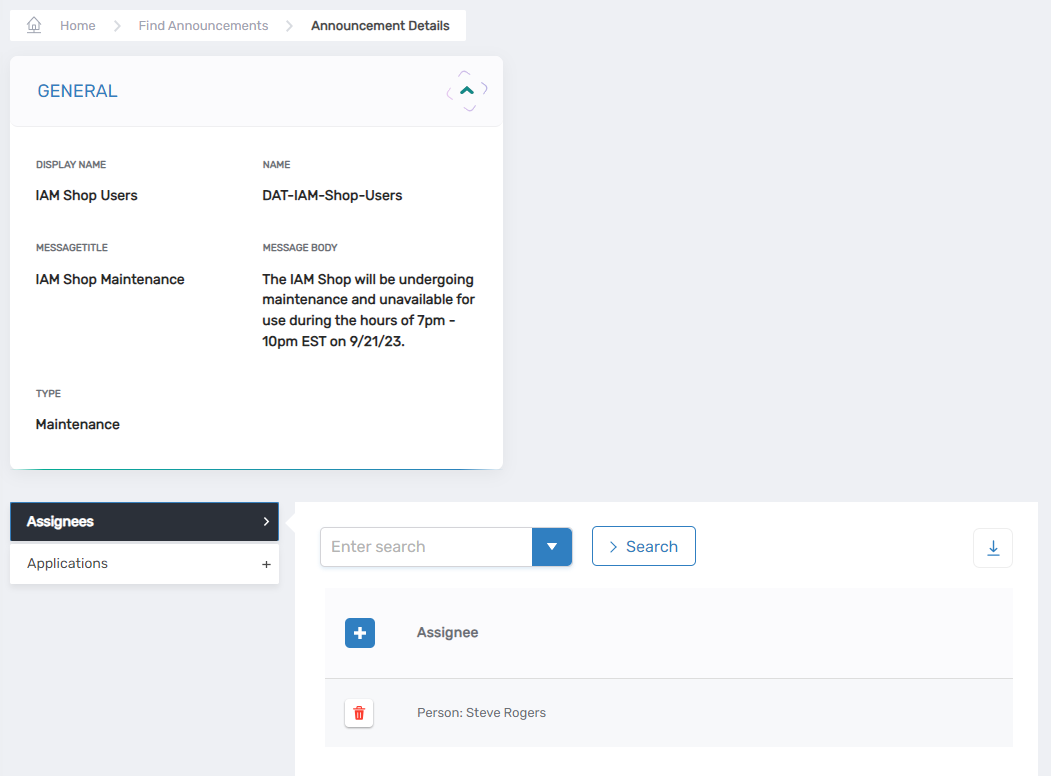
- On the View One page, expand the Applications accordion.
- Click Add New Application.
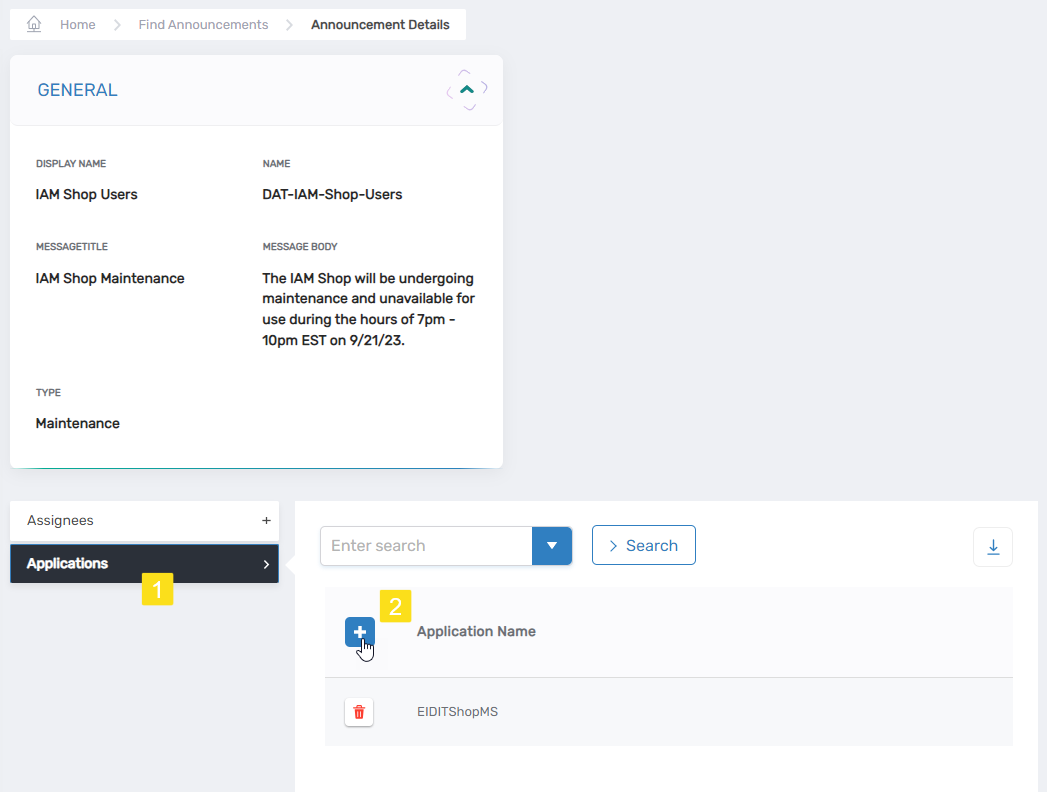
- In the modal window, search for and select the desired application.
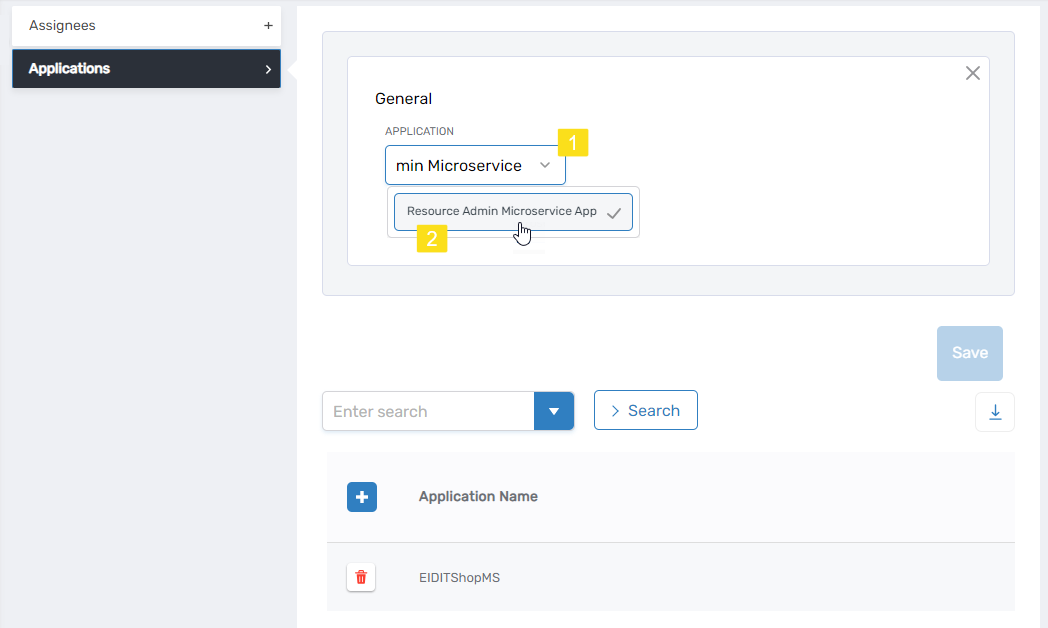
- Click Save.
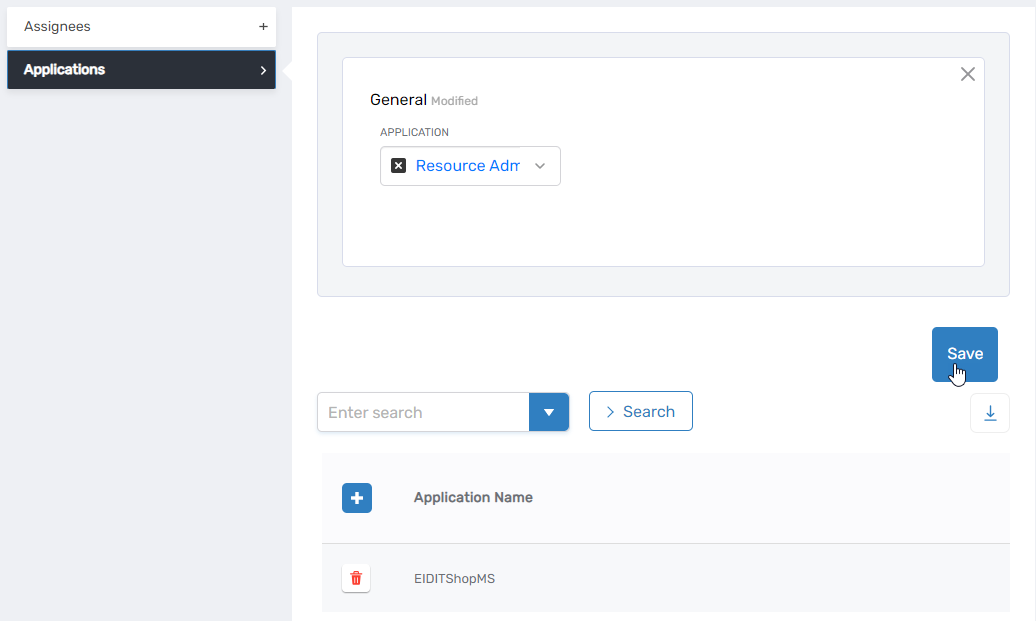 A confirmation message appears, and the application is listed in the Applications grid.
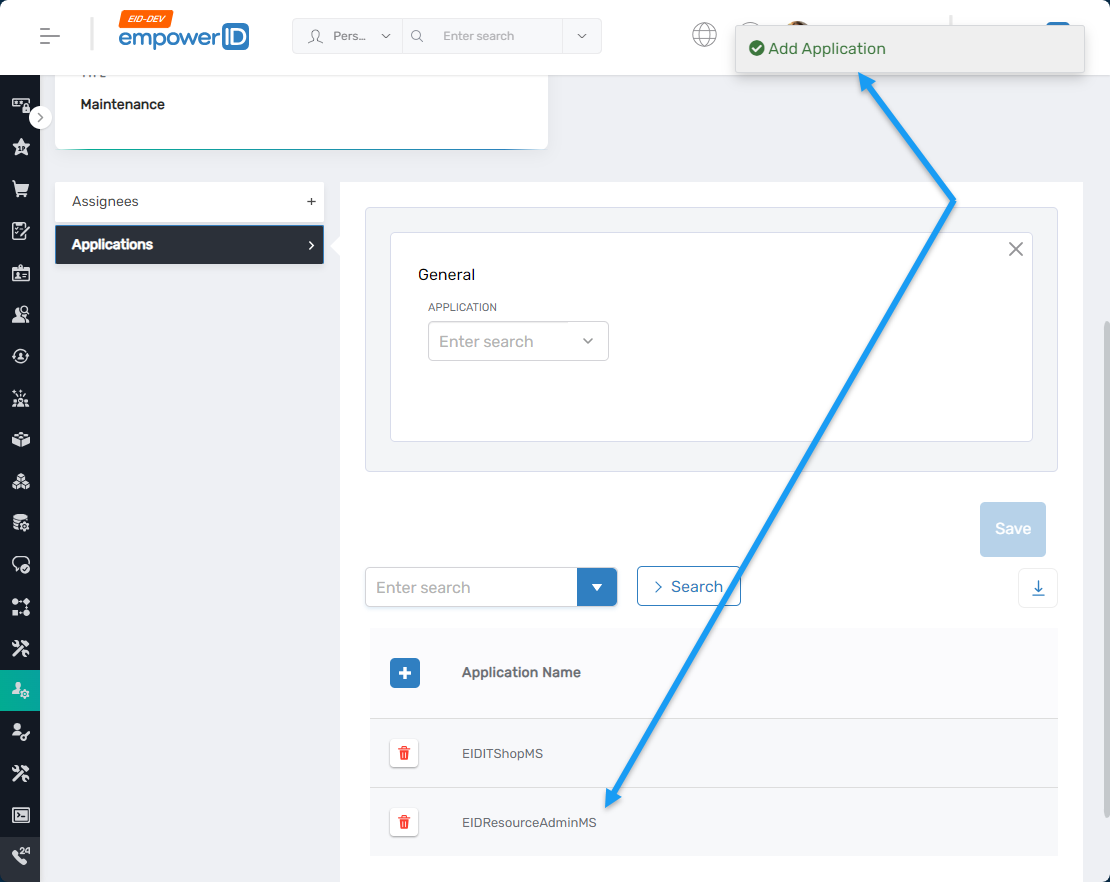
- Repeat steps 5-8 to assign additional applications to the announcement as needed.
Expected Results
The announcement will display to users when they access any of the newly added applications.
To verify:
- Navigate to the application's login URL.
- Log in as a user assigned to the announcement.
- Verify the announcement appears before the application's landing page.
Announcements are only shown to users who are valid assignees and are accessing an application to which the announcement has been assigned.