Create Organizational Relationships
Create Person relationships in EmpowerID to model your organizational hierarchy and enable automatic workflow routing. The most common relationship is the manager (Reports To) relationship, which establishes reporting structures and enables manager-based approval workflows.
Supported Relationship Types
EmpowerID supports Manager, Assistant, Secretary, Peer, Dotted-line Manager, Team Member, and Follows relationships. This article demonstrates creating a manager relationship.
Prerequisites
Person relationships are secured objects in EmpowerID. To manage relationships, you need:
Workflow Access:
- Initiator access for the AddPersonRelationships workflow (if approval is required)
- Initiator access for the RemovePersonRelationships workflow (if approval is required)
Direct Access:
- Access level with Add Relationships operation allowed
- Access level with Remove Relationships operation allowed
See Roles Needed to Access People for complete permission requirements.
Create a Manager Relationship
- Navigate to the View or View One page for the Person using one of these methods:
- Use the Global search bar (quickest method)
- Navigate through the Find Person page
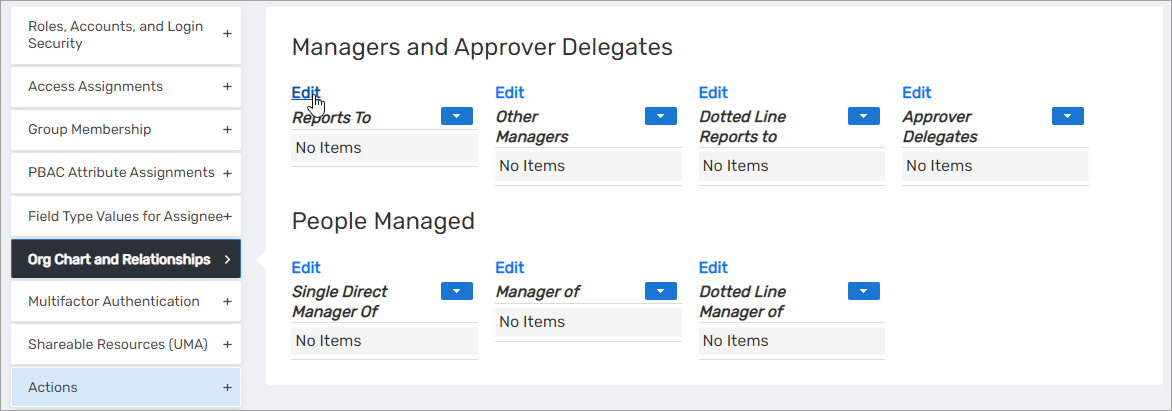
- Expand the Org Chart and Relationships accordion.
- Click Edit in the Reports To pane.
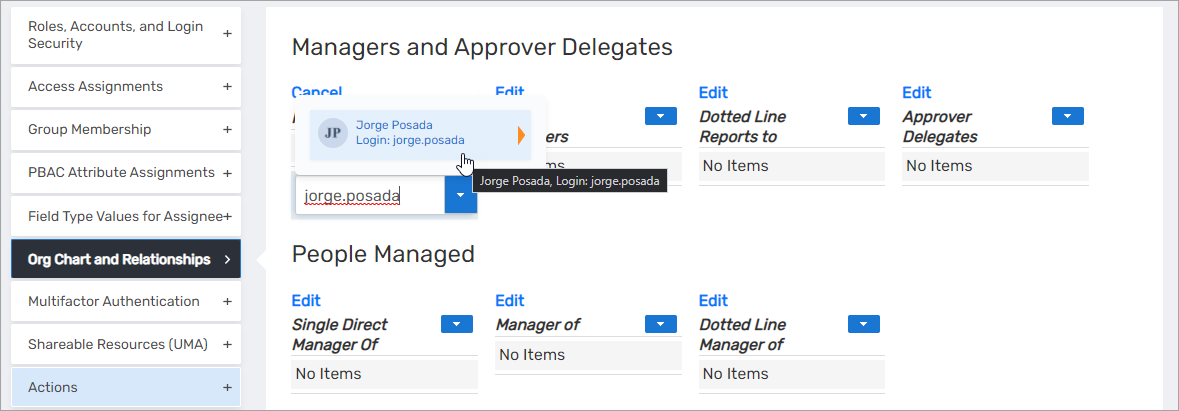
- In the Search field, enter the name of the Person who will be the manager.
- Click the tile for the manager Person.
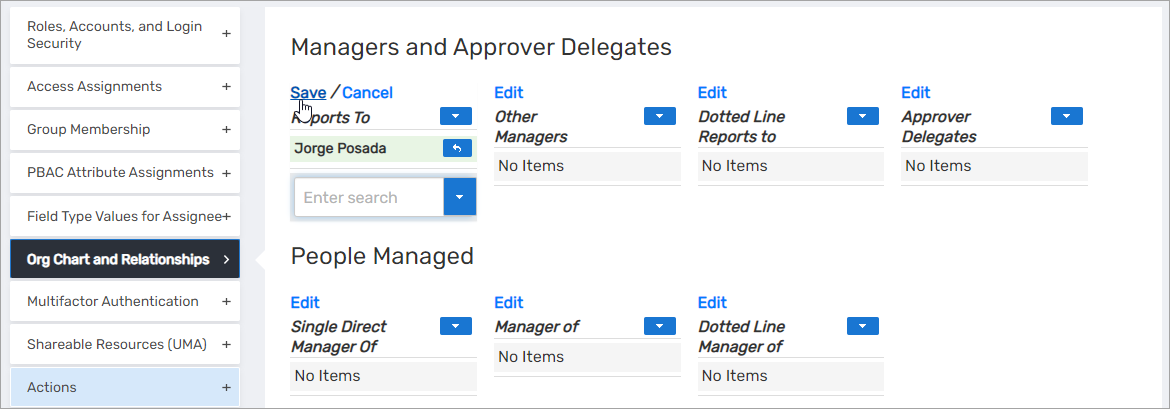
- Click Save.
Results
- The manager relationship is established in EmpowerID
- The relationship appears in organizational charts and hierarchical views
- Approval workflows can route to the designated manager
- The manager can view and manage their direct reports (based on assigned Management Roles)
- The relationship is synchronized to connected systems (such as Active Directory)
- Relationship changes are recorded in audit logs