Deleting App Rights
Deleting unused app rights simplifies your access control model, reduces administrative overhead, and maintains a secure permissions structure.
This article demonstrates how to delete app rights in Resource Admin.
Prerequisites
Before deleting app rights, ensure you have:
- Access to Resource Admin with the Application RBAC Owner Management Role (or higher)
- An existing PBAC application with app rights to remove
- Confirmation that the app right is no longer used in entitlement workflows, policies, or reporting
Impact Warning
Deleting app rights is permanent and immediately affects access control. Ensure the right is no longer referenced in PBAC policies, approval workflows, or assignments before deletion. Test deletions in non-production environments first.
Procedure
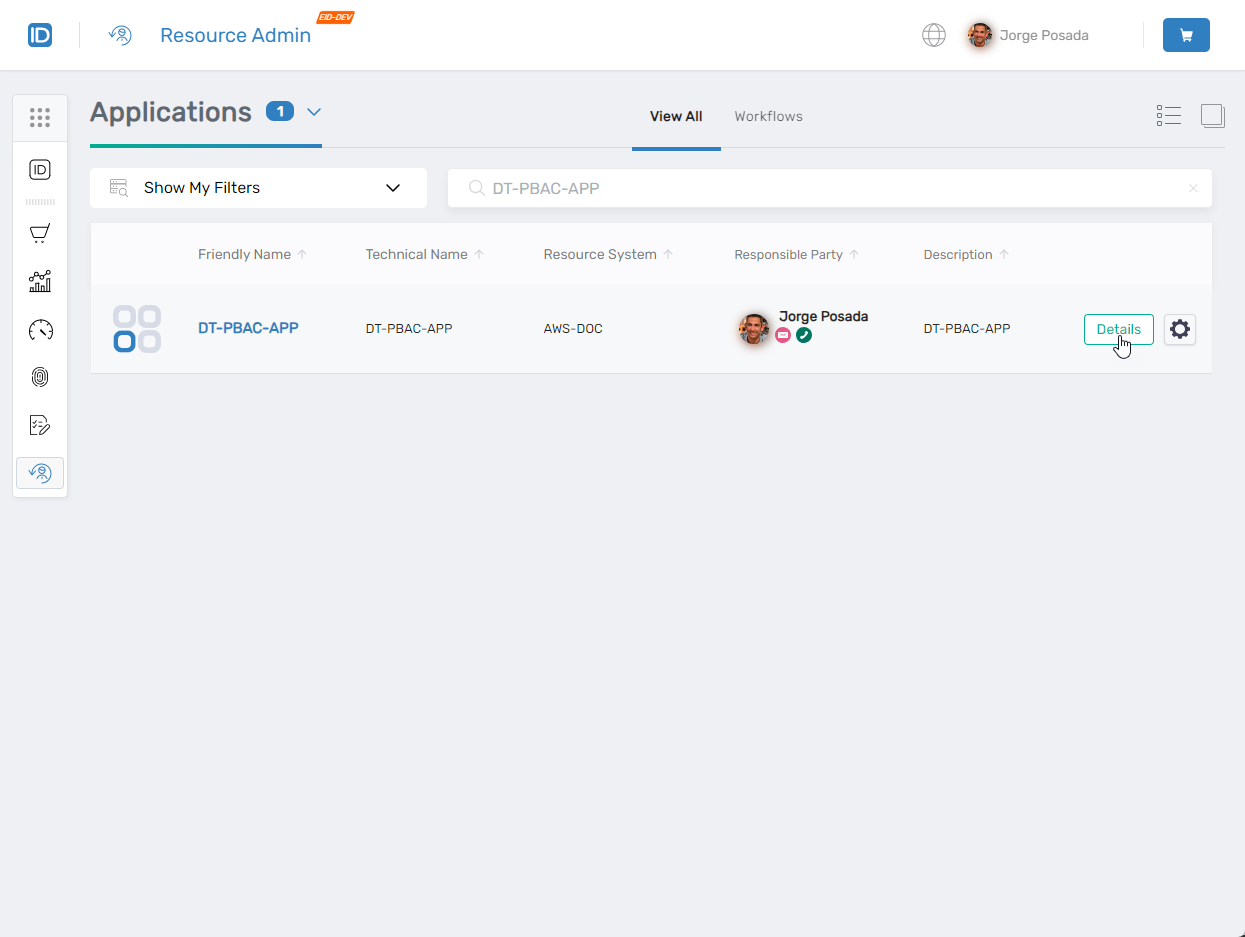
- In Resource Admin, search for the PBAC application containing the app right you want to delete.
- Click the Details button for the application.
 The Application Overview page opens.
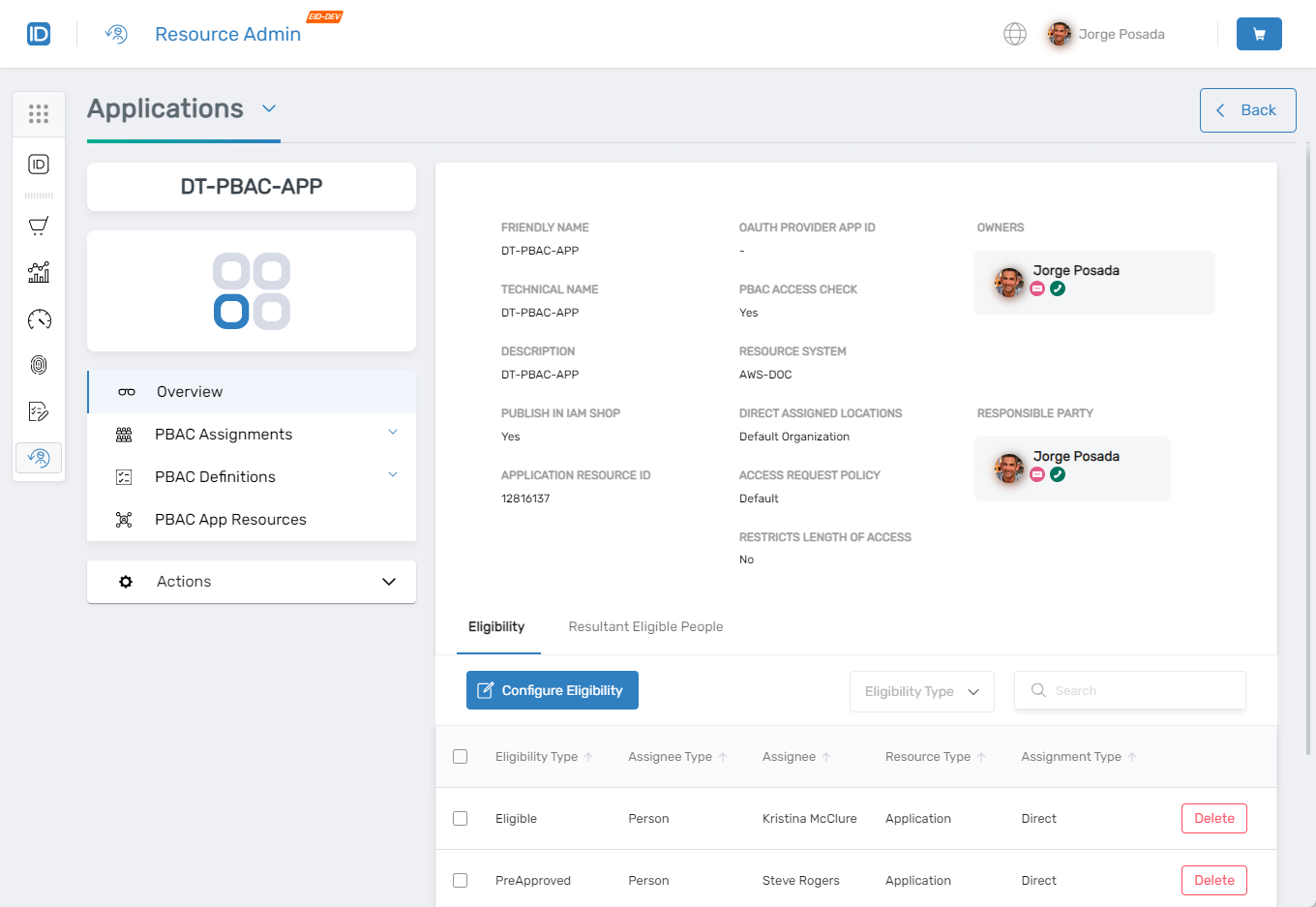
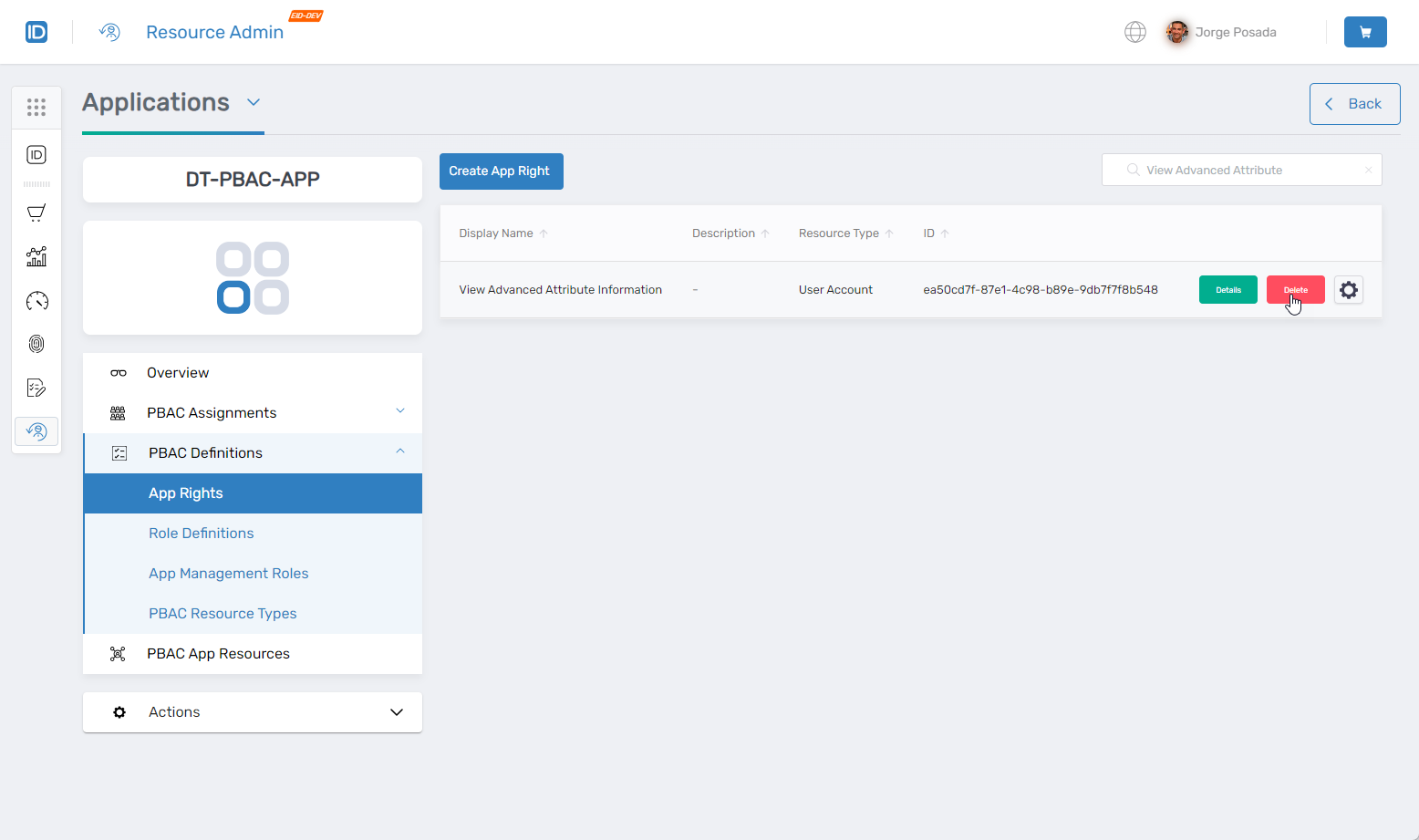
- Expand PBAC Definitions in the left-hand menu and select App Rights.
- Search for the app right you want to delete.
- Click the Delete button next to the app right record.
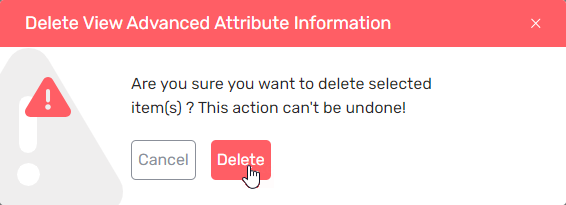
- Confirm the deletion in the confirmation dialog.
Verify the Results
After deleting the app right:
- Re-run the search in the App Rights grid to confirm the app right no longer appears.
- (Optional) Verify the deletion in audit logs by navigating to System Logs > Audit Logs and searching for the deletion event.
Next Steps
After deleting app rights, review remaining app rights to ensure your access control model reflects current business requirements.