Configuring Field Types for App Rights
Field Types enable fine-grained access control by allowing policies to evaluate attributes when users request application rights. By associating Field Types with app rights, you can enforce context-specific access control based on structured data categories such as region, department, or product type.
Field Types implement attribute-based access control (ABAC) within EmpowerID's PBAC model. When configured for app rights, they allow users to specify context during access requests, enabling policies to make dynamic authorization decisions. For more information, see Understanding Field Types in EmpowerID PBAC.
This article demonstrates how to configure Field Types for app rights in PBAC-enabled applications.
Prerequisites
Before configuring Field Types for app rights, ensure you have:
- Access to Resource Admin with the Application RBAC Owner Management Role (or higher)
- An existing PBAC application with app rights already created
- Field Types already defined for the application (either application-specific or shared)
Procedure
-
Sign in to Resource Admin with at least the Application RBAC Owner Management Role.
-
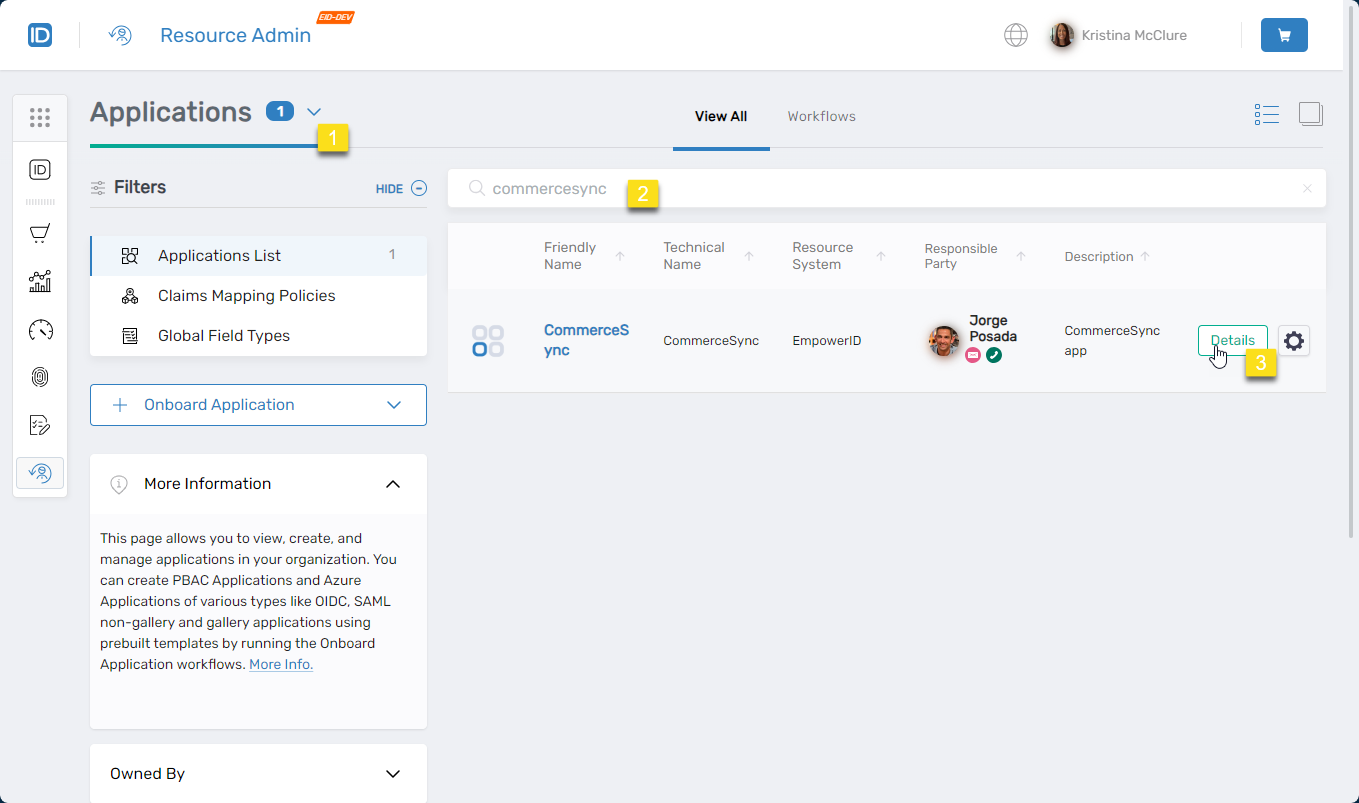
Select Applications from the Resource Type menu, search for the target PBAC application, and click the Details button.
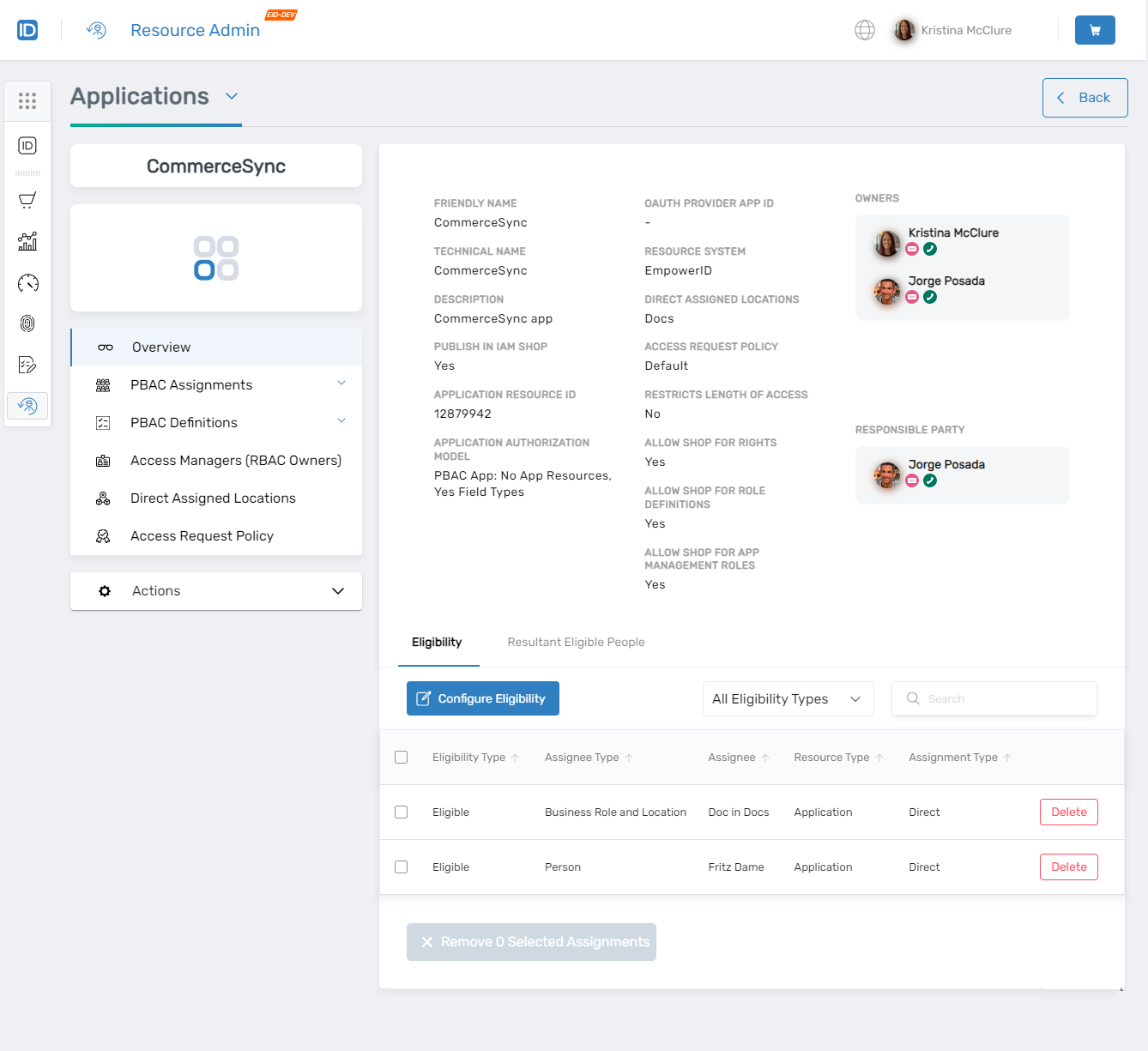
The application Overview page opens.
-
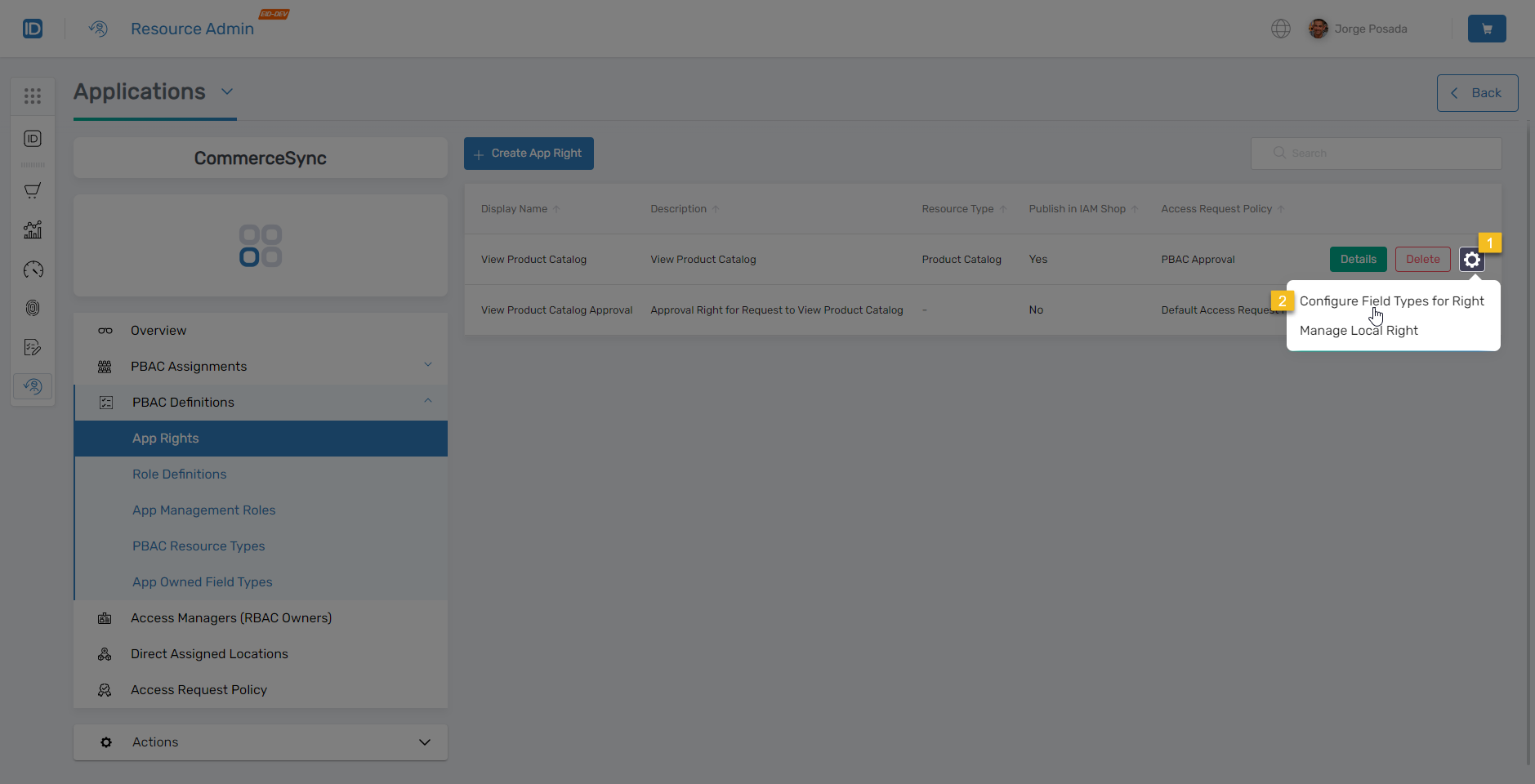
In the application menu, navigate to PBAC Definitions > App Rights.
-
Locate the app right you want to configure, click the gear icon next to it, and select Configure Field Types for Right.
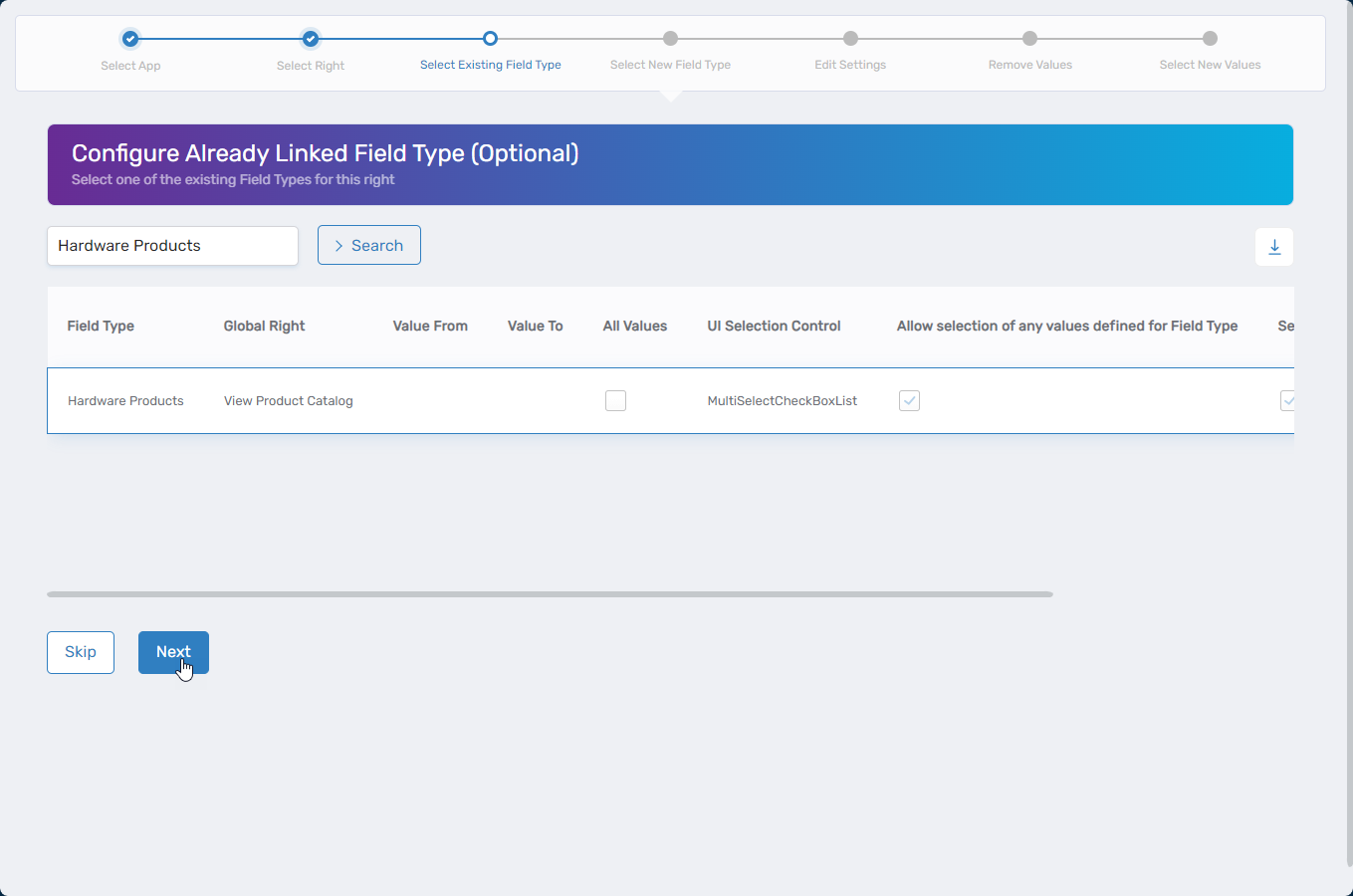
The Configure Application Authorization Field Type workflow opens.
-
Search for and select the desired PBAC Field Type, then click Next.
-
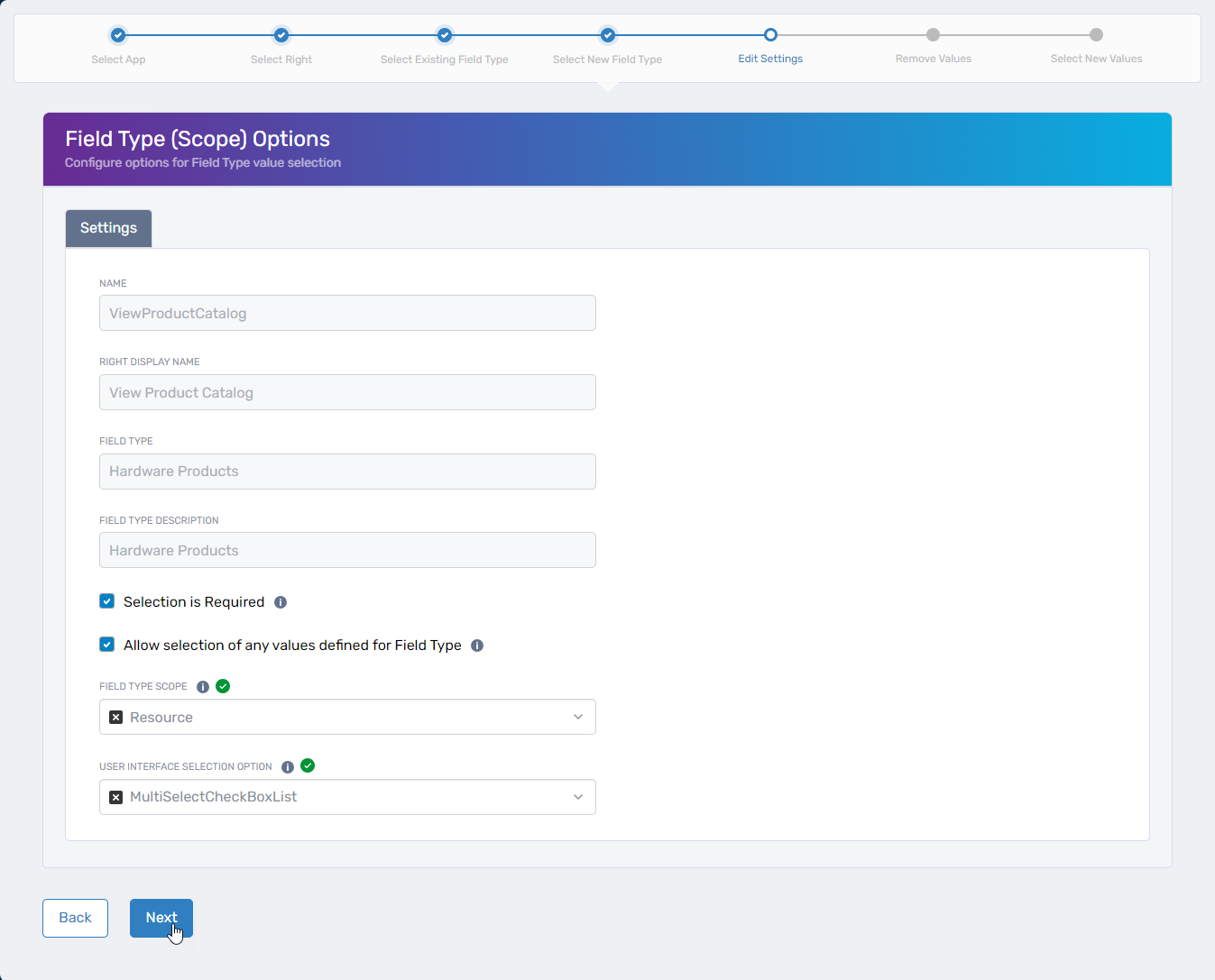
Configure the field type settings:
Field Description Selection is Required Forces users to select a value for this field type when requesting the app right. Allow selection of any values defined for field type Enables users to choose from all available field type values. Field Type Scope Set to Resourcefor resource-based field types.User Interface Selection Option Determines the UI control shown to users (e.g., MultiSelectCheckBoxListfor multiple selections). For details on selection rules, see Understanding Field Type Selection Rules. -
Click Next to finalize the configuration.
-
Click Submit to apply the changes.
Verify the Results
To confirm the field type was configured successfully:
- Return to PBAC Definitions > App Rights in the application menu.
- Click the Details button for the configured app right.
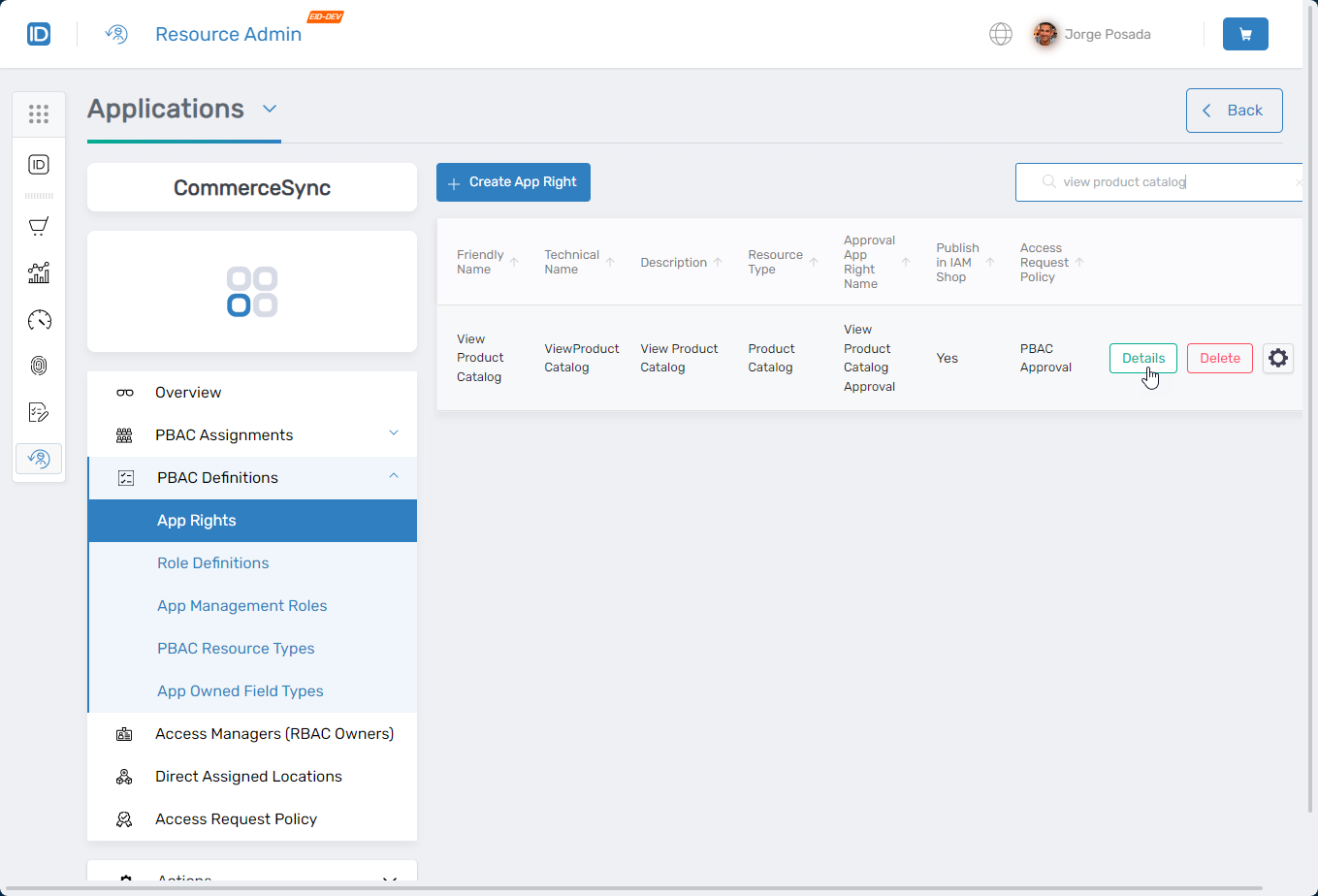
The app right details page opens.
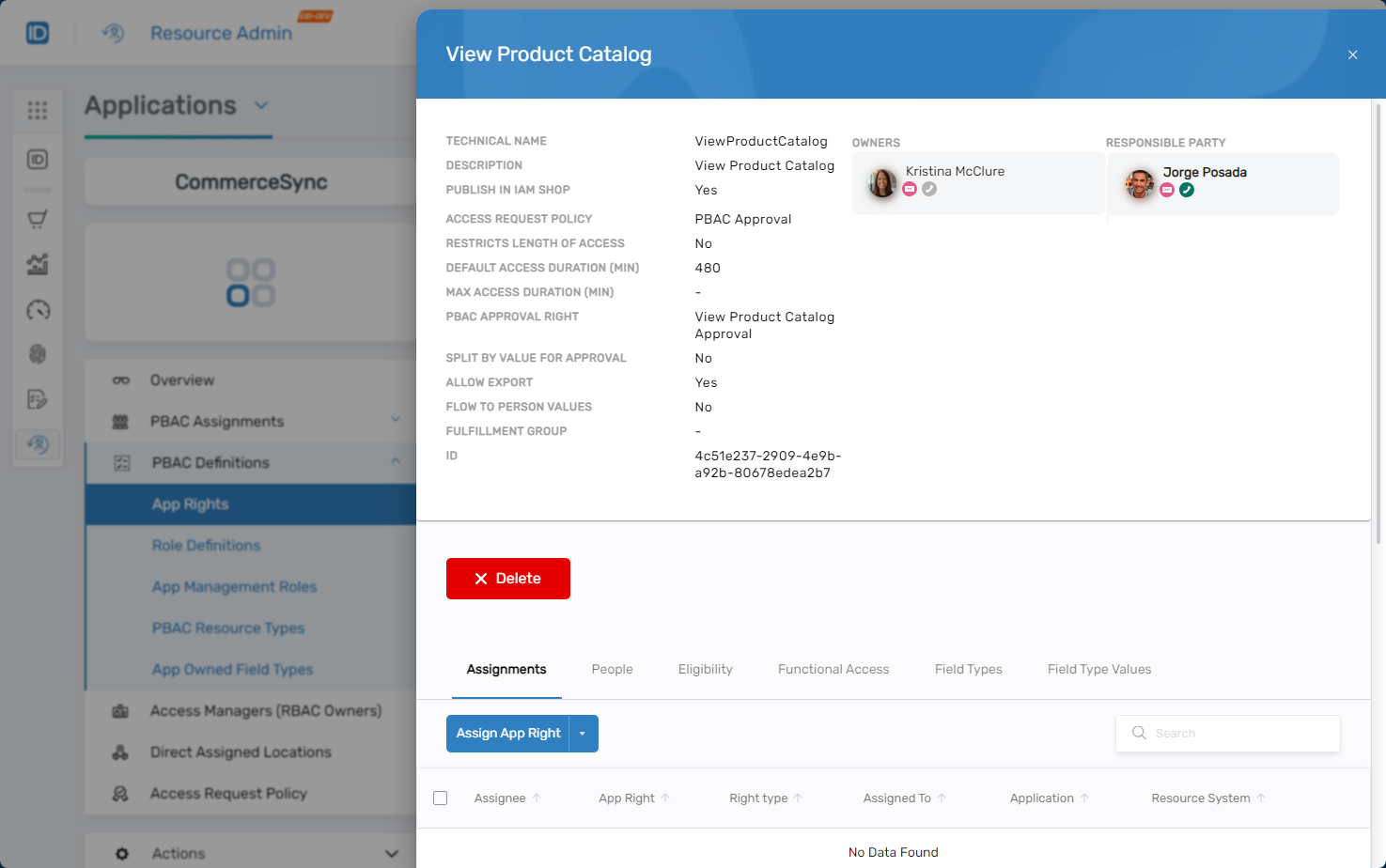
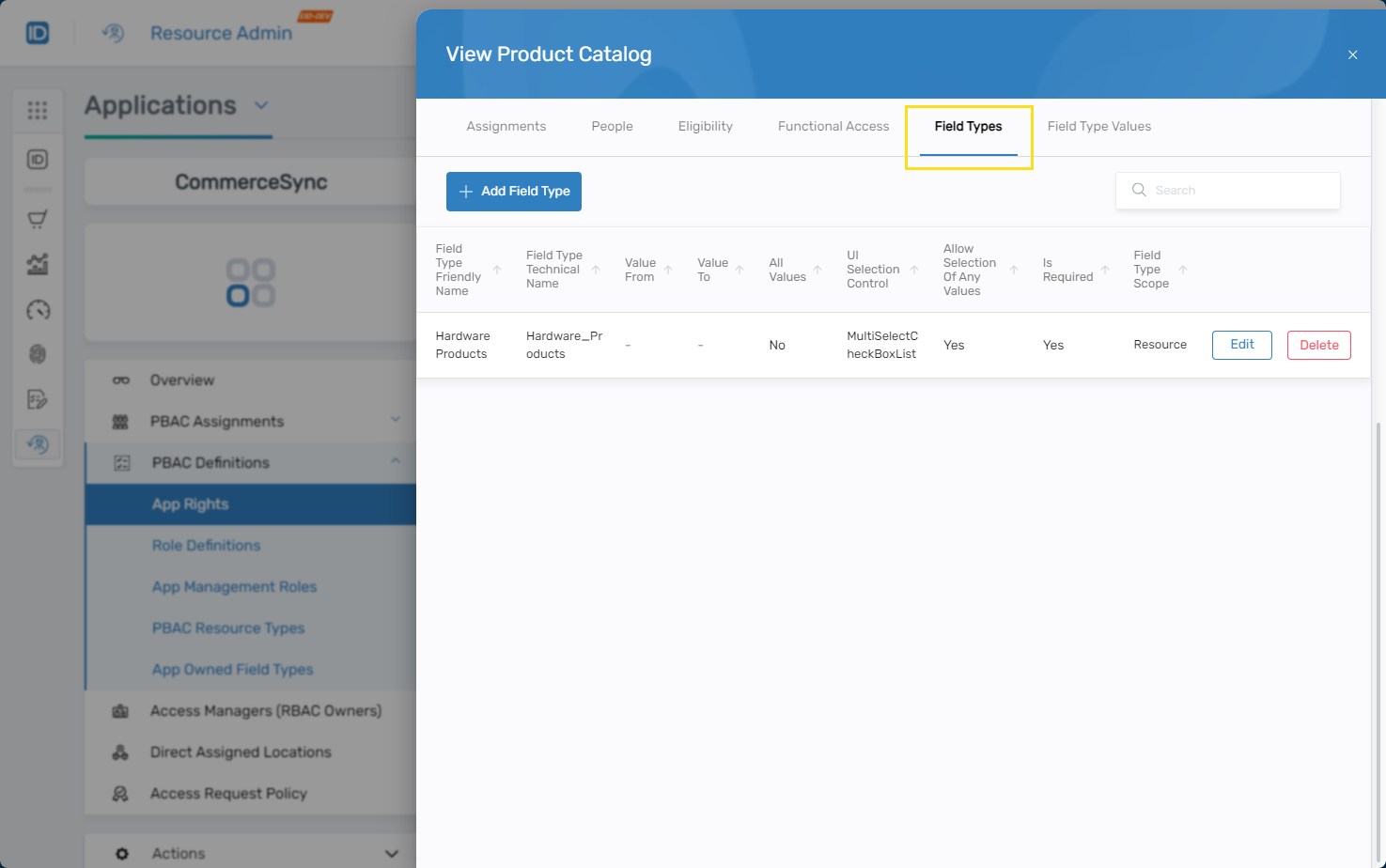
- Navigate to the Field Types tab to view all configured field types for the app right.
Only users with the Application RBAC Owner Management Role can configure field types for app rights. All configuration changes are logged for audit purposes. Field type configurations directly impact access control policies—ensure they align with your organization's least privilege principles.
Next Steps
After configuring field types for app rights:
- Test the app right in the IAM Shop to verify field types display correctly during access requests