Adding Field Type Values to Field Types
Field type values are the specific options users can select or that policies evaluate within a field type. For example, a field type called "Product Category" might have values such as "Lawn Care," "Appliances," and "Tools." These values enable fine-grained access control by allowing policies to make decisions based on specific categories rather than broad types.
After creating an application field type, you must add field type values before the field type can be used in access requests or PBAC policies.
Prerequisites
Before adding field type values, ensure you have:
- Access to Resource Admin with the Application RBAC Owner Management Role (or higher)
- An existing application field type to which you'll add values
Procedure
-
Sign in to Resource Admin and select Applications from the Resource Type menu.
-
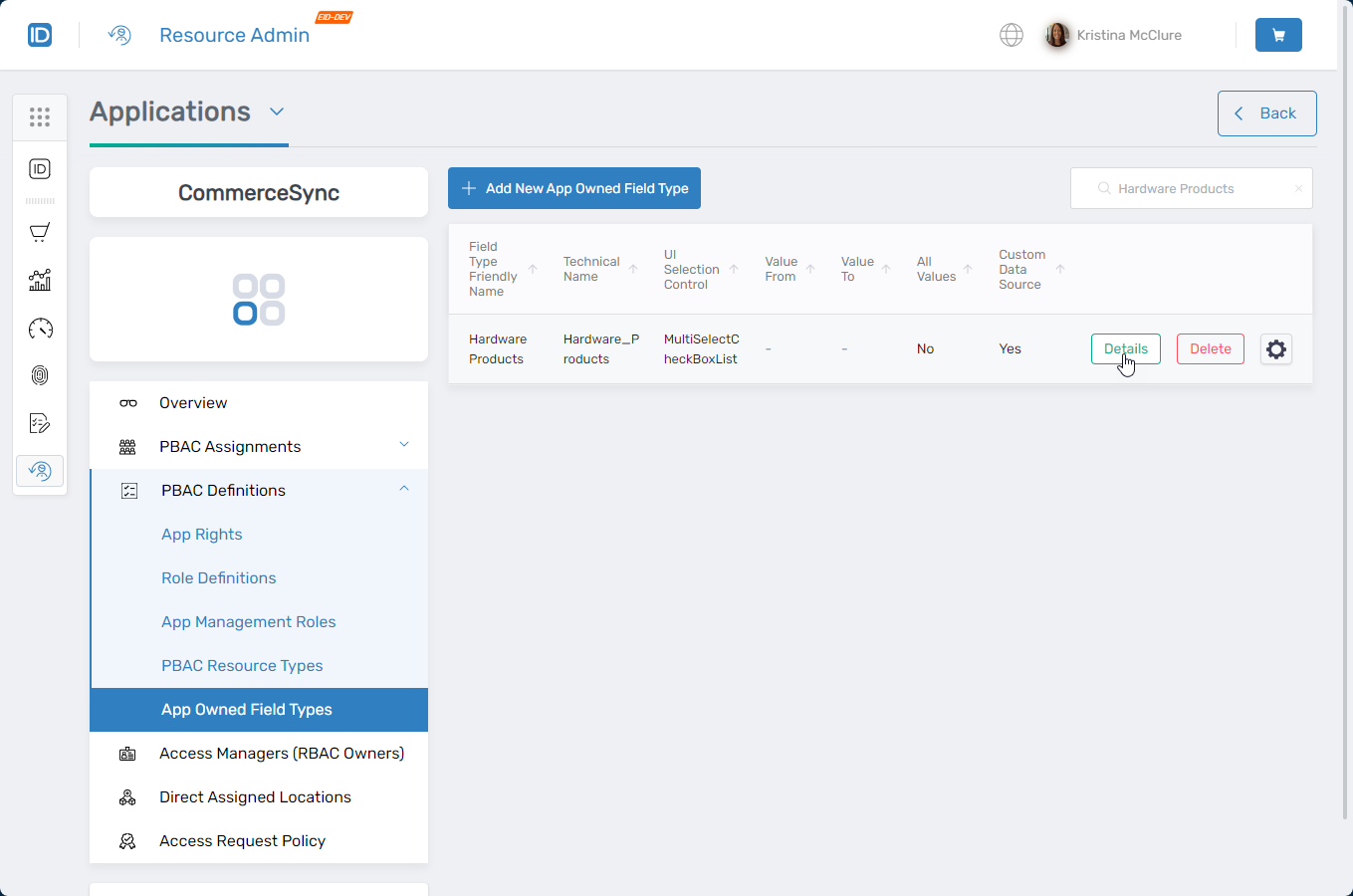
Search for your target PBAC application and click the Details button.
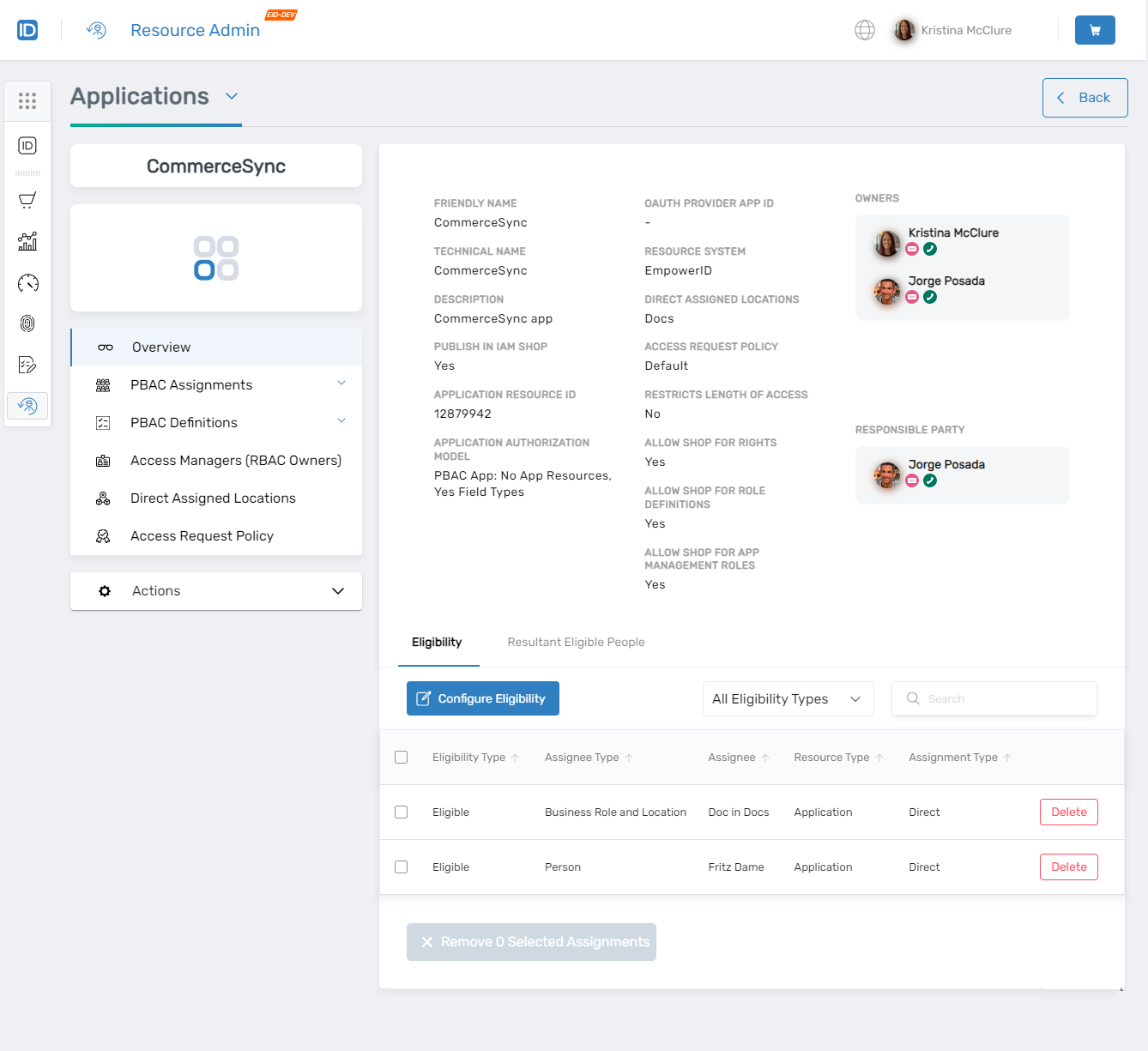
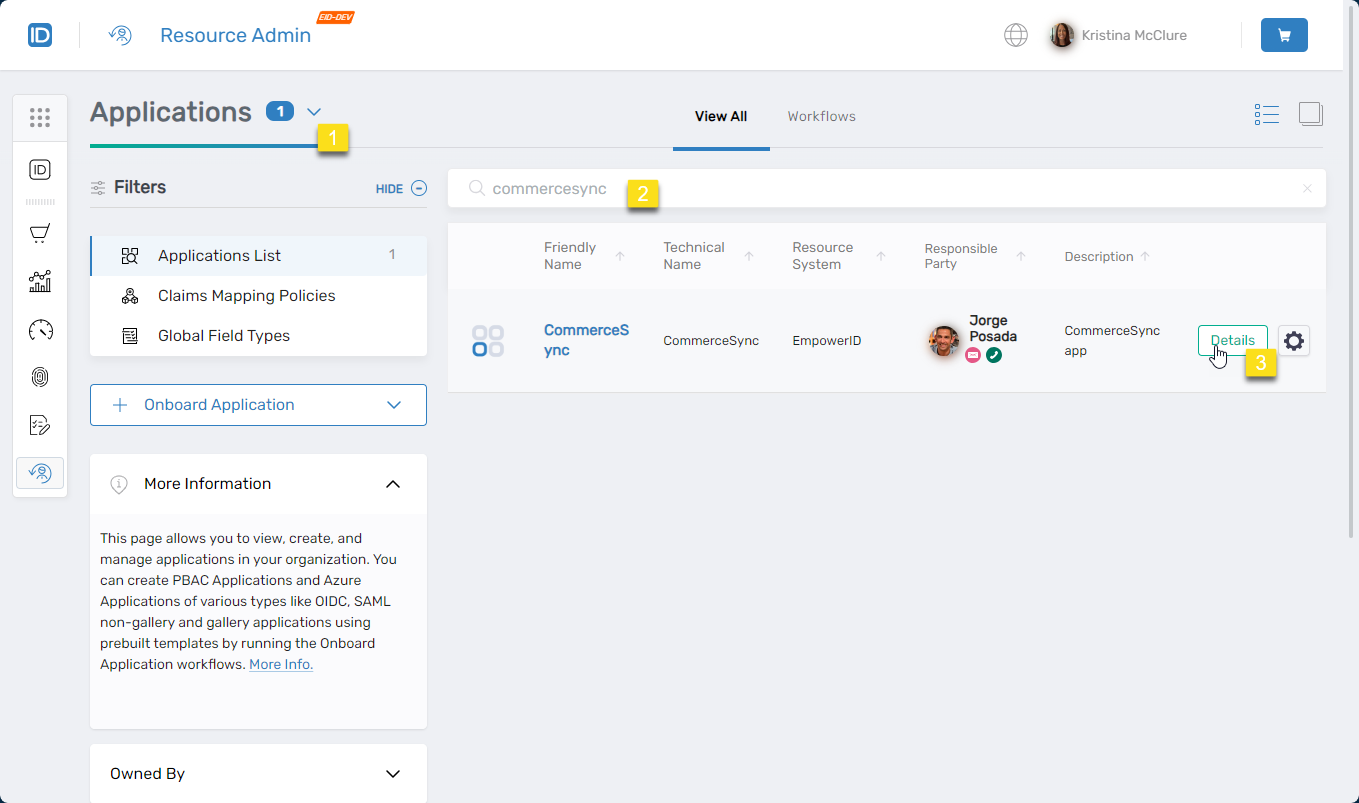 The application Overview page opens.
-
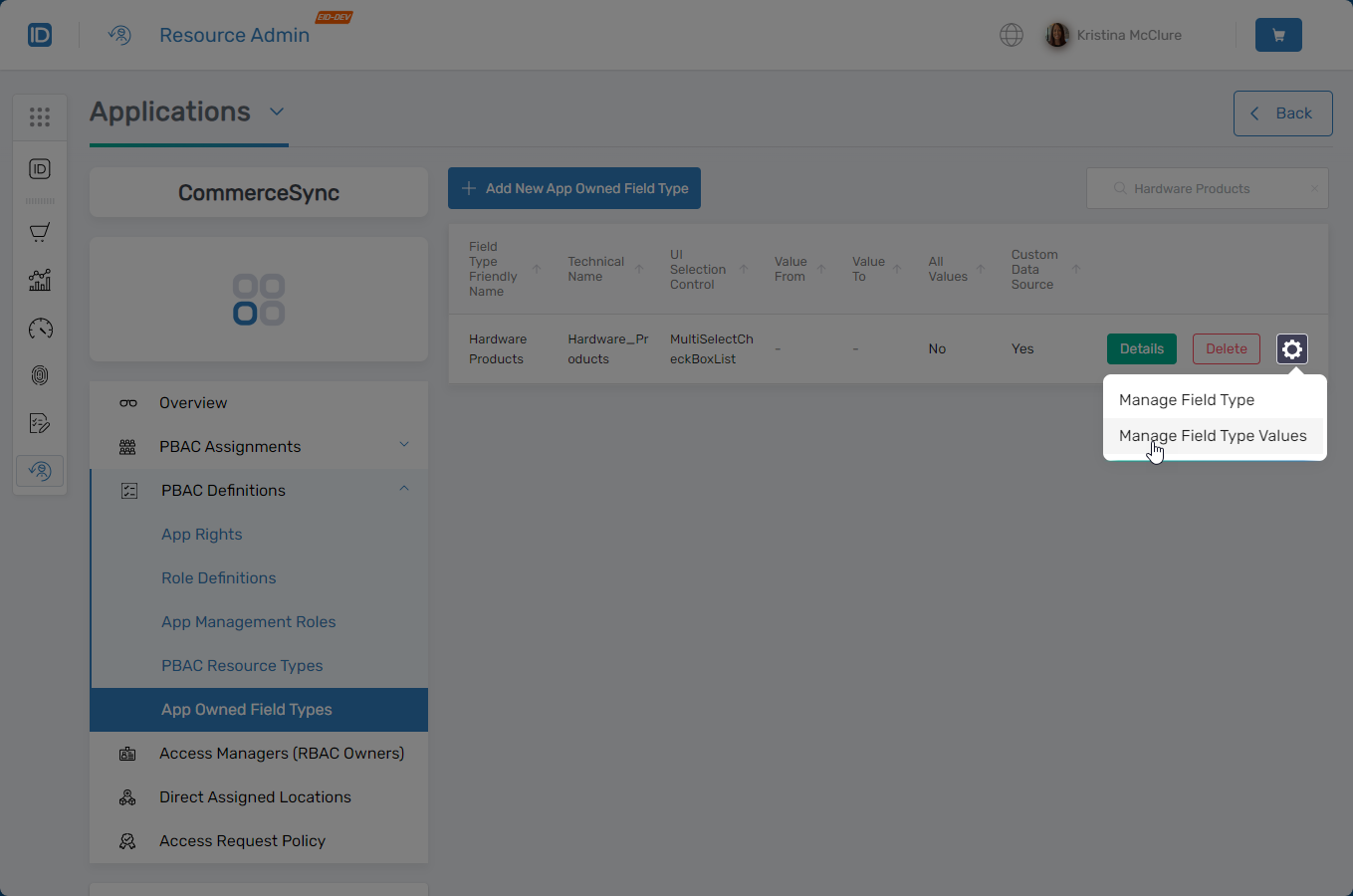
From the application menu, select PBAC Definitions > App Owned Field Types.
-
Locate the field type to which you want to add values, click the gear icon next to it, and select Manage Field Type Values.
-
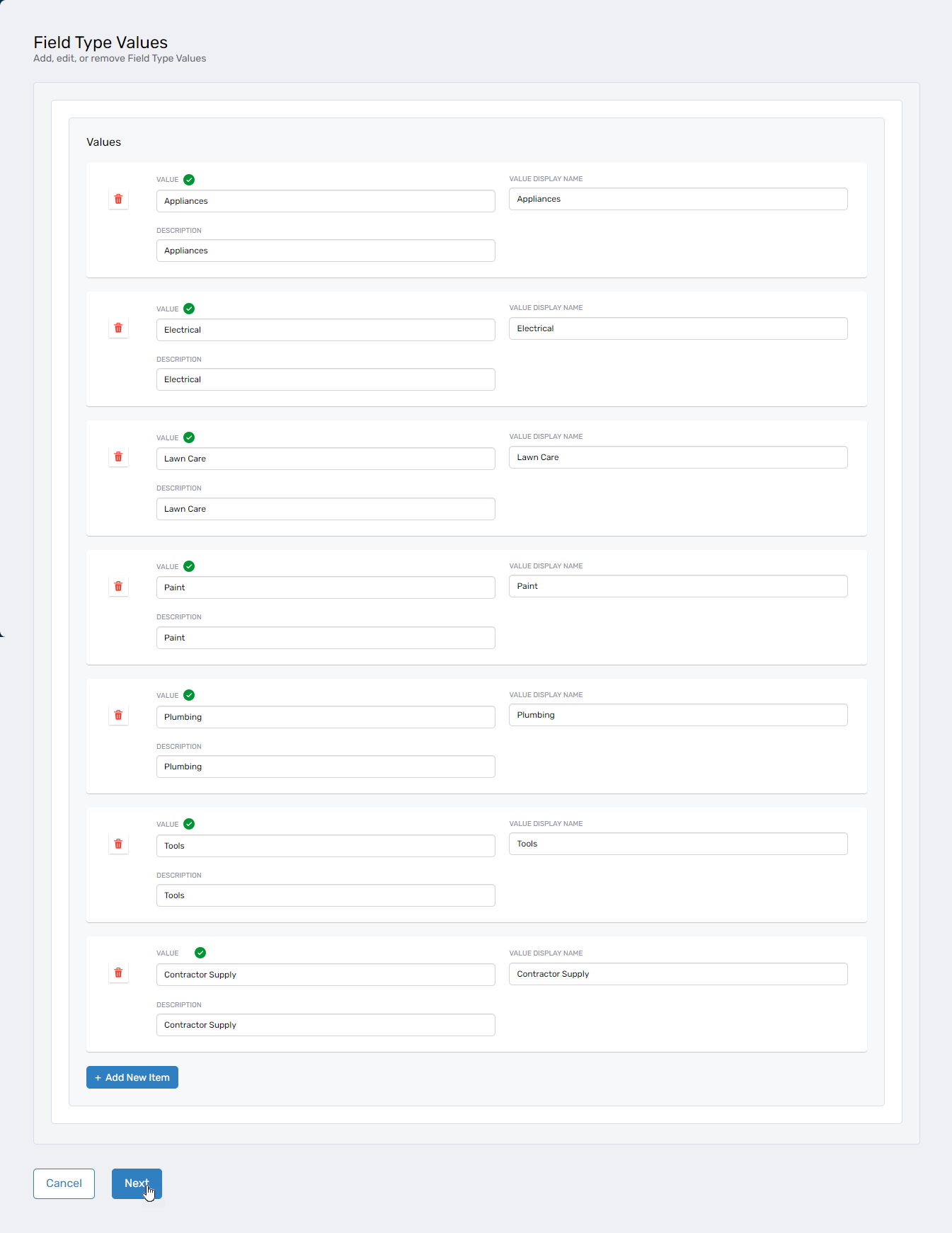
In the Field Type Values interface, complete the following fields for each value:
Field Description Value A unique identifier for the field type value (e.g., LawnCare,Appliances,Tools). This internal identifier is used in policy definitions.Value Display Name The user-friendly label shown during access requests (e.g., "Lawn Care", "Appliances", "Tools"). Description A brief explanation of what this value represents, helpful for administrators configuring policies. 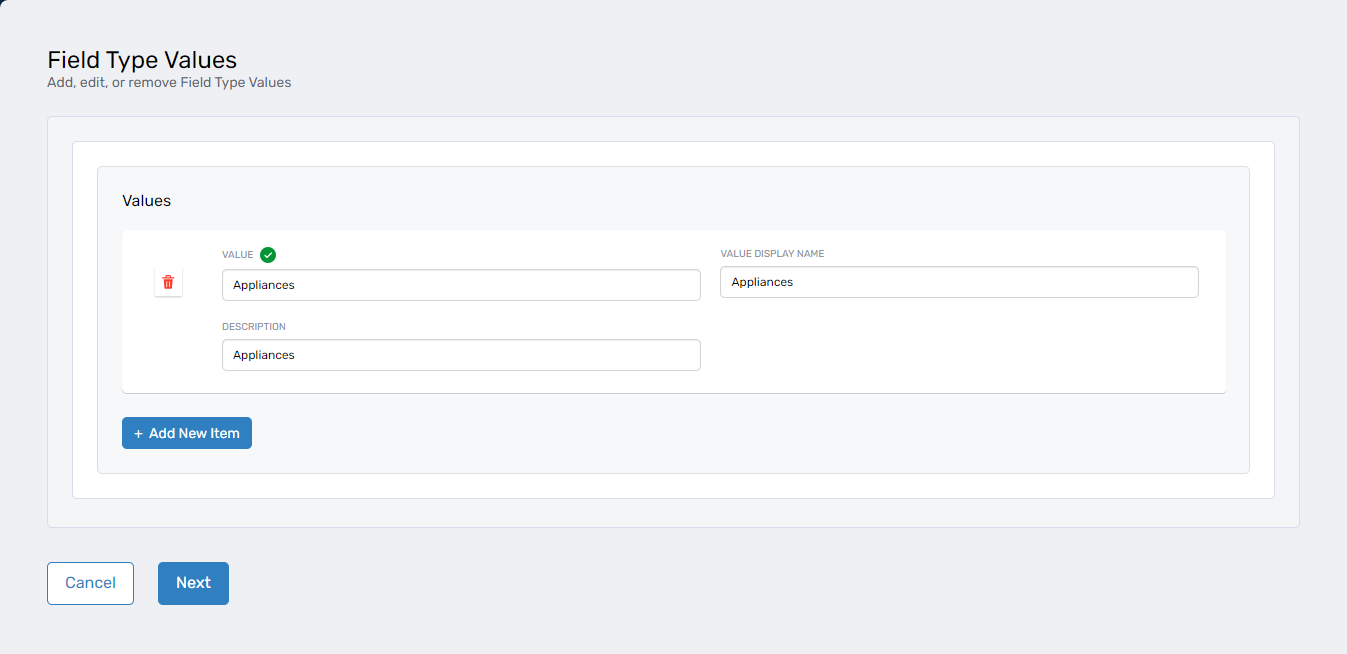 To add multiple values, click Add New Item and complete the fields for each entry.
 -
Click Next after entering all values.
-
In the Operation Execution Summary, click Submit to save the field type values.
Verify the Results
To confirm the field type values were added successfully:
- Return to App Owned Field Types in the application menu
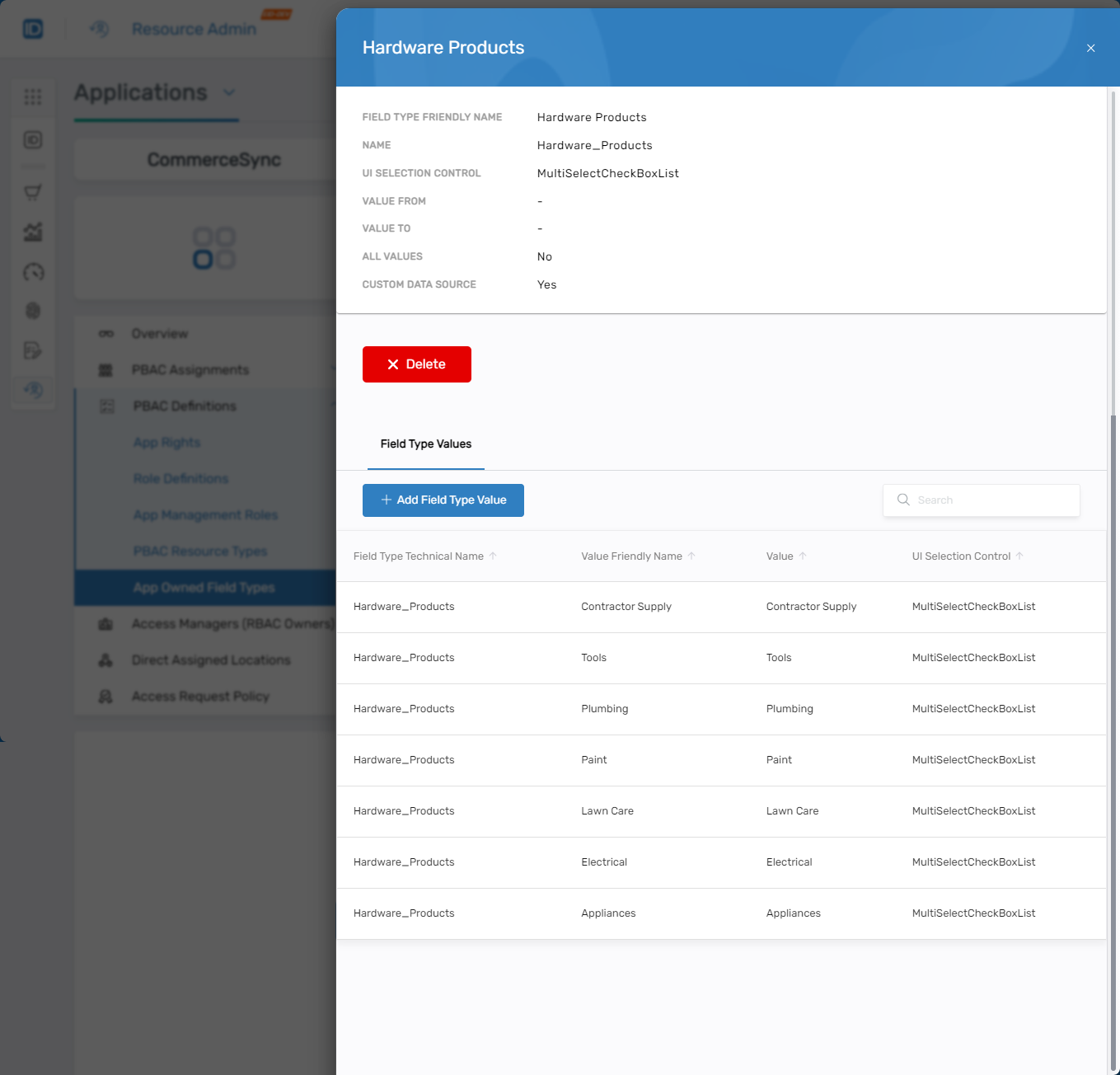
- Click Details for the modified field type
 All associated field type values appear in the detail view.
Only users with appropriate RBAC roles can modify field type values. All changes are logged for auditing purposes. Field type values directly impact PBAC policy enforcement, so ensure additions align with business logic and compliance requirements.
Next Steps
After adding field type values:
- Associate the field type with application rights so it appears during access requests
- Create PBAC policies that evaluate these field type values
- Test the field type in an access request to verify values display correctly