Adding PBAC Resource Types
PBAC Resource Types define categories of application resources that require access control, such as pages, lists, forms, or controls. By creating Resource Types, you can organize application resources into logical groups and apply targeted access policies to each category.
This article demonstrates how to add PBAC Resource Types to applications in EmpowerID.
Prerequisites
Before adding PBAC Resource Types, ensure you have:
- Access to Resource Admin with the Application RBAC Owner Management Role (or higher)
- An existing PBAC application configured with app resources
- Understanding of which resource categories your application requires
To use PBAC Resource Types, your application must be configured to include app resources. If your application was not initially set up with app resources, you can modify the application settings through the Manage Application Wizard (accessible by clicking the gear icon on the application record and selecting "Manage Application Wizard").
Procedure
- Sign in to Resource Admin with at least the Application RBAC Owner Management Role.
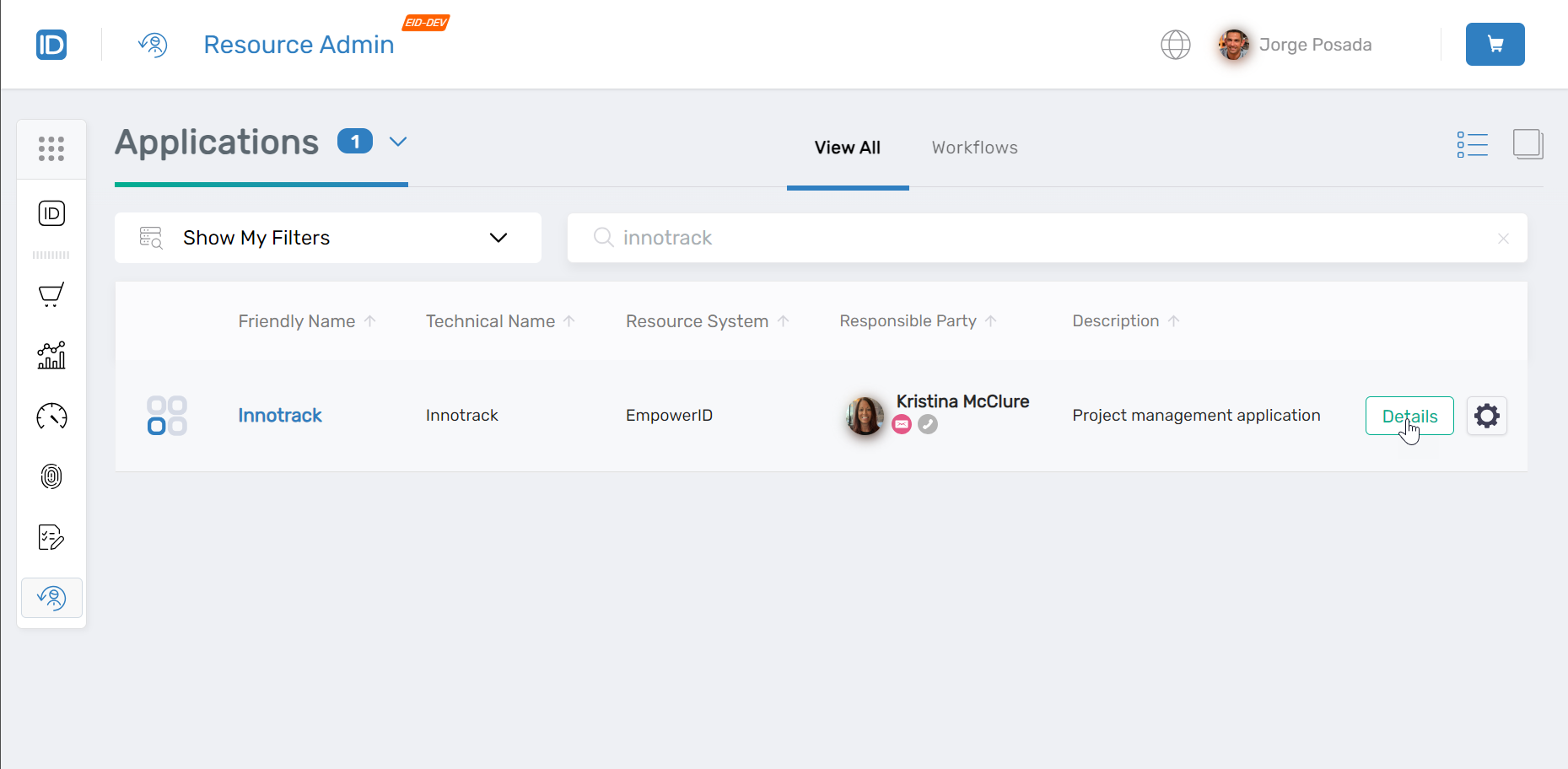
- Locate the application to which you want to add PBAC Resource Types.
- Click the Details button next to the application record to access the Overview page.
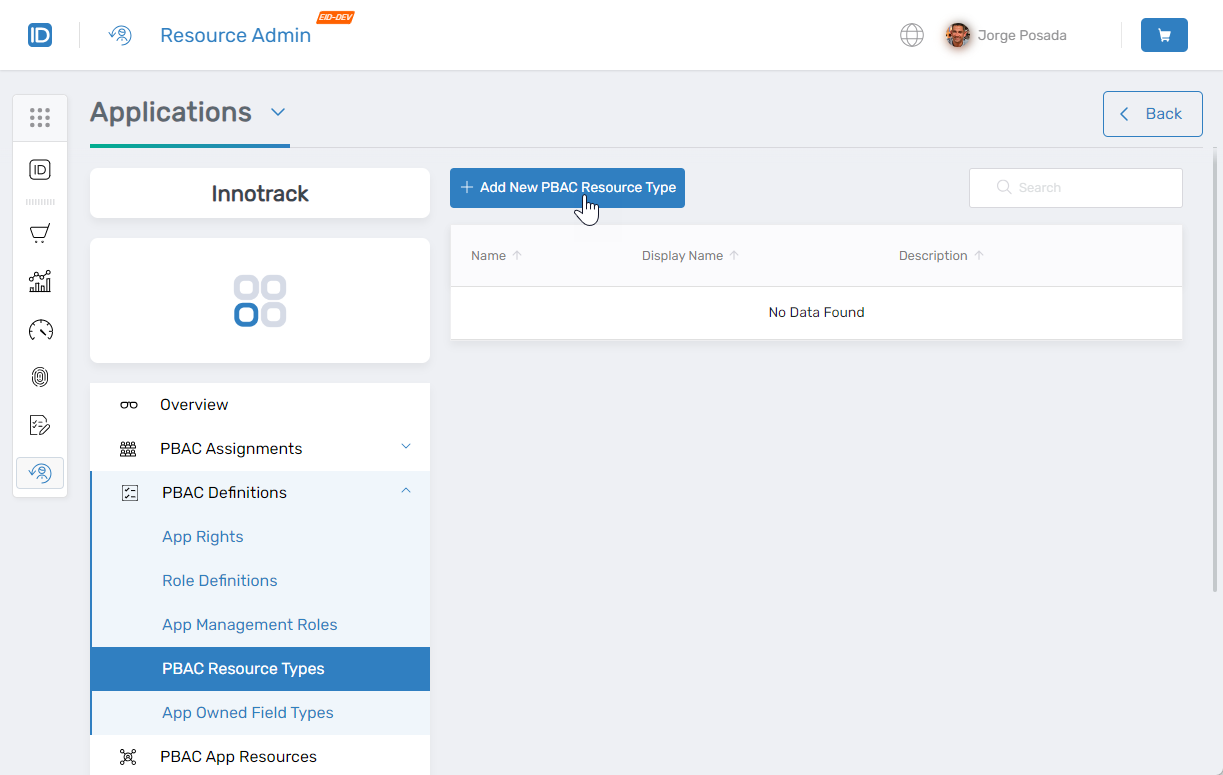
- Navigate to PBAC Definitions > PBAC Resource Types and click Add New PBAC Resource Type.
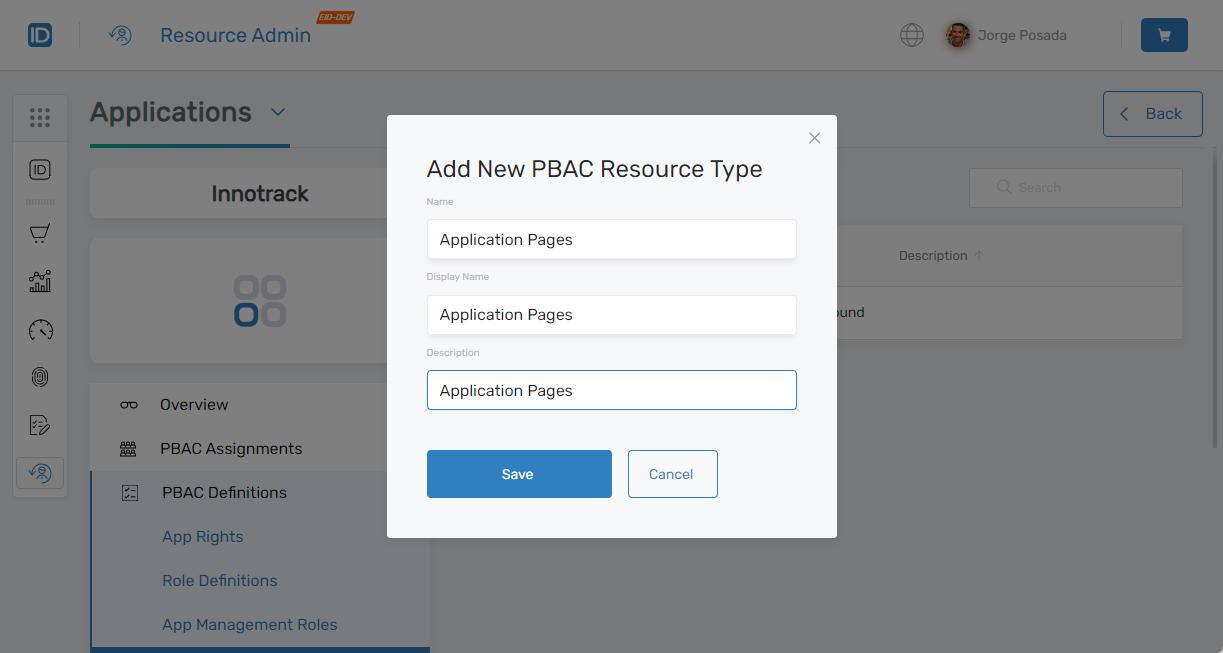
- Complete the "Add New PBAC Resource Type" form with the appropriate information and click Save.
- Repeat steps 4-5 to create additional PBAC Resource Types as needed.
Verify the Results
After adding PBAC Resource Types:
- Navigate to PBAC Definitions > PBAC Resource Types in the application menu.
- Verify that your newly created Resource Types appear in the list.
- Click Details on a Resource Type to confirm the configuration details are correct.
Next Steps
After adding PBAC Resource Types, create PBAC App Resources and associate them with the appropriate Resource Types to enable fine-grained access control.