Assign Access Levels to Query-Based Collections
Assign Access Levels to Query-Based Collections to grant specific permissions and resource access to all members of the collection. When you assign an Access Level to a Query-Based Collection, every person or resource in that collection automatically receives the corresponding access to the targeted resources.
Prerequisites
Before assigning Access Levels to Query-Based Collections, ensure you have:
- Access to manage Query-Based Collections in EmpowerID
Procedure
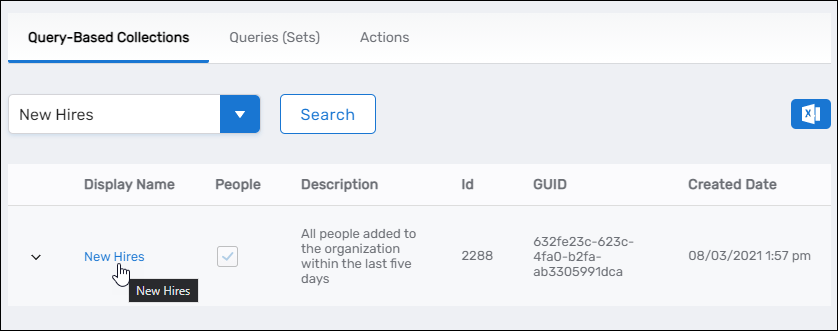
- Navigate to Role Management > Query-Based Collections (SetGroups).
- Search for and locate the target Query-Based Collection.
- Click the Display Name link to open the collection's View page.
The View page displays all configuration and access information for the Query-Based Collection.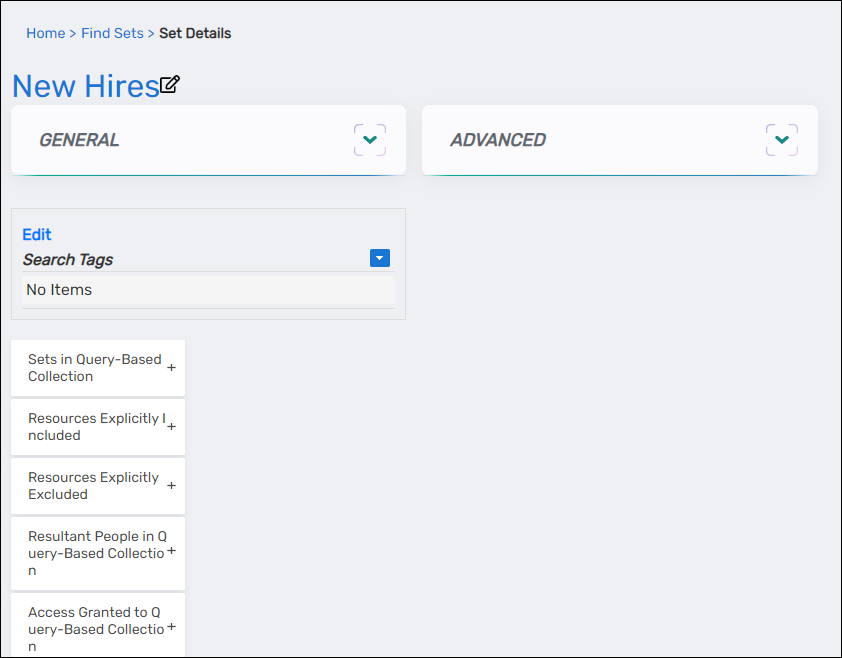
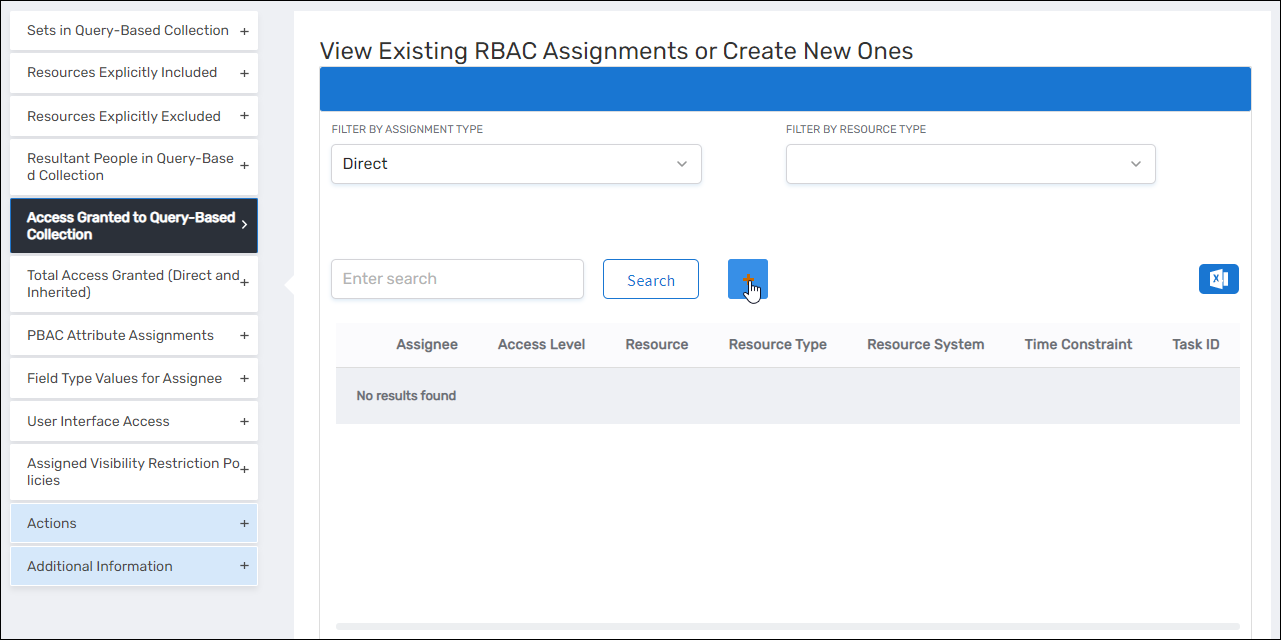
- Expand the Access Granted to Query-Based Collection accordion.
- Click Add.
The Grant Actor Access page opens, allowing you to configure the Access Level assignment and its scope.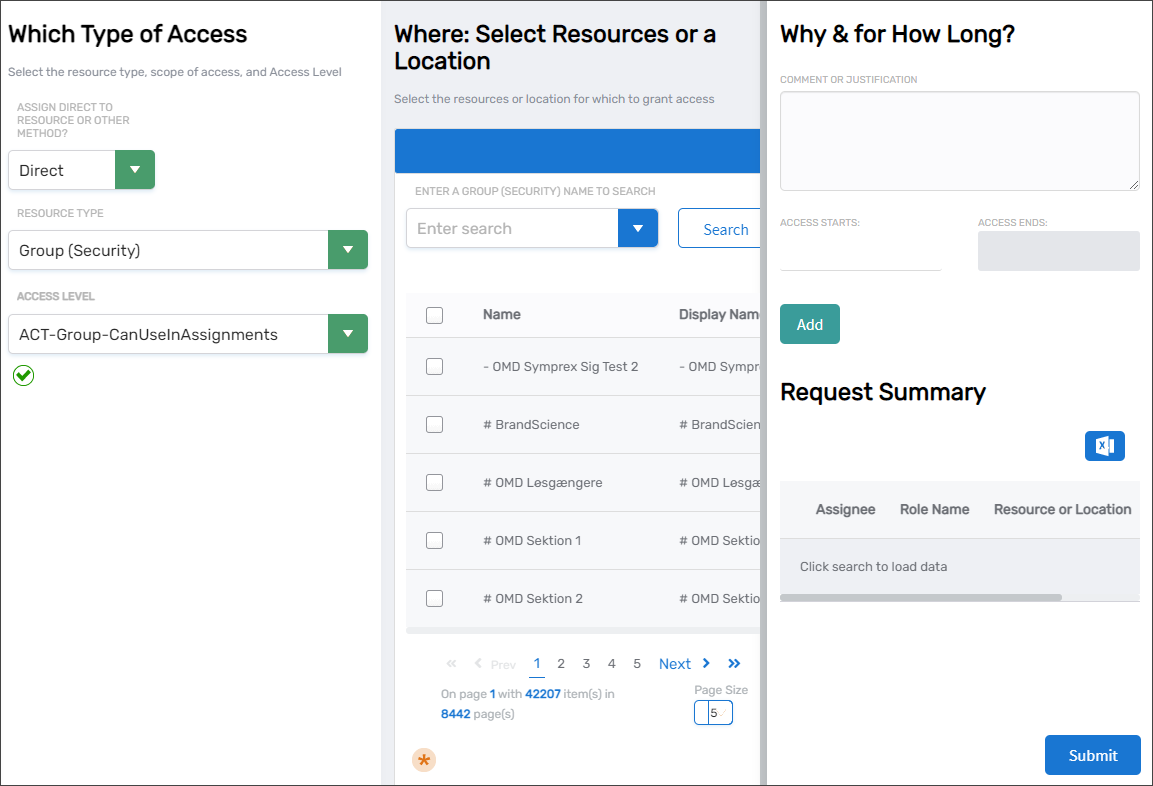
- In the Which Type of Access panel, configure the assignment parameters:
- Assign Direct to Resource or Other Method: Select the assignment scoping method:
- Direct — Assigns access to specific individual resources, such as a particular group
- By Location — Assigns access to all resources within a location and its child locations
- Relative — Assigns access to resources based on each member's location assignment
- Belonging to which group — Assigns access to all users and people who are members of selected groups
- Belonging to which Management Role — Assigns access to all people assigned to selected Management Roles
- Belonging to which Query-Based Collection — Assigns access to all objects in a different Query-Based Collection
- Resource Type: Select the type of resource for which you are assigning access, such as Group (Security) or Account
- Access Level: Select the Access Level that defines the permissions being granted, such as Member or Owner
- Assign Direct to Resource or Other Method: Select the assignment scoping method:
- In the Where: Select Resources or a Location panel, define the scope of the assignment:
- For Direct assignments, search for and select specific resources
- For By Location assignments, search for and select the location that defines the resource scope
- For other assignment types, search for and select the appropriate groups, roles, or collections
- In the Why & for How Long? panel, configure justification and temporal settings:
- Comment or Justification: Enter a comment explaining the purpose of the assignment (optional but recommended for audit purposes)
- Access Starts: Select a start date and time from the calendar picker (leave blank for immediate activation)
- Access Ends: Select an end date and time from the calendar picker (leave blank for permanent assignment)
- Click Add to add the assignment to your pending changes
- Repeat steps 6 through 8 to add additional Access Level assignments as needed.
- When you have configured all desired assignments, click Submit to commit your changes.
Verify the Results
After submitting your Access Level assignments:
- The View page refreshes and displays the updated Query-Based Collection.
- In the Access Granted to Query-Based Collection accordion, confirm your assignments appear in the list.
- Verify each assignment displays the correct:
- Resource Type — The type of resource the Access Level applies to
- Access Level — The specific permissions granted
- Scope — The assignment method (Direct, By Location, etc.) and target resources
- Temporal settings — Start and end dates if configured
- (Optional) Verify a member of the Query-Based Collection received the expected access
Related Topics
- Create Query-Based Collections — Create collections before assigning access
- Create SQL Sets — Create SQL Sets to add to collections
- About Query-Based Collections — Understand Query-Based Collection concepts
- What are Access Levels? — Understand Access Level concepts and structure