Add People to Set Inclusions
Add people to Set Inclusions to force specific individuals to appear in Query-Based Collections that use those Sets, even if they don't meet the Set's query criteria. You can include people through bulk CSV upload for large groups or through manual selection for smaller numbers.
Prerequisites
Before adding people to Set Inclusions, ensure you have:
- Access to manage Sets in EmpowerID
Procedure
- In the EmpowerID web application, navigate to Role Management > Query-Based Collections (SetGroup).
- Select the Actions tab.
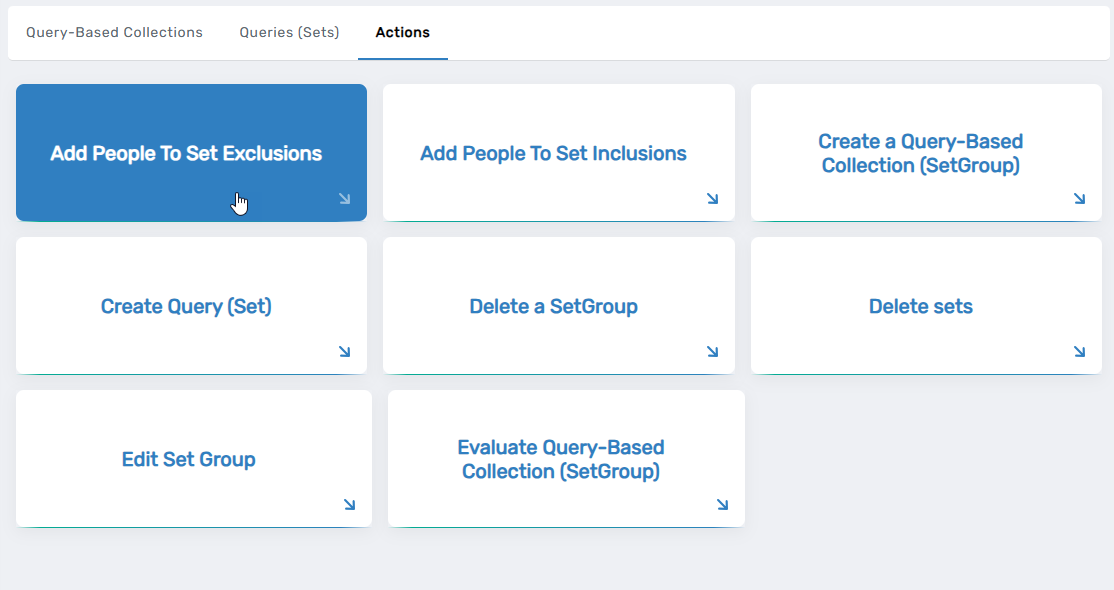
- Click Add People to Set Inclusions.
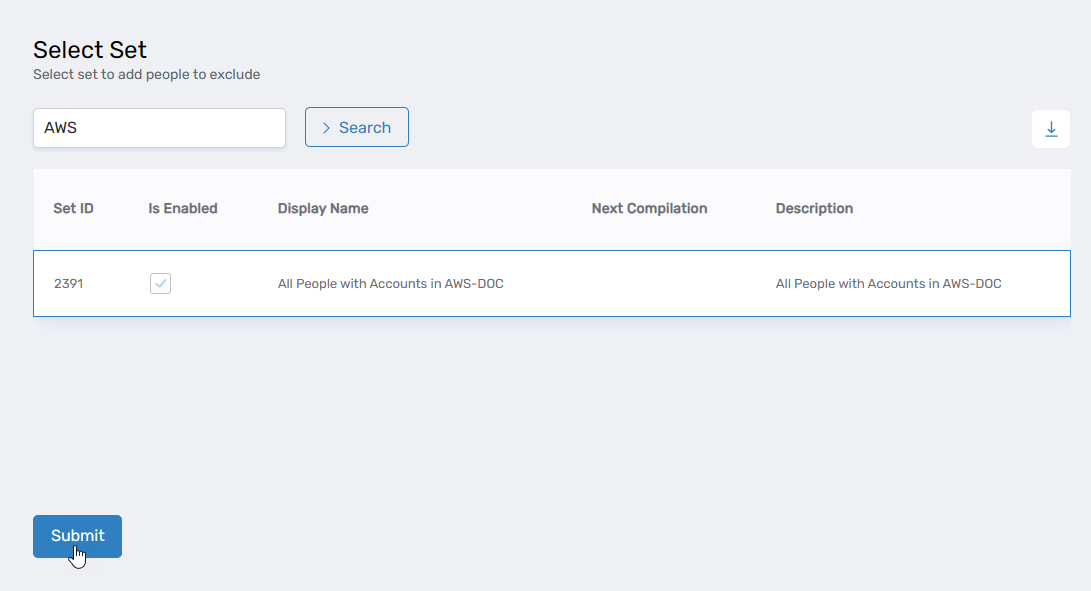
- Search for and select the target Set, then click Submit.
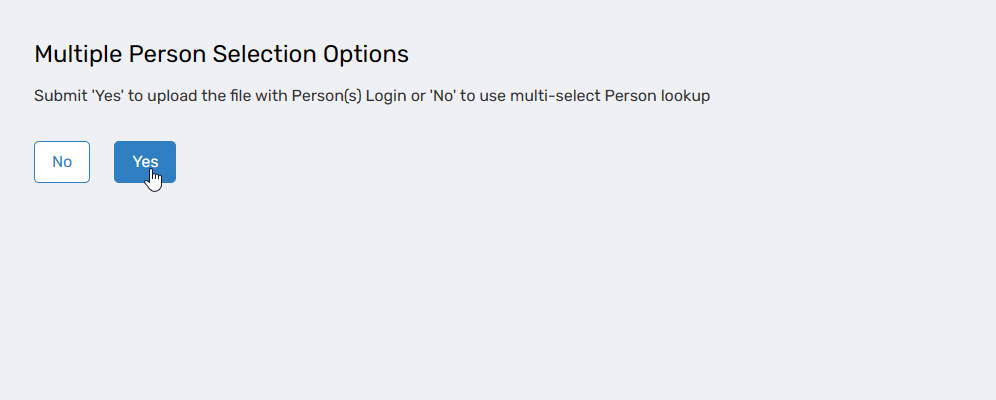
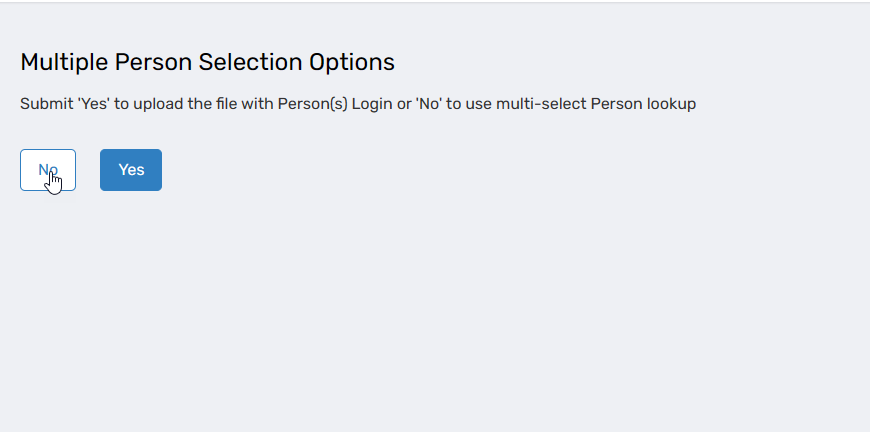
- Under Multiple Person Selection Options, choose your method:
- Select Yes for bulk CSV upload
- Select No for manual selection
Method 1: Bulk CSV Upload
-
If you selected Yes, prepare and upload your CSV file:
Your CSV file must include a header row labeled "Login" followed by one login per row. For example:Login
john.doe@example.com
jane.smith@example.com
jack.johnson -
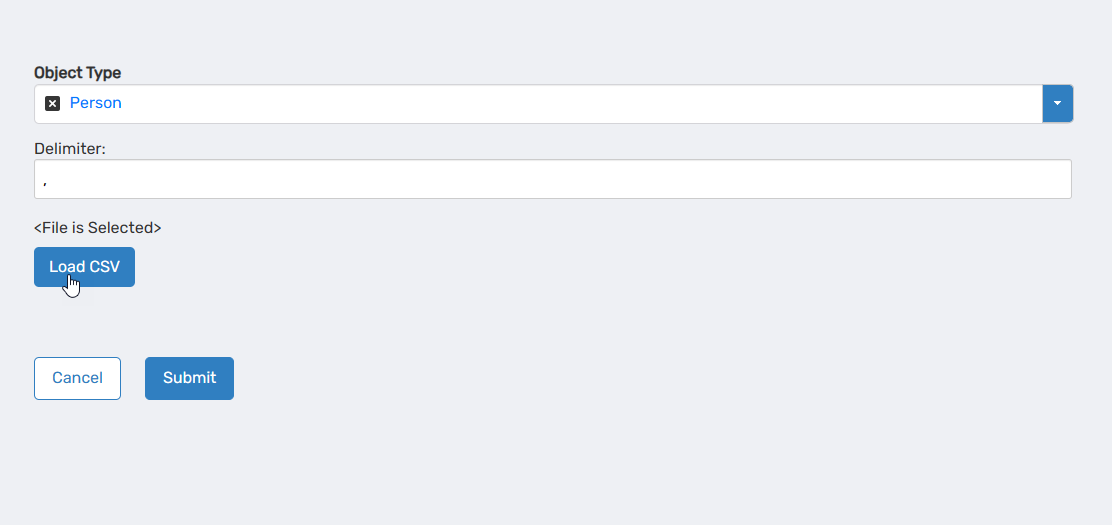
Click Browse and select your CSV file.
-
Click Load CSV.
-
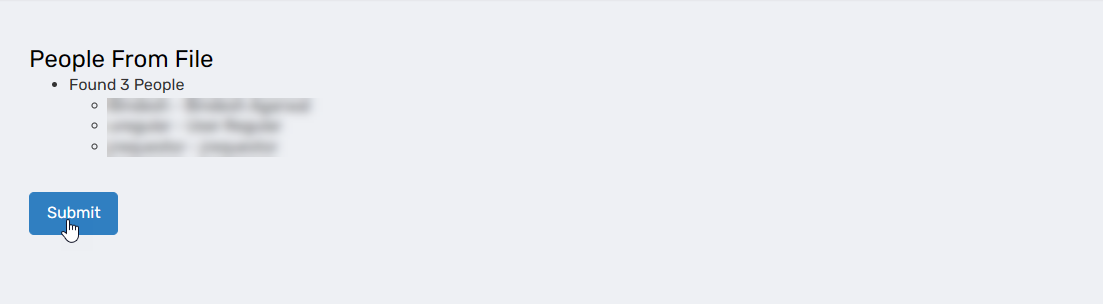
Review the loaded results in the preview to confirm the correct people are listed.
-
Click Submit to add the inclusions.
Method 2: Manual Selection
- If you selected No, manually select people to include:
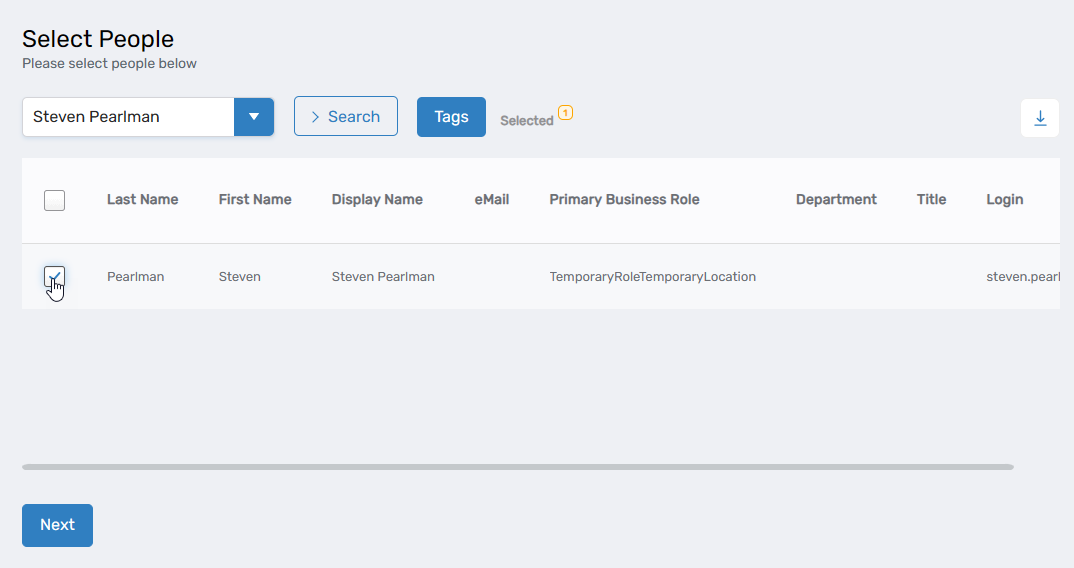
- Search for a person you want to include in the Set.
- Select the checkbox for the person's record.
- Repeat steps 7-8 for each person you want to include.
- Click Next to add the inclusions.
Verify the Results
After adding people to Set Inclusions:
- In the EmpowerID web application, navigate to Role Management > Query-Based Collections (SetGroup).
- Search for and select a Query-Based Collection that uses the Set you modified.
- Click the collection name to open its View One page.
- Wait for the Set Compiler Job to run and update the collection membership (or trigger a manual compilation if available).
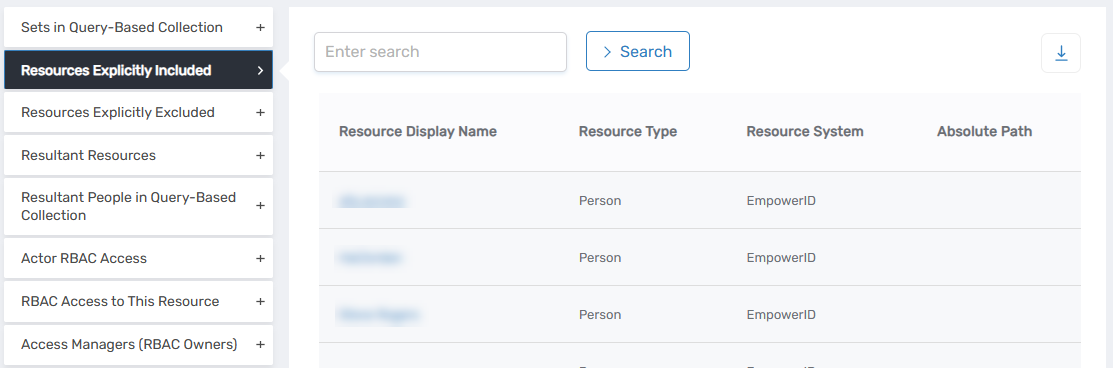
- Expand the Resource Explicitly Included accordion and verify the included people appear in the list.
- (Optional) Verify the included people appear in the collection's regular member list by checking the main membership accordion.
Related Topics
- Create SQL Sets — Create Sets that can have inclusions applied
- Create Query-Based Collections — Create collections that use Sets with inclusions
- Add People to Set Exclusions — Exclude people from Sets instead of including them
- About Query-Based Collections — Understand Query-Based Collection concepts