Managing Field Types
Field Types define application-specific data categories used in PBAC policies. Administrators can update Field Types to maintain alignment with evolving business requirements and access control needs.
This article demonstrates how to edit Field Types using the ManageAzFieldType workflow.
Prerequisites
Before editing Field Types, ensure you have:
- Access to Resource Admin with the Application RBAC Owner Management Role (or higher)
- An existing PBAC application with Field Types already created
Procedure
-
Sign in to Resource Admin with at least the Application RBAC Owner Management Role.
-
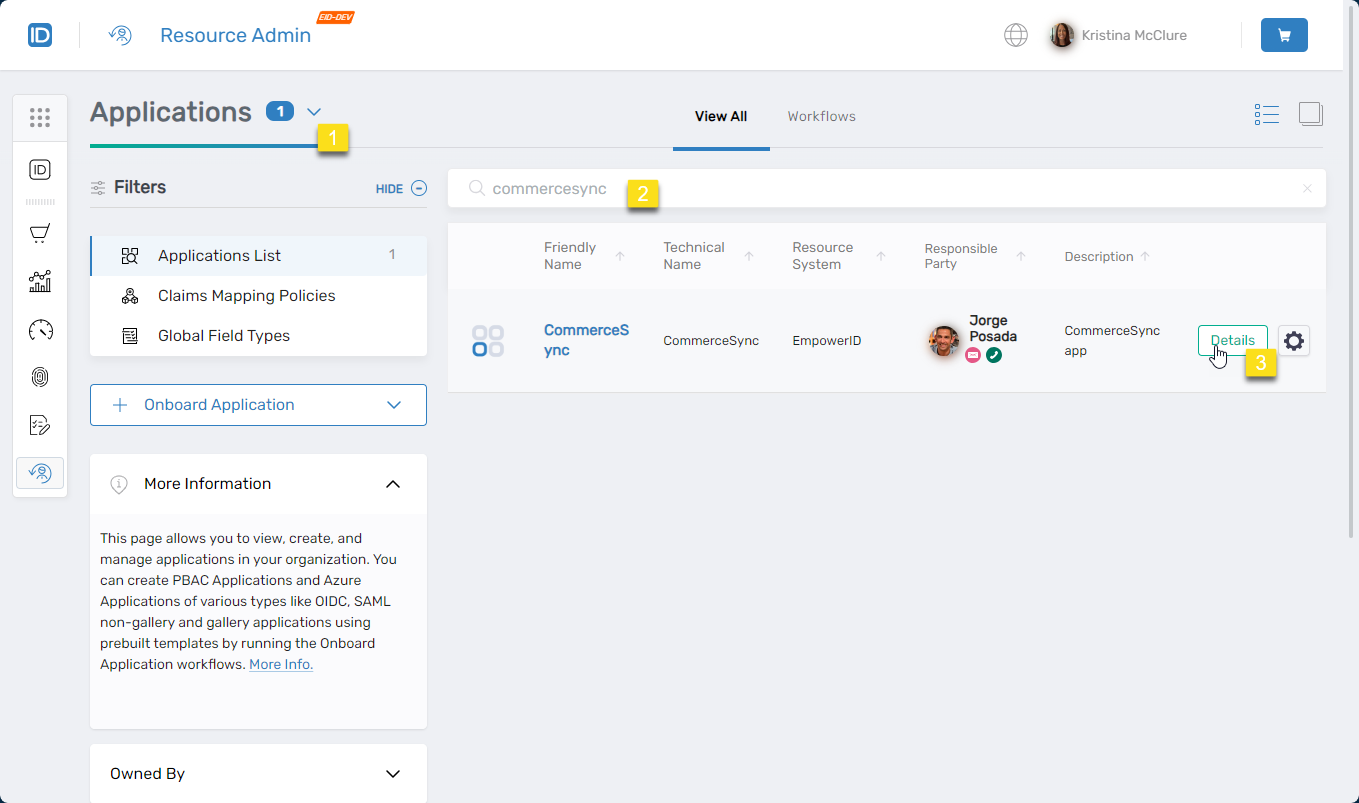
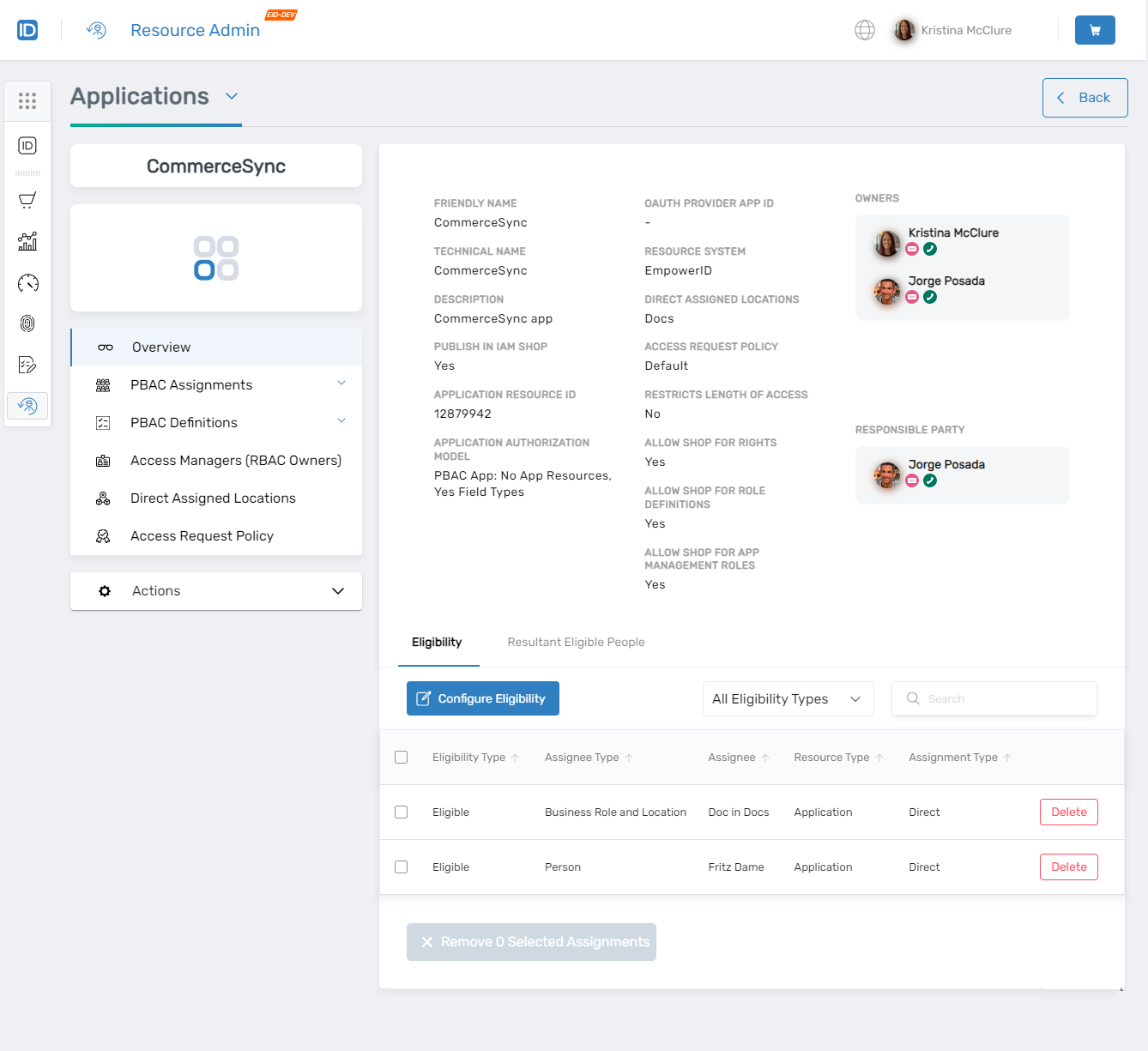
Select Applications from the Resource Type menu, search for the target PBAC application, and click the Details button.
- Locating PBAC application:
- Application overview:
- Locating PBAC application:
-
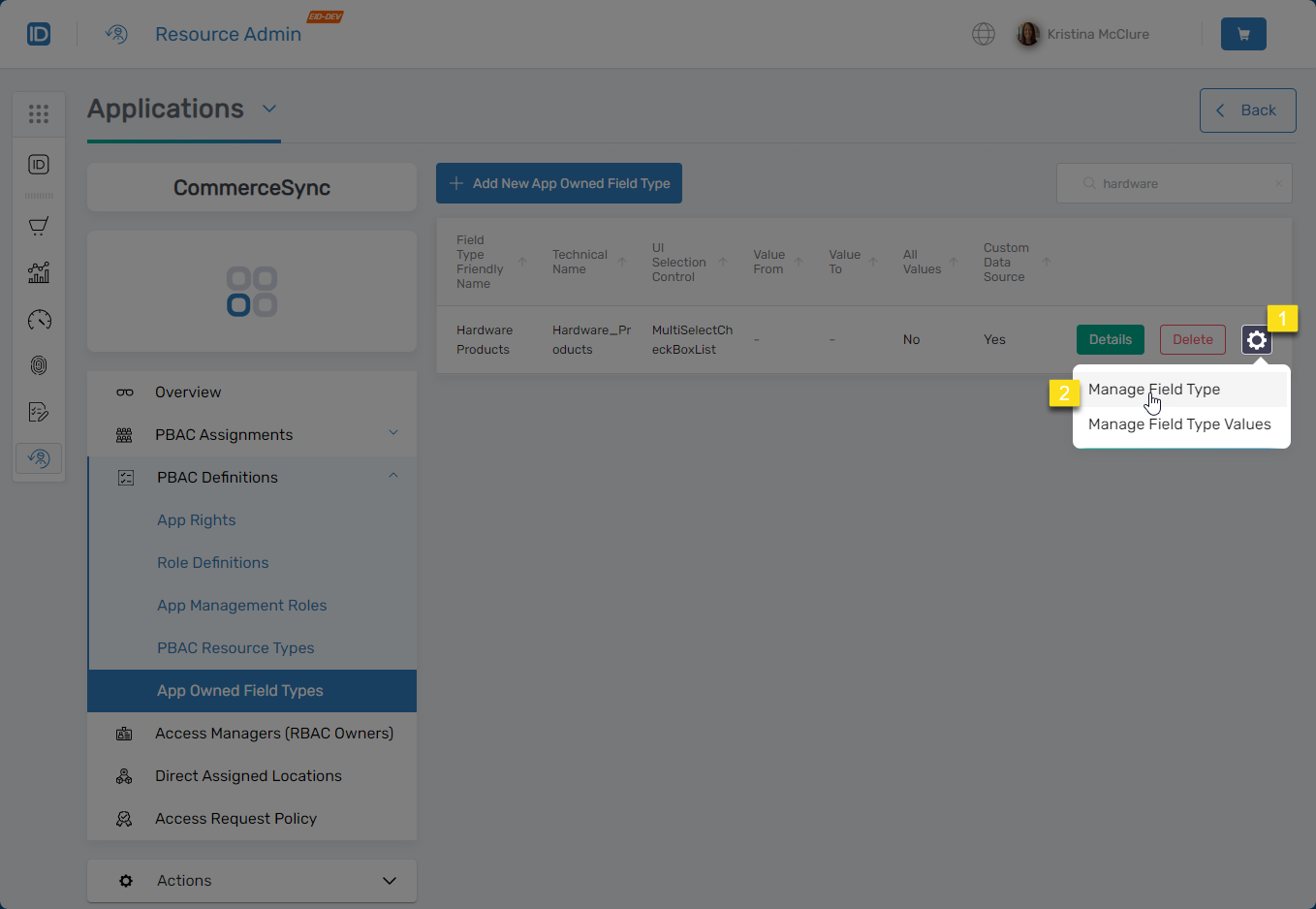
In the left navigation pane, navigate to PBAC Definitions > App Owned Field Types.
-
Locate the Field Type you want to modify, click the gear icon next to it, and select Manage Field Type.
- Manage Field Type option:
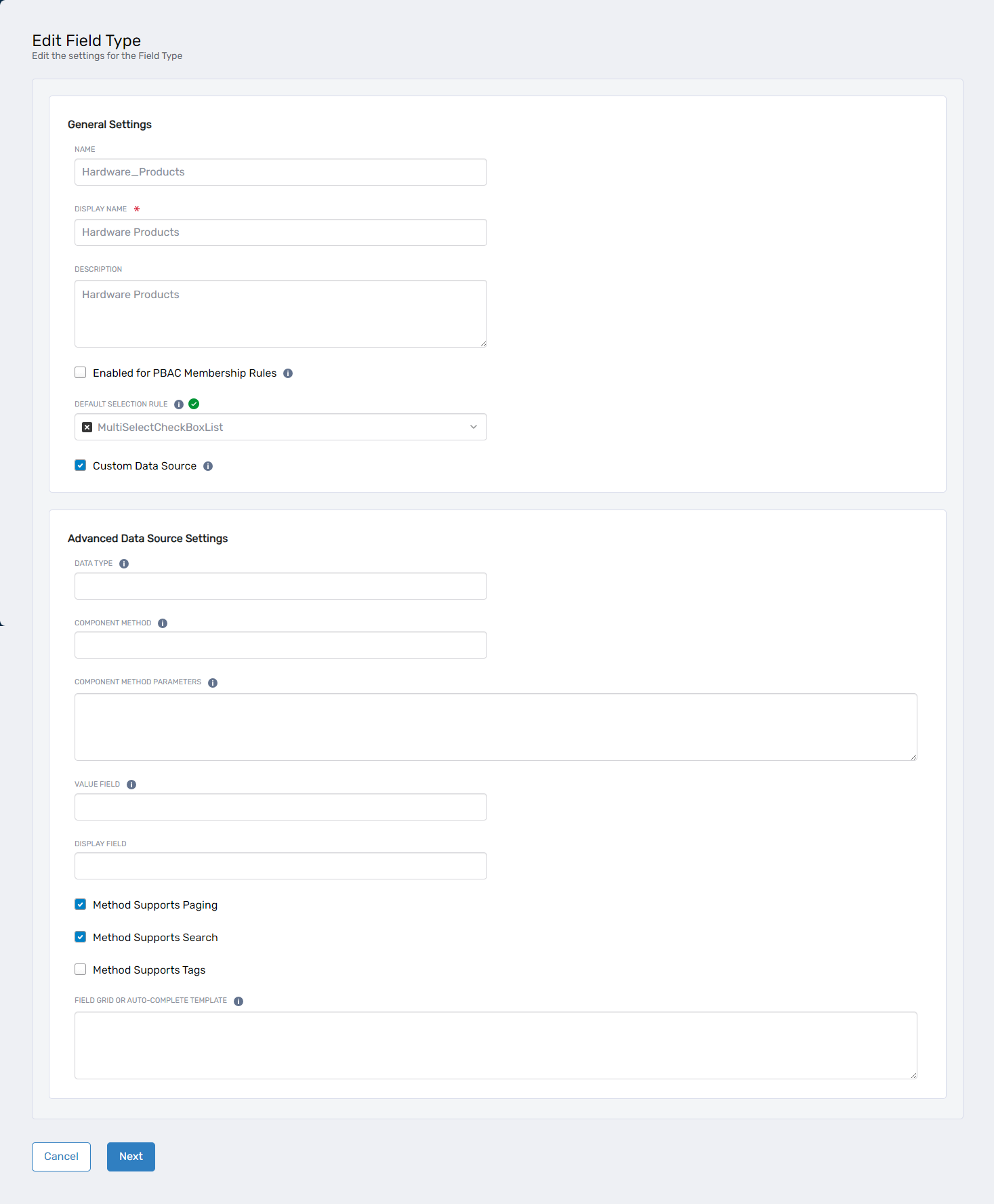
 The ManageAzFieldType workflow opens.
 - ManageAzFieldType workflow:
- Manage Field Type option:
-
Modify the Field Type settings as needed:
General Settings
Field Description Action Name Internal name of the Field Type Enter the name without spaces. Display Name User-friendly label shown in the UI Enter a display name. Description Description of the Field Type's purpose Enter a description (optional). Enabled for PBAC Membership Rules Makes the Field Type available for PBAC Membership Policies Select if applicable. Default Selection Rule UI control for selecting values (e.g., MultiSelectCheckBoxList)Choose an appropriate control. For details, see Understanding Field Type Selection Rules. Custom Data Source Makes the Field Type available for lookups and search Enable if needed. Creation Location EmpowerID location used for RBAC scoping Select or search for a location. Advanced Data Source Settings
Field Description Action Data Type The return data type Enter the method name. Component Method Method used to retrieve values (e.g., GetAllSearch)Specify method name. Component Method Parameters Parameters for the method call Define filtering or logic values. Value Field Field whose value is returned Enter field name (e.g., Name).Method Supports Paging Enables paging support Enabled by default; deselect to disable. Method Supports Search Enables search support Enabled by default; deselect to disable. Method Supports Tags Enables tagging Check to enable. Field Grid or Auto-Complete Template JSON to customize grid or autocomplete UI Add valid JSON. -
Click Next to save your changes and exit the workflow.
Verify the Results
After saving the Field Type changes:
- Return to PBAC Definitions > App Owned Field Types.
- Click Details for the modified Field Type to verify your changes were applied.
- Test the Field Type in context (such as during an access request) to confirm the updated settings function as expected.
Next Steps
After editing Field Types, verify that any PBAC policies or app rights using the Field Type continue to function correctly with the updated settings.