Creating Application Field Types
Application field types are attribute categories specific to a single PBAC application. Unlike shared field types that can be used across multiple applications, application field types are local to the application where they're created. Use application field types when you need attributes that are unique to your application's access control requirements and won't be needed elsewhere.
When to Use Application Field Types
Create application field types when:
- The attribute is specific to your application's domain (such as internal project codes or custom classification schemes)
- The attribute values are unique to this application and not shared across systems
- You need complete control over the attribute without affecting other applications
Use shared field types when the attribute is common across applications, such as Department, Location, or standard Classification levels.
Prerequisites
Before creating application field types, ensure you have:
- Access to Resource Admin
- Application RBAC Owner Management Role (or higher) for the target application
- A PBAC-enabled application already configured
Procedure
-
Sign in to Resource Admin and select Applications from the Resource Type menu.
-
Search for your target PBAC application and click the Details button.
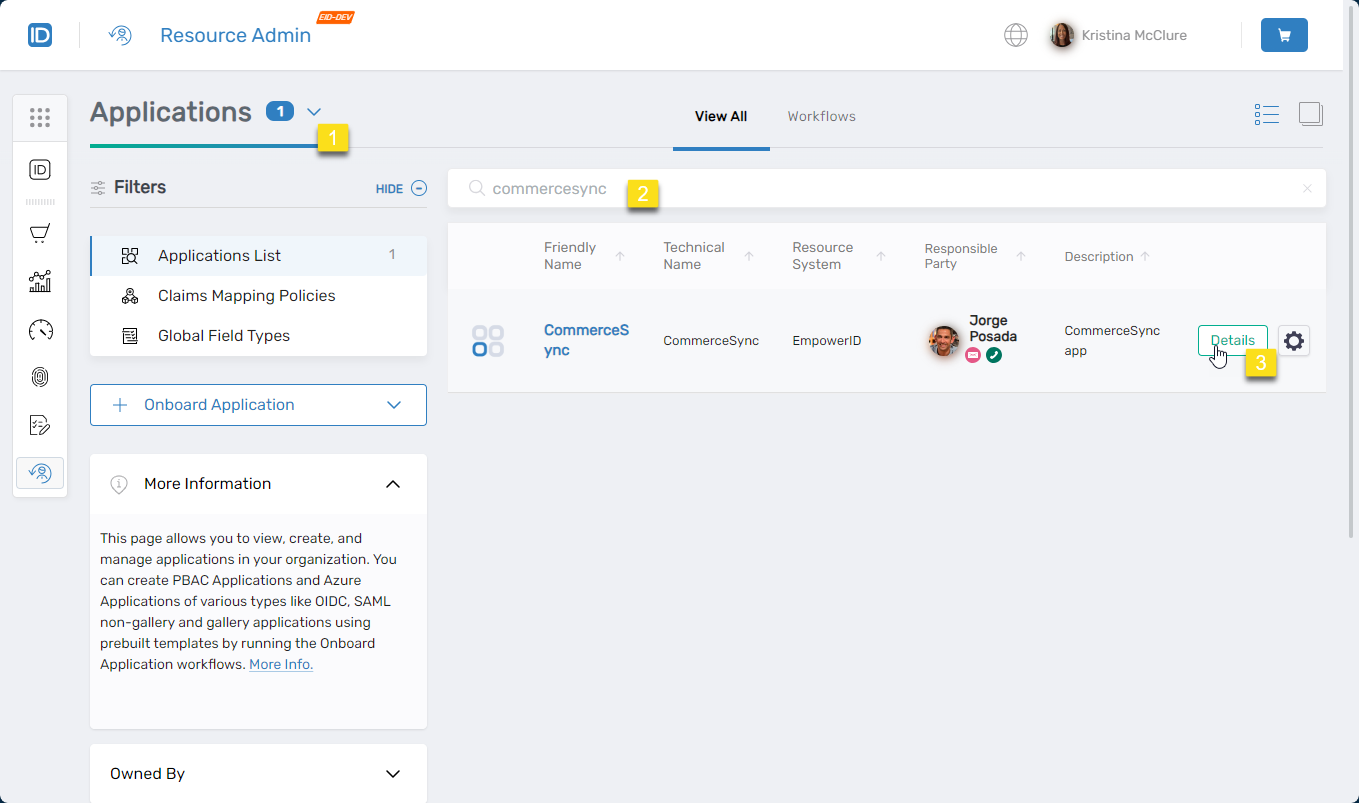
The application Overview page opens.
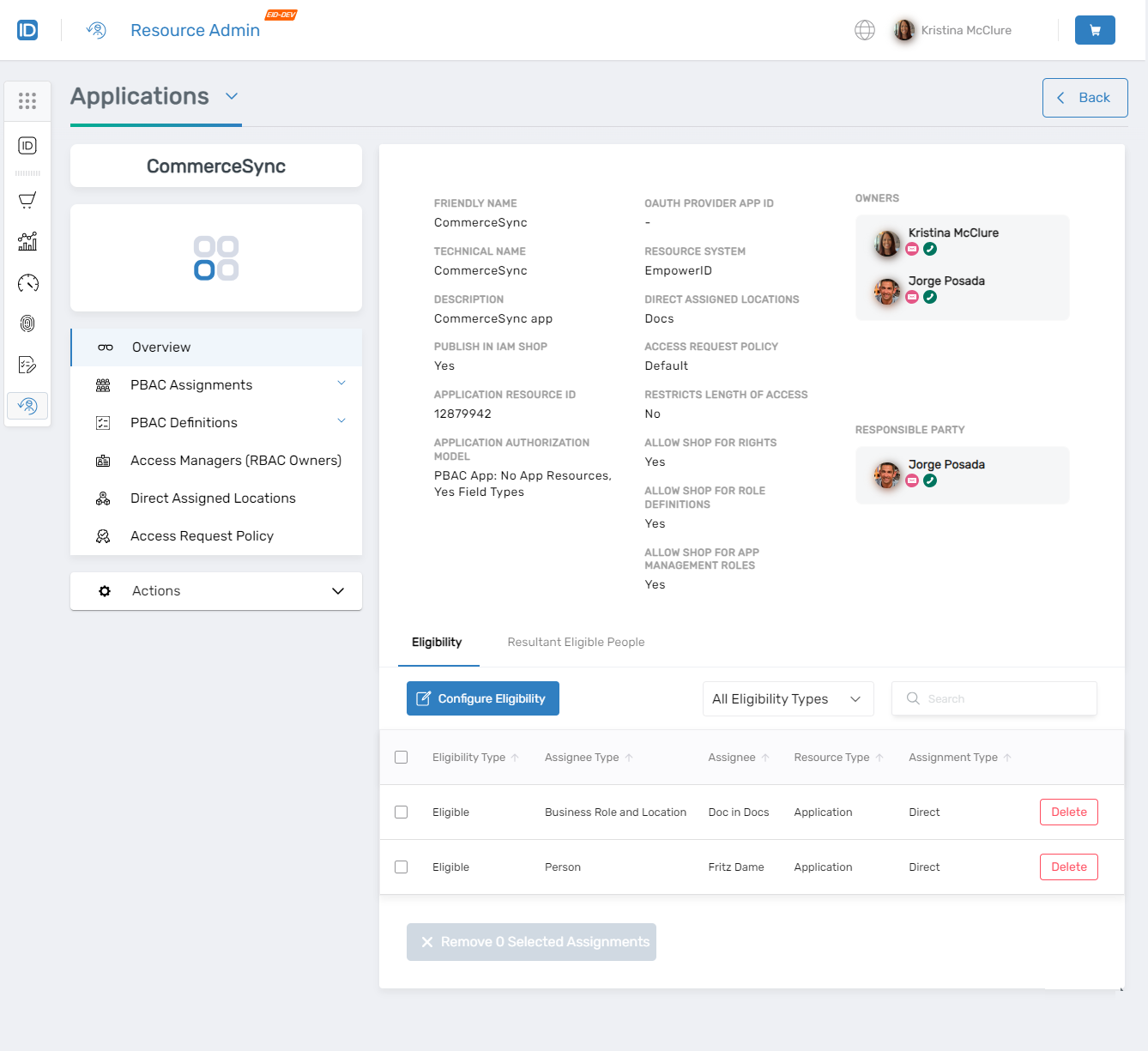
-
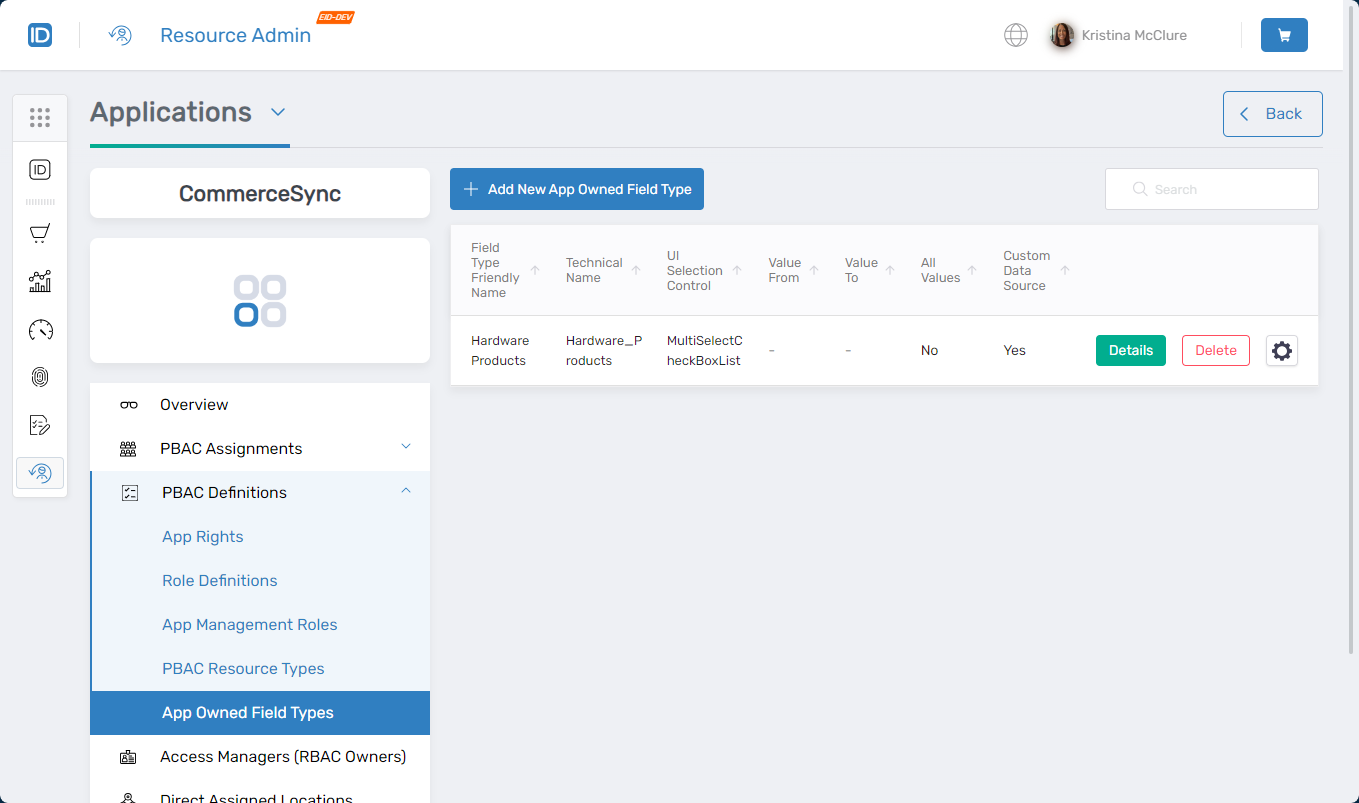
From the application menu, select PBAC Definitions > App Owned Field Types and click Add New App Owned Field Type.
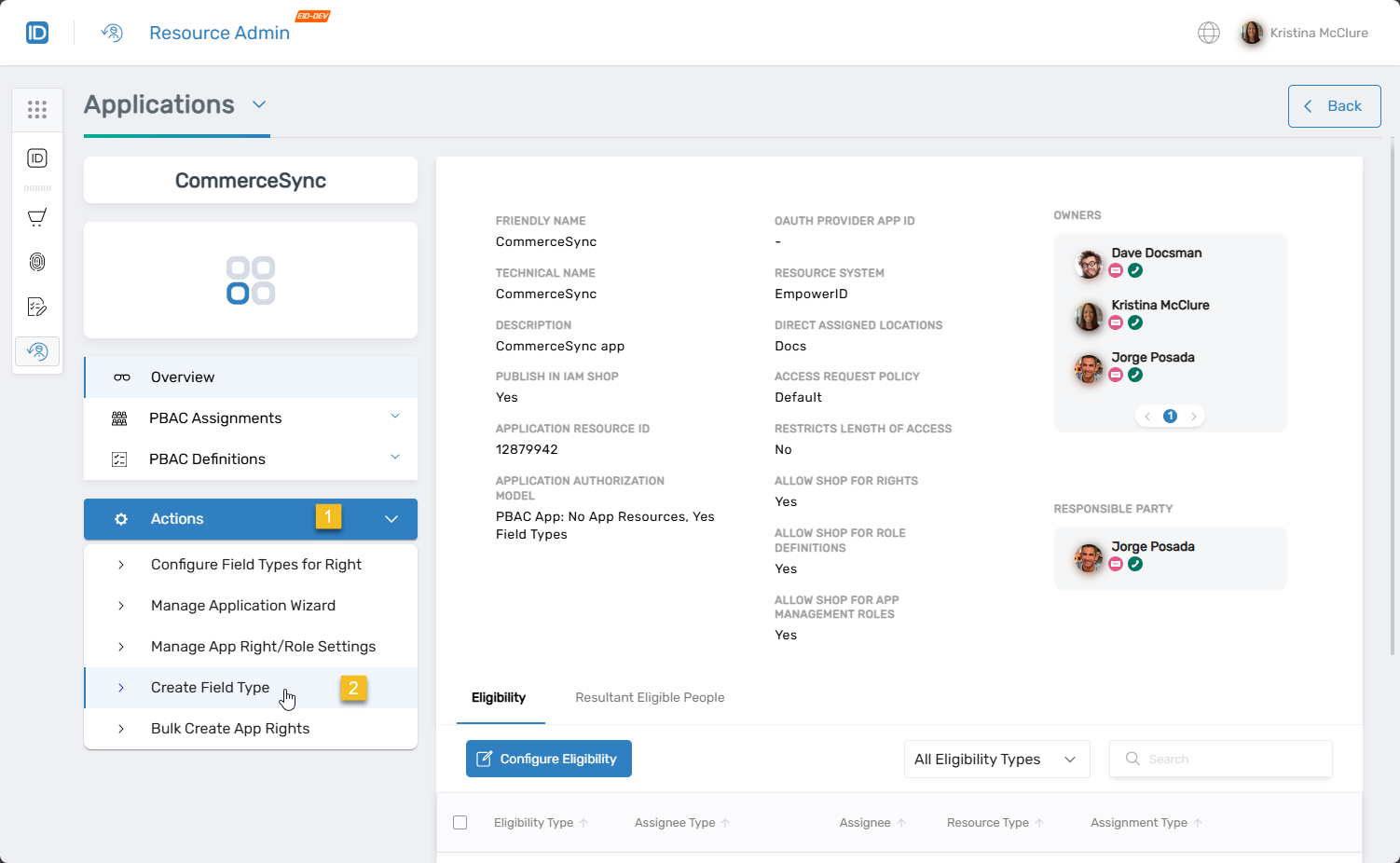
The
OnboardAzFieldTypeworkflow opens.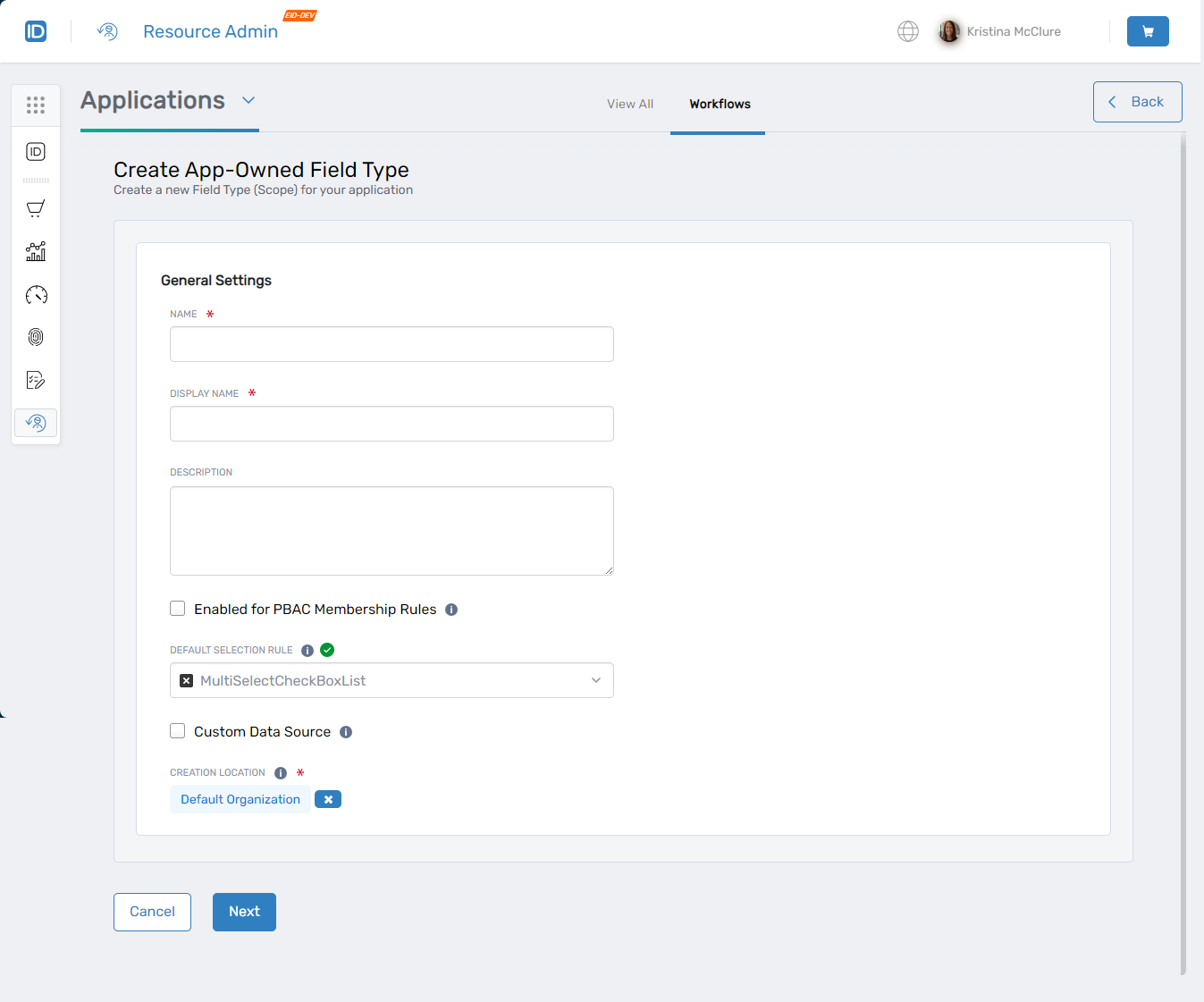
-
Complete the General Settings form with the following information:
- Name - The internal identifier for the field type. Use a descriptive name without spaces (e.g.,
ProjectCode,CostCenter,DataOwner). This name is used in policy definitions and cannot be changed after creation. - Display Name - The user-friendly label that appears in the EmpowerID interface. Use clear, readable text with spaces (e.g., "Project Code", "Cost Center", "Data Owner").
- Description (Optional) - A brief explanation of the field type's purpose and when it should be used. This helps administrators understand the field type's role in access policies.
Configure these key settings:
Field Description Enabled for PBAC Membership Rules Enable this option if the field type will be used in PBAC Membership Policies to dynamically assign users to groups based on attribute values. Leave unchecked if the field type is only used for access assignments or approval routing. Default Selection Rule Determines how users select or enter values for this field type during access requests. Choose based on your data:
- Dropdown or Radio for predefined lists
- Checkboxes for multiple selections
- Text entry for flexible input
- Lookup for complex data with multiple attributes
See Understanding Field Type Selection Rules for detailed guidance.Custom Data Source Enable this option to populate field type values dynamically from an external data source (such as an API or database query) rather than maintaining a static list. Additional configuration options appear when enabled. Creation Location The EmpowerID location where the field type will be created, used for RBAC scoping. Accept the default location or search for a different location if needed for your organizational structure. Choosing Selection RulesYour selection rule choice affects both user experience and data quality:
- Use SingleSelectDropdownList or SingleSelectRadioButton when users should select one value from a predefined list
- Use MultiSelectCheckBoxList when users may need multiple values (e.g., multiple regions or projects)
- Use FreeTextSingleValue only when values cannot be predefined
- Use Lookup controls when field type values have additional attributes users should review before selecting
For complete guidance, see Understanding Field Type Selection Rules.
- Name - The internal identifier for the field type. Use a descriptive name without spaces (e.g.,
-
(Optional) If you enabled Custom Data Source in step 4, configure the Advanced Data Source Settings:
Field Description Data Type The data type of the values returned by the data source method (e.g., String,Integer,DateTime).Component Method The name of the method that retrieves field type values dynamically, such as GetAllSearchor a custom method name. This method is called when users need to select values rather than using a static list.Component Method Parameters Parameters passed to the component method to filter or manipulate returned data. Format as key-value pairs appropriate for your method (e.g., filter=active&sortBy=name).Value Field The specific field from the returned data that should be displayed and used as the field type value (e.g., Name,Code,ID).Method Supports Paging Enable if the data source method supports paginated results for large datasets. Enabled by default. Method Supports Search Enable if the data source method supports filtering results based on user search input. Enabled by default. Method Supports Tags Enable if the field type should support tagging functionality. Field Grid or Auto-Complete Template JSON configuration to customize how values appear in autocomplete or grid displays. Use this to show additional context or format the display of complex data. When to Use Custom Data SourceUse a custom data source when:
- Field type values change frequently and maintaining a static list is impractical
- Values must be retrieved from another system or database
- The list of possible values is very large (hundreds or thousands of items)
For most application field types with stable, manageable value lists, add values manually after creating the field type rather than using a custom data source.
-
(Optional) If you enabled Custom Data Source in step 4, configure the Advanced Data Source Settings:
Field Description Data Type The data type of the values returned by the data source method (e.g., String,Integer,DateTime).Component Method The name of the method that retrieves field type values dynamically, such as GetAllSearchor a custom method name. This method is called when users need to select values rather than using a static list.Component Method Parameters Parameters passed to the component method to filter or manipulate returned data. Format as key-value pairs appropriate for your method (e.g., filter=active&sortBy=name).Value Field The specific field from the returned data that should be displayed and used as the field type value (e.g., Name,Code,ID).Method Supports Paging Enable if the data source method supports paginated results for large datasets. Enabled by default. Method Supports Search Enable if the data source method supports filtering results based on user search input. Enabled by default. Method Supports Tags Enable if the field type should support tagging functionality. Field Grid or Auto-Complete Template JSON configuration to customize how values appear in autocomplete or grid displays. Use this to show additional context or format the display of complex data. When to Use Custom Data SourceUse a custom data source when:
- Field type values change frequently and maintaining a static list is impractical
- Values must be retrieved from another system or database
- The list of possible values is very large (hundreds or thousands of items)
For most application field types with stable, manageable value lists, add values manually after creating the field type rather than using a custom data source.
-
Click Next to create the field type.
Verify the Results
After creation, the field type appears in the App Owned Field Types list for your application.
Next Steps
The field type is created but not yet functional. Complete these tasks:
- Add field type values - Define the specific values users can select or that policies will evaluate. See Adding Field Type Values to Field Types.
- Associate with application rights - Connect the field type to application rights so it appears during access requests. See Configuring Field Types for App Rights.
- Use in PBAC policies - Create policies that evaluate this field type. See Managing PBAC Policies.