Add Recertification Policy to Audit
After creating an audit, you must add one or more recertification policies to define what access rights will be reviewed. Audits require at least one policy to generate review tasks for designated approvers.
Audits can be used to certify multiple items, such as external partners and high-risk management roles, by incorporating multiple recertification policies into a single audit. This allows organizations to efficiently assess multiple areas of concern at once, rather than conducting separate audits for each item.
Configuration Options
When adding a policy to an audit, you'll configure:
Recertification Policy: Choose which policy defines the access types and users to include in this audit.
Fallback Subject of Business Request to Group By: Select the person who will receive review tasks when the system cannot determine the appropriate reviewer through normal assignment logic.
Exclude Any Recertified within Last X Days: Specify how many days to skip items that were recently certified in previous audits. This prevents redundant reviews while ensuring new access changes are still captured.
The Exclude Any Recertified within Last X Days field is useful when a previous audit closed before all recertification tasks were completed. Setting this value ensures managers only receive recertification tasks for direct reports that actually need certification.
This setting does not completely exclude previously audited direct reports; it only excludes access assignments that were re-certified within the specified timeframe. If a direct report gains new access, such as joining a new group, the audit will generate a recertification task for that new membership.
Procedure
If you just created an audit, you'll already be on the audit details page and can skip to step 3. Otherwise, follow steps 1-2 to navigate to your audit.
- Navigate to Compliance → Recertification and select the Audits tab.
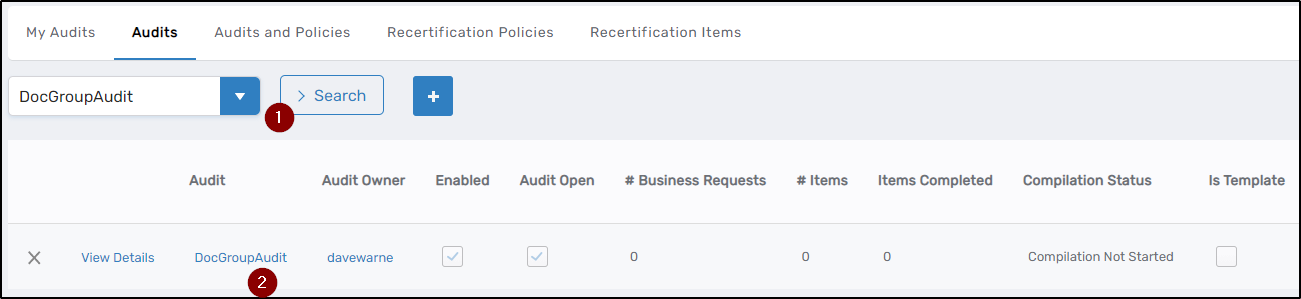
- Search for your audit by typing its name in the search box, then click the audit name to open its details page.
- Click the Recertification Policies tab, then click the ⭐ icon to add a recertification policy to the audit.
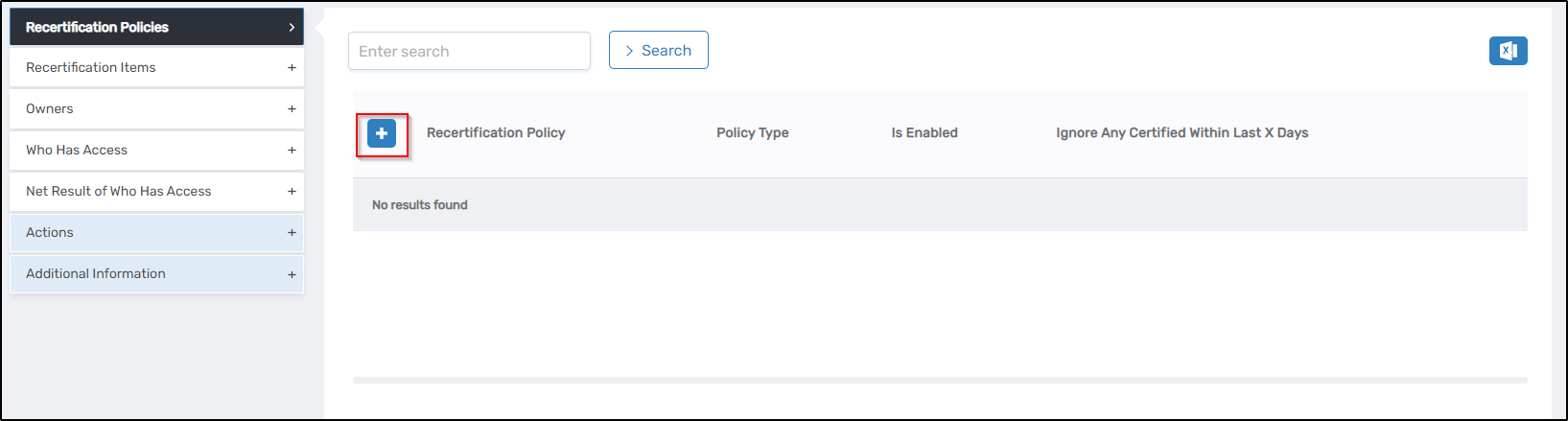 This opens the Recertification Policy dialog where you'll configure the policy settings.

- In the Recertification Policy section, select a policy from the Enter a Recertification Policy to Search dropdown.
- In the Fallback Subject of Business Request to Group By section, select a fallback assignee from the dropdown.
- Optional: In the Exclude Any Recertified within Last X Days field, enter the number of days to skip items that were recently certified in previous audits.
- Click Save.