Assign Computers to Locations
In EmpowerID, all resources belong to a location—an organizational container used for managing access. Assigning computers to appropriate locations facilitates access management, delegation, and organizational reporting.
Default Computer Locations
When computers are inventoried from account stores, they are assigned to default locations based on their source system. For example, computers from an Active Directory domain follow this location path:
Anywhere/Default Organization/All IT Systems/Active Directory/[Active Directory Domain]
You can move computers to other locations that better align with your organizational structure.
Prerequisites
To assign computers to locations, you need the Initiator Access Level for the AssignComputersToLocations workflow.
Assign Computers to a Location
-
On the navbar, expand Privileged Access and select Computers.
-
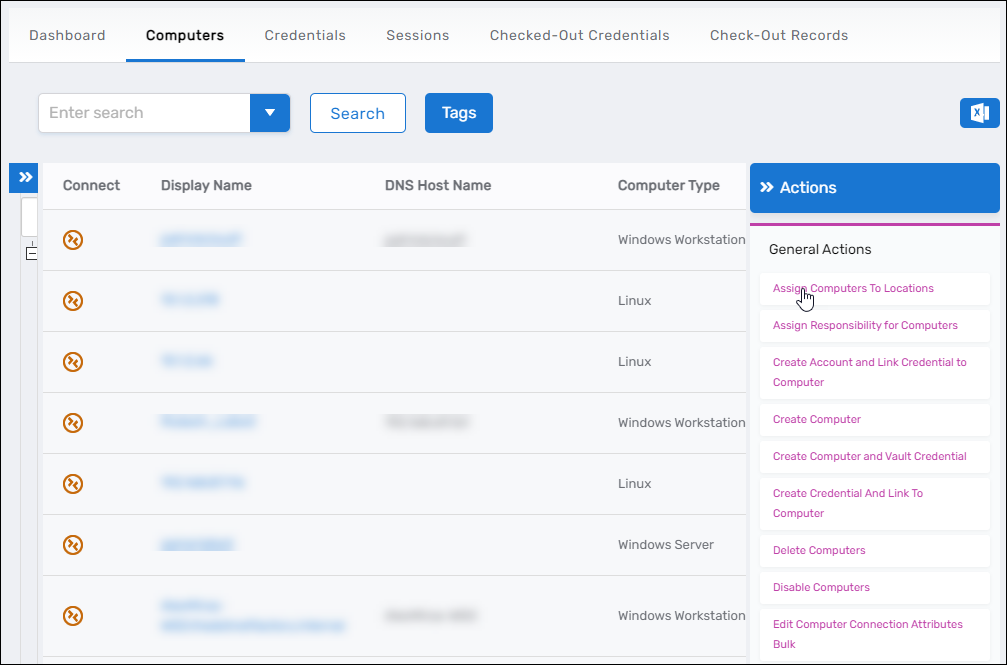
Click the Assign Computers to Locations action link.
-
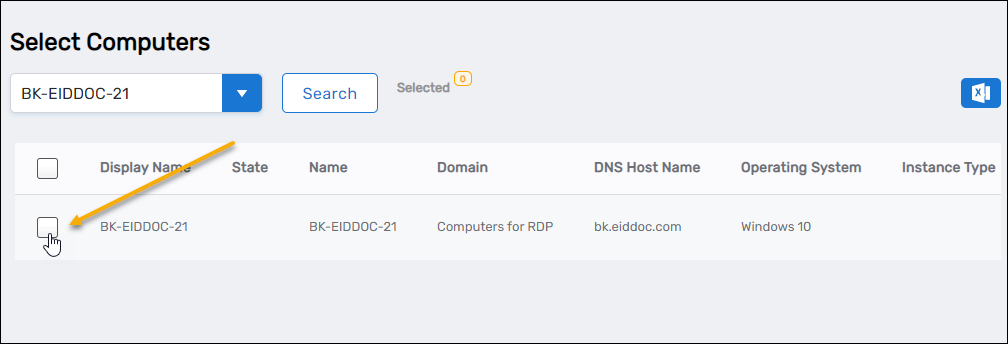
In the Computer Lookup, search for the computers you want to move.
-
Select the checkboxes beside the target computers.
tipTo select all computers returned by your search, select the checkbox in the column header.
-
Click Submit.
-
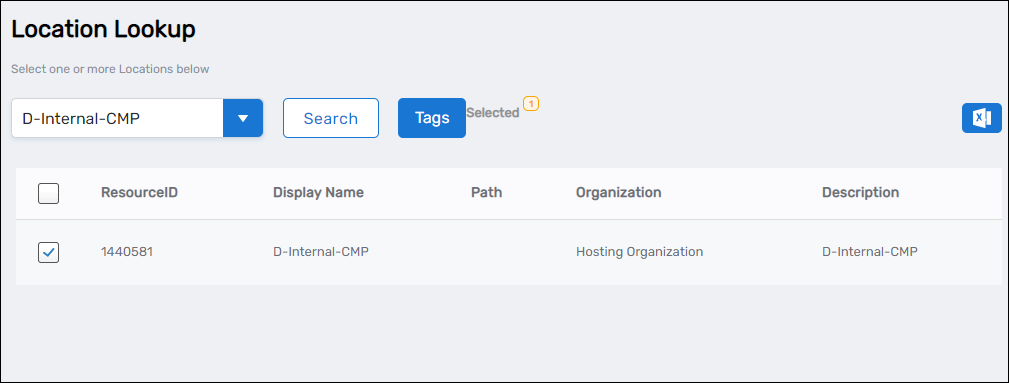
In the Location Lookup, search for and select the destination location.
-
Click Submit.
Results
After submitting the workflow:
- The selected computers are moved to the specified location
- The computers' location paths are updated in EmpowerID
- Access delegation and reporting reflect the new location assignments
Related Topics
- Onboard Computers – Initial setup for new computers in EmpowerID
- Move Computers – Alternative methods for relocating computers between organizational units
- Grant Access to Manage Specific Computers – Configure location-based access management